New features released 03/05/2023
Posted in News on November 4, 2020 by Christian Kvalheim ‐ 3 min read
New features
Today we release the following new features for the platform.
- Tasks templates. Standardize tasks associated with a case allowing you to automatically generate tasks on the registration of a new Message.
- Direct caseboard cases (not attached to a Message, Action, Document, Hearing or Audit) allowing for easy addition of cases to the case board.
- Dynamic notifications. Get notified when new events that concern you happen dynamically without having to either access your email or reload the screen.
Lets look at the new features in turn.
Tasks templates
Task templates is a powerful new feature that lets you associate commonly repeating tasks with a form or new direct case.

In short you can create a list of tasks that will be added to a Case when a new form entry is registered. Individual tasks can be configured to only be added when certain categories are selected by the user. This lets you add additional tasks depending on the entry of the form
Tasks templates is a powerful feature that will help you standardize the tasks associated with organizational work.
Some examples.
- When registering wrong mediciation given you can have a tasks template associated that will create a set of tasks that must be done and confirmed for the case to be closed. Ensure tasks are not forgotten and support your employees in following the right protocol.
- When developing software features add tasks to every ticket that need to be done. For example writing tests, moving to staging environment, code review, approval and pushing to production.
Direct caseboard cases

The direct caseboard case feature adds a new button at the top right corner off the Caseboard that says New Case that lets you add a new case directly to the caseboard. This case is not associated with any entity and is completely freestanding.
We added these cases to make it possible to mix in units of work not directly associated with entry of data into the system or managing existing entities such as Messages, Actions, Documents, Hearings and Audit. This gives the end user more flexibility.
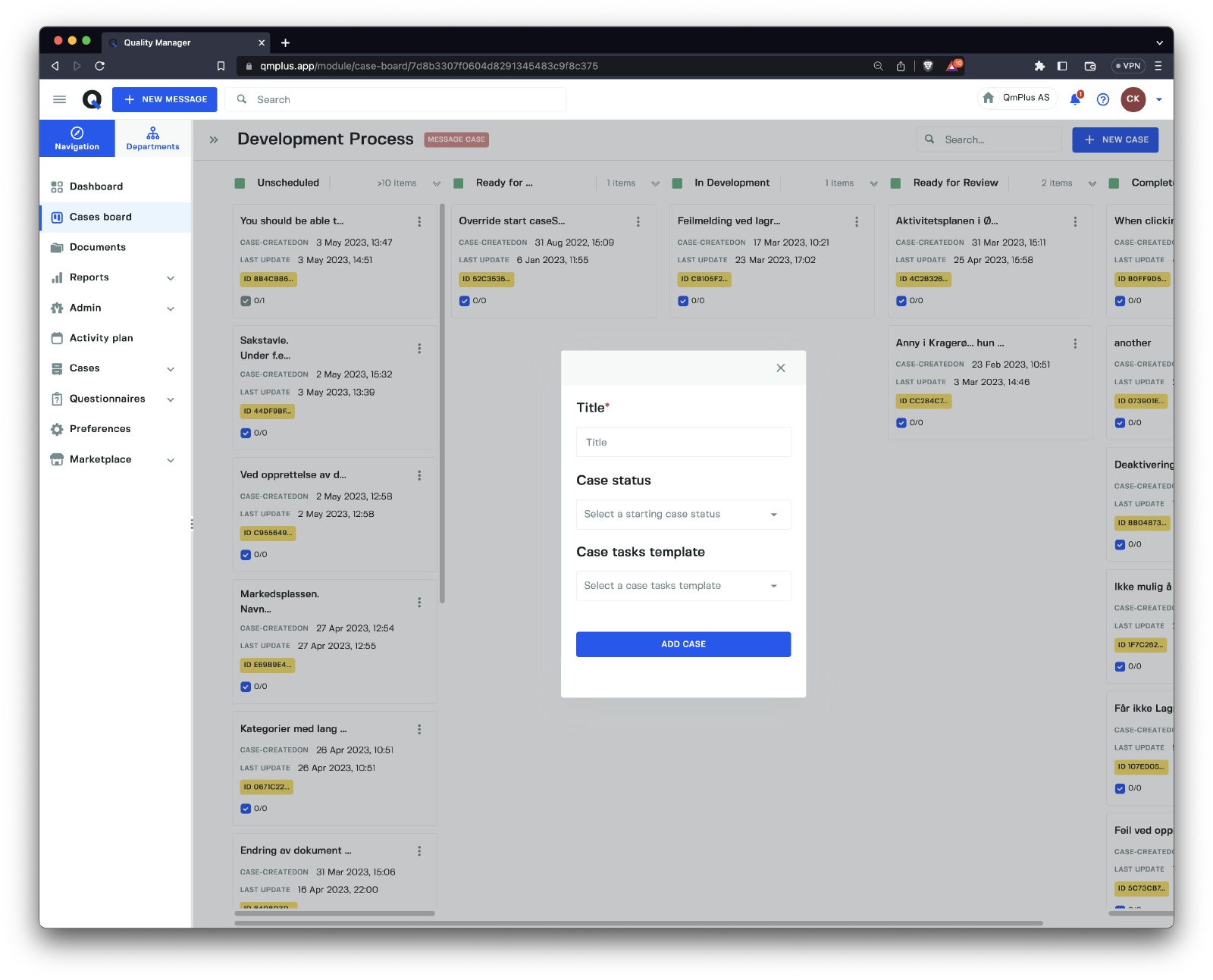
After clicking on the New Case button it will bring up a dialog with a couple of fields.
| Field | Required | Description |
|---|---|---|
Title | X | Enter the title for the new case entry. |
Case status | Select the optional starting status of the new case entry on the Caseboard. If none is selected it will be selected based on the configured Start Case Status in the Caseboard Workflow | |
Case task template | Select a optional tasks template to pre-generate a list of tasks associated with this case. Tasks templates lets you organize a set of common tasks and apply them to the new case when its created. |
Dynamic notifications
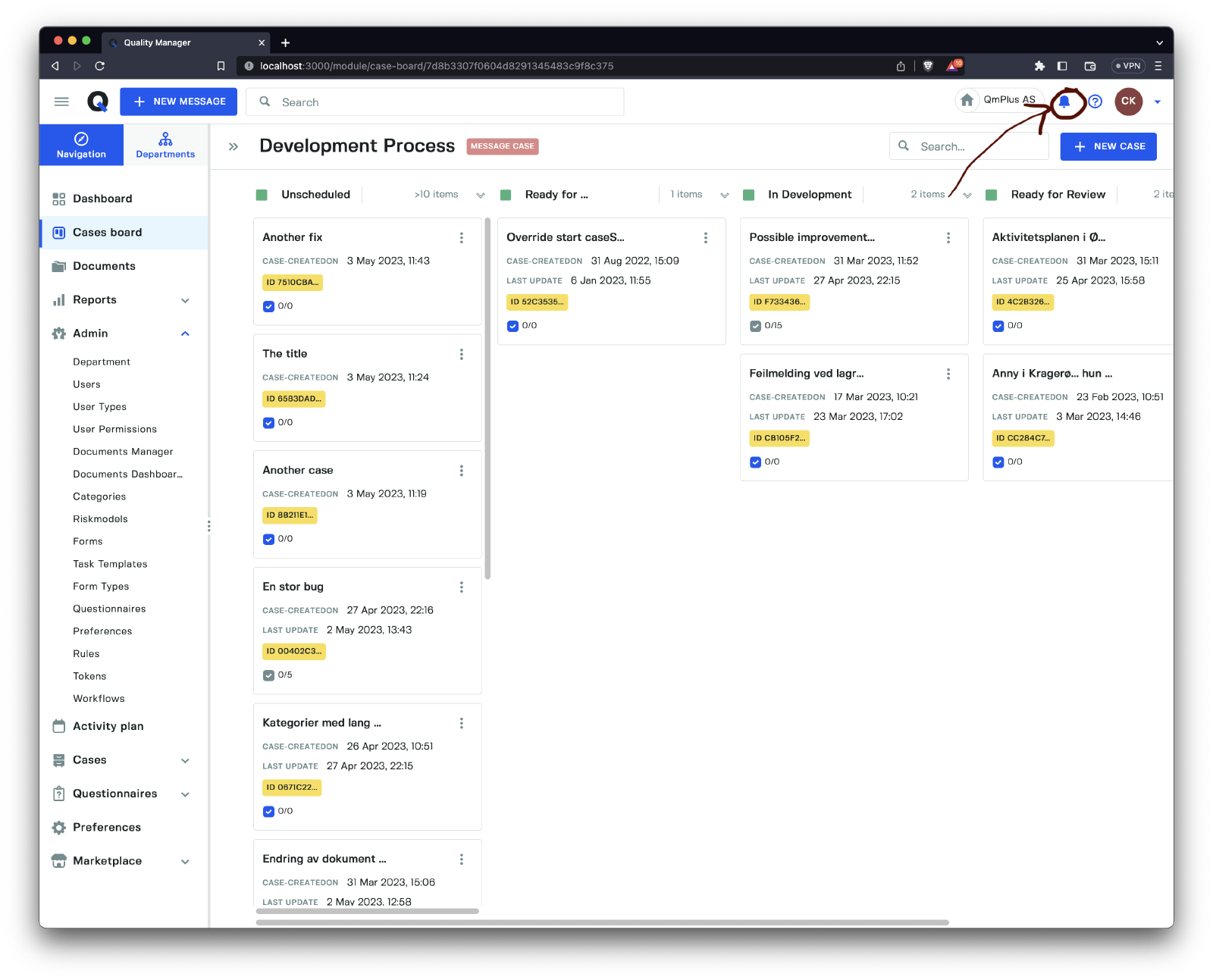
Dynamic notifications brings direct notifications relevant to the current logged in user. This can include.
- A new case registered for you.
- An update of a case you are responsible for.
- An update of a case you are following.
- A comment on a case that was marked with your name.
The little bell icon will have a counter of the number of unread notifications. Clicking on it brings up the notification sidebar allowing you to view the current notifications.
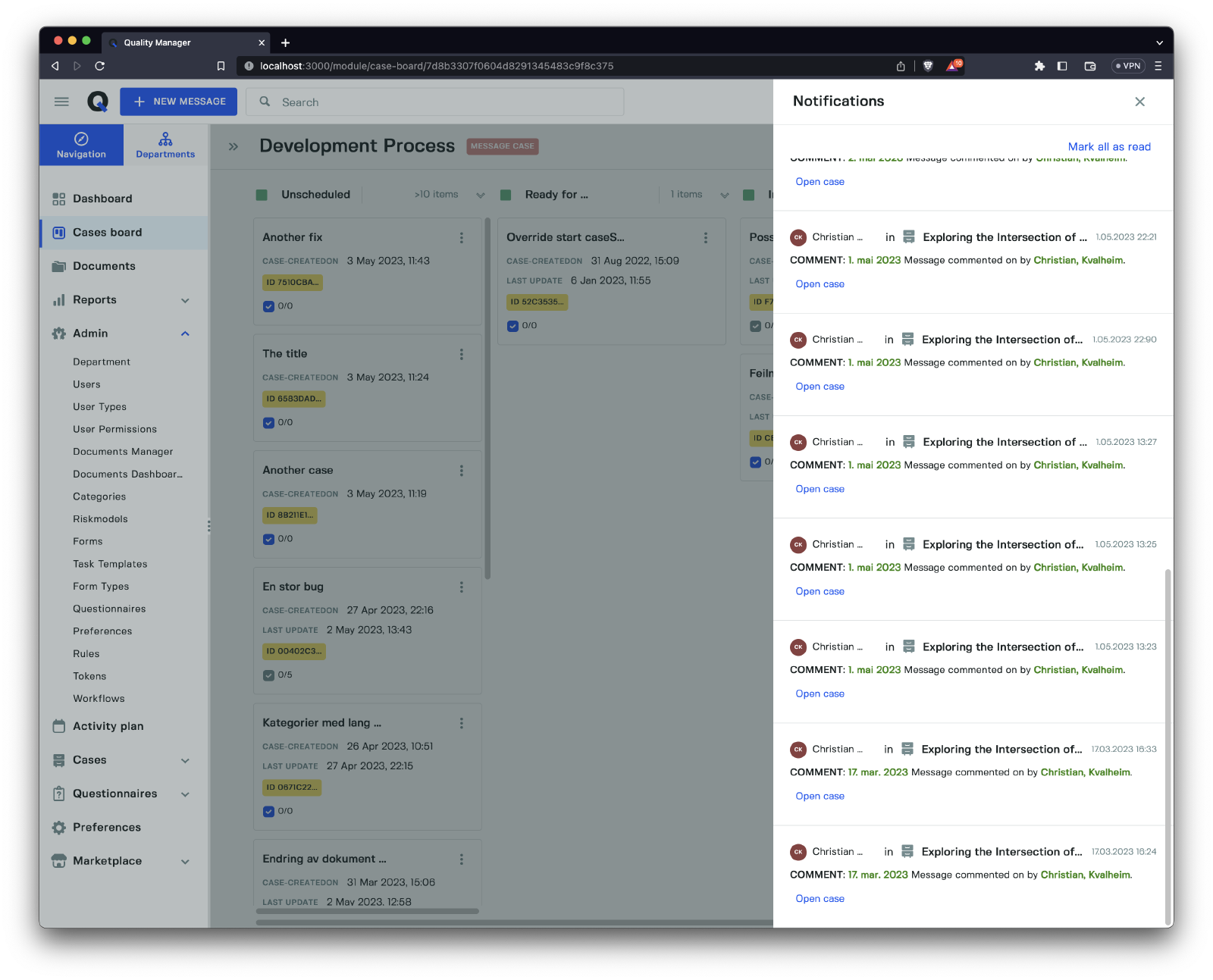
You can click on the Open case link to bring you to the associated case for the notification.