Activity plan
A user guide for working with the activitiy plan.
This section deals with managing the Activity plan.
Clicking on the Activity plan gives access to the activity plan allowing the a user to schedule new activities like filling out a form, questionnaire or marking a document as read.
Overview
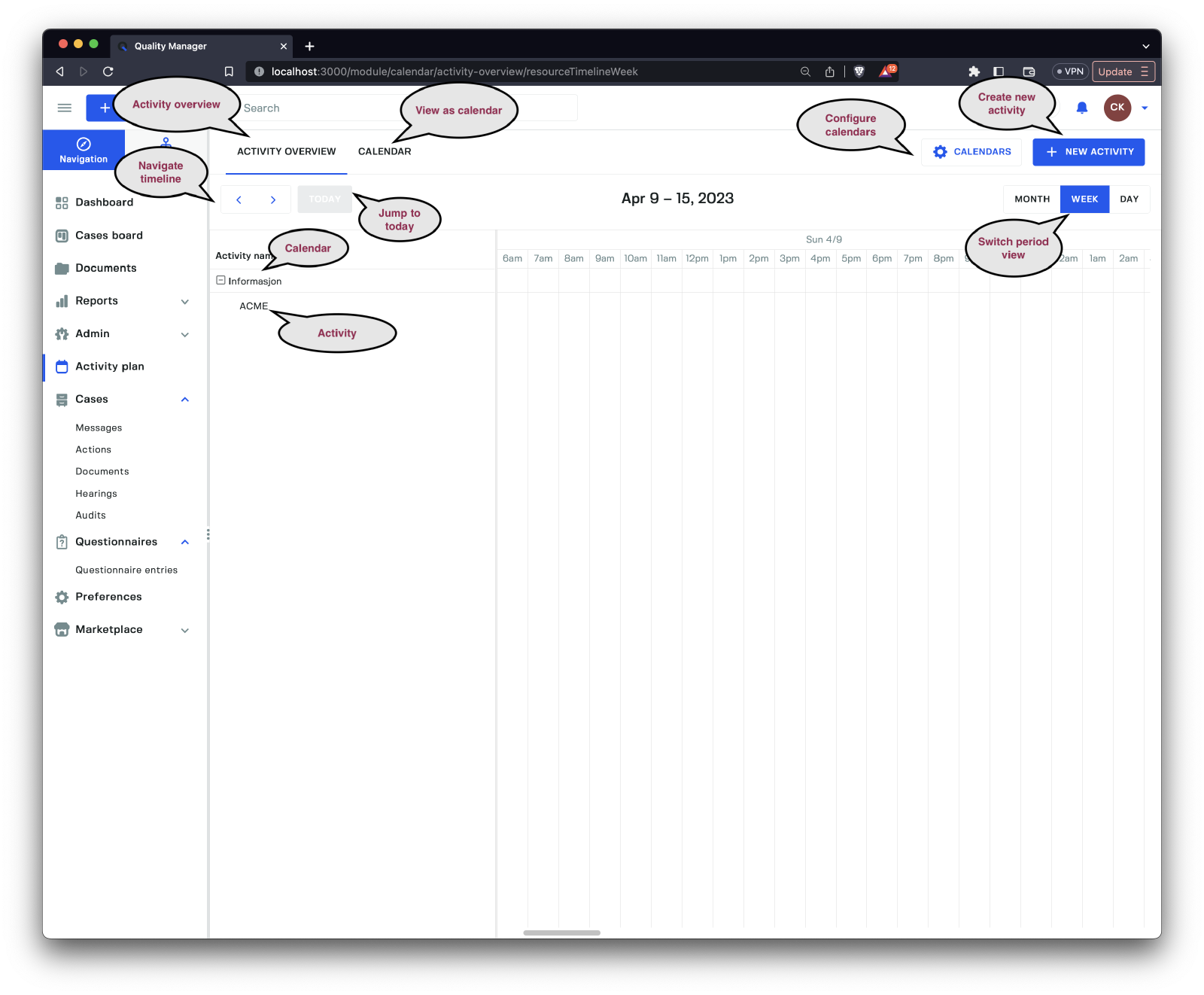
The Activity plan overview mode shows us a Scheduler view of all the calendars and their activites as well as a more traditional Calendar view. The user can adjust the period of the Scheduler view by clicking the arrow buttons and the Period view of the Scheduler by clicking the Month, Week or Day buttons.
Calendar view
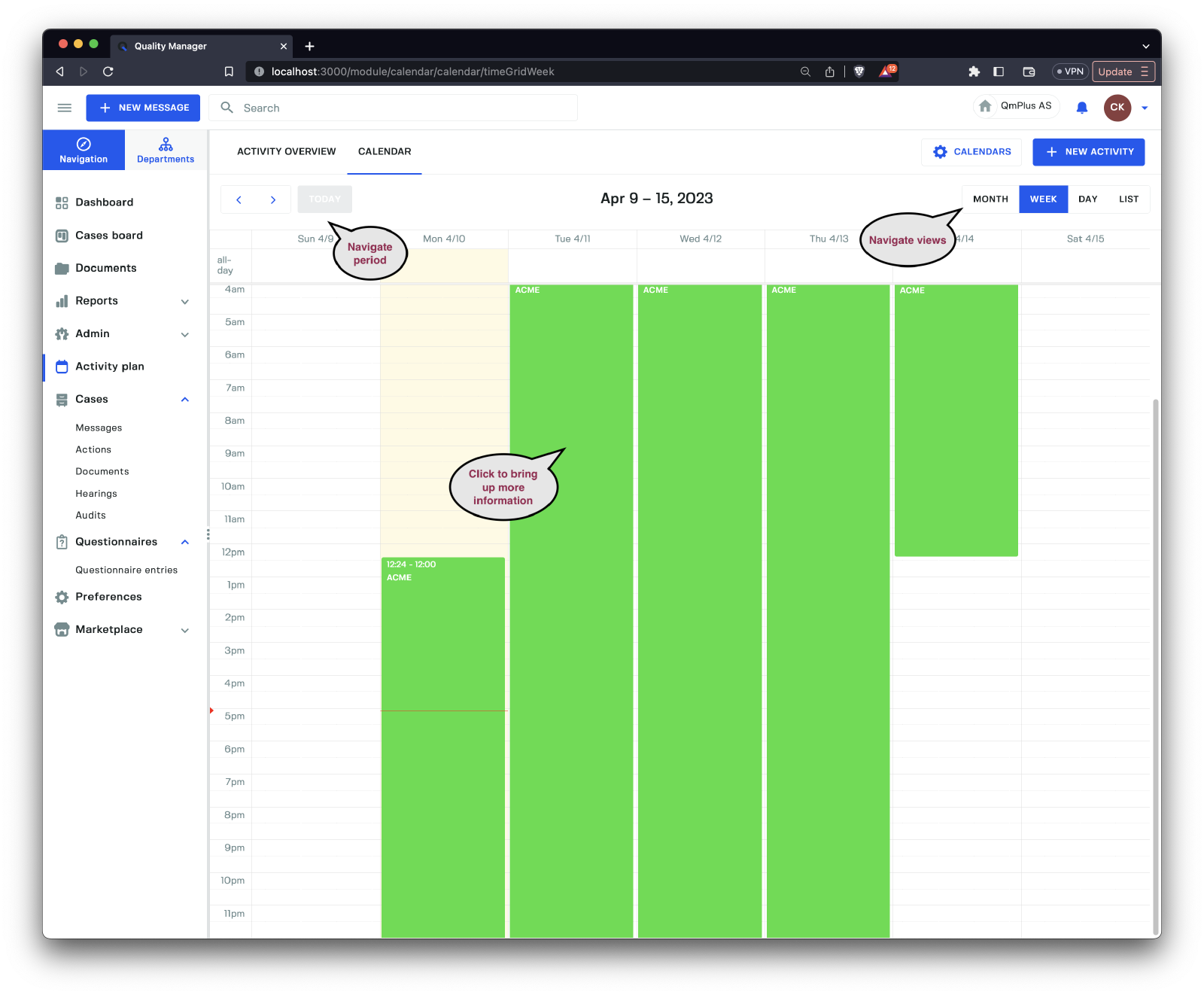
The Calendar view is a more traditional view of calendar. As in the Scheduler view you can navigate the period by clicking the arrow keys as well as adjust the view of the Calendar by by clicking on the buttons Month, Week, Day or List.
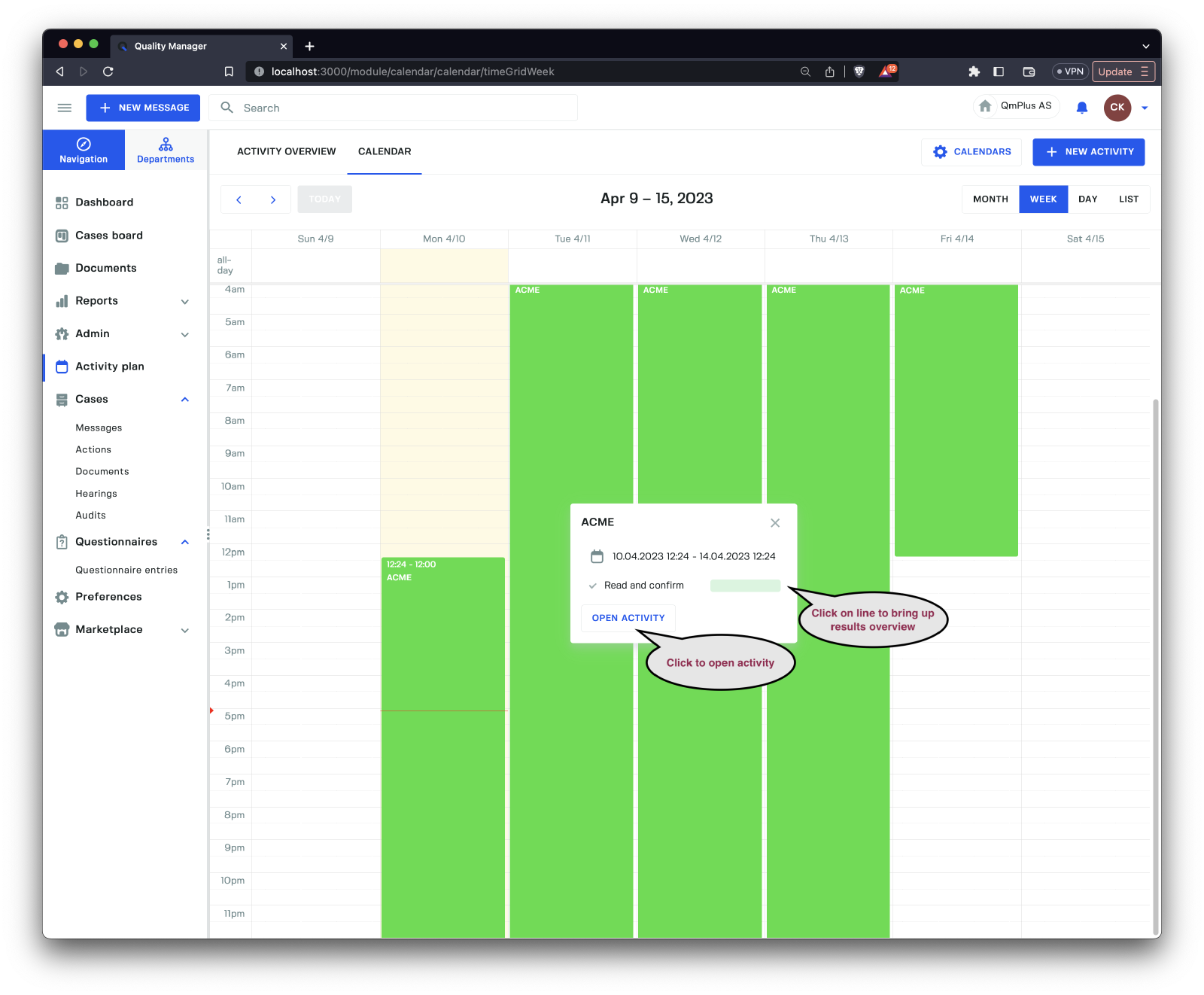
When clicking on an activity in the calendar we bring up the Basic Activity view showing us some basic details about the activity. We can click the Open Activity button to open the activity detail. If we click on the line with Read and Confirm it will bring up the summary of the results.
Configure Calendars
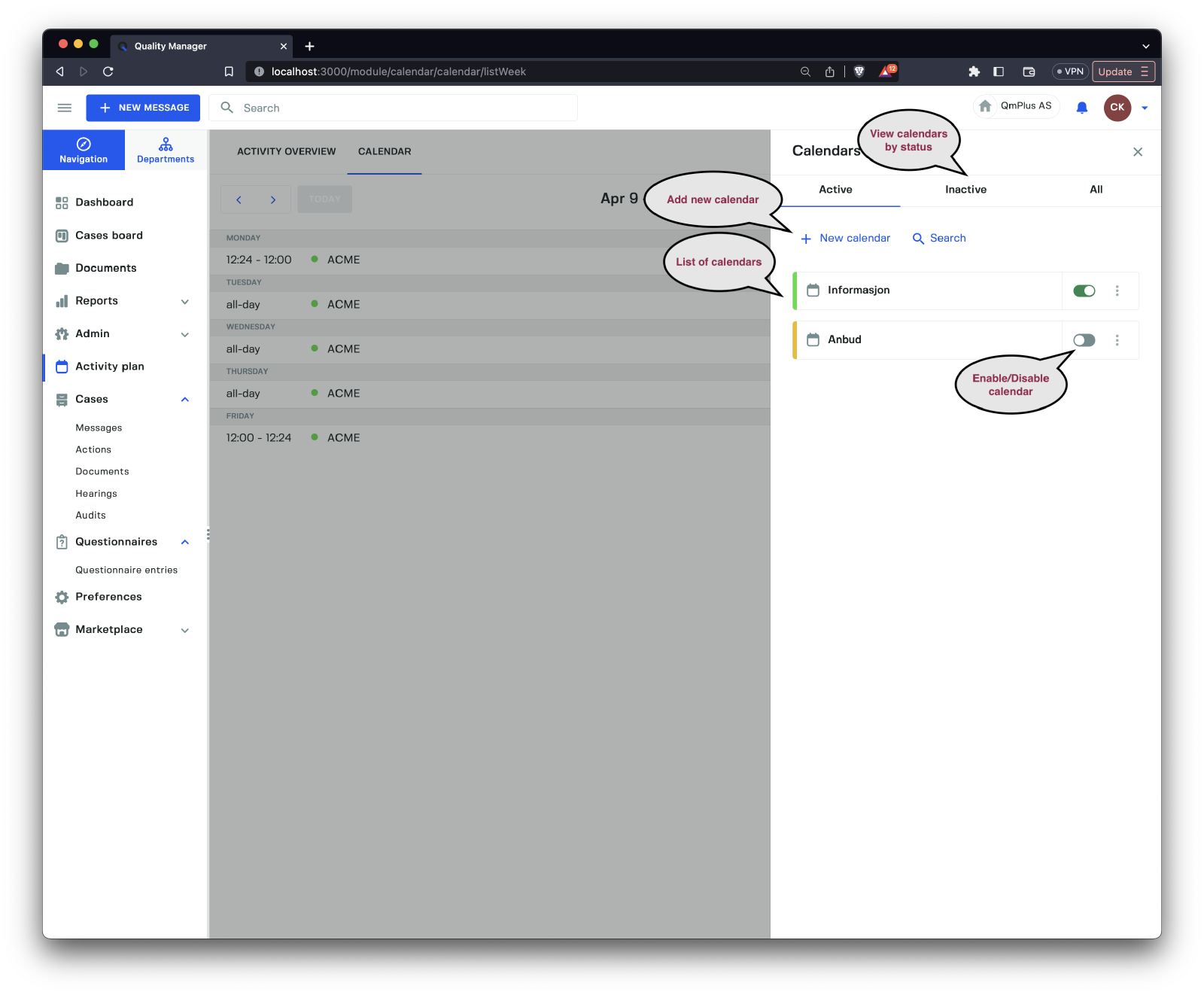
When clicking on the Calendars button it brings up the sidebar with the list of available calendars. We can create new calendars, search for calendars and toggle calendars on and off in the Scheduler or Calendar view.
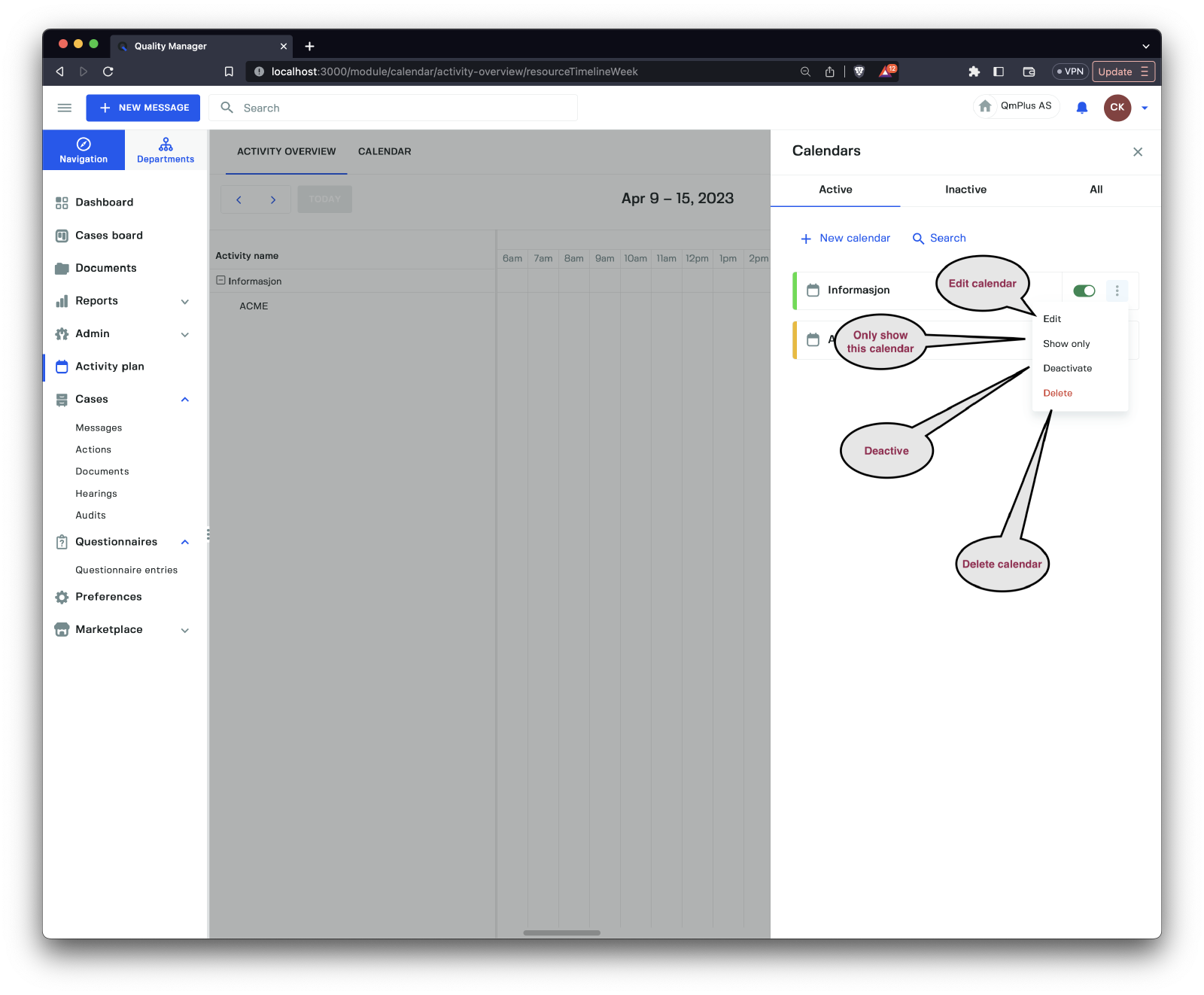
Bringing up the menu for a calendar entry we have the following options.
| Option | Description |
|---|---|
Edit | Edit the calendar. |
Show only | Toggles all other calendars off and only leaves this one active. |
Deactive | Deactivates the calendar making it invisible on the Activity plan. |
Delete | Delete calendar, only possible if the calendar has not current activities associated with it. |
Create/Edit Calendar
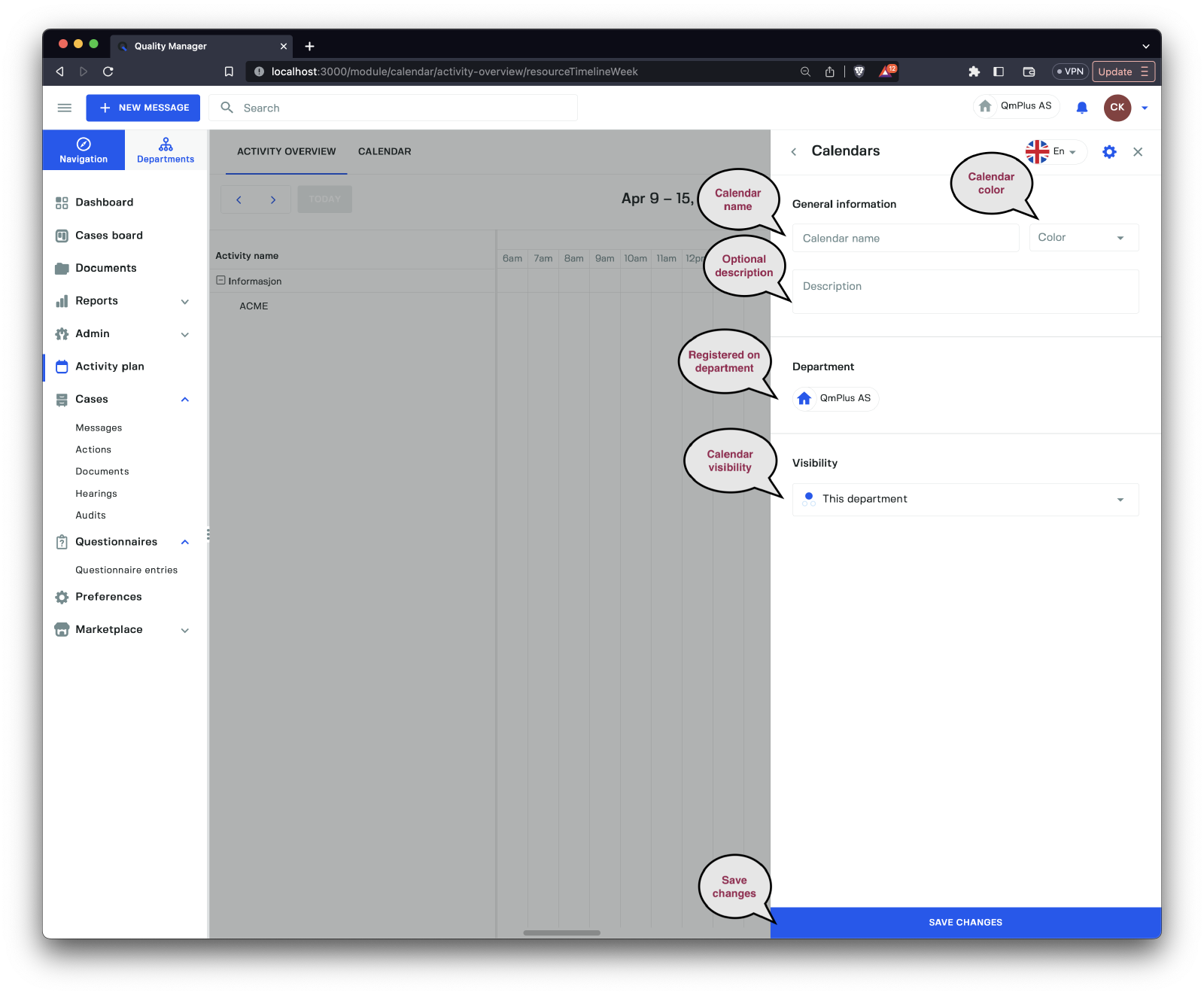
Creating or editing a calendar entry has the following options.
| Option | Description |
|---|---|
Calendar name | Set the name of the calendar. |
Color | Set the color for the calendar. |
Description | Set an optional description for the calendar. |
Department | Set the department the calendar is registered on. |
Visibility | Set the visibility for the calendar for the departments. |
Create Activity
General Tab
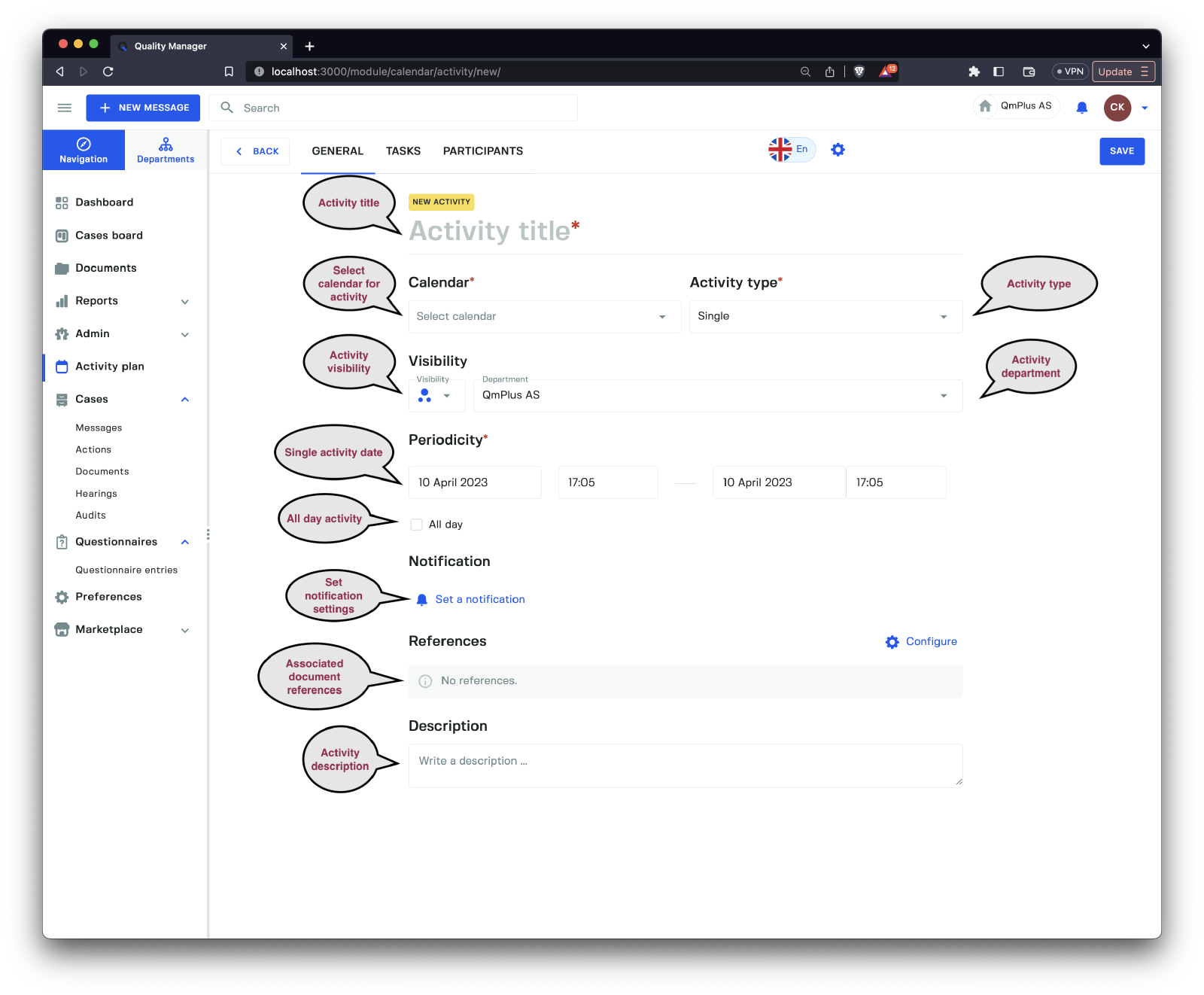
When clicking on the New Activity button it will bring up the New Activity form. The form above is the form seen when we are creating a new activity with a single date.
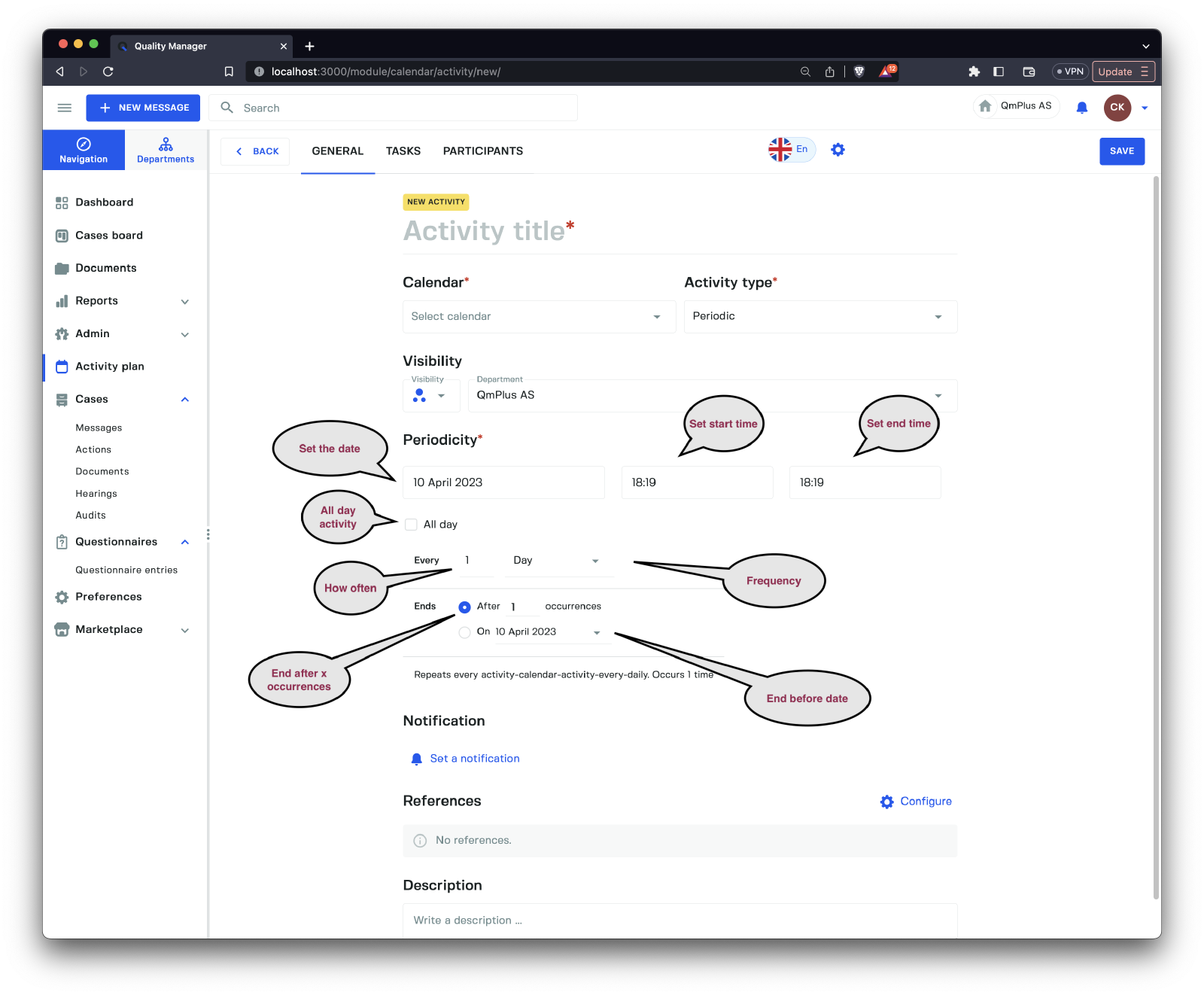
The form above is the form seen when we are creating a new activity with a periodicity specified (multiple activity dates).
The following options are available across the form in both states.
| Option | Description |
|---|---|
Activity title | Title for the activity. |
Calendar | Select the calendar that owns this activity. |
Activity type | Activity type (Single, Periodic). |
Visibility | Visibility of the activity. |
Department | Department of the activity. |
Periodicity | Varies based on Activity type. See description below. |
Notifications | Configure notifications for the activity. |
References | Add document references to the activity. |
Description | Add optional description to the activity. |
For the Single activity type we have the following Periodicty options.
| Option | Description |
|---|---|
Start date | The start date of the activity. |
Start time | The start time of the activity. |
End date | The end date of the activity. |
End time | The end time of the activity. |
All day | A flag to mark the activity as a whole day event or not. Enabling it will remove the Start time and End time fields from the Periodicity. |
For the Periodic activity type we have the following Periodicty options.
| Option | Description |
|---|---|
Start date | The start date of the activity. |
Start time | The start time of the activity. |
End time | The end time of the activity. |
All day | A flag to mark the activity as a whole day event or not. Enabling it will remove the Start time and End time fields from the Periodicity. |
Every | Set how often the activity will happen. |
Period | Set the period of the activity. Day, Week, Month or Year. |
Ends after x occurences | Set the number of times the activity should occour. |
Ends before x date | Set the end date for the activity occourences. Say set that this activity will happen every Monday until June 5th. |
Changing the Period will change the Peridocity UI if you select Weekly as it lets you specify what days of the week you want to use from Monday to Sunday.
Tasks Tab
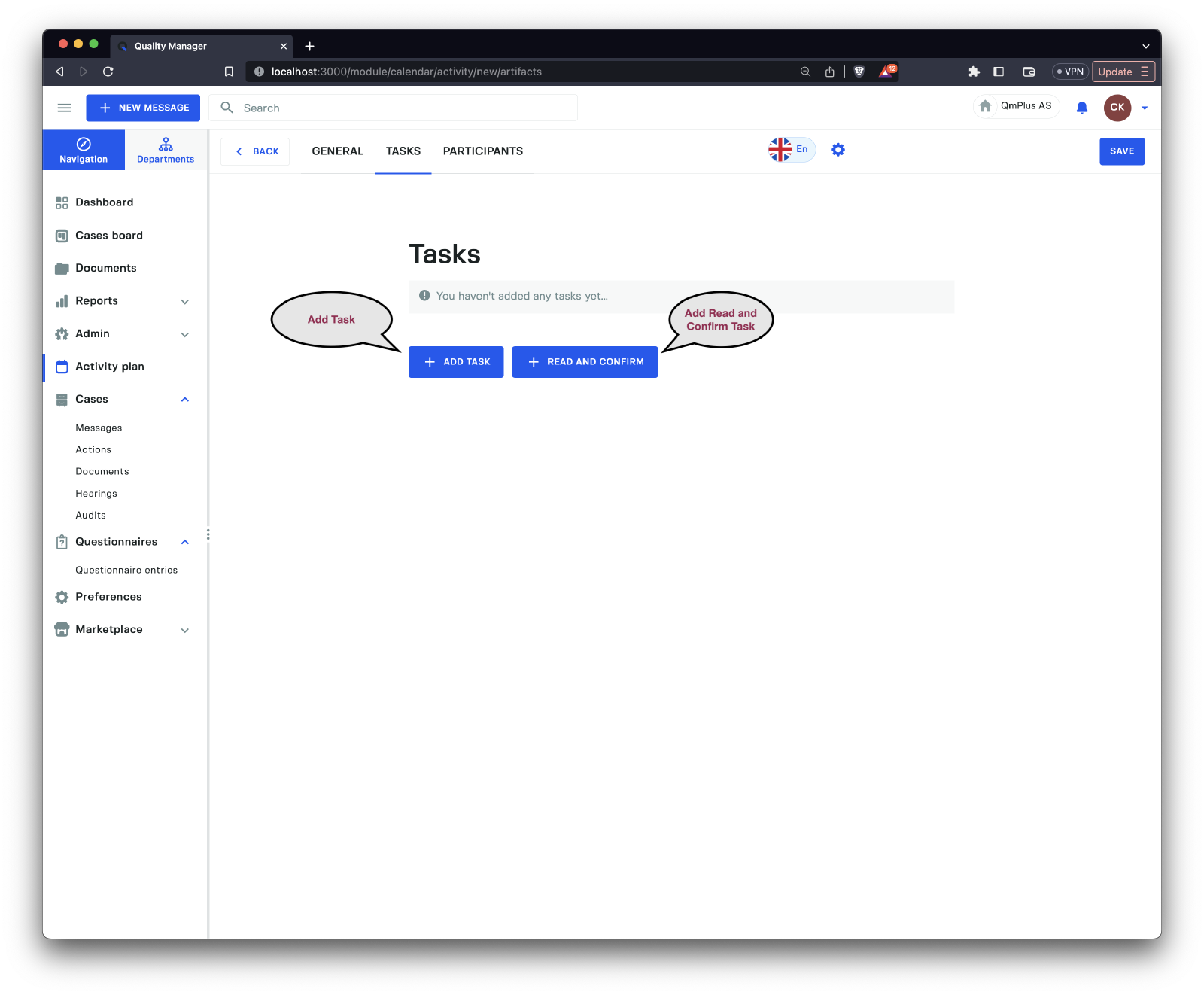
The Tasks tab lets you add tasks to the activity. These can be one of.
| Task | Description |
|---|---|
Form | A form to fill out with this activity. |
Questionnaire | A questionnaire to fill out with this activity. |
Read and confirm | A read and confirm task to perform when doing this activity. Used for the user to acknowledge that they have read a required document. |
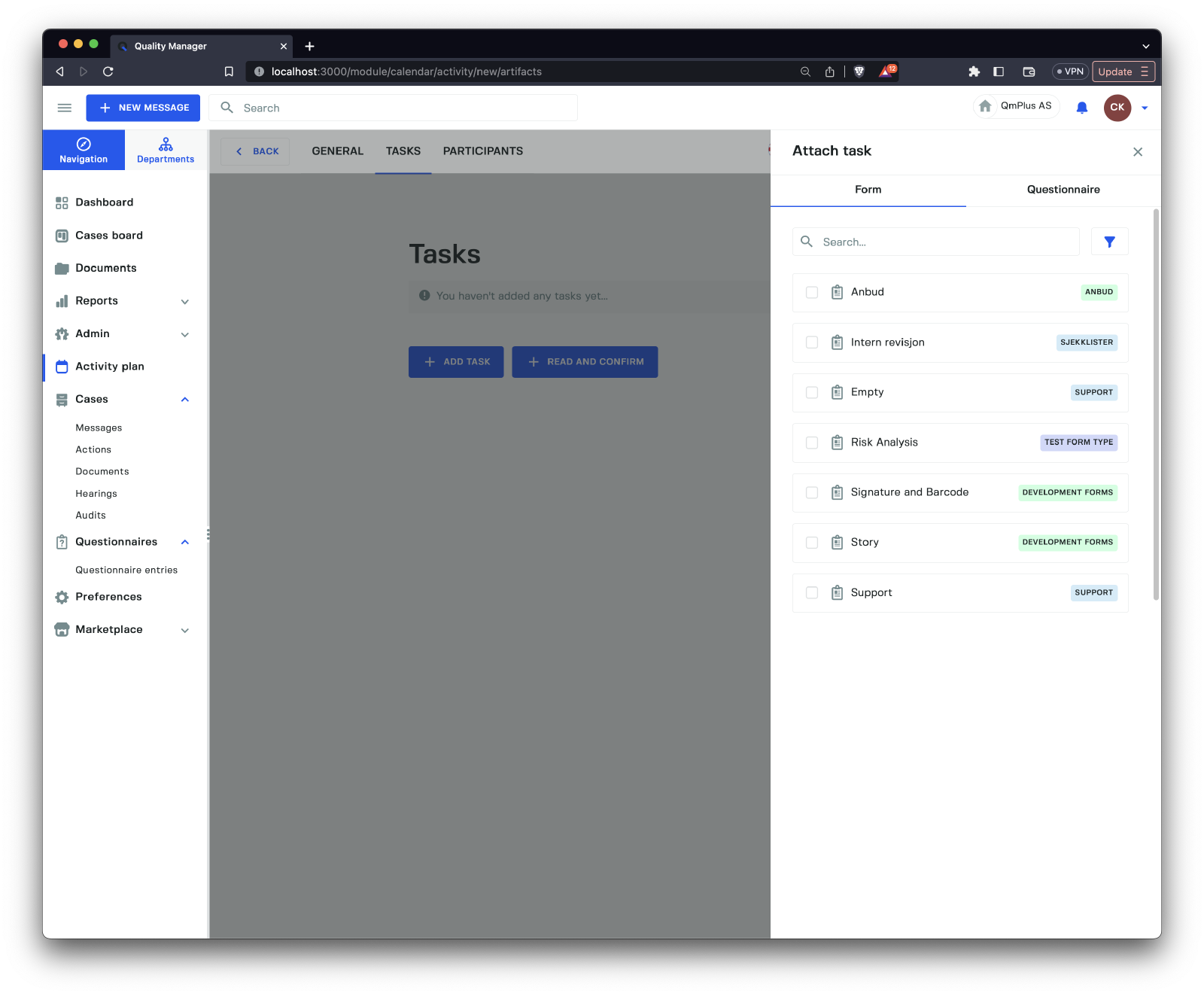
The image above shows adding either a Form or Questionnaire to the activity after clicking the Add Task button to bring up the sidebar.
Participants Tab
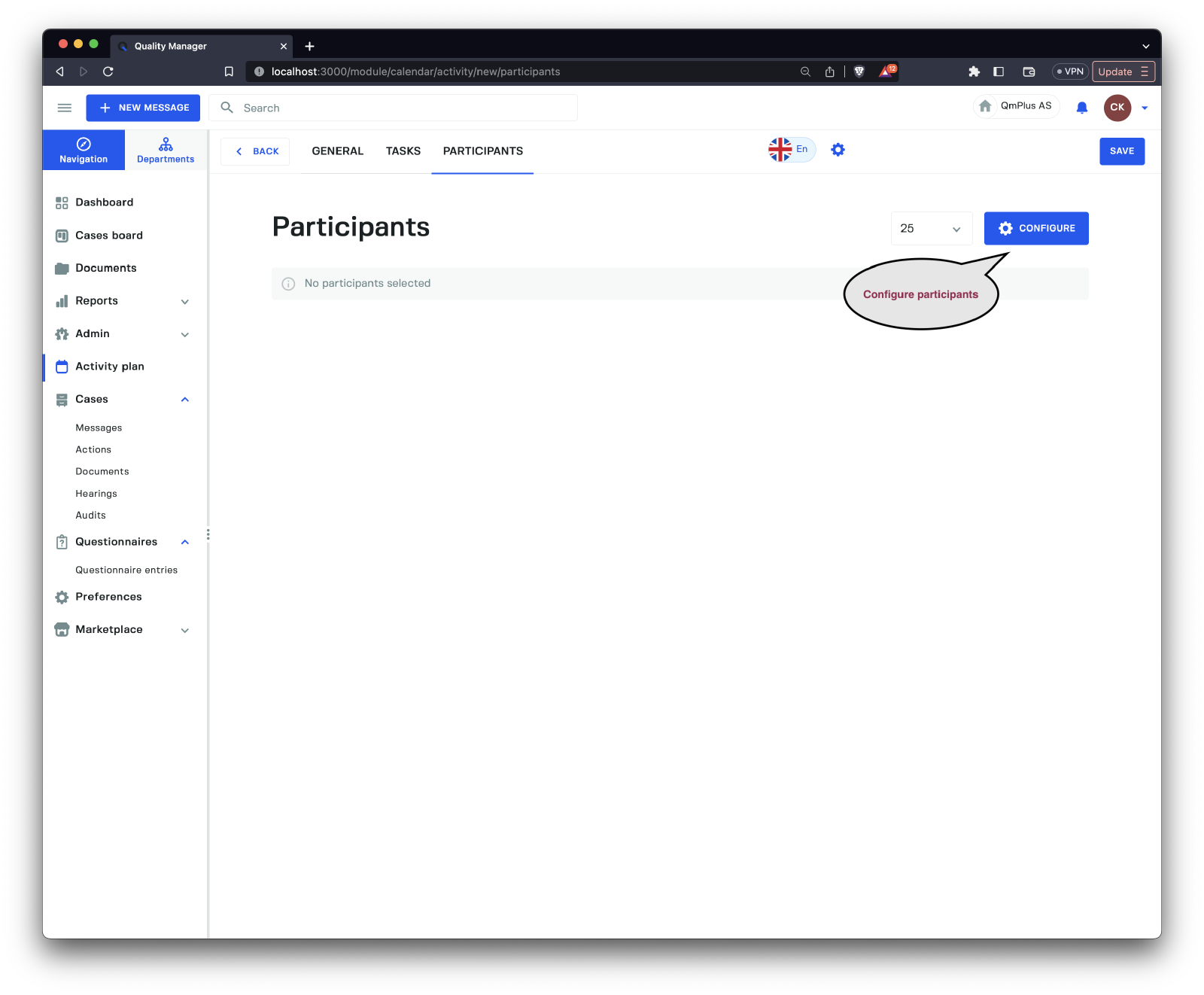
The participants tab lets the user specify who should perform the activity. Clickin on the Configure button will bring up the ability to specify the participants for the Activity.
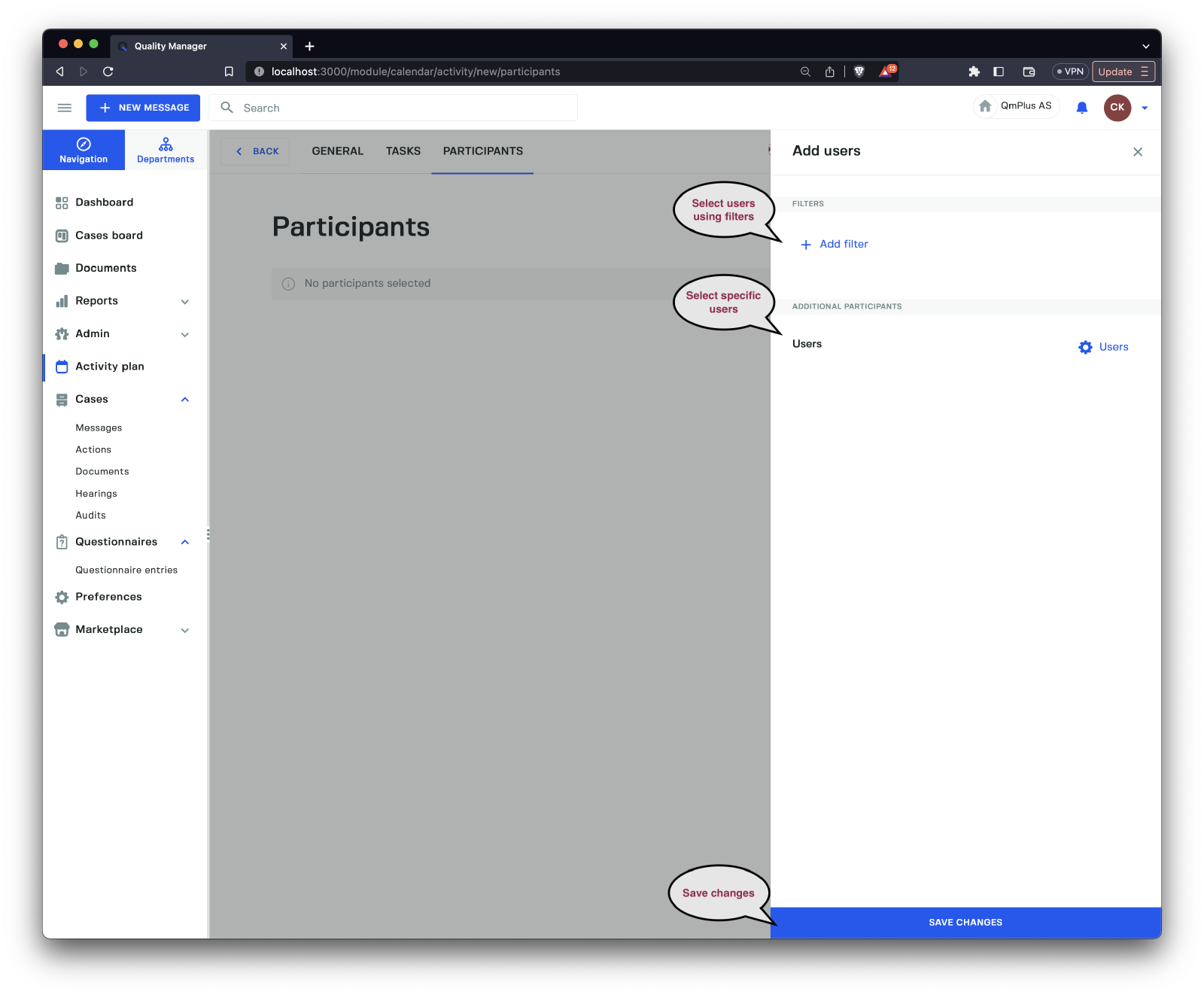
You can select users by creating a filter to specify users and/or add specific users to the Activity.
The following filters are available to specify the users to add to the Activity.
| Filter | Description |
|---|---|
Departments | Select the user departments to add. |
Permissions | Select permissions required for a user to be included. |
User types | Select the user types required for a user to be included. |
Interact with Activites
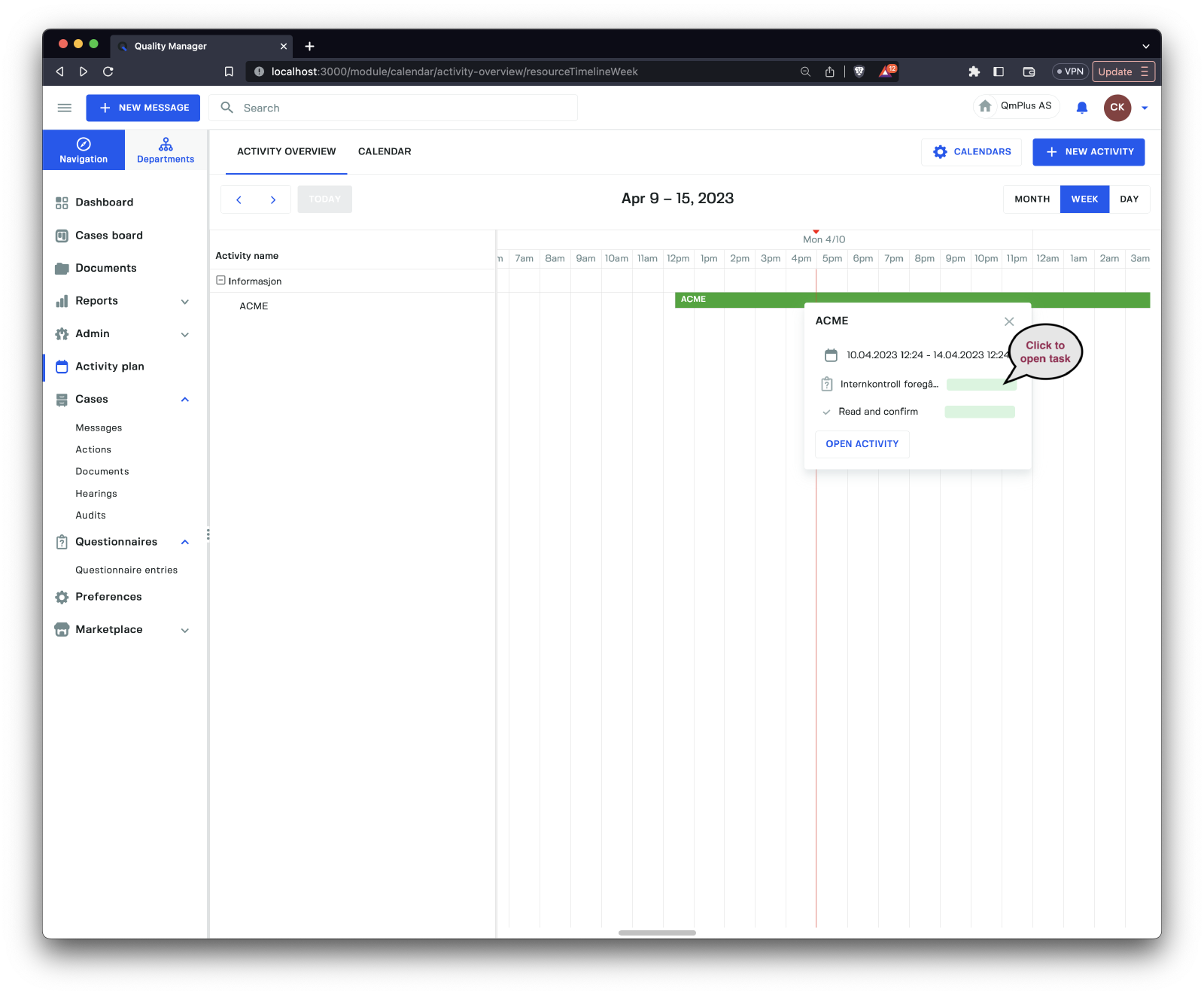
Clicking on an Activity will bring up the overview of the activity. In this case we can see that we have two different tasks associated with this activity. Clicking on the Internkontroll foregå... line will bring up a status view of the specific task.
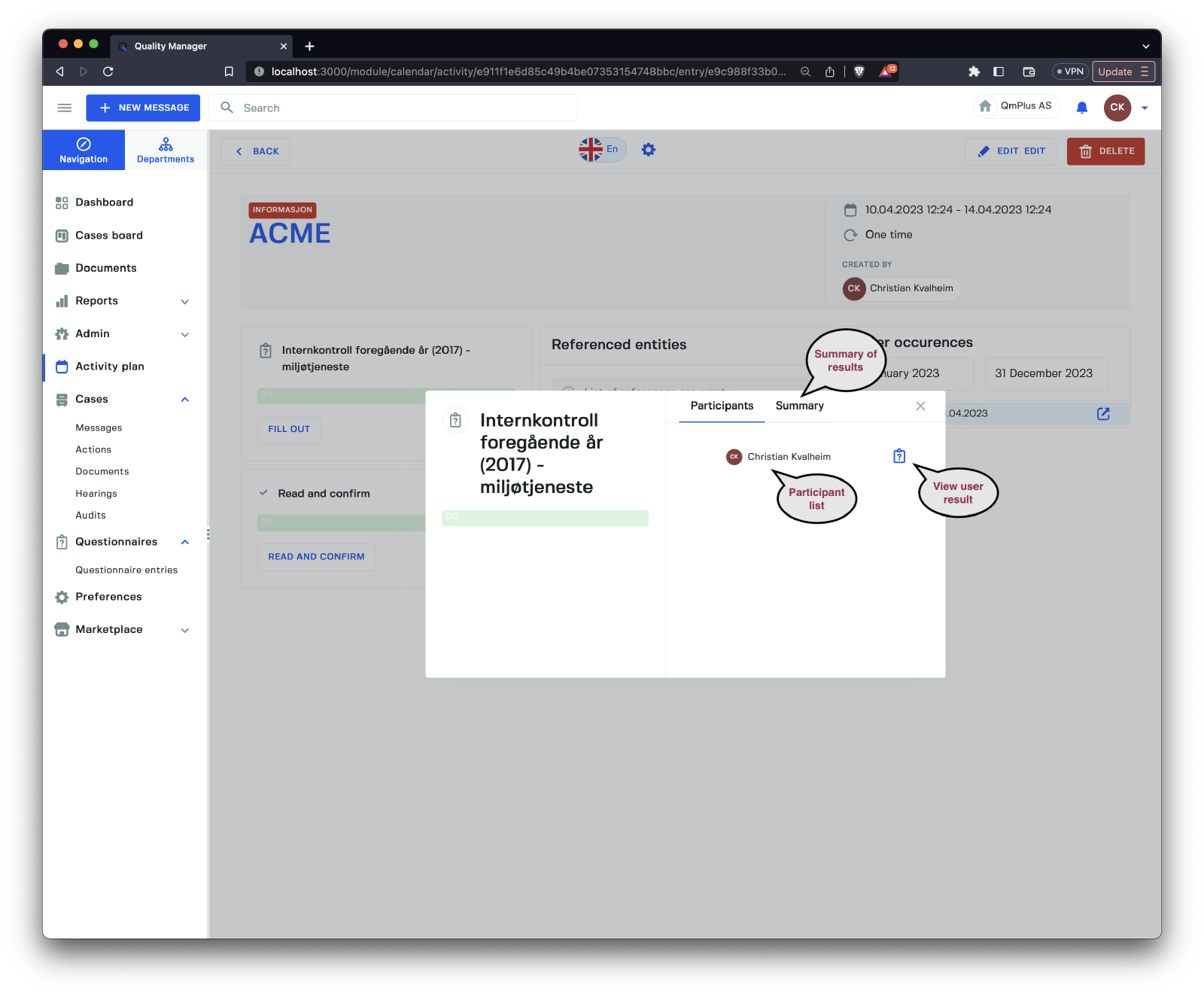
The overview of the task has two tabs Participants and Summary. The Participants tab is a list of all the participants in the task. Clicking on the icon with the question mark on the right will bring up the filled in results for a form or questionnaire.
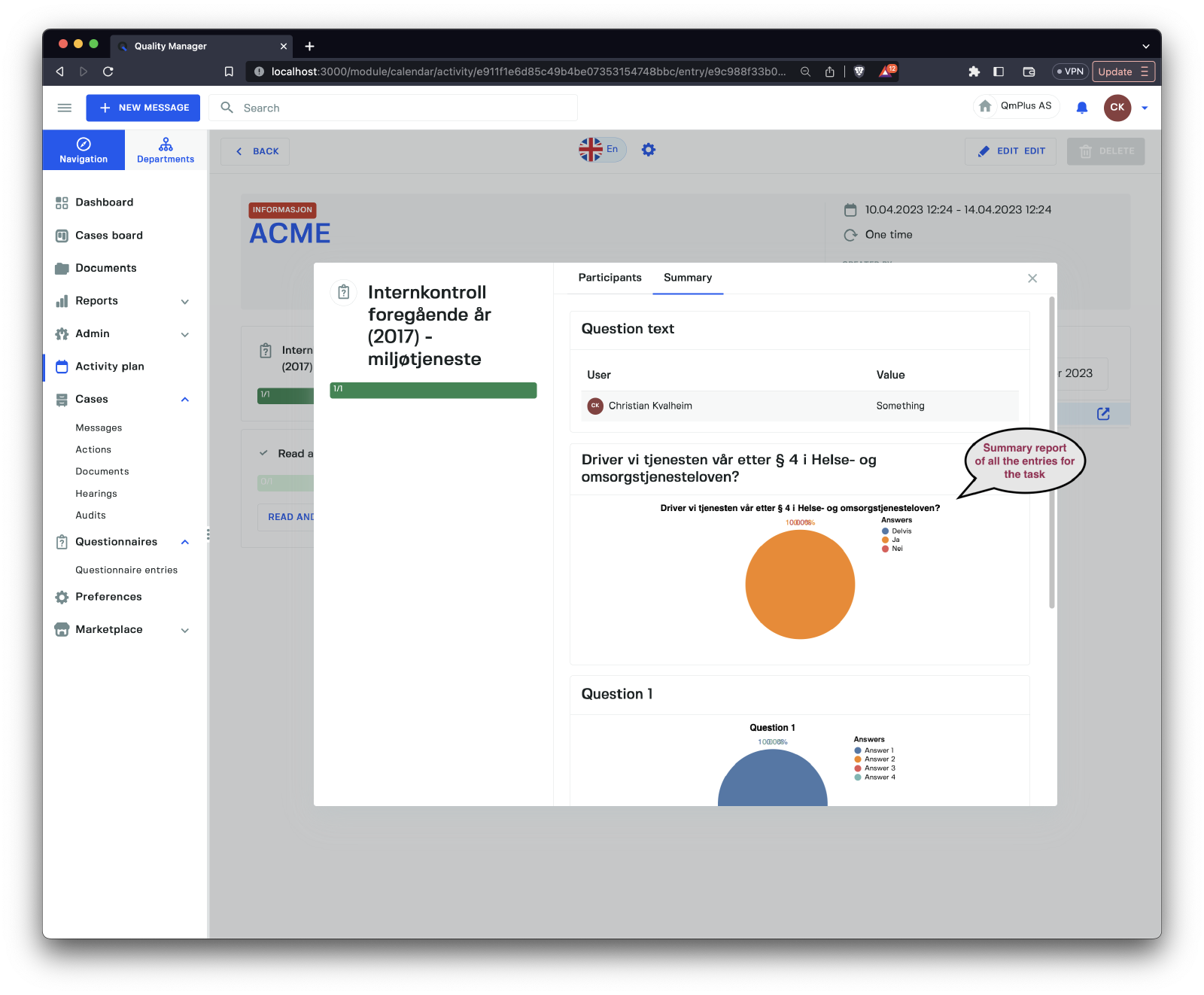
The summary will show a report of the all the entered questionnaire data in this case, allowing the user to analyse the results of the activity.
Clicking on the Open Activity button when we first bring up an activity in the calendar or scheduler will take us to the Activity overview.
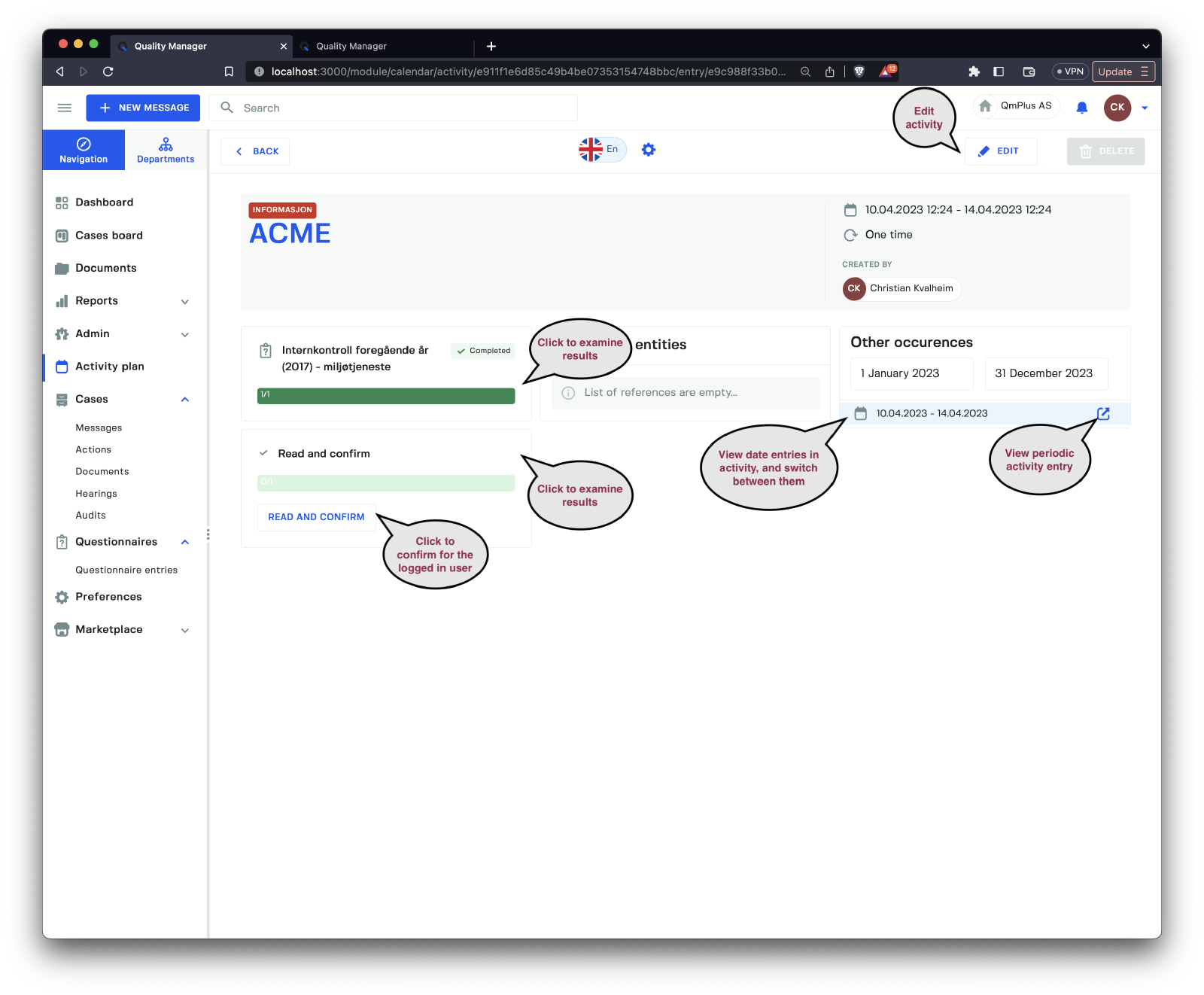
The Activity overview lets us access task information, edit the Activity details and navigate between the Activity data periods if it’s a Periodic activity with multiple entries.
If we edit an activity and change dates, all periods in the past will be preserved. The user can only change
Activityperiodic entries that have not yet happened.