Cases board
A user guide for working with the Cases boards. We cover how to create, update and manage Cases boards.
This section deals with utilizing the Cases Board.
Upon clicking on the Cases board, you gain access to the Cases board interface.
Managing the Case Board
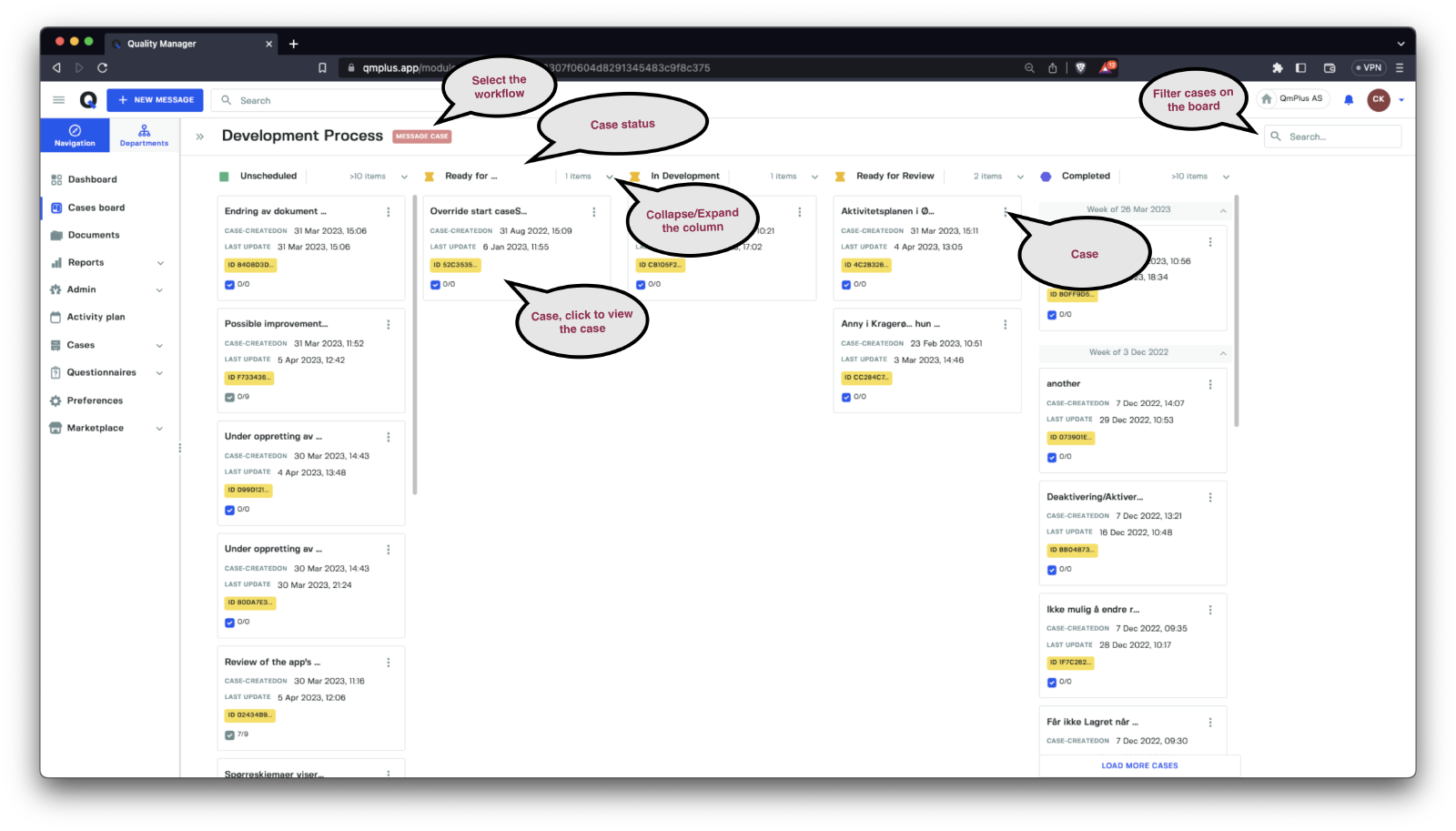
The Case Board provides a user-friendly and efficient way to manage cases within various workflows. It enables you to effortlessly move cases between states, filter the board using different criteria, and access case information.
| Option | Description |
|---|---|
Select the workflow | Choose from the workflows you have access to, allowing you to switch between different case boards. |
Case status | Workflow case statuses are displayed as columns, with cases grouped by their respective statuses. An exception is the Close case status column, where cases are grouped by week to prevent information overload. |
Collapse/Expand the column | Users can collapse or expand columns to reduce the information density on the screen. |
Case | Each box represents an active case in the system. Users can click on a case to access a quick view of its details. The … menu on the case box provides access to a menu displaying the statuses the case can transition to. |
Search | The search box in the top-right corner allows you to filter cases visible on the board by searching the titles and descriptions of available cases. |
Case Status Transition
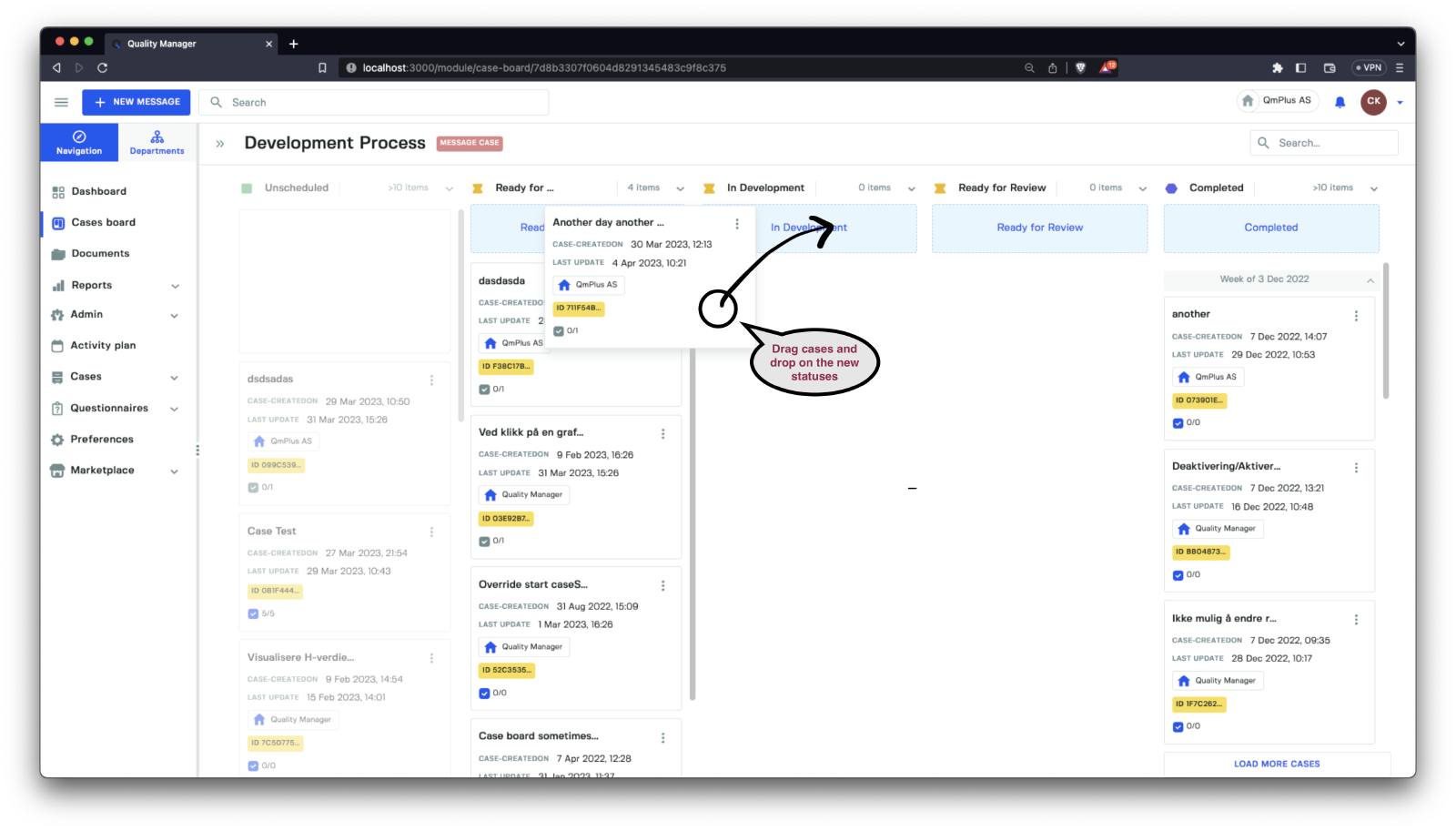
To move cases, simply click and drag a case to a new status column.
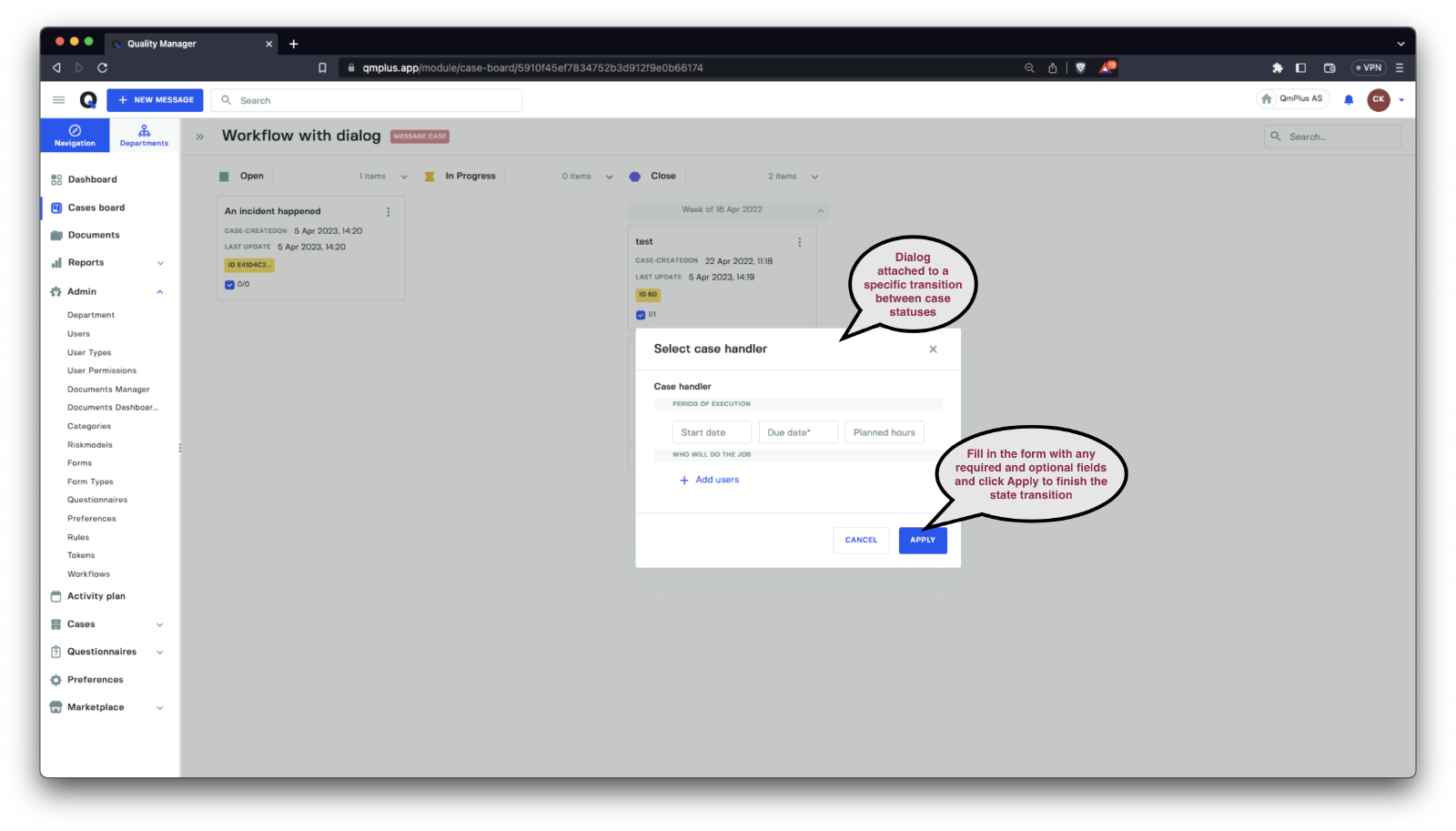
If transitioning a case from its current status to a new status requires filling out a dialog box, it will pop up and must be completed before the case can be moved to the new status.
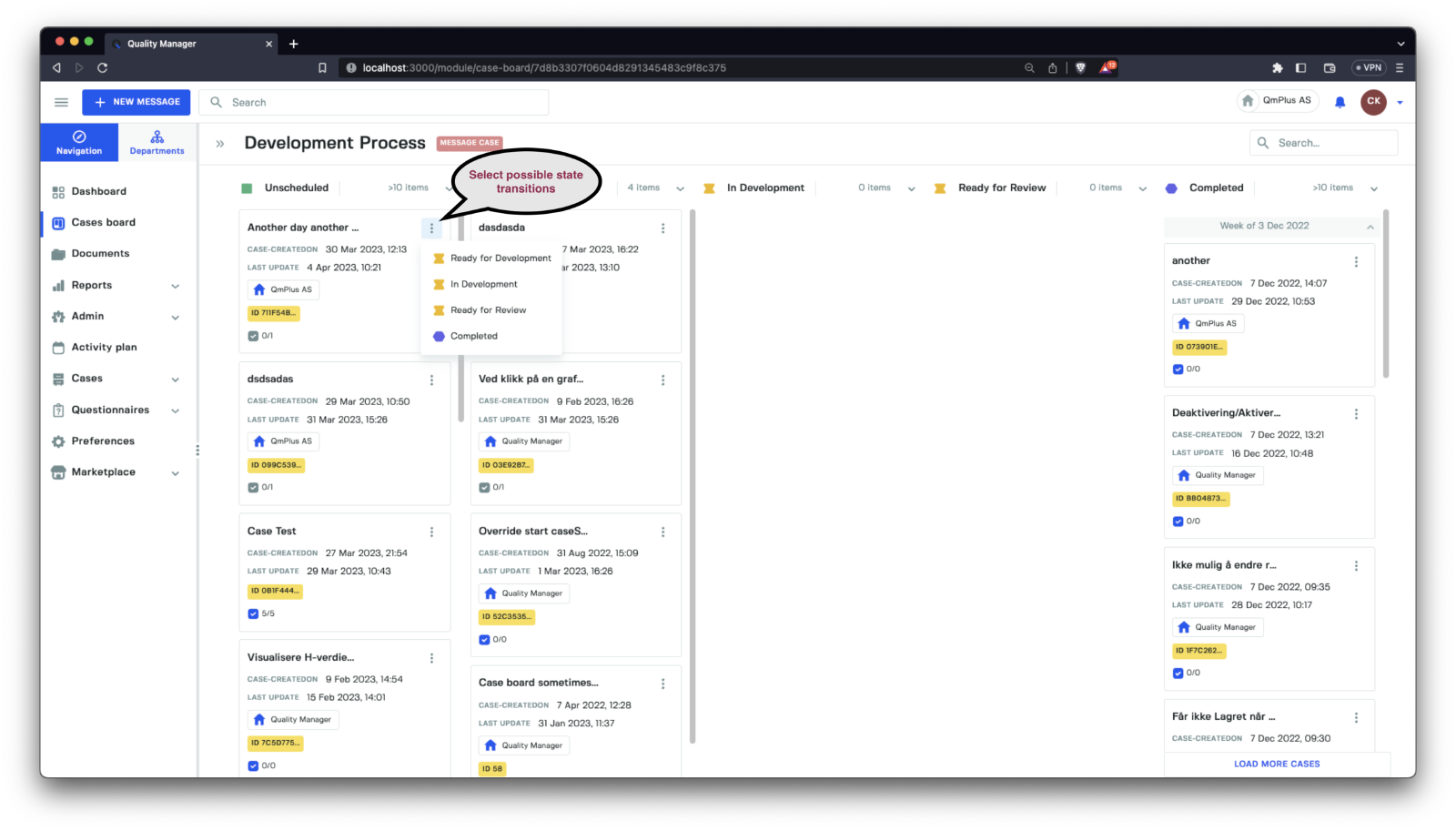
Alternatively, you can move a case by clicking the hamburger menu in the top-right corner of each case box and then selecting one of the allowed status transitions.
Viewing Case Information
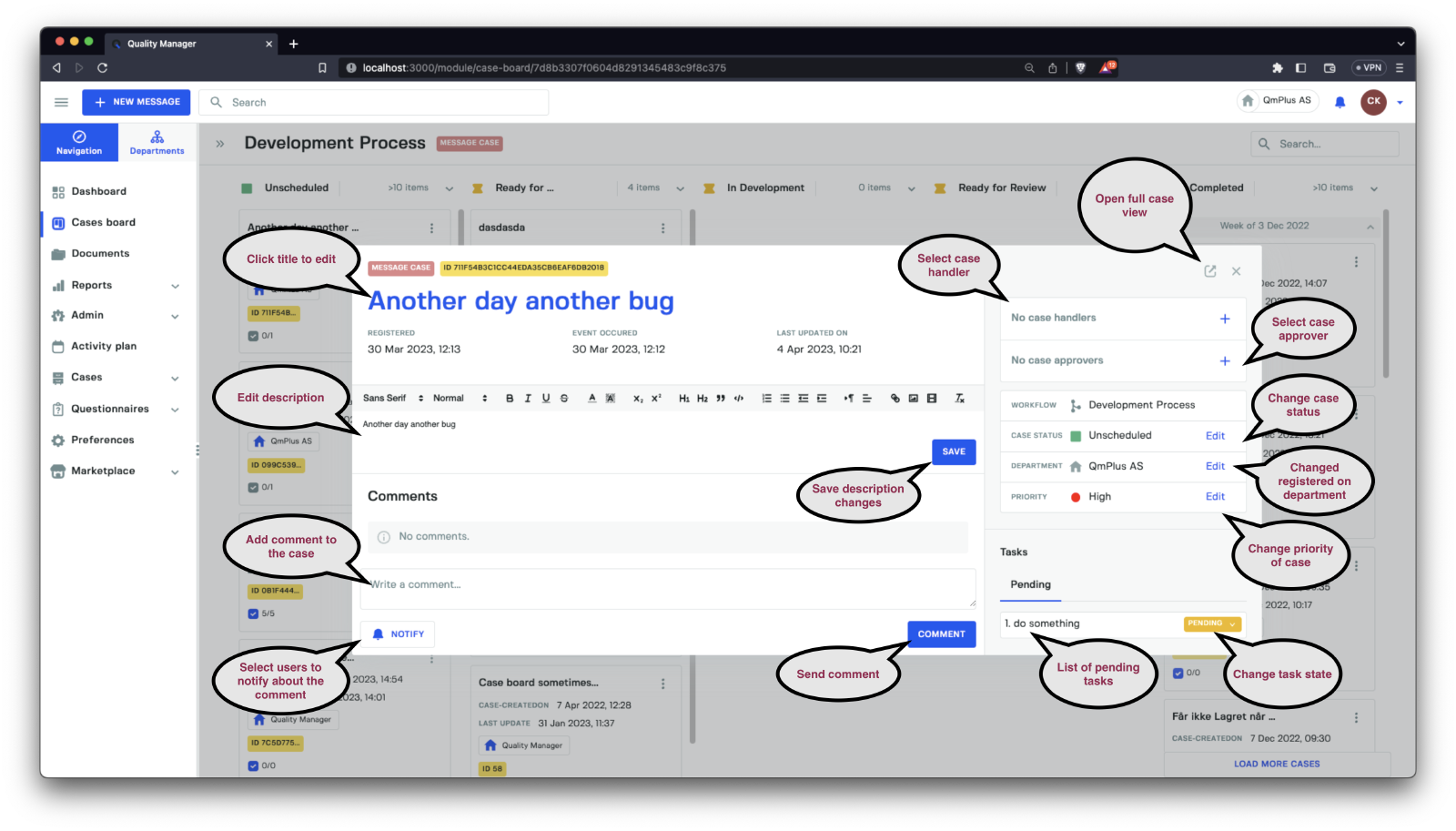
By clicking on a case within the case board, you can access the compact case view. For a more detailed view, click on the arrow icon in the top right corner of the compact case view to open the full case view. The compact case view offers several useful options:
| Option | Description |
|---|---|
Title | Users can directly click on the title to edit it, customizing the case name as needed. |
Description | Users can edit the case description and click the Save button to store the changes. |
Comment | The comment section allows users to quickly add a comment to the case. By clicking the Notify button, users can select which individuals to notify about the new comment. Once selected, click Comment to save the comment to the case and send notifications to the chosen recipients. |
Case handler | Users can assign or modify the current case handler responsible for managing the case. |
Case approver | Users can assign or modify the current case approver responsible for approving case decisions. |
Case status | Users can change the case’s status to reflect its current state within the workflow. |
Department | Users can update the case’s associated department to ensure accurate categorization. |
Priority | Users can change the case’s priority level to indicate its relative importance or urgency. |
Tasks | The Tasks option displays all pending tasks related to the case, allowing users to view and modify the status of each task as necessary. |
Enhanced Caseboard Filters
The caseboard provides a user-friendly interface to manage and organize cases effectively. The slideout options menu located on the left side of the screen allows users to filter the caseboard based on specific requirements. This menu contains several pre-defined filters, each serving a different purpose.
The following table lists the pre-defined filters and their descriptions:
| Pre-defined Filter | Description |
|---|---|
Handled by me | Displays cases assigned to the currently logged-in user as the case handler. |
Approved by me | Displays cases where the currently logged-in user serves as the case approver. |
Participated in by me | Displays cases involving the currently logged-in user as a case participant. |
No case handler | Displays cases without an assigned case handler. |
No case approvers | Displays cases without an assigned case approver. |
No tasks | Displays cases that have no associated tasks. |
Overdue | Displays cases that are overdue. |
Updated today | Displays cases updated on the current day. |
Updated in last week | Displays cases updated within the last week. |
Created today | Displays cases created on the current day. |
Created in last week | Displays cases created within the last week. |
In addition to the pre-defined filters, there are several other filters available for use. These filters may vary depending on the type of workflow (such as message, action, document, hearing, or audit workflows).
The following table presents these additional filters, their applicable entity types, and descriptions:
| Filter | Entity Types | Description |
|---|---|---|
Case approvers | All | Allows users to add case approver(s) to filter by. Cases with at least one of the specified approver(s) will be displayed. |
Case handler | All | Allows users to add case handler(s) to filter by. Cases with at least one of the specified handler(s) will be displayed. |
Case category | Message | Helps users locate cases containing one or more selected categories. Useful for filtering message cases in specific categories. |