Administrator/Categories
A user guide for working with category groups. We cover how to create and modify category groups.
This section covers managing category groups within the system.
Clicking on Administrator/Categories provides access to the list of category groups.
A category group consists of a tree structure with sub-category groups and categories. Users can reorganize these elements in any desired order.
Category groups can be reused across multiple forms, allowing you to generate statistics and reports across various types of forms for comparison.
It’s important to note that all Category Groups are versioned. This enables you to modify a category group without impacting existing forms containing that category group.
Category Group List
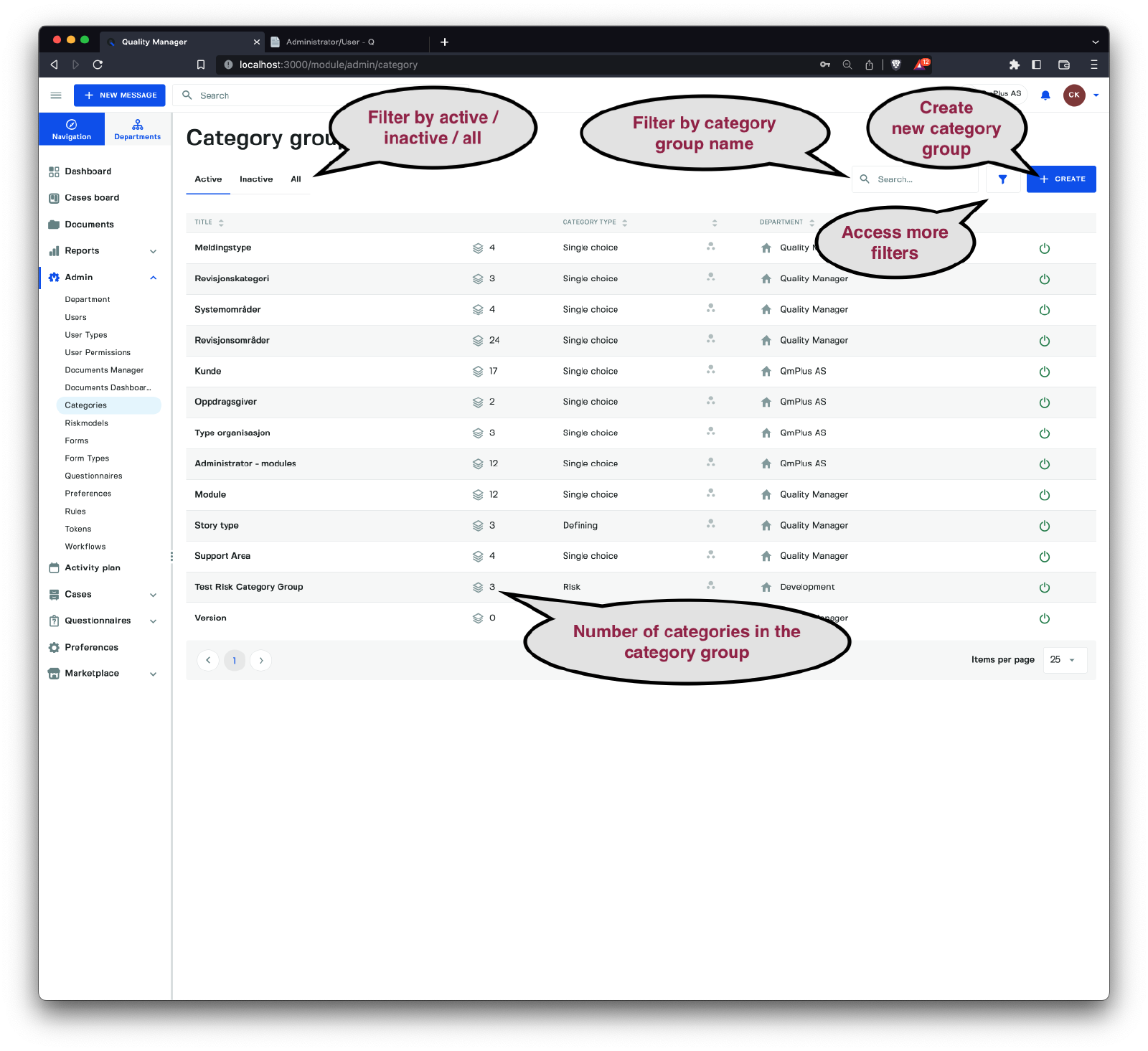
The category group list view allows you to see all the category groups in the system and filter them by several parameters, including the category group’s name and visibility.
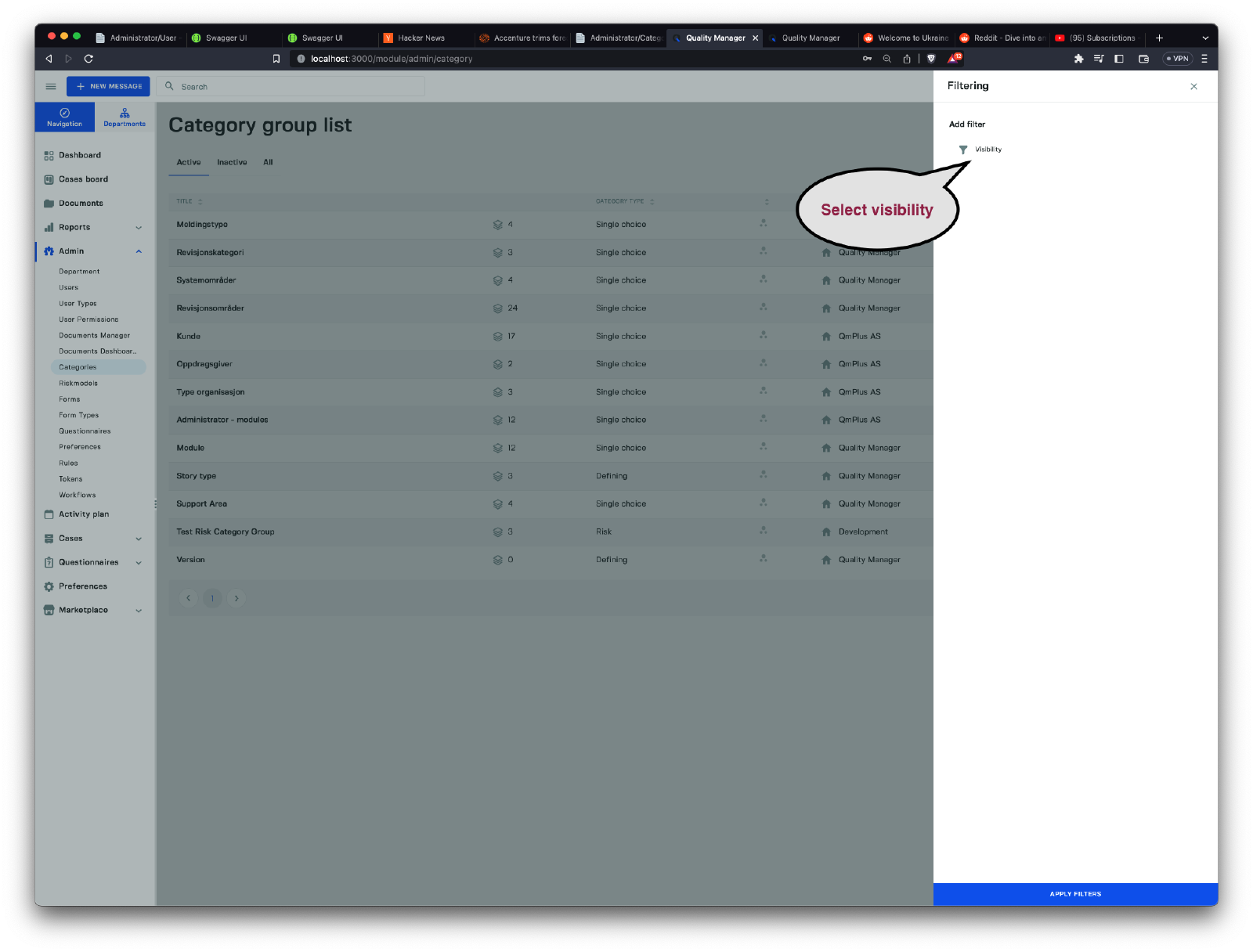
To access additional filters, click the filter button and select options from the sidebar.
Create Category Group
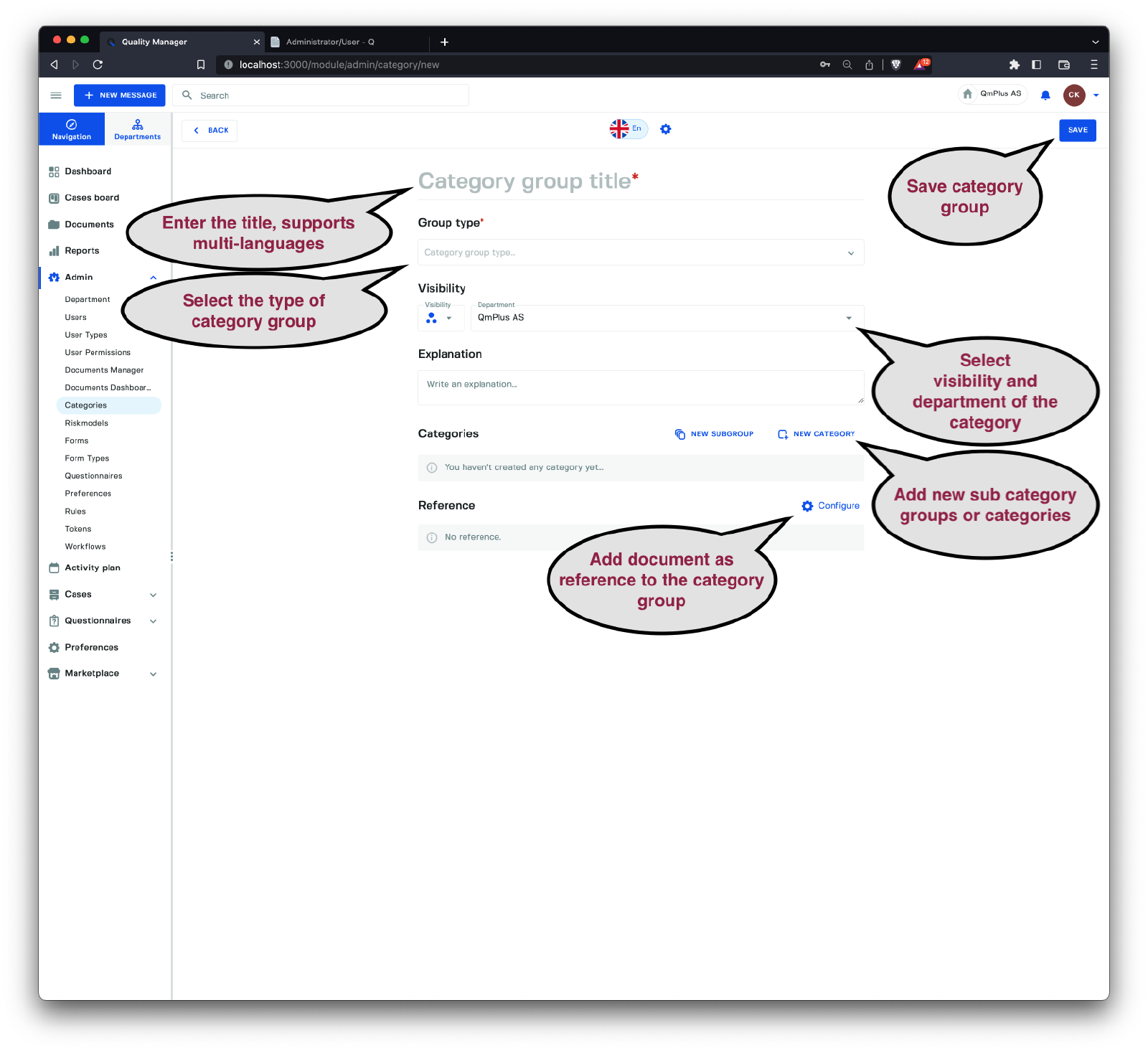
When creating a category group, you have the following fields available:
| Field | Description |
|---|---|
Category group title | The category group’s name with multi-language support, allowing you to provide translations for other languages used within the organization. |
Group Type | The type of category group being created. See the description below. |
Visibility | Specifies the category group’s visibility within the organization. For example, setting this to department will make the category group visible only to the currently selected department. |
Department | Select the department that this category group will be registered to. Together with visibility, this controls the category group’s visibility. |
Categories | The main aspect that allows you to add sub-category groups and categories, creating a tree-like structure of nested information. |
Reference | Allows you to specify a document reference to display with the category group in forms, for example, linking to a relevant law. This can also be done for sub-category groups and categories added. |
The Group Type lets you specify the type of category group you are creating. The options are:
| Group Type | Description |
|---|---|
Defining | A special Single Choice category group used as a defining category group in a form. Allows end users to select only one category as a response. |
Single Choice | Allows users to select a single category when entering data into a form. |
Multi Choice | Allows users to select multiple categories when entering data into a form. |
Action Choice | Allows users to select a single category for an action. This category group is different from Single Choice only in that it’s marked as an action group. |
Number | Allows users to enter numeric values for all categories in the group. This can be used to collect currency numbers or other data. |
Risk | Allows users to enter risk analysis values for a given attached risk model. |
If you select the Group Type
Risk, an additional field will appear in theCreate Category Groupform, letting you select theRisk Modelthis category group will be based on.
Click the Set risk model button to display the sidebar where you can select the associated risk model.
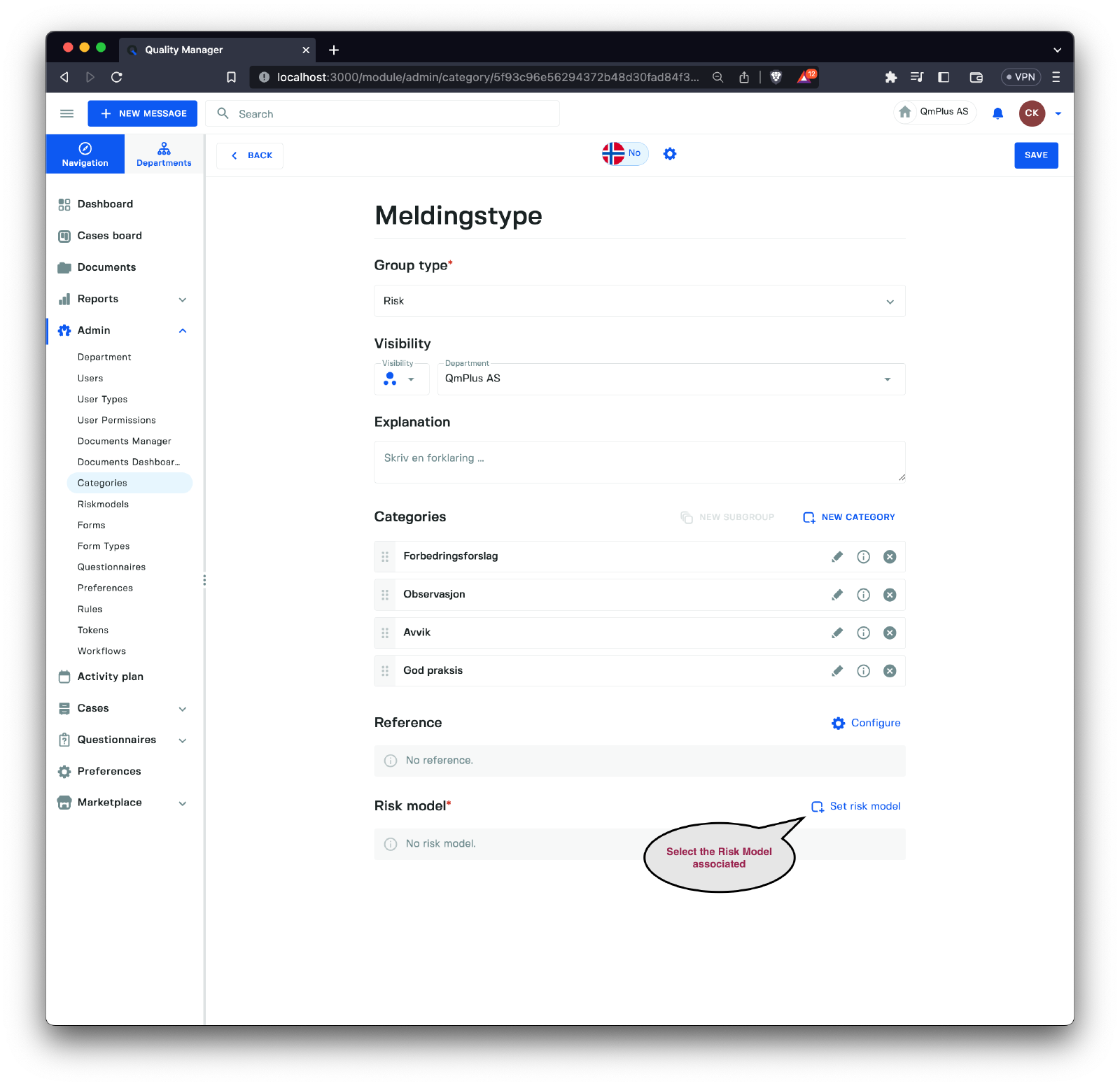
From here, you can choose the risk model you want to use with the category group.
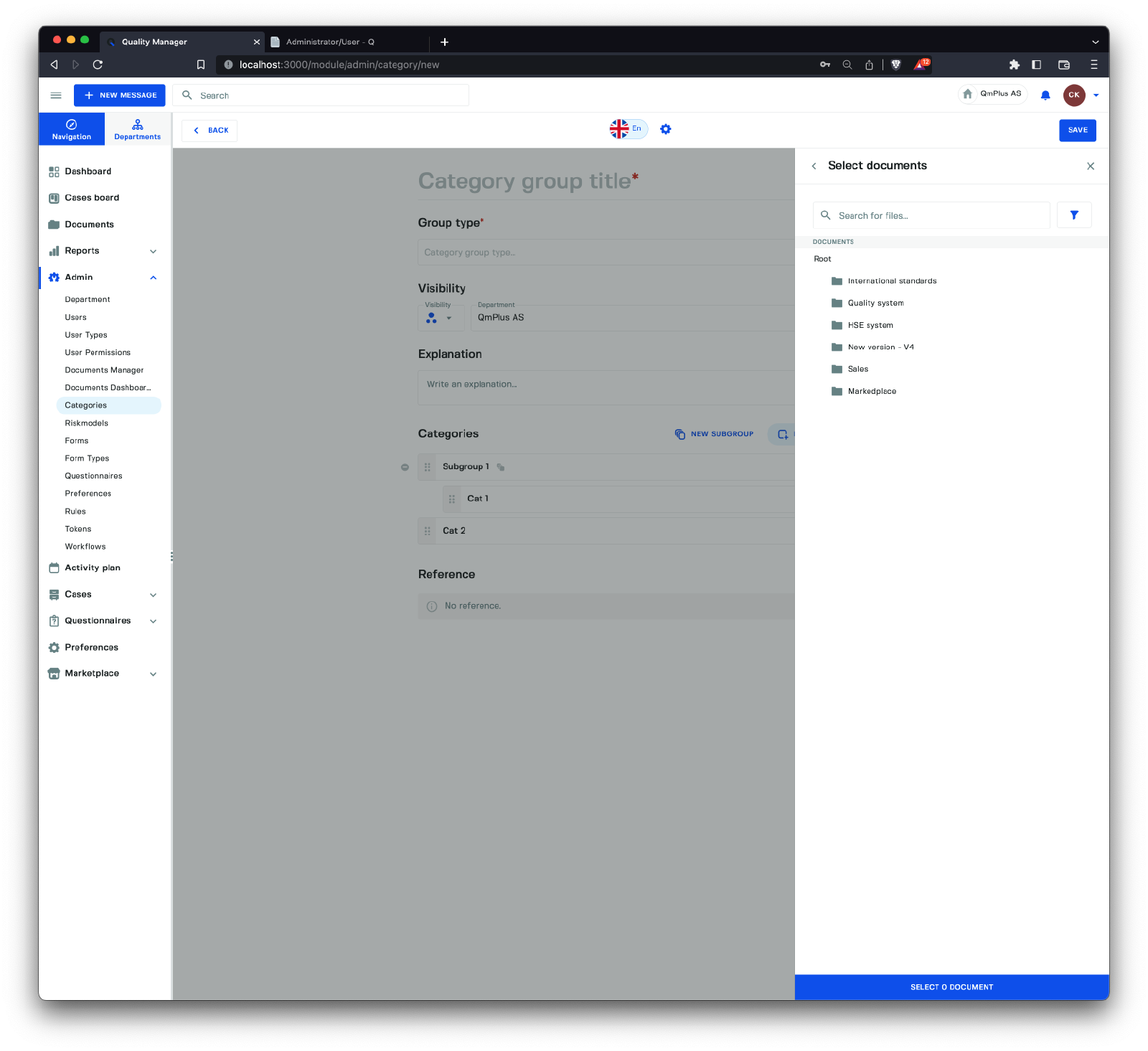
Lastly, you can select a reference document that you want to include as a reference in the category group.
Add and Edit Category Group
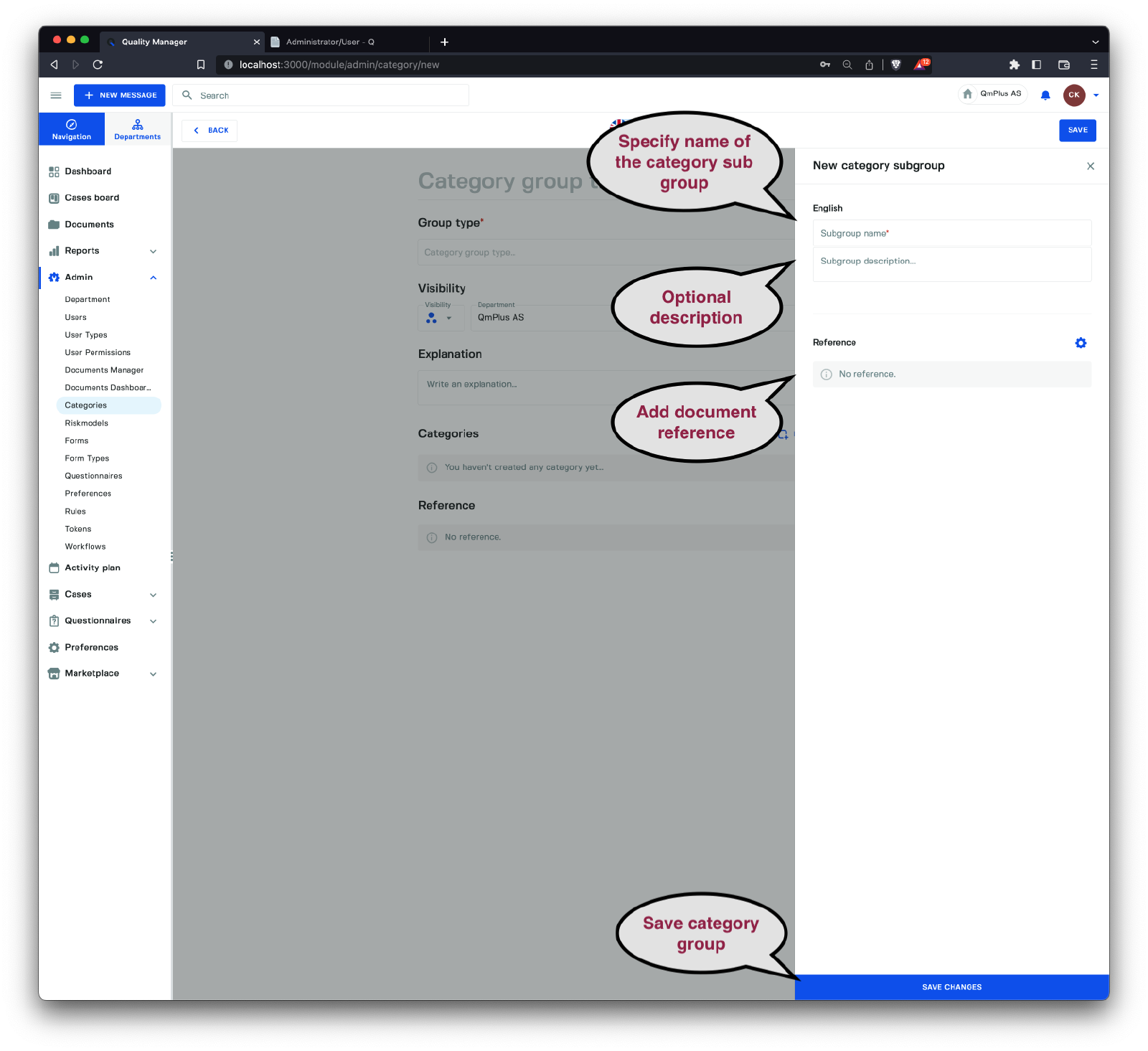
To create a Sub Category Group, you must provide a name for the category group. An optional description can also be added. Finally, you can attach a reference document for the Sub Category Group, which will be displayed in forms when the sub-group is rendered.
Add and Edit Category
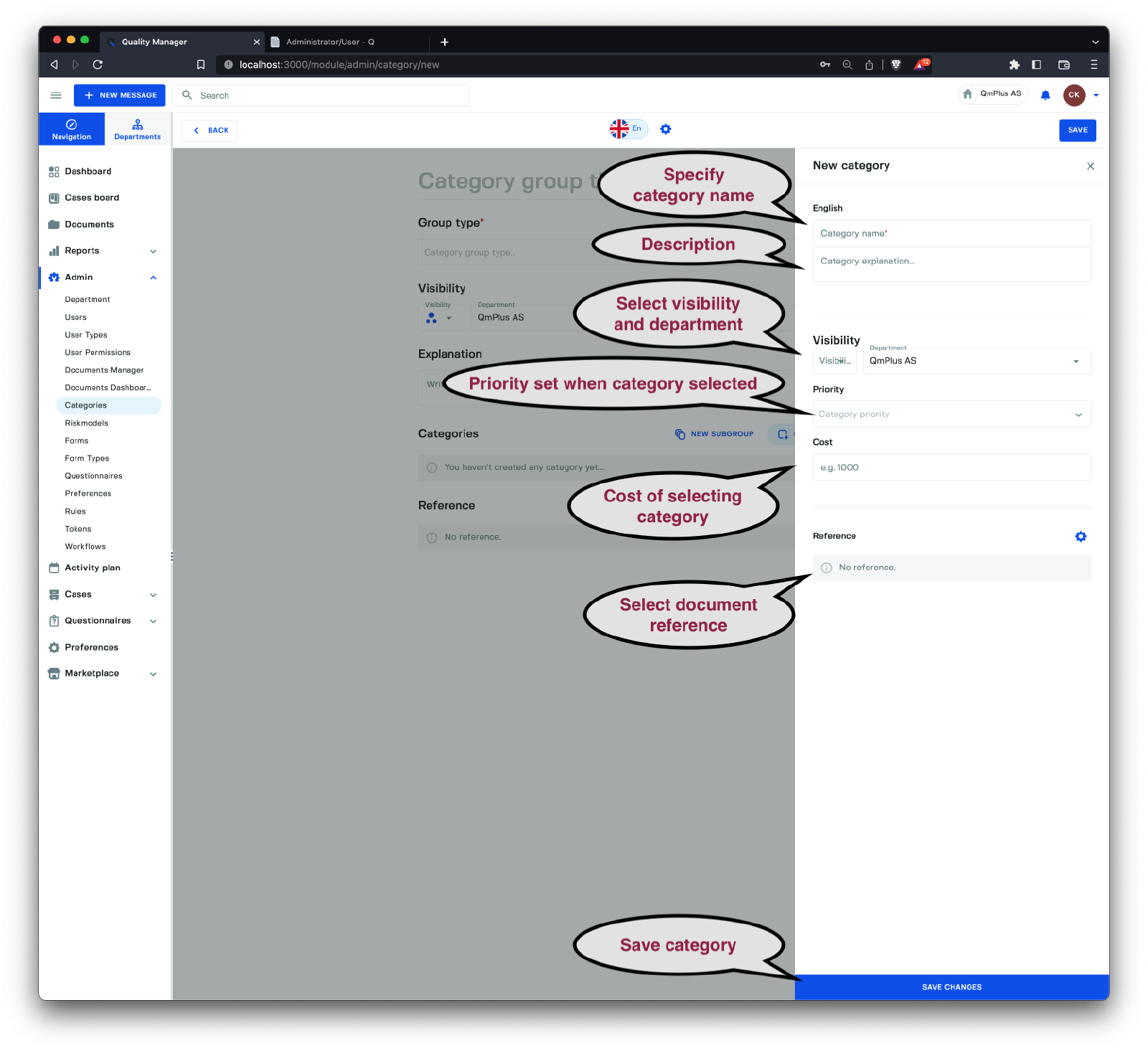
When adding a category to the category group, the following fields need to be set:
| Field | Required | Description |
|---|---|---|
Category Name | X | Set the name of the category being added (supports multiple languages). |
Description | Optional description for the category. | |
Visibility | X | Specify the default visibility of the category (which department it is visible in). |
Department | X | The department where the category is visible. |
Priority | The priority assigned to the form entry if the category is selected. | |
Cost | The cost applied to the form entry if the category is selected. | |
Reference | The optional document reference to display when the category is rendered in a form. |
Finally, click the Save Changes button to save the new category to the category group.
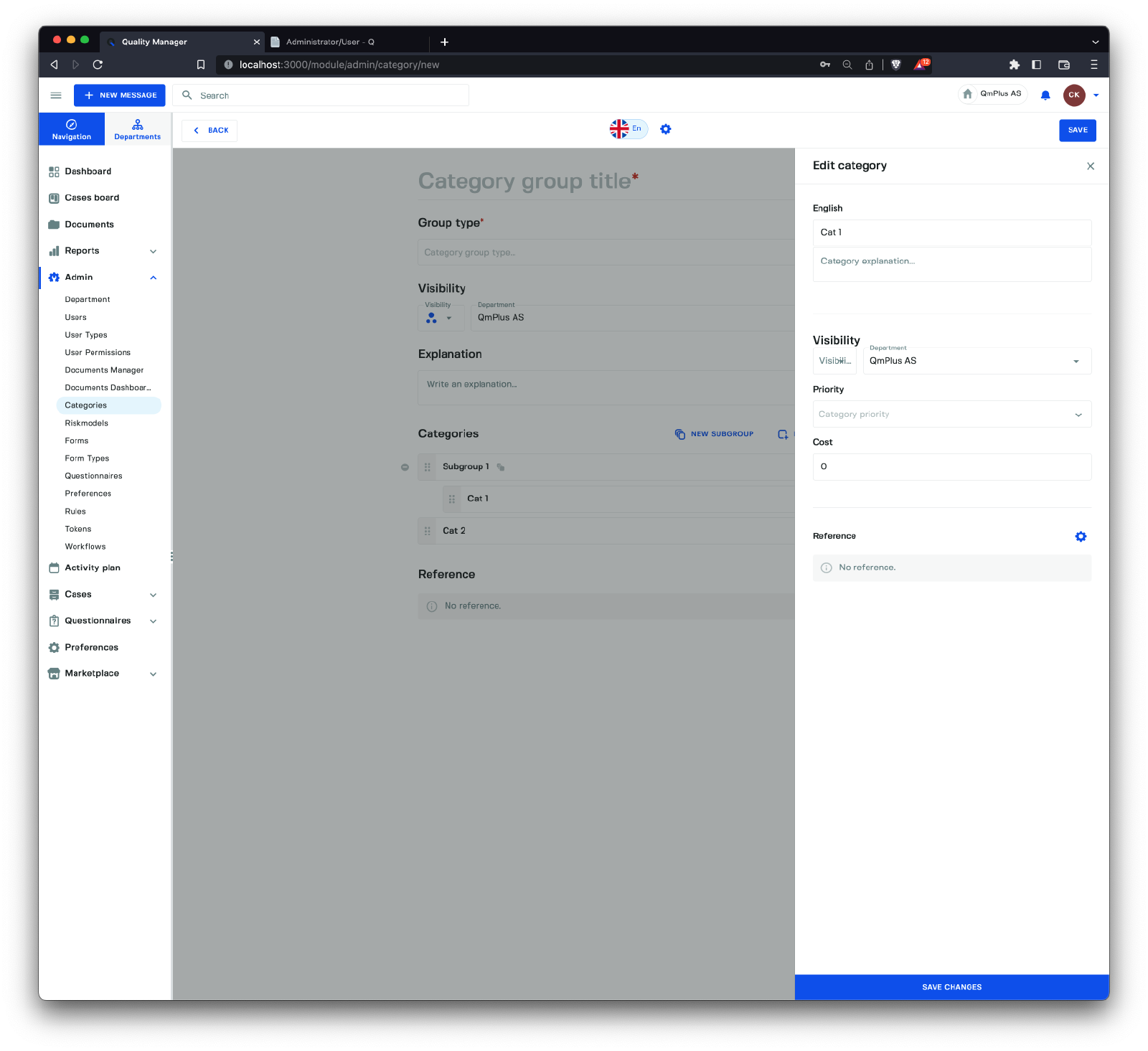
You can also edit an existing category, just as when creating a new one.
Organizing Structure
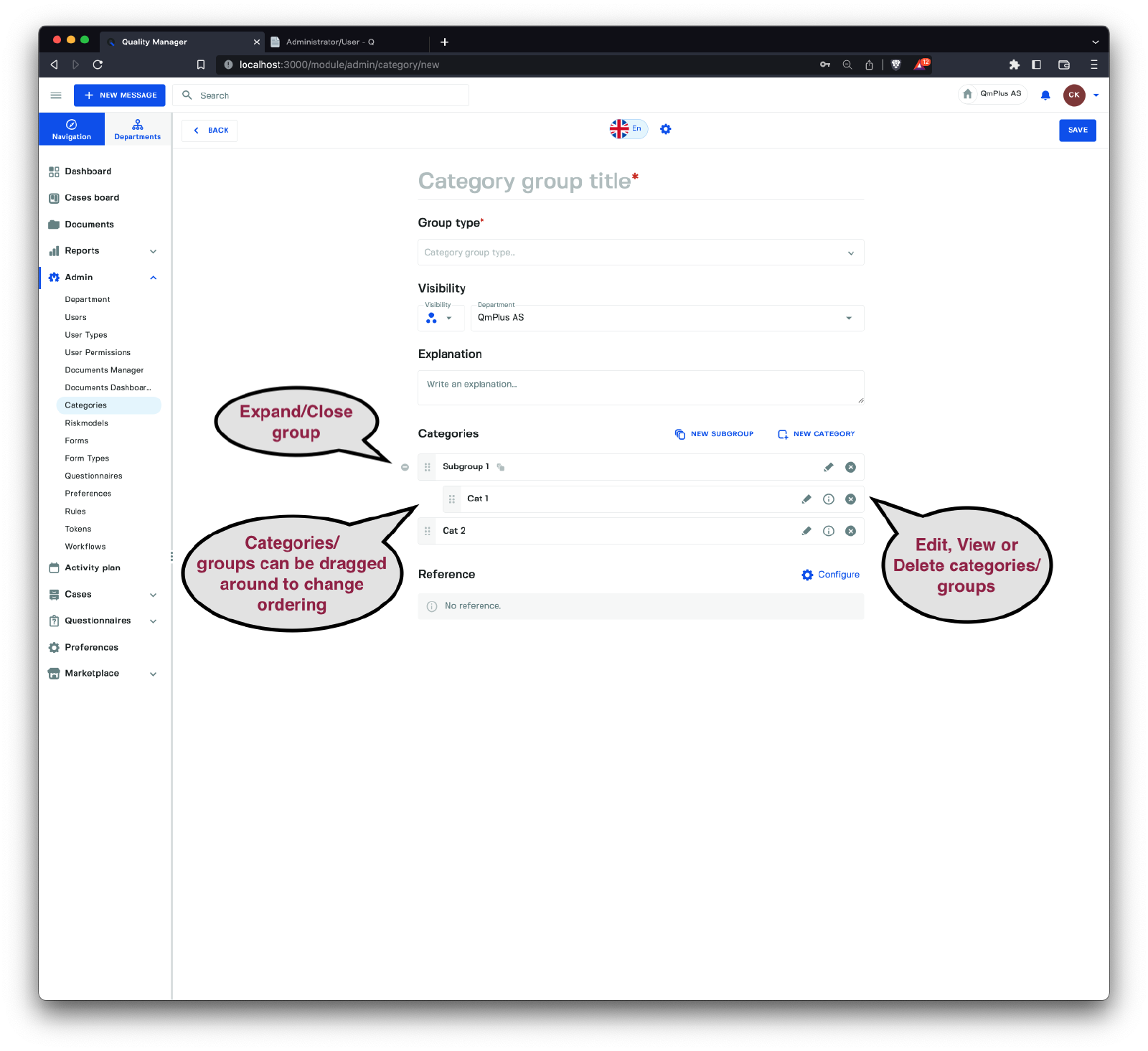
To organize the category group structure, you can drag items into your preferred order.
Drag categories to the right under a category group to organize them under the sub-group.
You can also edit, view category details, or delete categories/sub-category groups.
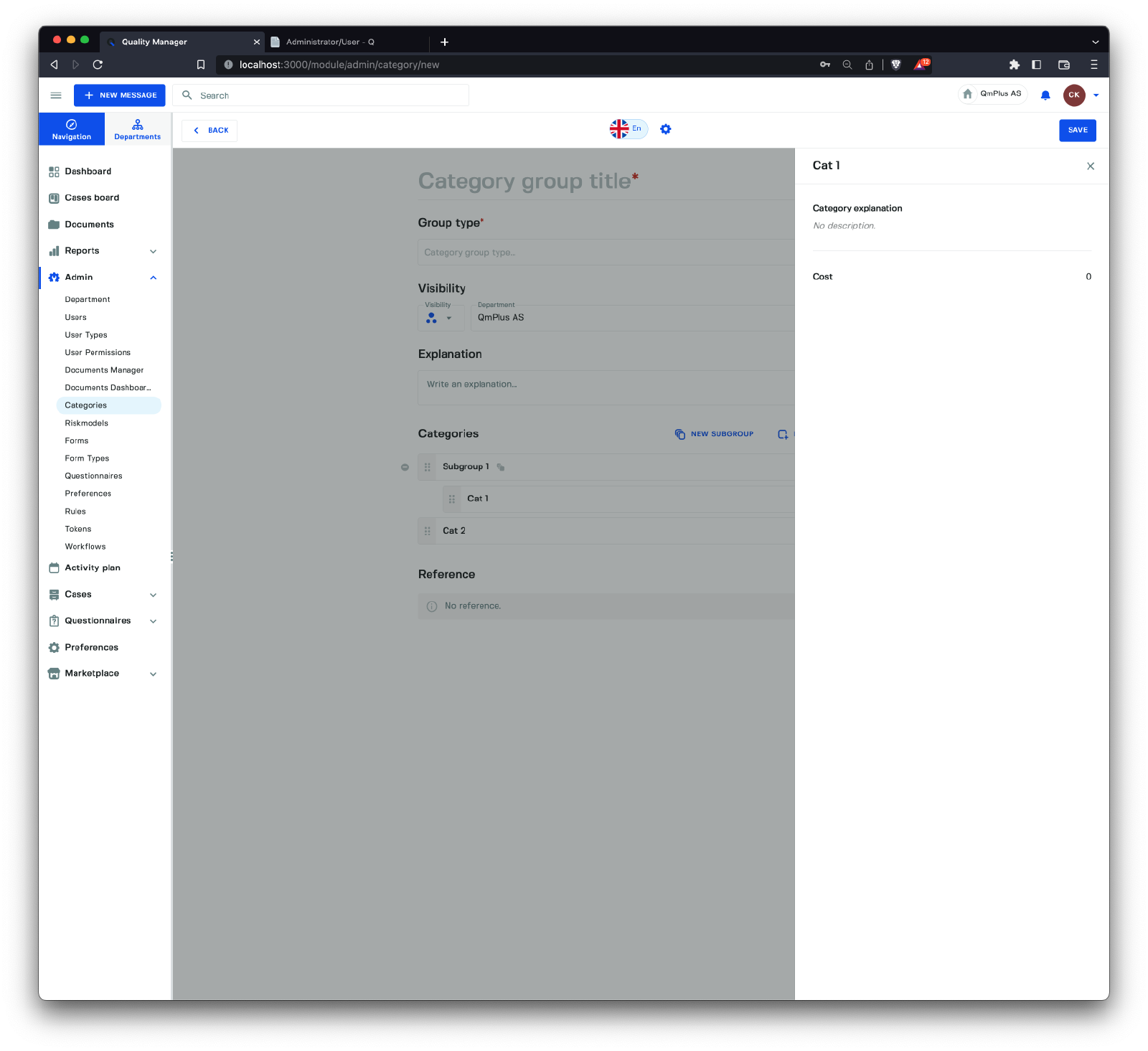
This is the view when clicking on the view category details.
References
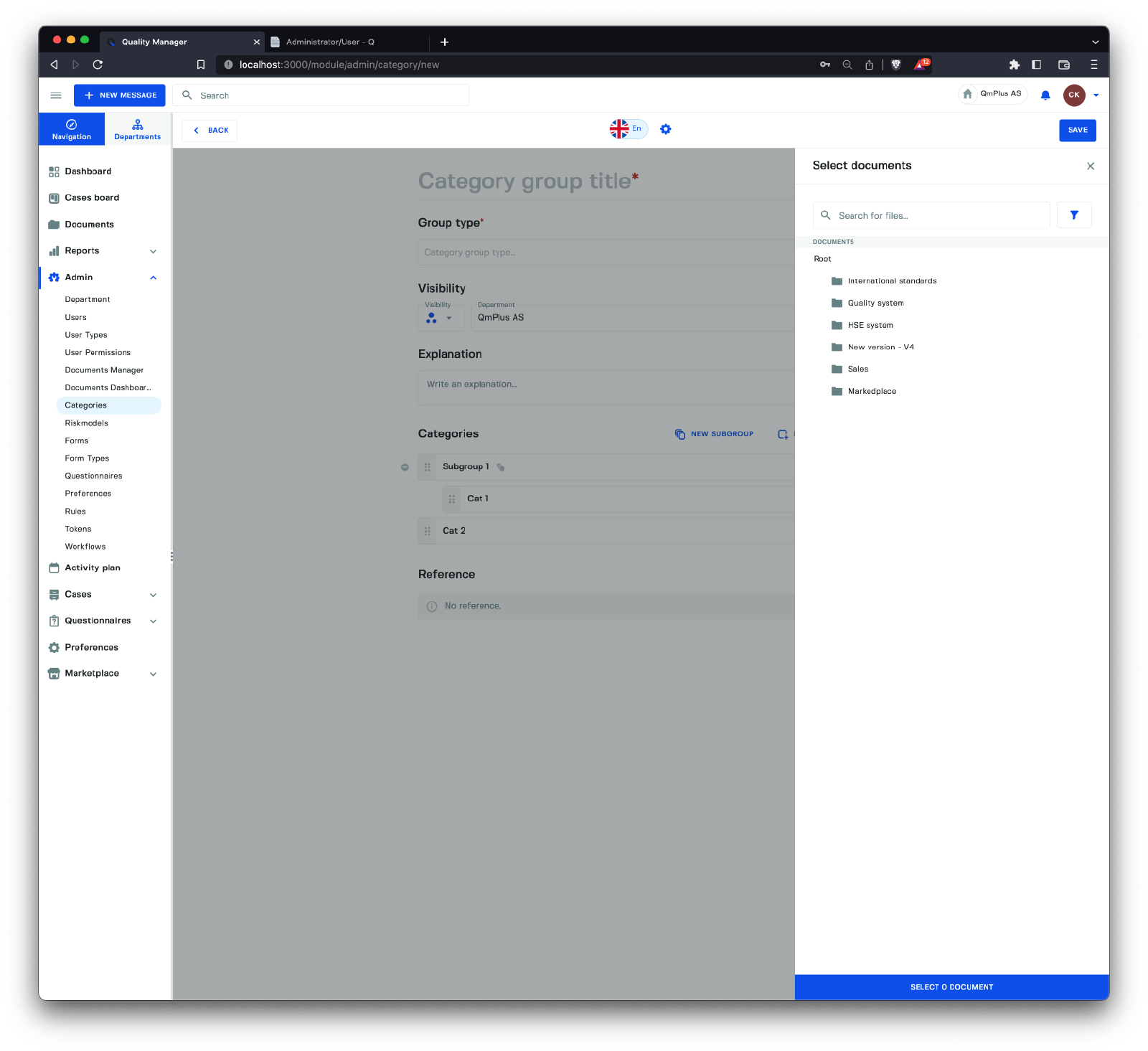
References allow you to attach links to internal documents containing pertinent information about a specific category group, category, or sub-category group. Examples of this include links to laws or instructions associated with a given entry.