Administrator/Department
A user guide for working with departments. We cover how to create and modify departments.
This section delves into the management of departments within the system, including the creation and configuration of departments and their respective permissions.
To access the list of departments, click on the Administrator/Department tab.
Departments List
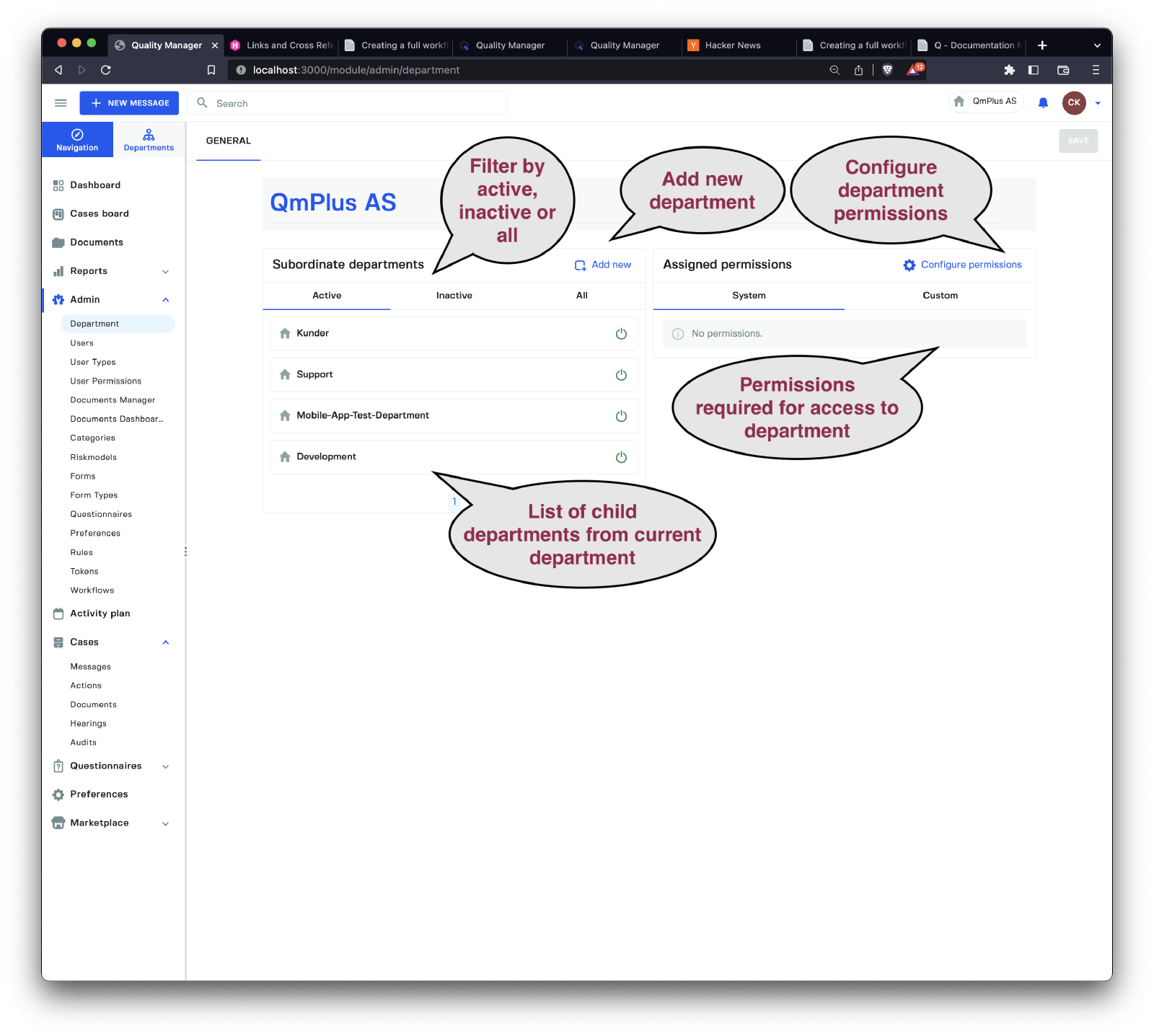
The department list displays child departments for the currently selected parent department. You can filter the view by department status, such as Active, Inactive, or All.
To create a new department that serves as a child department of the currently selected department, simply click on the Create Department button.
Note that you can also add permissions/roles to a department, restricting access to only those users with the appropriate user types or roles directly assigned to them.
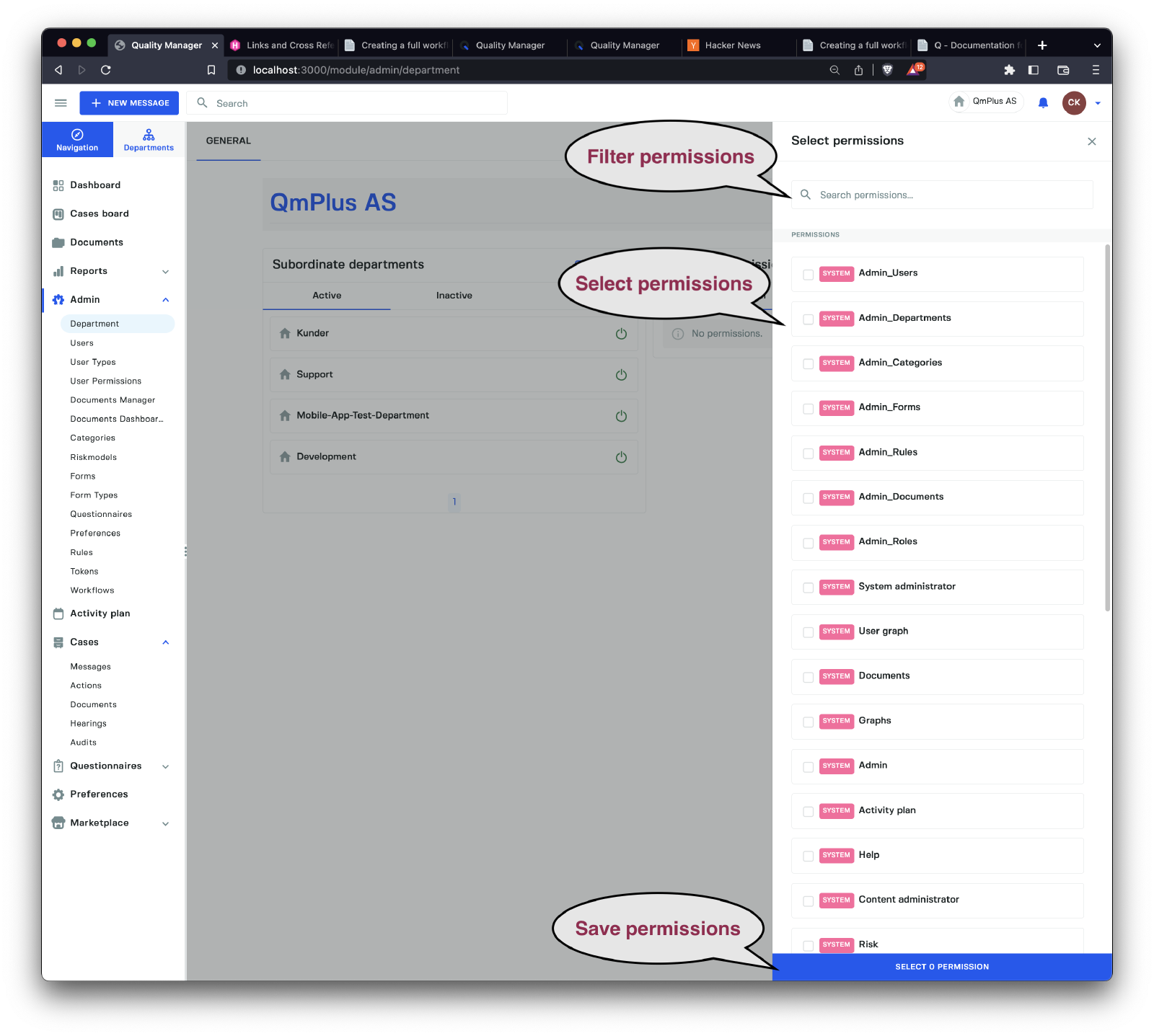
By clicking on the configure permissions link, you can open the permissions side panel to select and assign permissions to the currently selected department.
Create Department
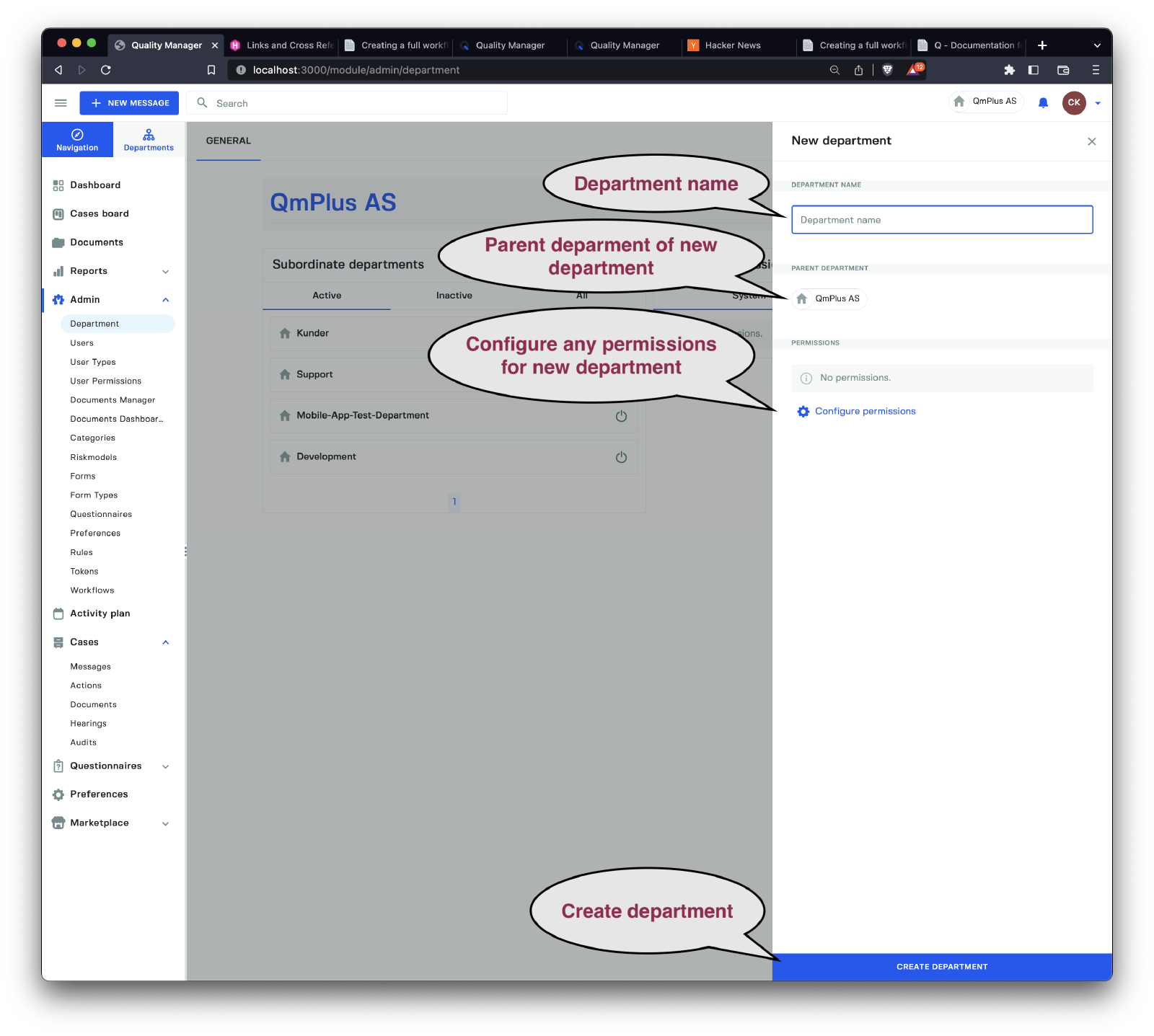
To create a new department, you must provide a Department Name. You can also assign permissions to limit access to the department for users with specific roles.
Once again, clicking on the configure permissions link will open the permissions side panel. From here, you can select and assign the necessary permissions to the new department, effectively defining user access and management capabilities.
In summary, managing departments in the system involves creating, configuring, and assigning permissions to departments to ensure the right users have access to the appropriate areas of the system. By navigating through the department list, filtering departments by status, and customizing permissions, you can create a well-structured and secure environment for all users.