Administrator/Document Dashboards
A user guide for working with the document dashboards. We cover how to create, update and manage documents dashboards.
This section deals with managing documents within the system and organizing their publication for end-users.
By clicking on the Administrator/Document Dashboards, you gain access to the document manager. Document dashboards enable you to organize the display of documents for end-users by selecting from your document library (as represented by the document manager) and building structure components or search components to showcase the documents.
List of Document Dashboards
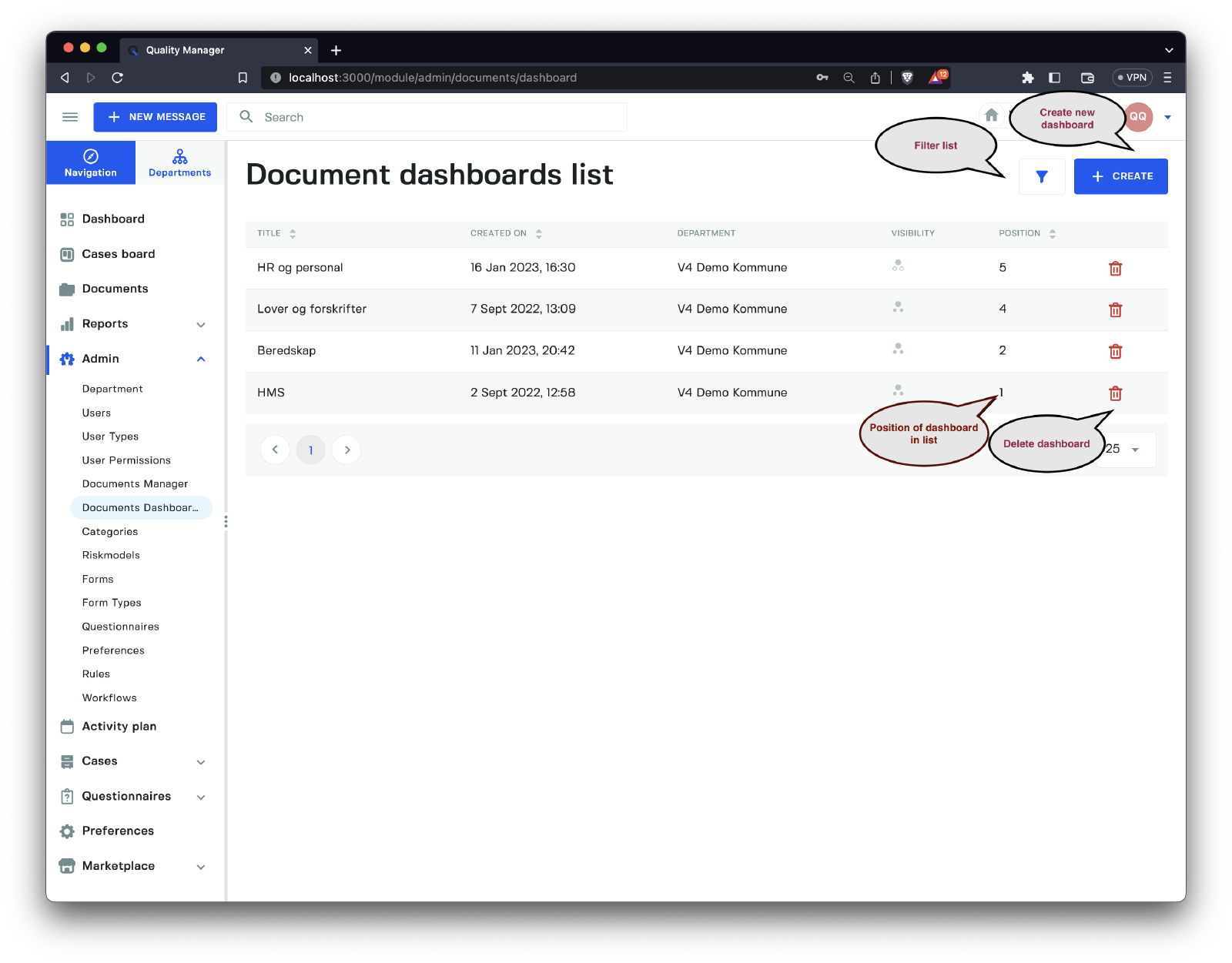
The list of dashboards provides basic information about each dashboard, including title, creation date, the department to which the dashboard is registered, visibility, and position in the list of dashboards that the user will see. From this interface, you can also delete dashboards.
Create a New Document Dashboard
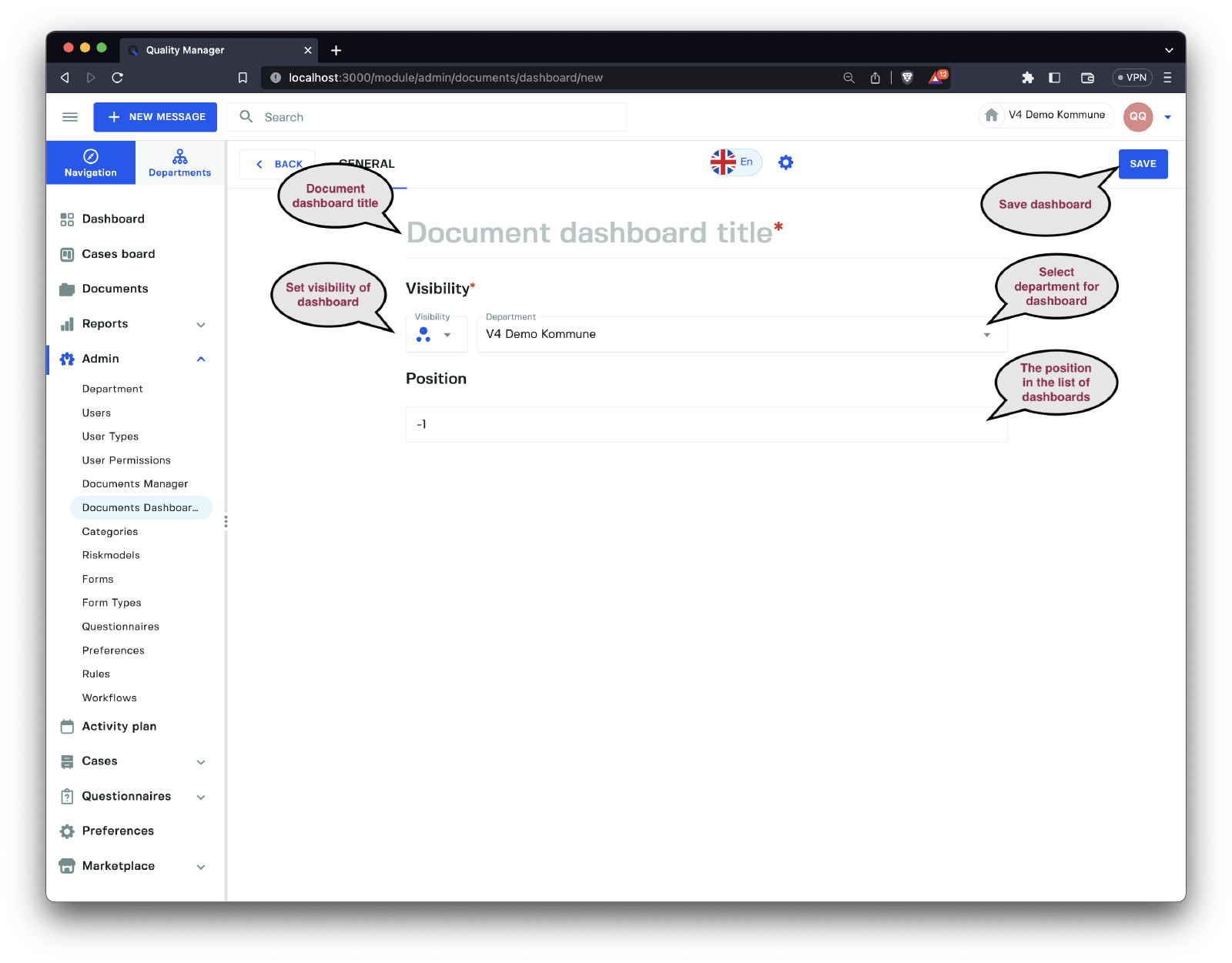
To create a new Document Dashboard, you need to fill in the following fields:
| Field | Description |
|---|---|
Document dashboard title | The name of the dashboard title, supporting multiple languages. |
Visibility | Visibility of the document dashboard. |
Department | The department in which the dashboard is located. |
Position | The position in the list of dashboards that the user can see when they click the Documents option. |
After filling in and selecting options, click on the Save button to create an empty Document dashboard, which allows you to build components for it.
When building new dashboards or editing existing ones, there are three tabs that we care about:
| Tab | Description |
|---|---|
General | The general settings for the document dashboard. |
Components | A list of components added to the dashboard, including their visibility settings. This list shows all dashboard components regardless of their visibility and department settings. |
Preview | A preview/builder for components. This component updates when you change the currently selected department, allowing you to see how the dashboard looks depending on the selected department. |
Preview
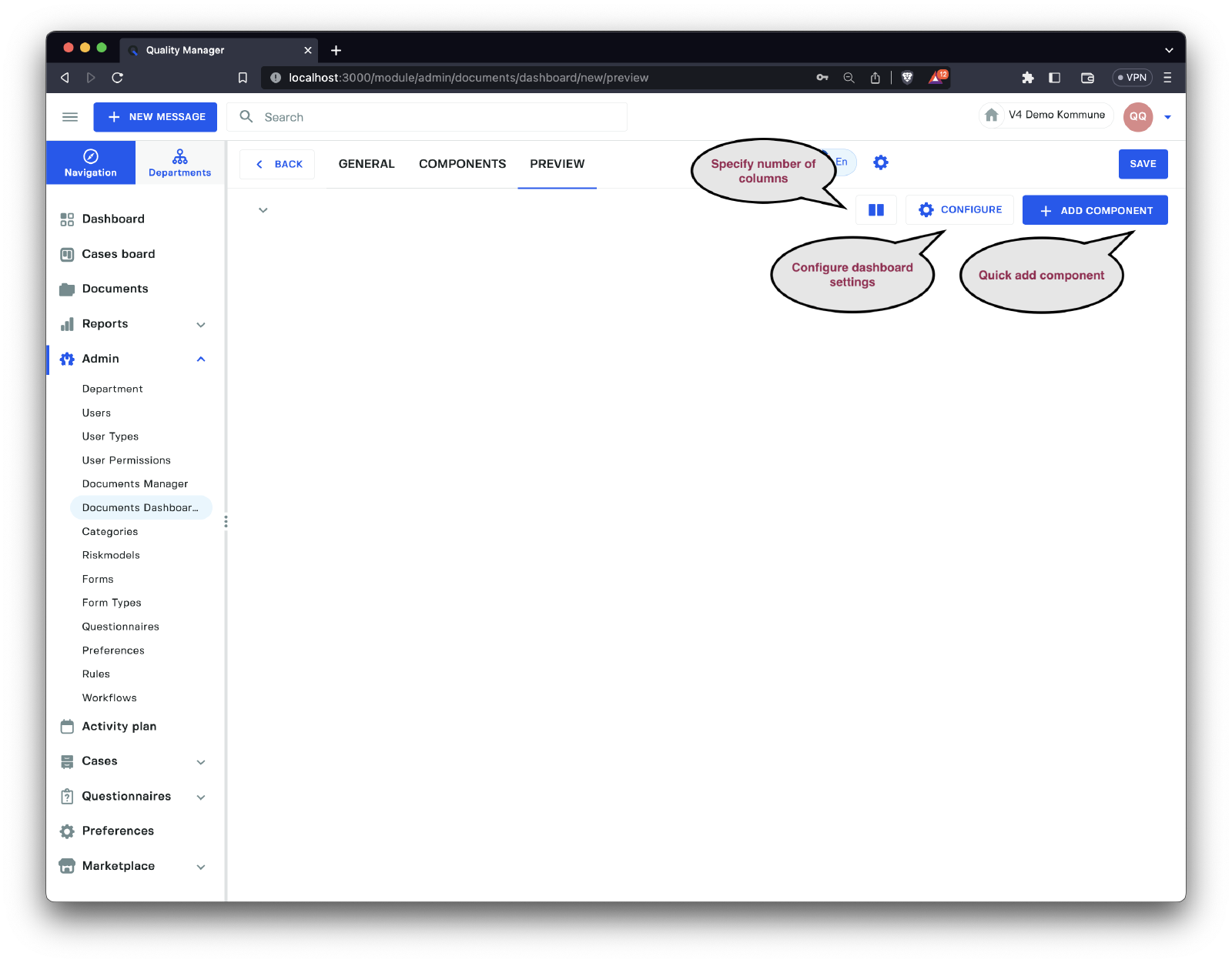
The Preview tab is used to configure the appearance and content of the document dashboard in question. The options available are:
| Option | Description |
|---|---|
Number of columns | Allows you to specify the number of columns displayed in the dashboard. |
Configure | Configure the dashboard, including adding existing components or creating new ones. |
Add component | Quickly add a new structure or search component. |
Preview > Configure
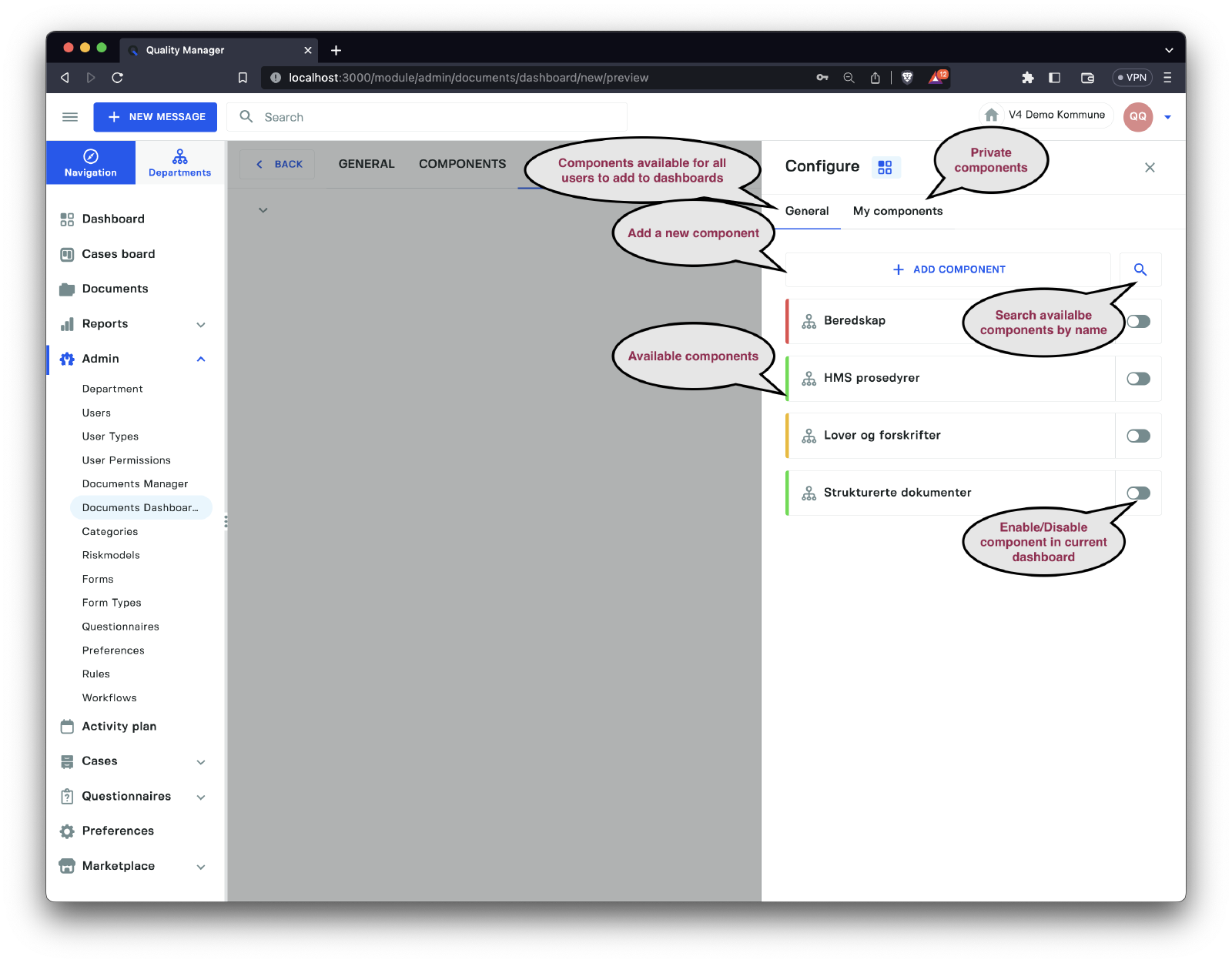
The configure button opens the Configure sidebar, which provides access to adding configurations from either the General components list or the user’s My components list.
To add components to the
Generalcomponents list, you must have permission to operate on the general components. Otherwise, you can only select existing components from theGeneralcomponents list.
Each component can be added by sliding the toggle on the right side to the end, which will add the component to the current dashboard.
If the list of components is lengthy, you can filter them by clicking on the search icon and narrowing the list by searching for the component’s name.
Clicking on Add Component lets you add a new Structure or List Search component. Refer to the Add Component section for more information on creating new components.
Preview > Add Component
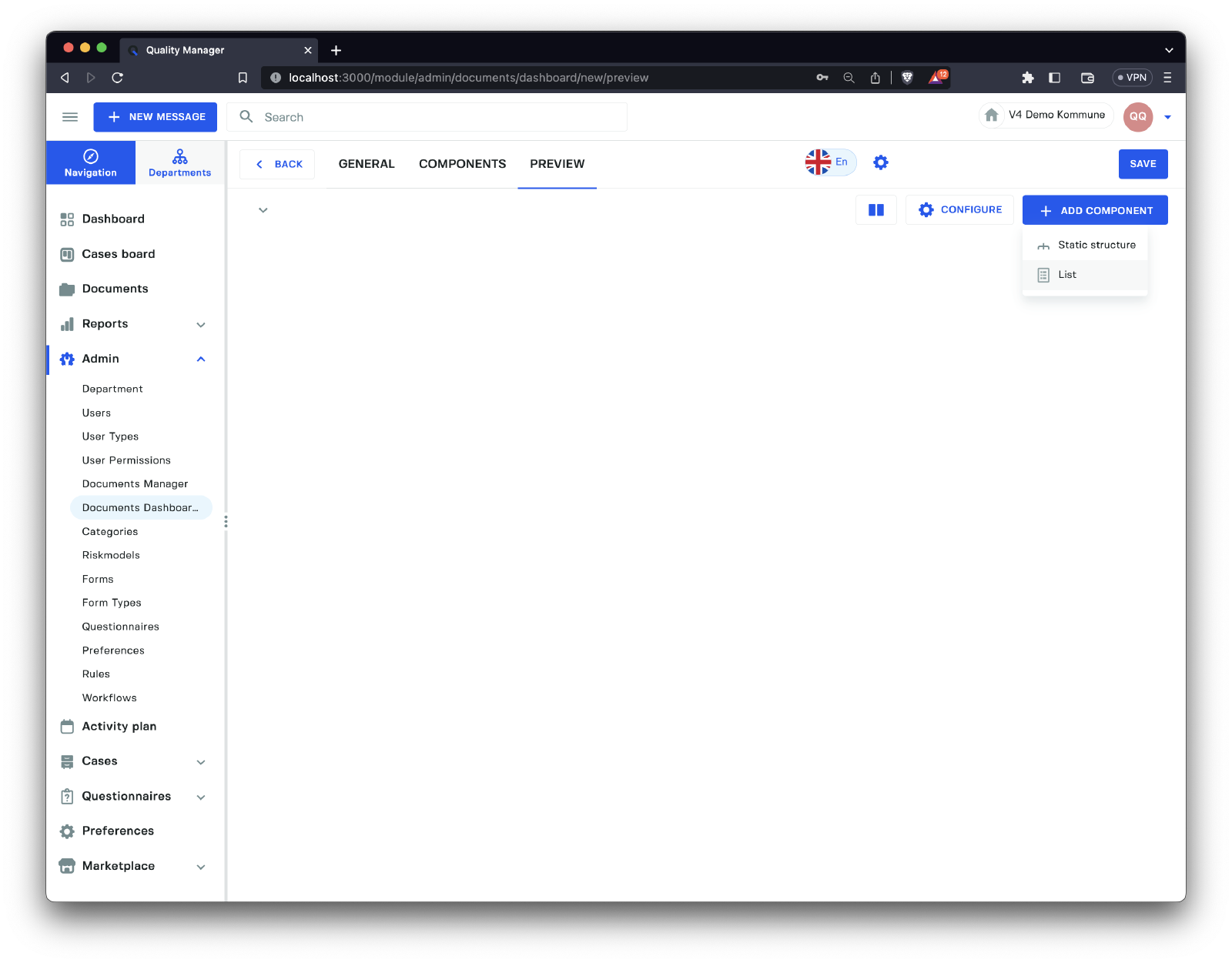
When clicking the Add Component button, you can choose between the Static Structure and List options.
| Option | Description |
|---|---|
Static Structure | A static structure of documents that allows the user to build the structure manually by adding a directory and file structure defined by the user. |
List | A list of documents based on a search, allowing the user to use tags and other restrictions to group documents. This creates dynamic views that help organize documents automatically, as new documents matching the query will appear automatically. |
Preview > Add Structure Component
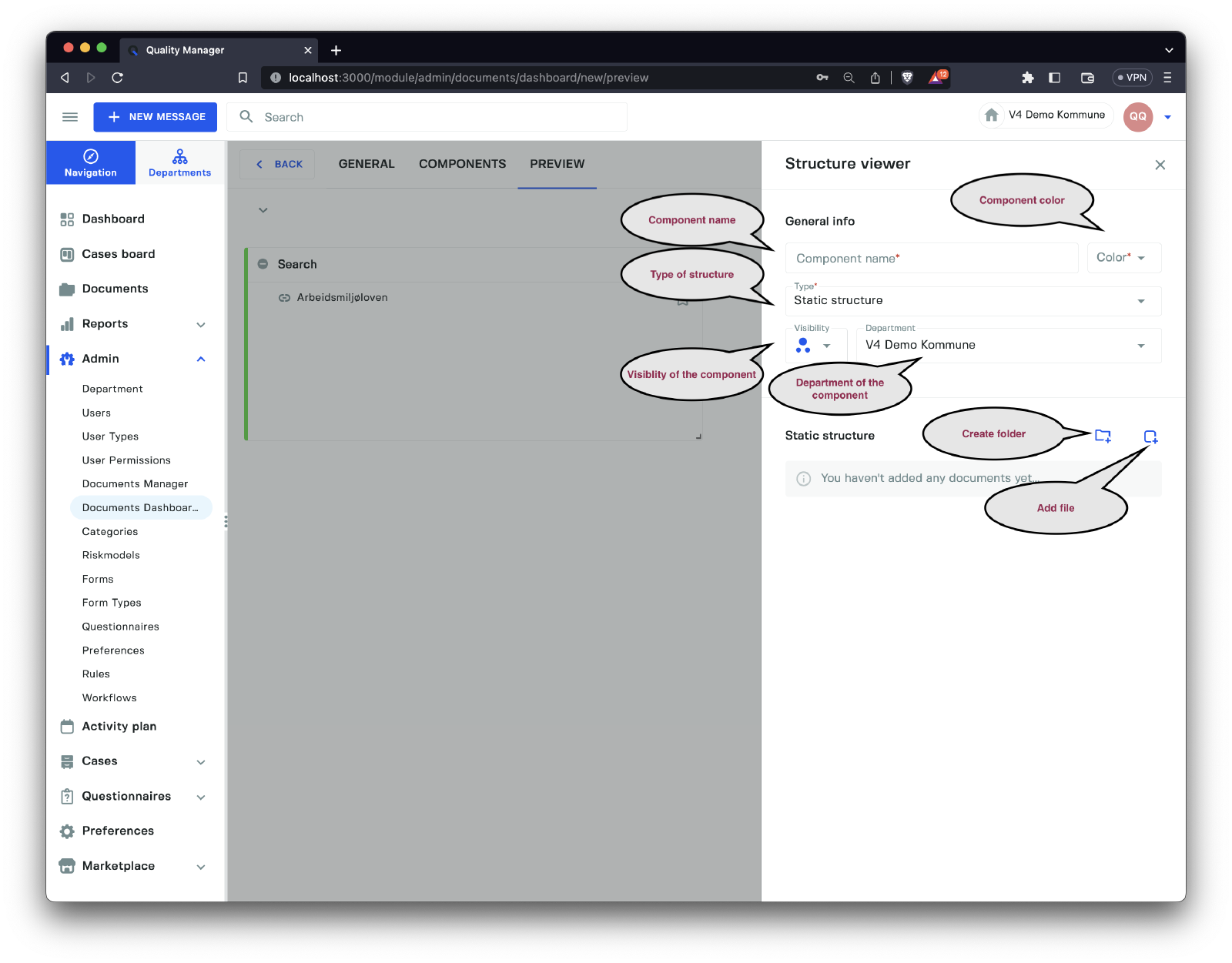
The structure components let you build completely custom directory and file components, organizing the structure as needed. The field options are:
| Option | Description |
|---|---|
Component name | The name of the dashboard component. |
Color | The color of the dashboard component. |
Type | The type of the component, allowing you to switch between the structured component and list. |
Visibility | The visibility of the component. |
Department | The department of the component. |
Static structure > New folder | Add a new folder to the structure. |
Static structure > Add document | Add a new document to the structure. |
Clicking on the Add document icon opens a sidebar, enabling you to browse the document manager files and add documents.
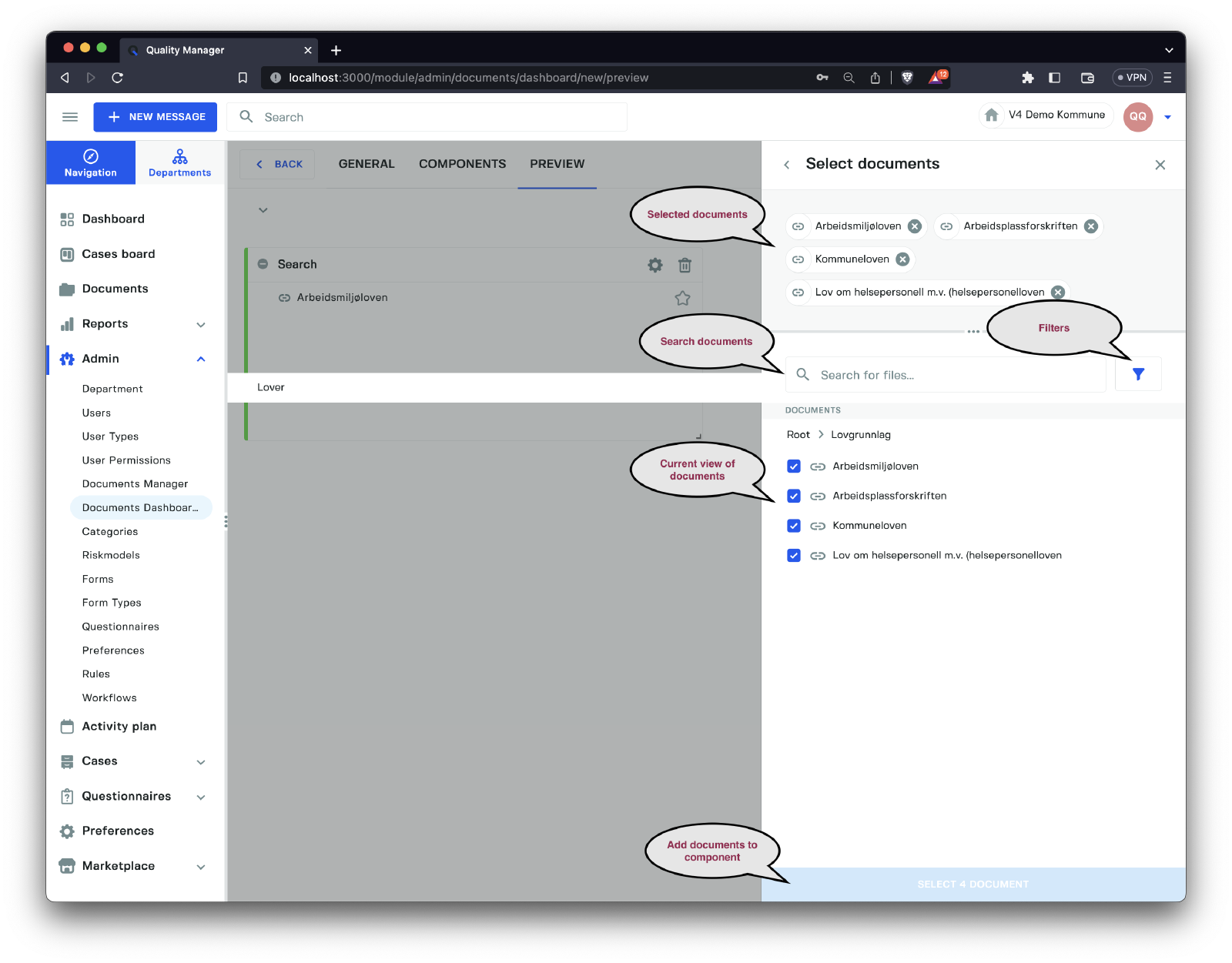
You can browse the document folders, filter, and search for files, then select multiple files to add at once. When you are ready, click the Select N documents button to add them to your Structure component.
Clicking on the Add folder icon opens a sidebar that allows you to create a new document folder and add it to your Structure component.
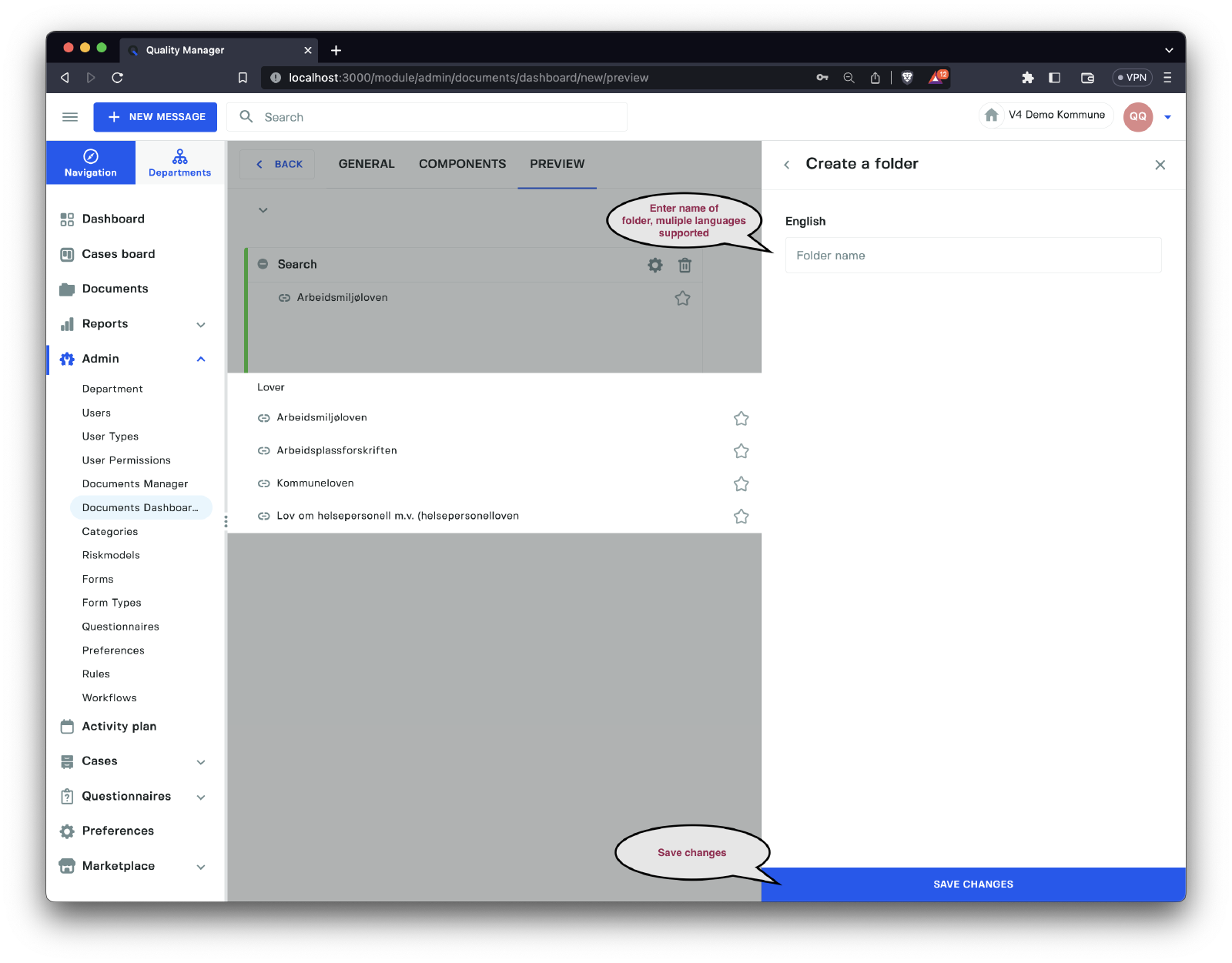
Enter the name of the folder (supports multiple languages) and click the Save changes button to add the folder to your structure.
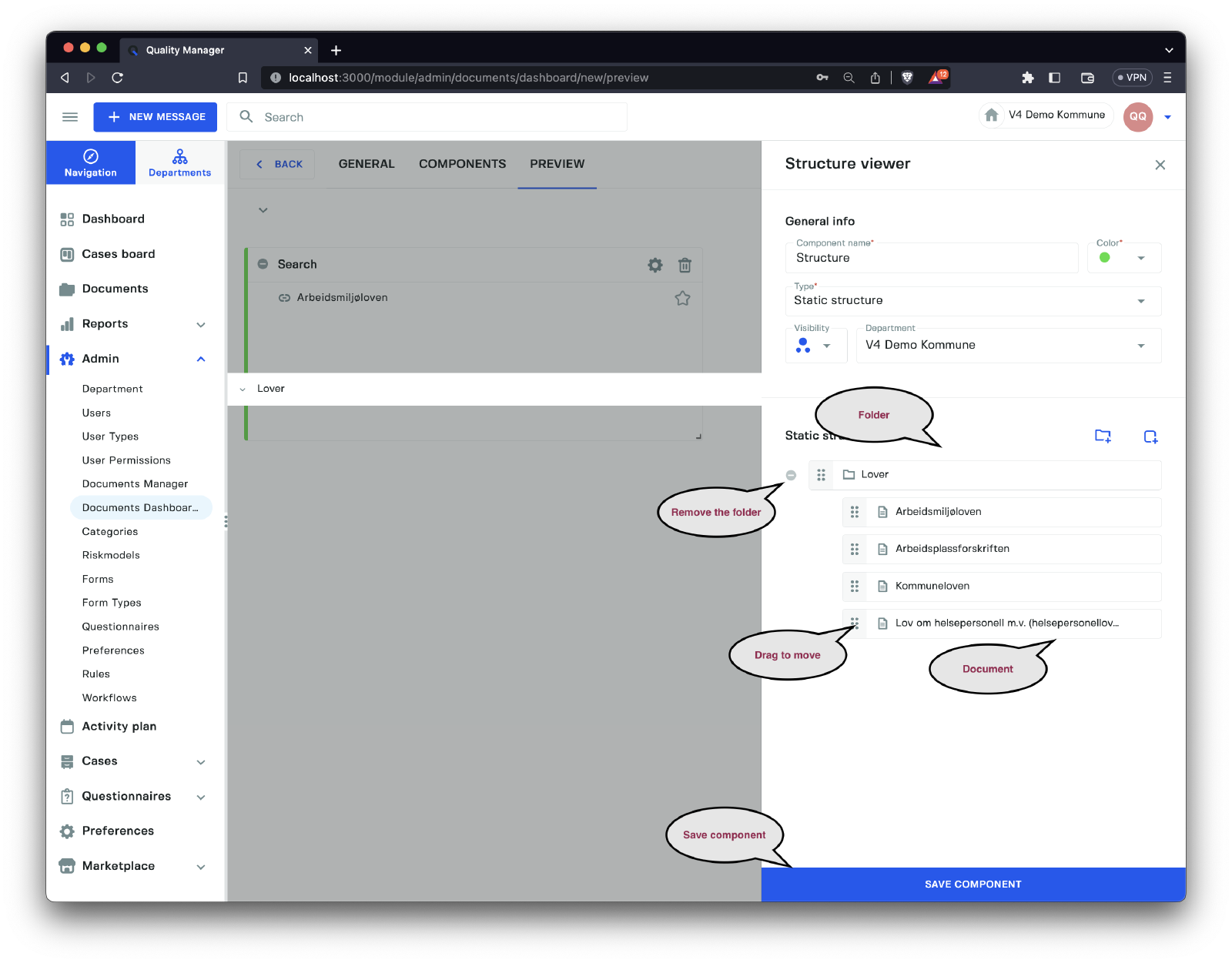
Above is an image of a Structured component containing a Folder and a couple of Documents. You can rearrange the order of the items by dragging them. To move a document under a Folder, drag it from left to right under a folder, and it will be attached underneath that Folder. Documents and Folders can also be removed from the structured component.
Preview > Add List Component
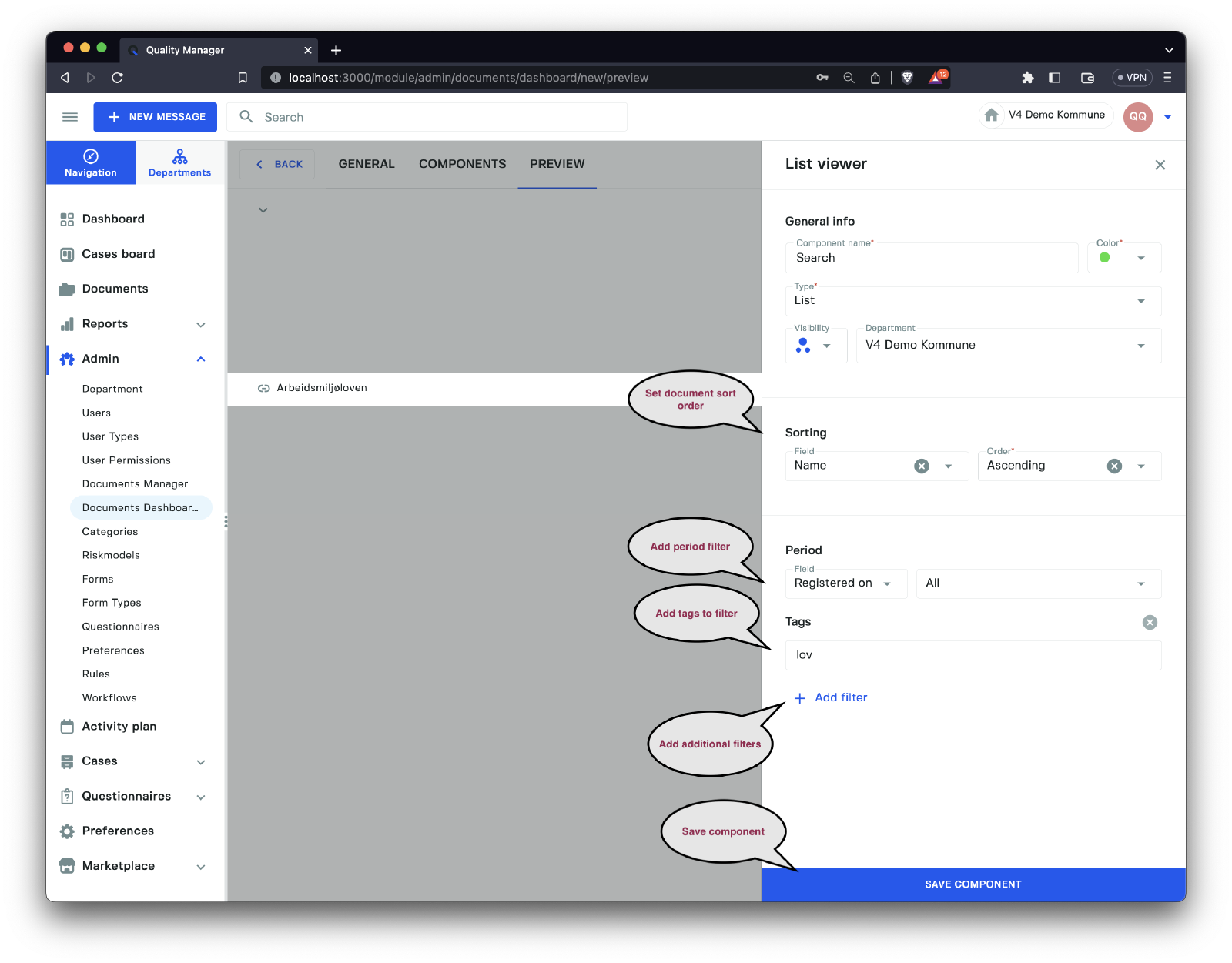
A list component is a component that runs a Search for documents and displays any matching documents. The options for the component are:
| Option | Description |
|---|---|
Sorting | Defines the sort order of the documents in the list. |
Filters | Add filters to limit the documents appearing in the list. |
For sorting the list, there are the following options:
| Sort Option | Description |
|---|---|
Registered On | Sort by the Registered On date of the document. |
Changed On | Sort by the Changed On date of the document. |
Type | Sort by the document type. |
Name | Sort by the document name. |
The sort order can be in Descending or Ascending order.
For filtering the list, there are the following options:
| Filter Option | Description |
|---|---|
Period | The period of the document by either Registered on or Changed on. |
Search | A text search on the name of the documents. |
Tags | A set of tags separated by commas. |
Case status | Documents with a specific case status. |
Document folder | Filter by a specific document folder in the document manager. |
Preview result
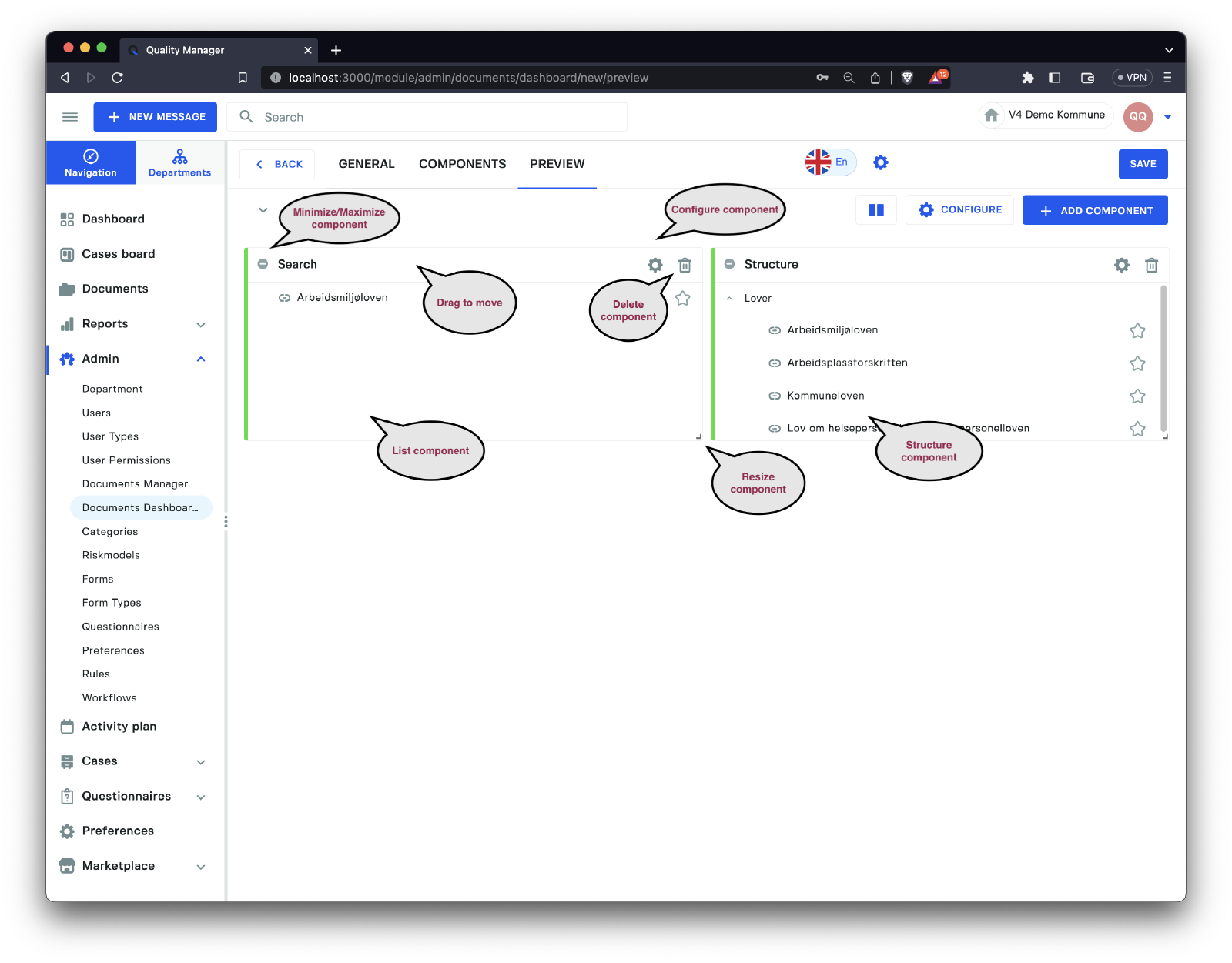
Above is an example of a Dashboard with a List and Structure component. As we can see, we can Minimize/Maximize the component, as well as resize and move the component on the dashboard. Existing components can also be re-configured and removed from the Dashboard.