Administrator/Preferences
A user guide for working with preferences. We cover how to create and modify preferences.
This section deals with managing preferences in the system.
Clicking on the Administrator/Preferences gives access to the list of preferences.
General Settings
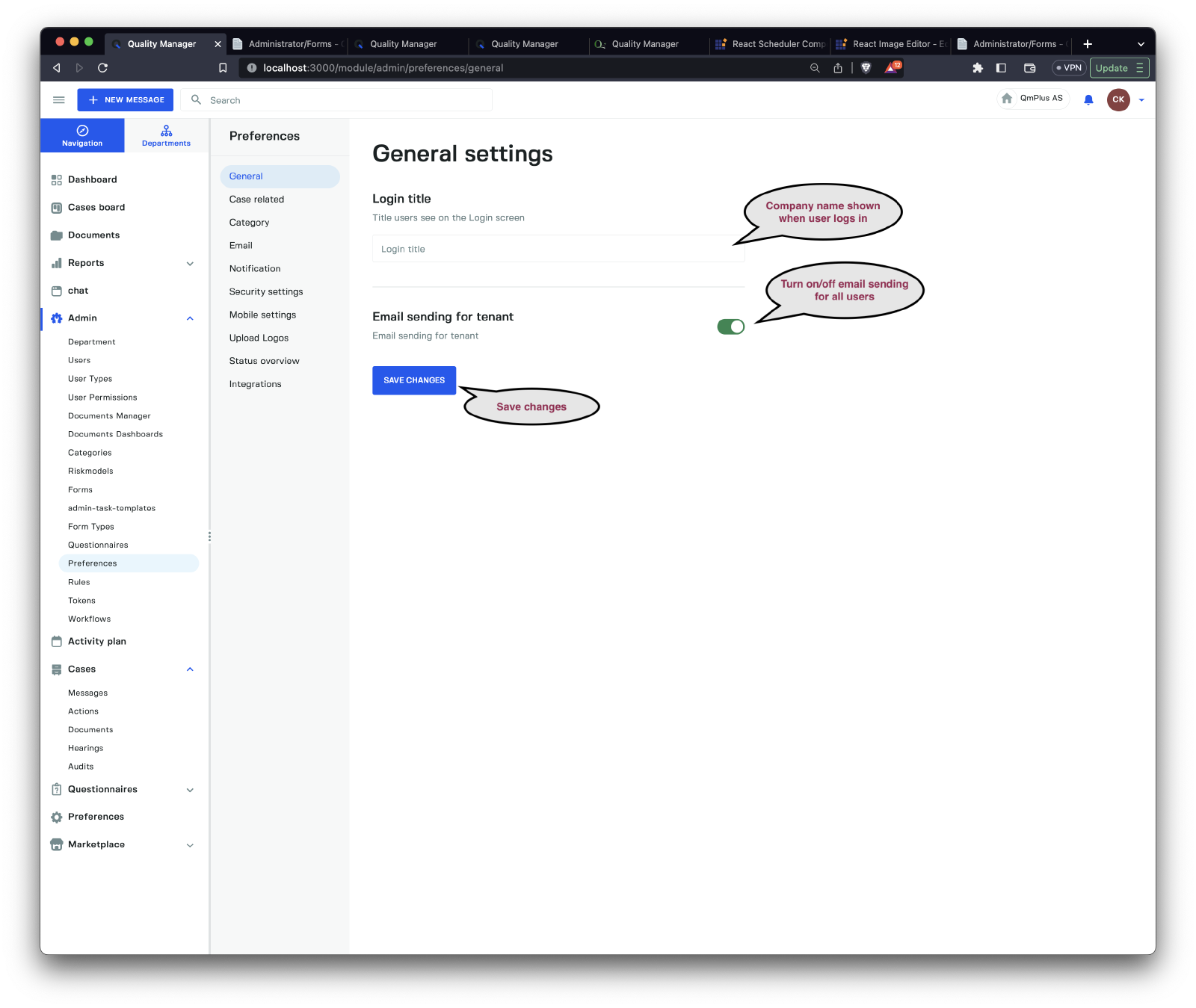
The General settings allow you to control the following properties.
| Property | Description |
|---|---|
Login title | The title displayed when the user is prompted to enter their username and password. |
Email sending for tenant | Enable or disable email sending for all tenant users. |
Case related
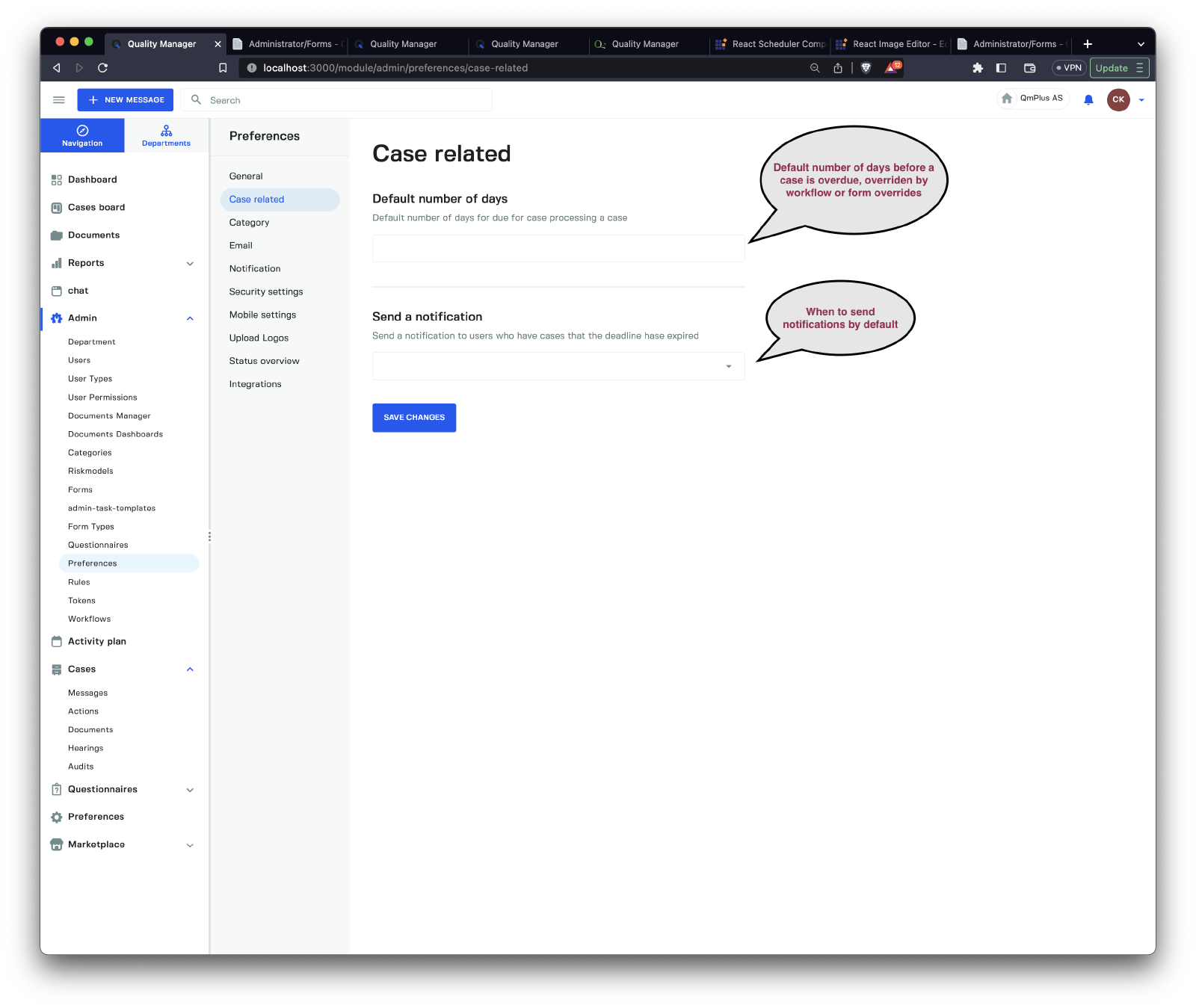
These preferences control basic due date and notification settings. These settings can be overridden at the workflow and form level.
| Property | Description |
|---|---|
Default number of days | The number of days from when a case is registered until it’s marked overdue. |
Send a notification | The default setting for when notifications are sent. |
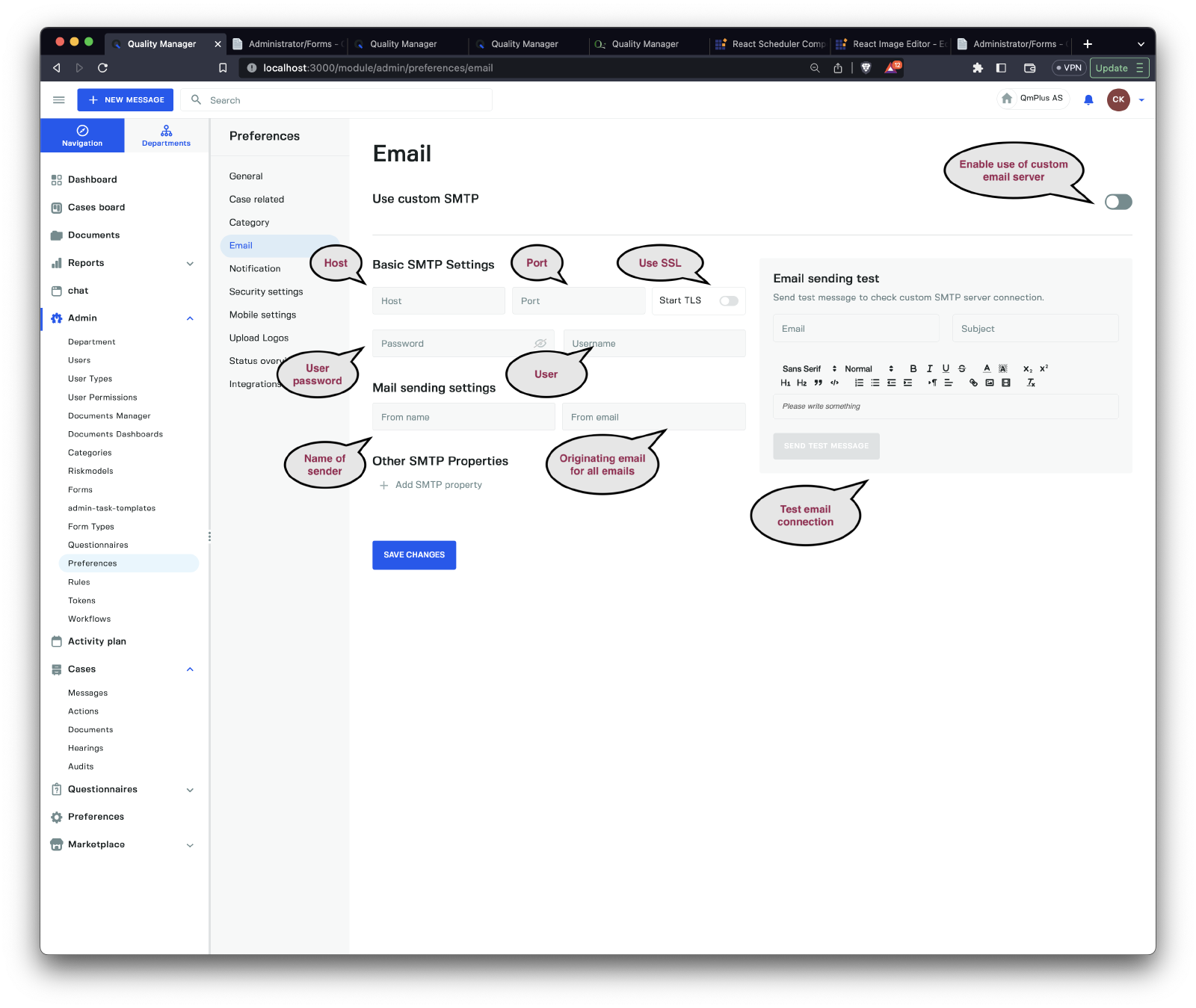
This section allows you to override the platform’s email sending settings. This lets the user use their own SMTP endpoint to send email from Q. This might be useful if the customer wants the notifications to be from their own email domain or if their email spam settings are making the delivery of regular email from Q impossible.
To enable a custom Email server, flip the Use custom SMTP toggle.
To set up an email server, you need to configure the following fields.
| Field | Description |
|---|---|
Host | The SMTP server host. |
Port | The SMTP server port used. |
Start TLS | If the server uses SSL for encrypting the connection. WE HIGHLY RECOMMEND TLS BE ENABLED ON YOUR SERVER |
Password | The password of the SMTP user used to connect to the outbound email server. |
Username | The username of the SMTP user used to connect to the outbound email server. |
Other SMTP Properties | Additional platform-specific properties needed to connect successfully and send email. Please contact Q if these are needed. |
From name | What name or text should be set as the originating sender when sending email. |
From email | What email should be specified as the originating sender. |
On the right-hand side is a simple send email form that lets you test the sending of email via your newly configured custom SMTP server.
This email is send only and cannot be used to reply to Q.
DONE
Notifications
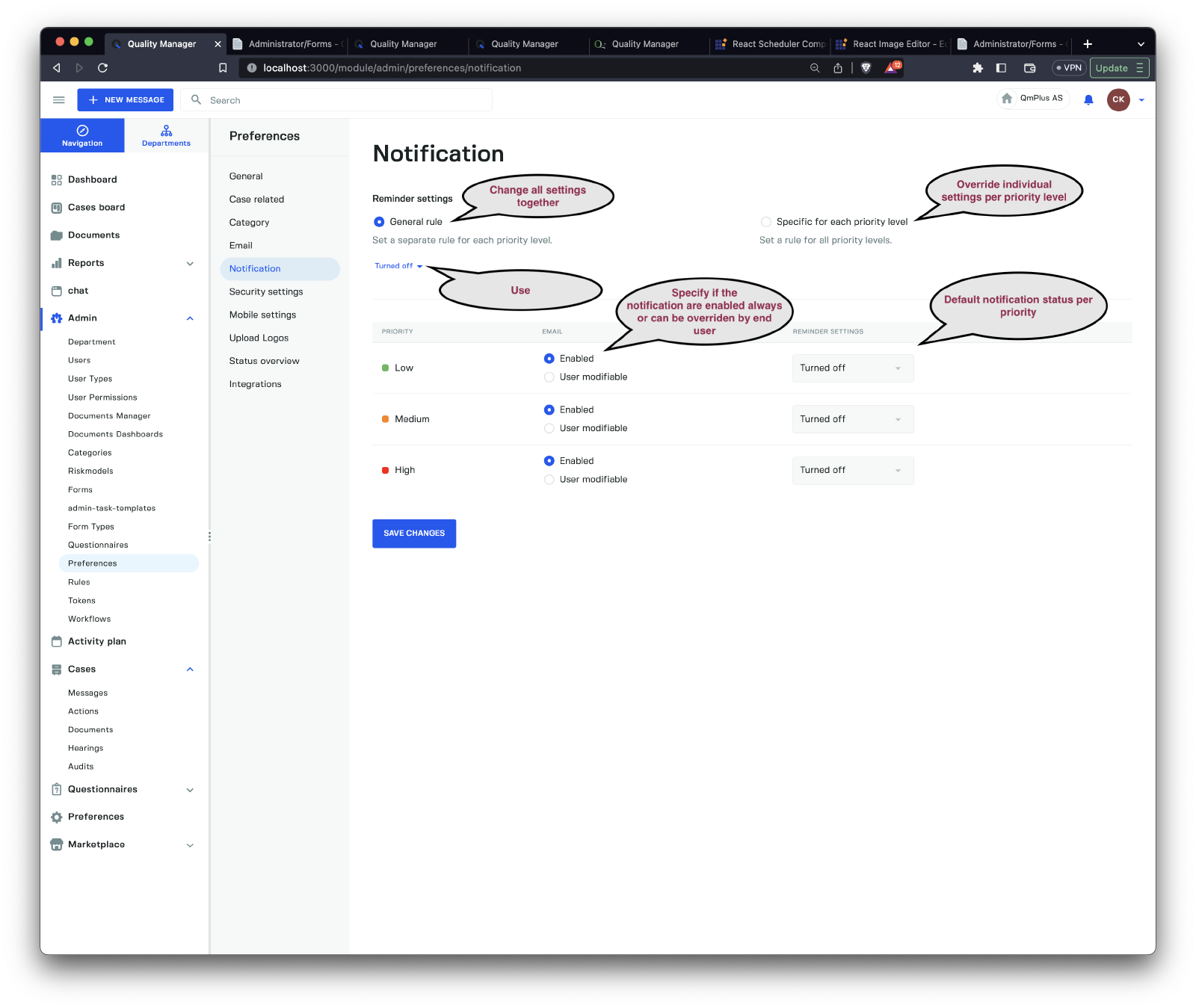
The notifications settings allow you to set default notification settings for the system as a whole.
You can decide which notifications should be user-adjustable and which notifications need to be sent out. You can also set the reminder settings and when they should send the emails. For example, you might set low-priority reminders to be sent every Wednesday, but high-priority reminders must be sent every day.
When selecting the General rule, you control the reminder setting for each priority level by changing the pull-down menu just below the General rule setting, and this will set the reminder send-out time to the same for all the available priorities.
If you wish to set different reminder times per priority, select Specific for each priority level instead and change it per priority.
If you set Email to
Enabled, email will be sent always. Setting it toUser modifiablewill let the users themselves override if they want to receive emails or not.
Security Settings
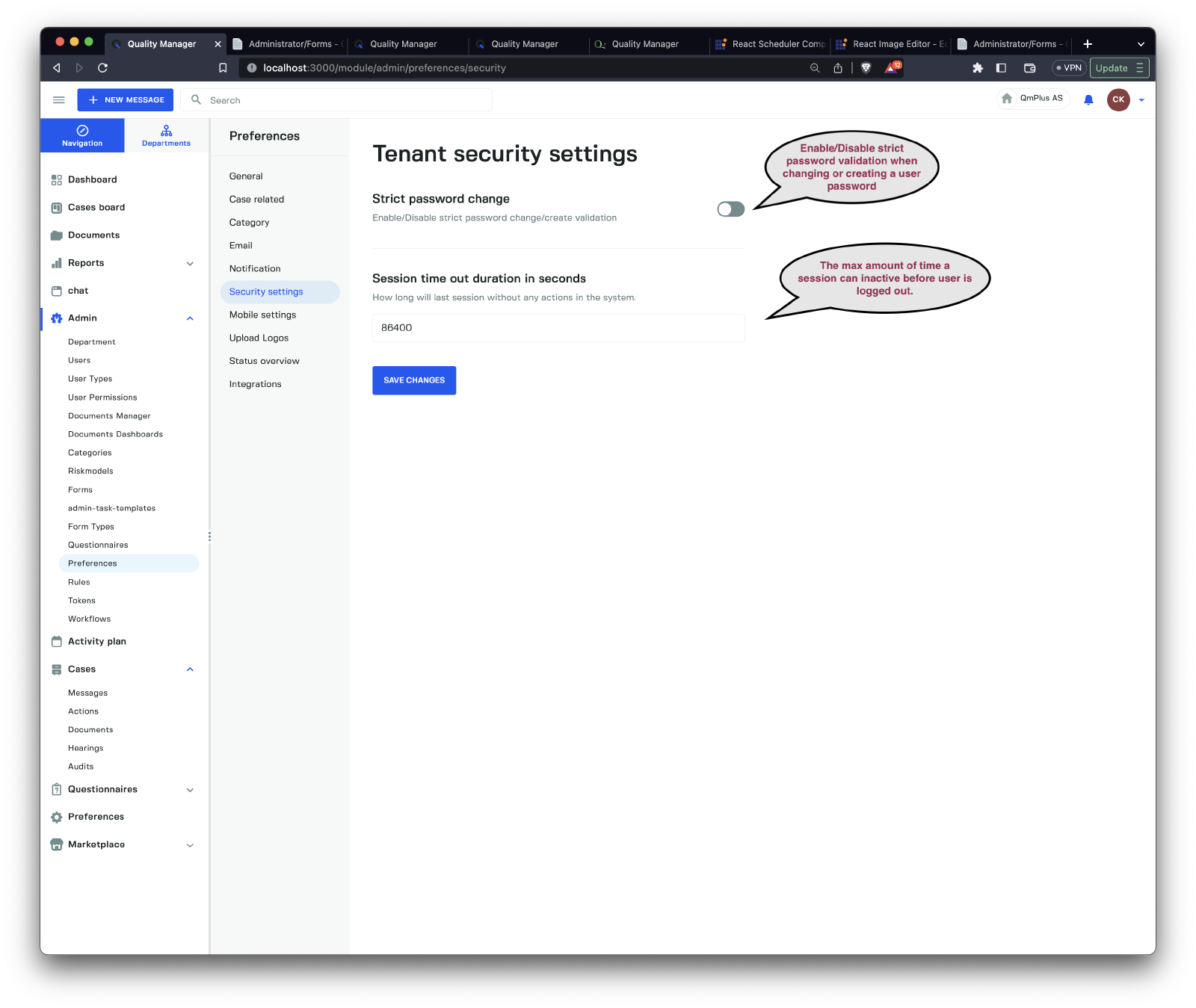
Security settings allow you to configure the following options.
| Option | Description |
|---|---|
Strict password change | Enable or disable strict checking of passwords when creating a new user or updating an existing user. |
Session timeout duration in seconds | The amount of time in seconds a user can be idle before they are logged out of the system. |
Mobile Settings
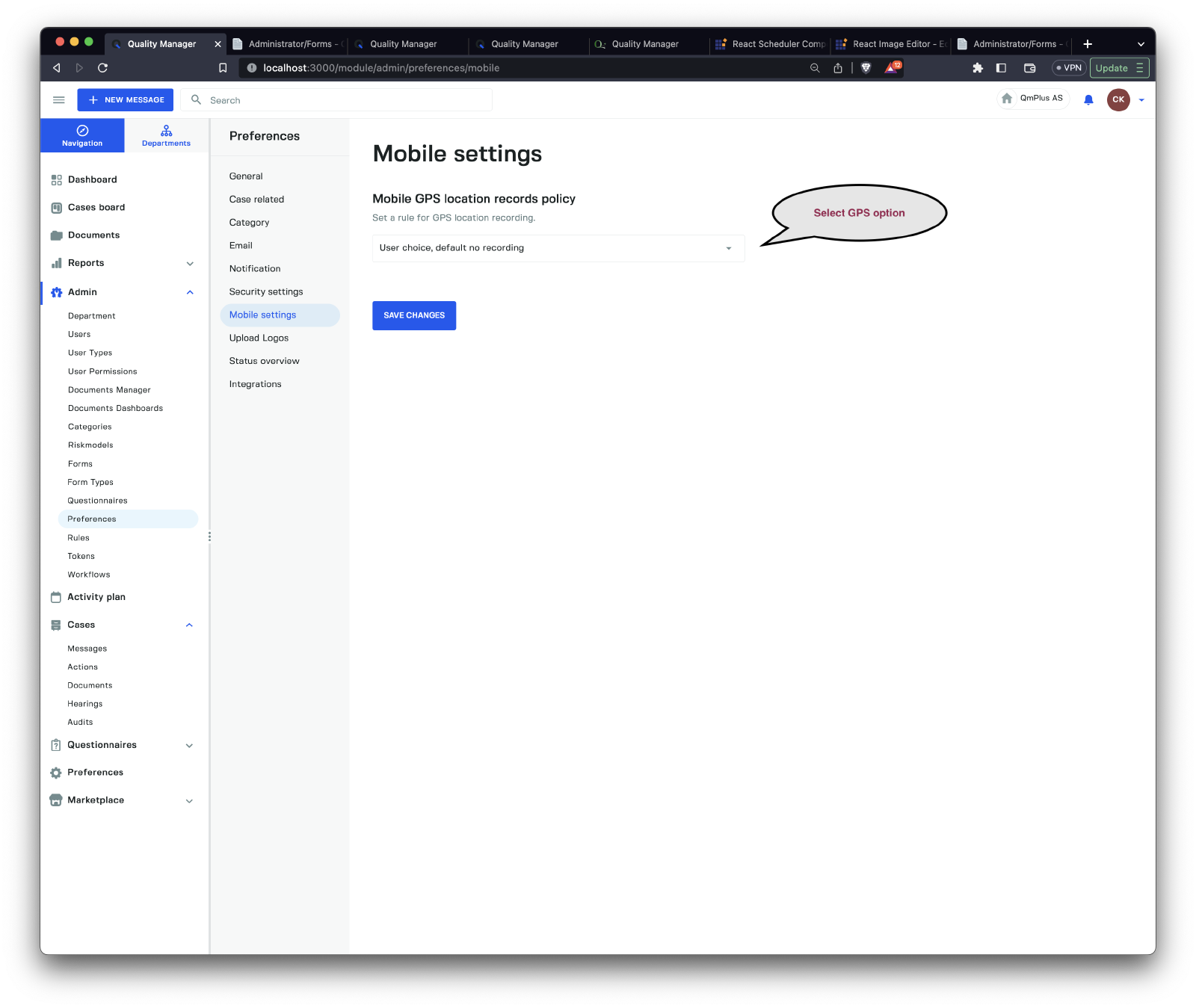
Mobile settings allow you to configure application-level shared settings for all mobile client users.
| Option | Description |
|---|---|
Mobile GPS location recording policy | Allows you to specify if GPS location recording should be available or not. For options details, look below. |
Mobile GPS location recording policy Options
| Option | Description |
|---|---|
Always Record | Always record GPS coordinates. The user cannot disable it. |
Never Record | Never record GPS coordinates. The user cannot enable it. |
User choice, default record | By default, record GPS coordinates. The user CAN disable it. |
User choice, default no recording | By default, do not record GPS coordinates. The user CAN enable it. |
DONE
Upload Logos Settings
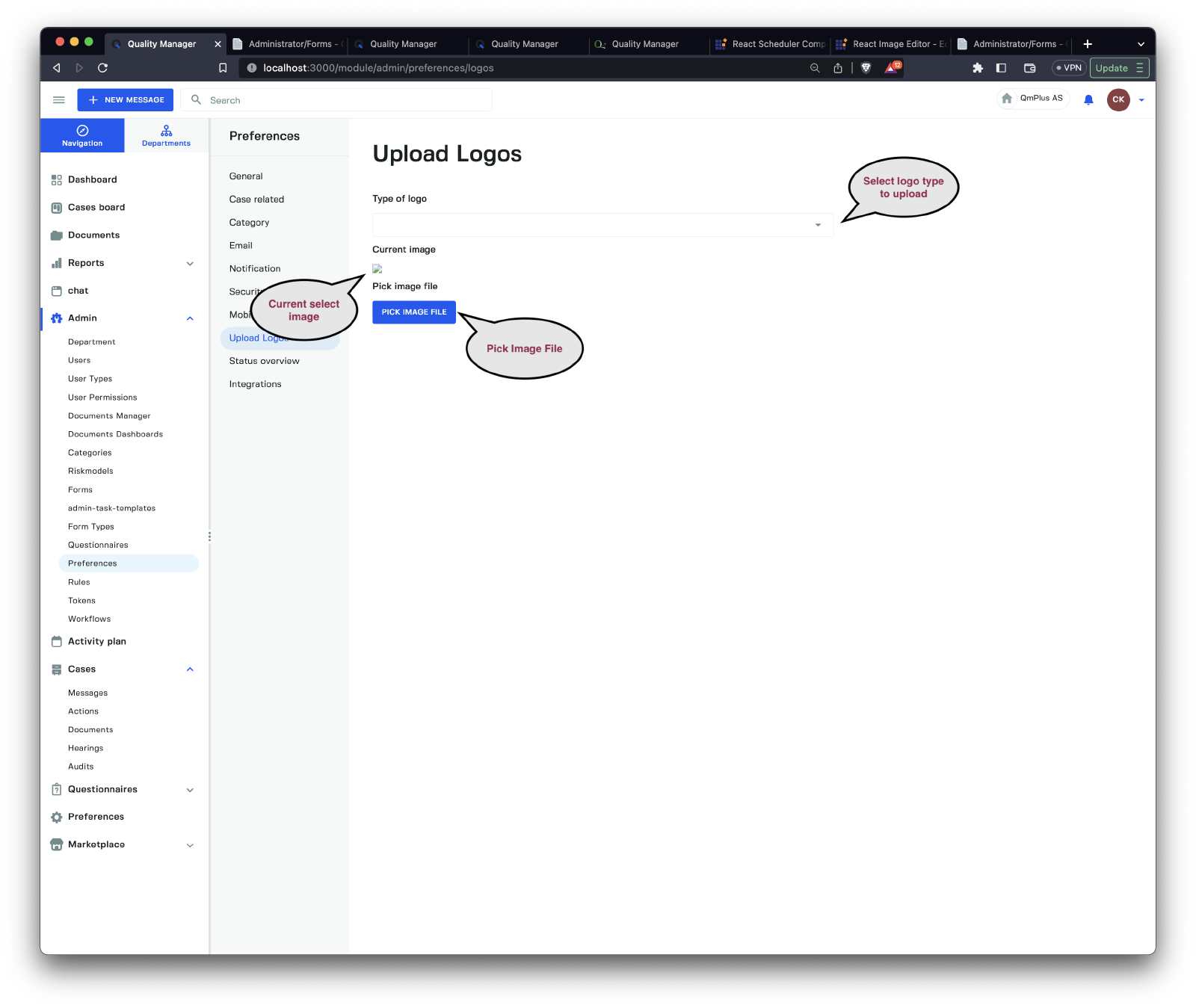
The upload logos settings allow you to upload custom logos to be shown in different places.
| Options | Description |
|---|---|
Company logo for documents and login prompt | Logo shown when the user is presented with the login prompt. |
Small Logo in web header top left | The top left logo once you are logged in. |
Status Overview
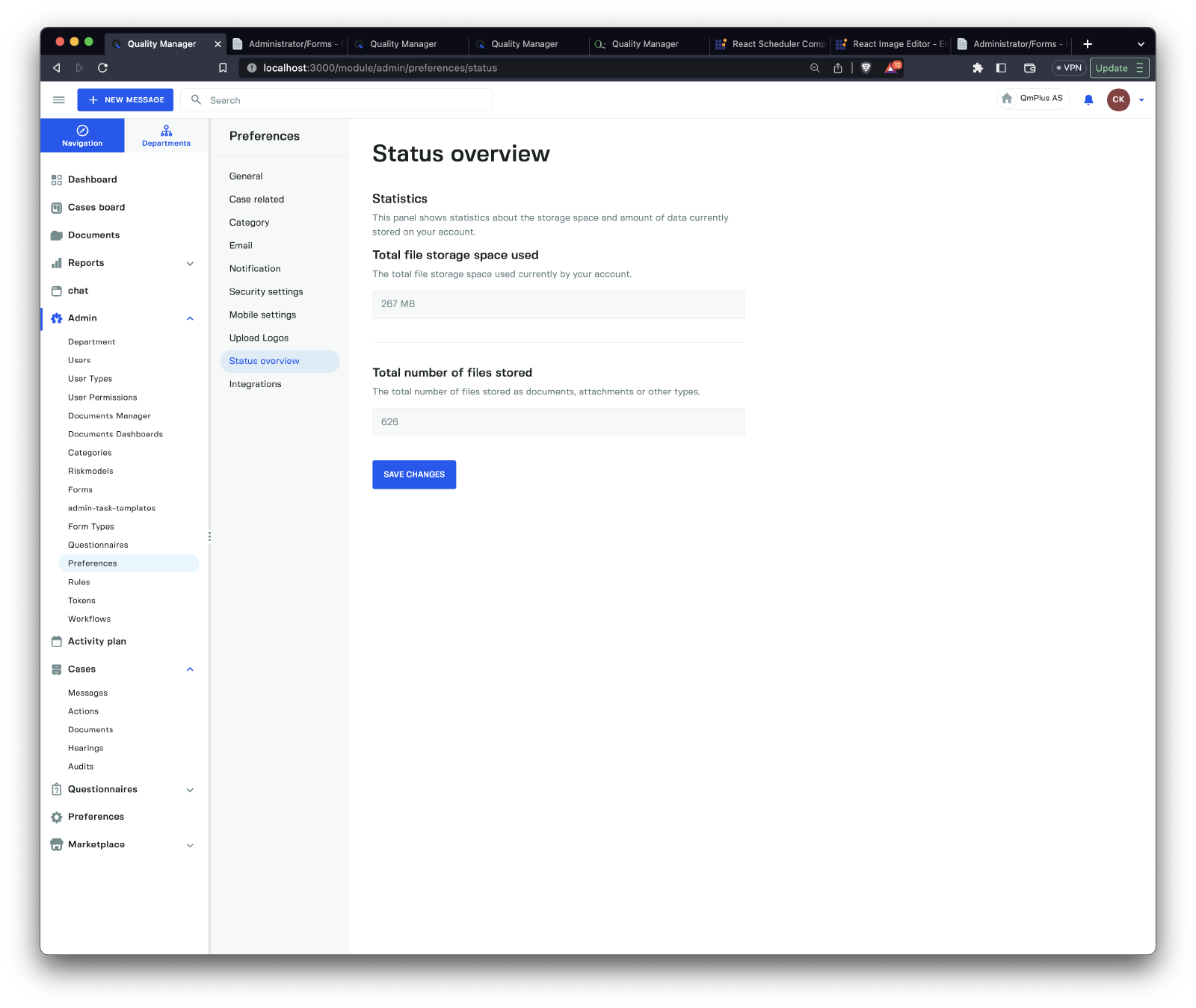
Shows application statistics. The following statistics are available.
| Options | Description |
|---|---|
Total file storage space used | The total storage space used by uploaded files. This includes documents as well as attachments to messages and cases. |
Total number of files stored | The number of files stored. This includes documents as well as attachments to messages and cases. |
Integrations
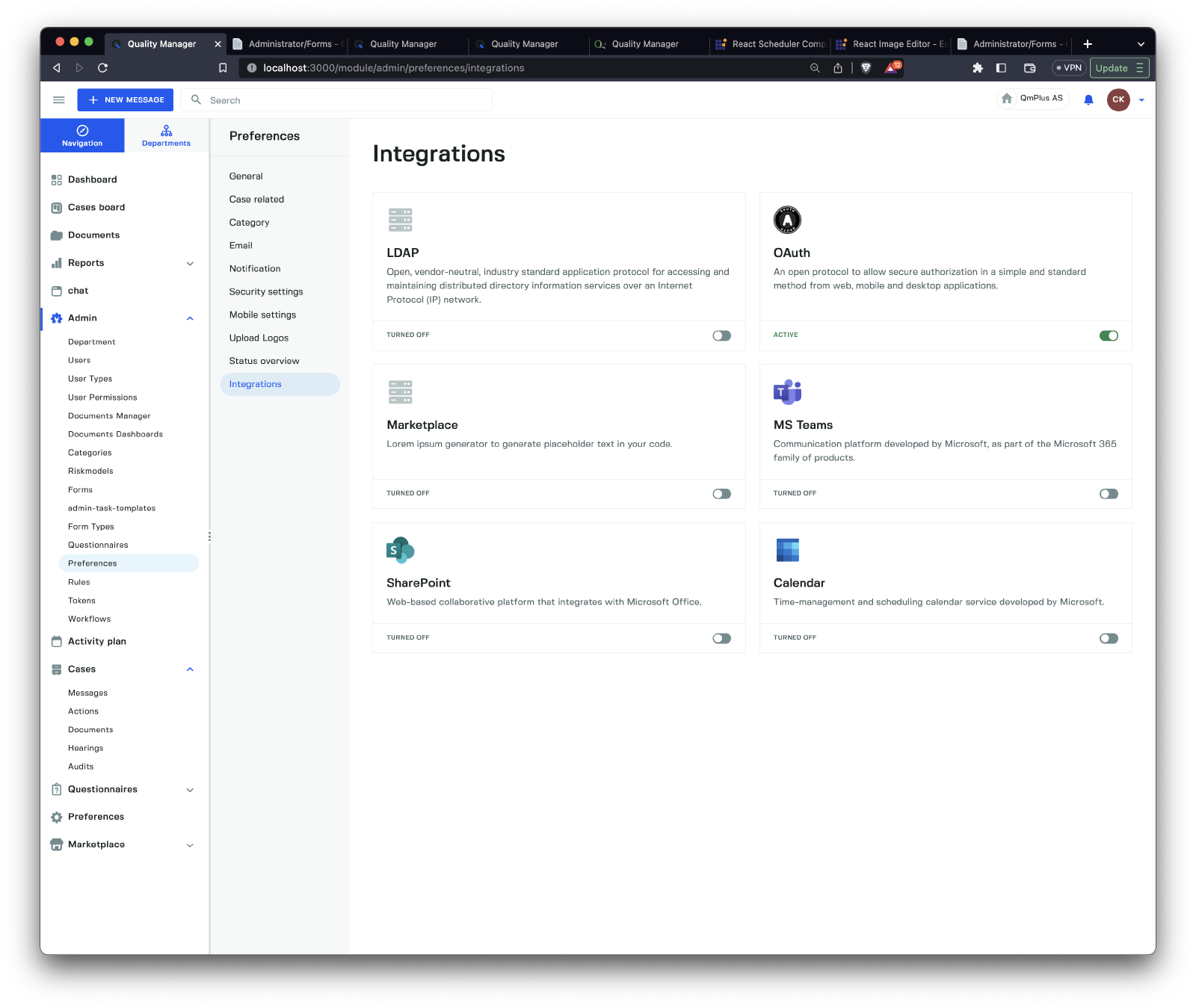
Shows all available integration options for your subscription.
Some integrations must be enabled specifically for your subscription (charges might apply). If you are interested in specific Enterprise integrations, contact us.
| Integration | Enterprise Option | Description |
|---|---|---|
LDAP | YES | Synchronize users and departments against an LDAP server. |
OAuth | YES | Allow Single Sign-on Integration with an OAuth 2.x provider. |
Marketplace | Enable access to the Q Marketplace. | |
MS Teams | YES | Integrate with Microsoft Teams. Requires OAuth integration against Azure with the right permissions set up. |
SharePoint | YES | Integrate with SharePoint. Requires OAuth integration against Azure with the right permissions set up. |
Calendar | YES | Integrate with Calendar. Requires OAuth integration against Azure with the right permissions set up. |