Administrator/Questionnaires
A user guide for working with questionnaires. We cover how to create and modify questionnaires.
This section focuses on managing questionnaires within the system.
Clicking on Administrator/Questionnaires provides access to the list of questionnaires.
Questionnaires List
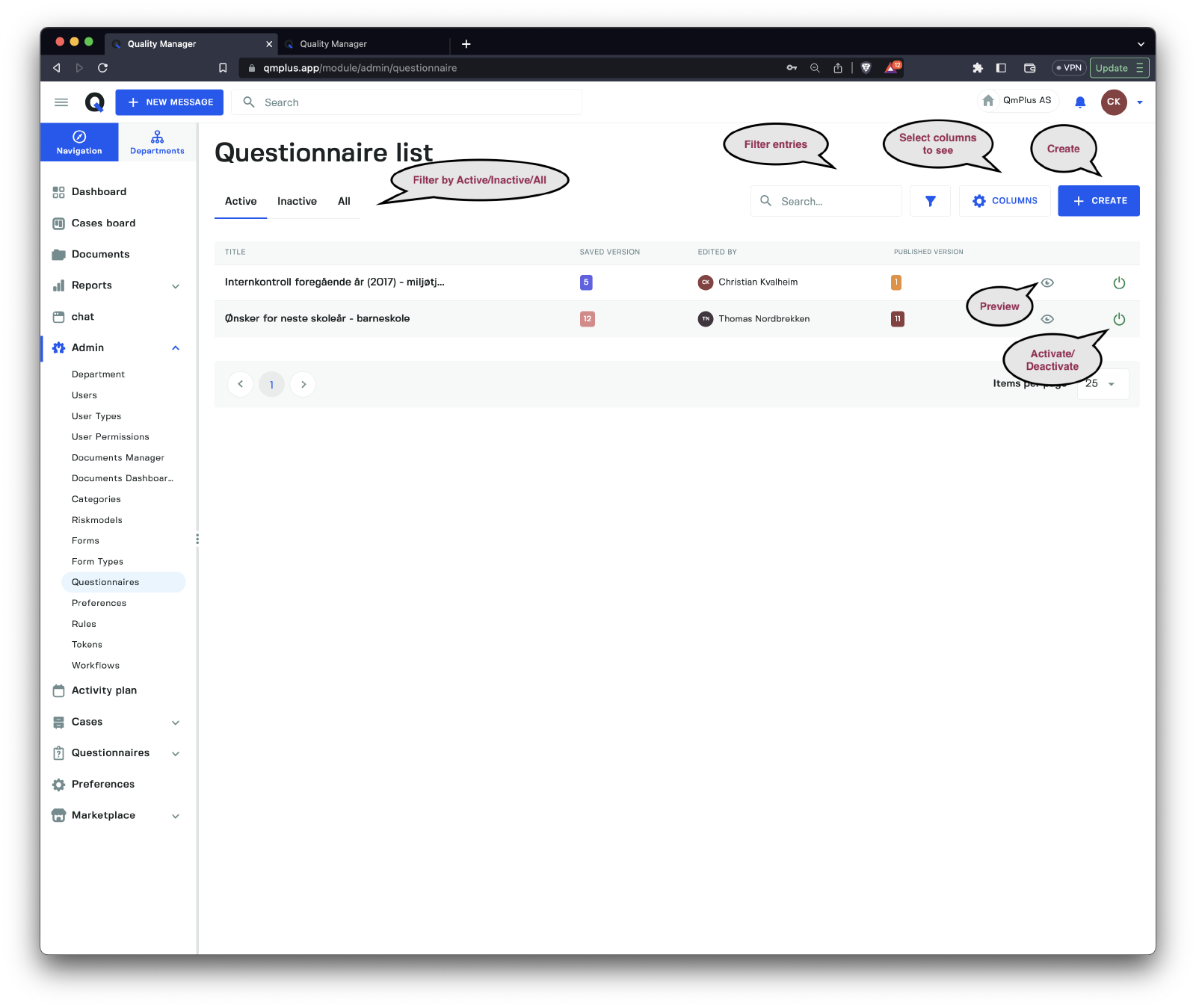
Questionnaires are used to create comprehensive questionnaires and checklists that can span either a single page or multiple pages.
You can filter between Active, Deactive, or All status, search by title, and check whether the questionnaire is published or not.
Create Questionnaire
General Tab
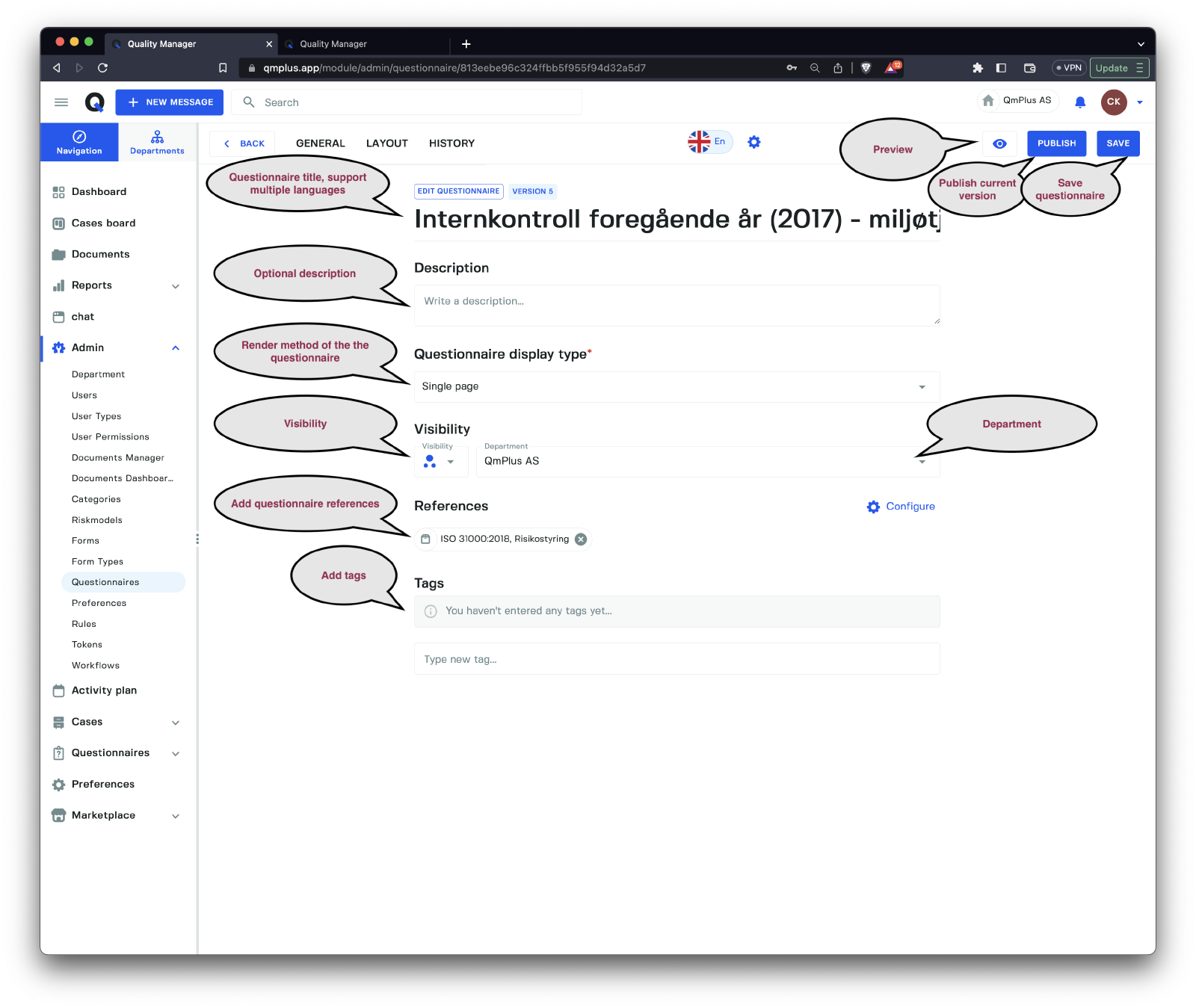
Creating a questionnaire requires the following fields.
| Field | Description |
|---|---|
Title | Title of the questionnaire, supports multiple languages. |
Description | Optional description for the questionnaire. |
Questionnaire display type | How to render the questionnaire (Single Page or Multiple Pages). |
Visibility | Visibility of the questionnaire. |
Department | The department in which the questionnaire is located. |
Reference | One or more document references attached to the questionnaire. |
Tags | Add tags to the questionnaire to identify it. |
As you can see from the image, we can preview the current questionnaire.
Until you click the
Publishbutton, all changes to the questionnaire are private. Once thePublishbutton is clicked, it will be visible to add to activities.
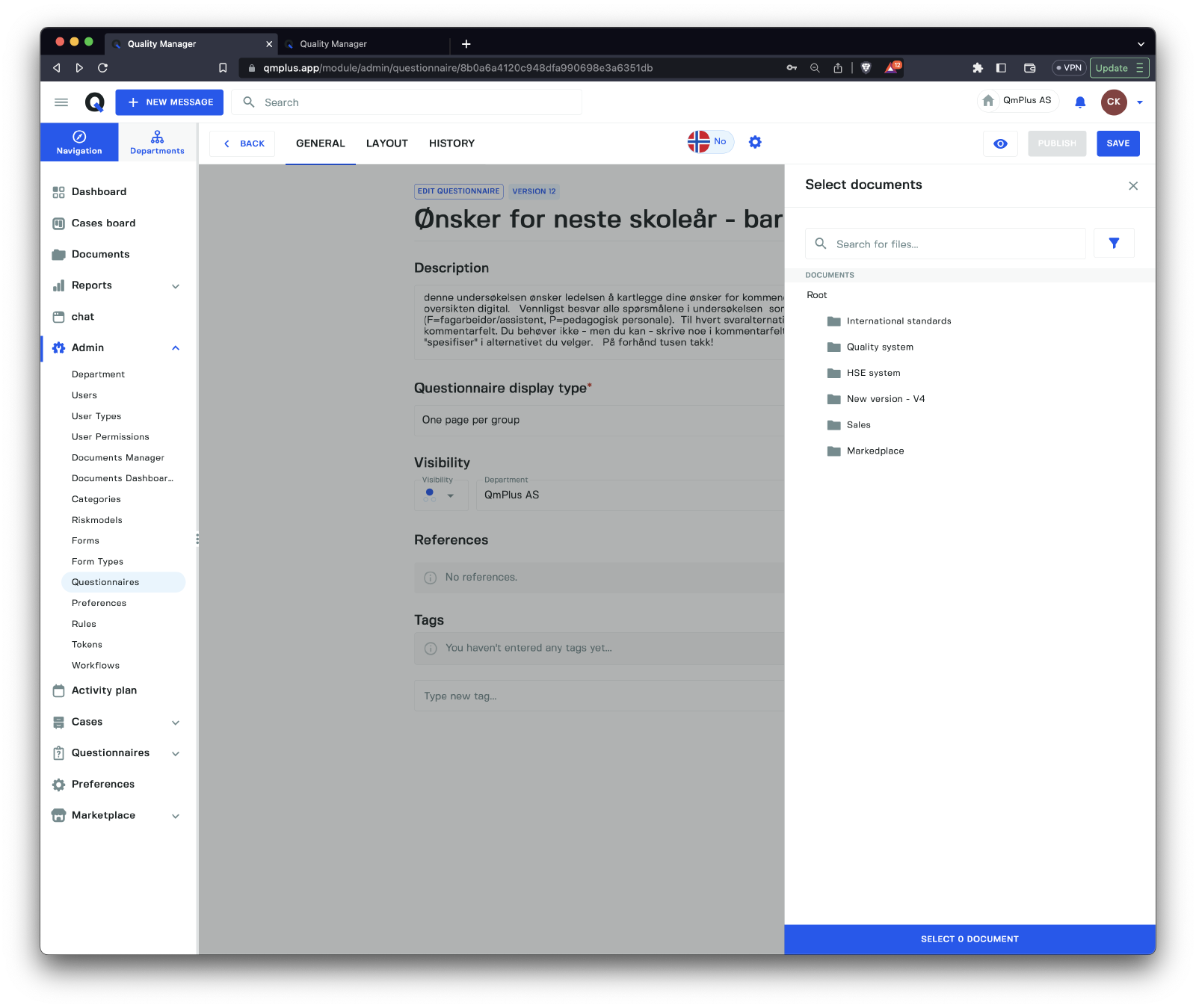
References can be added to documents stored in Q to add context to a Questionnaire or relevant documents.
Questionnaire Layout
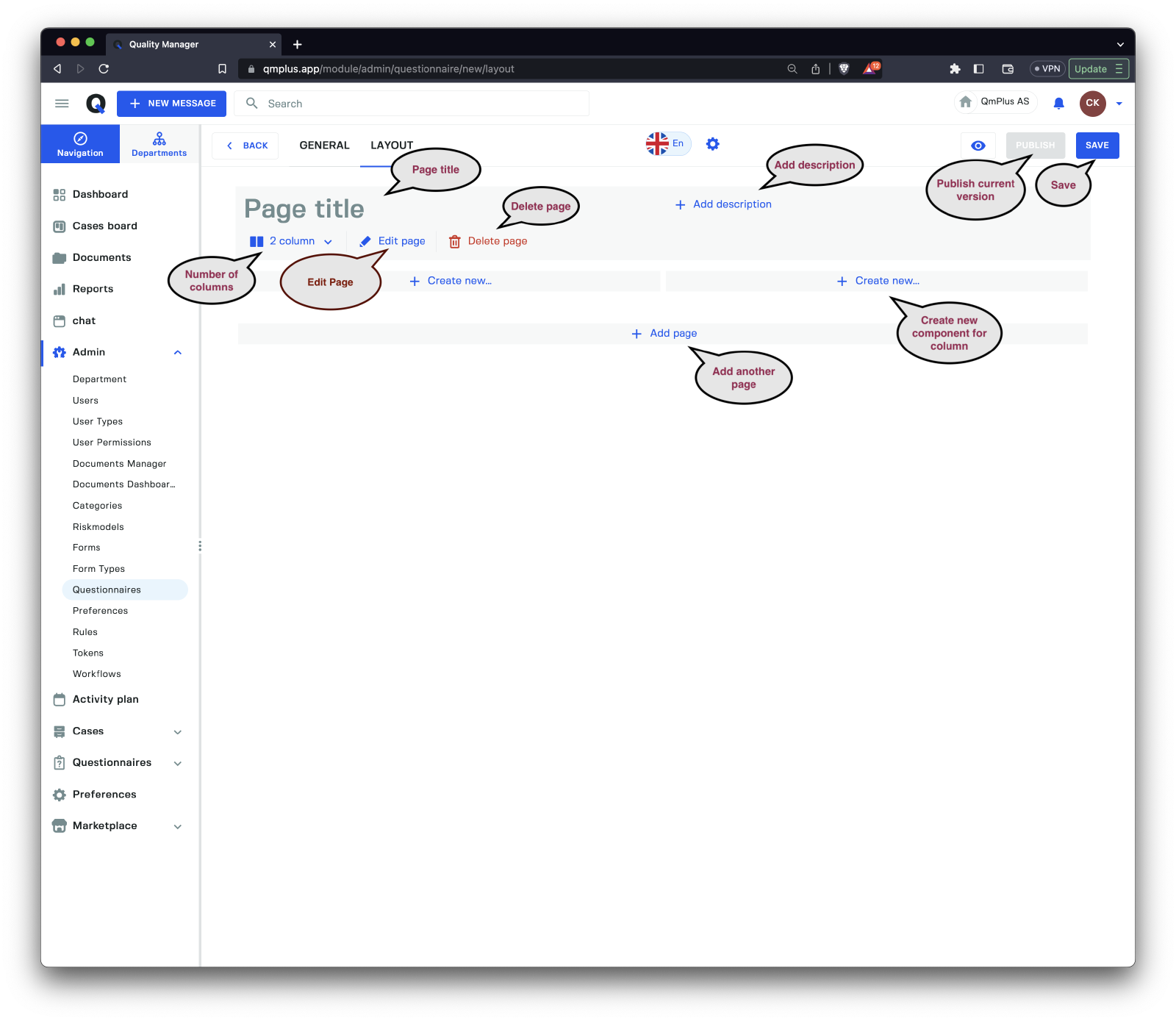
The Questionnaire Builder has some core concepts to understand. A questionnaire is a collection of one or more pages, where each page has one or more columns of components. The preview button lets you test the questionnaire during development. Clicking the save button will save a new version of the Questionnaire, and once ready, you can click Publish to release the new Questionnaire for use.
All Questionnaire entries are tied to a specific Questionnaire Version, meaning old data is preserved correctly against a previous version of a Questionnaire.
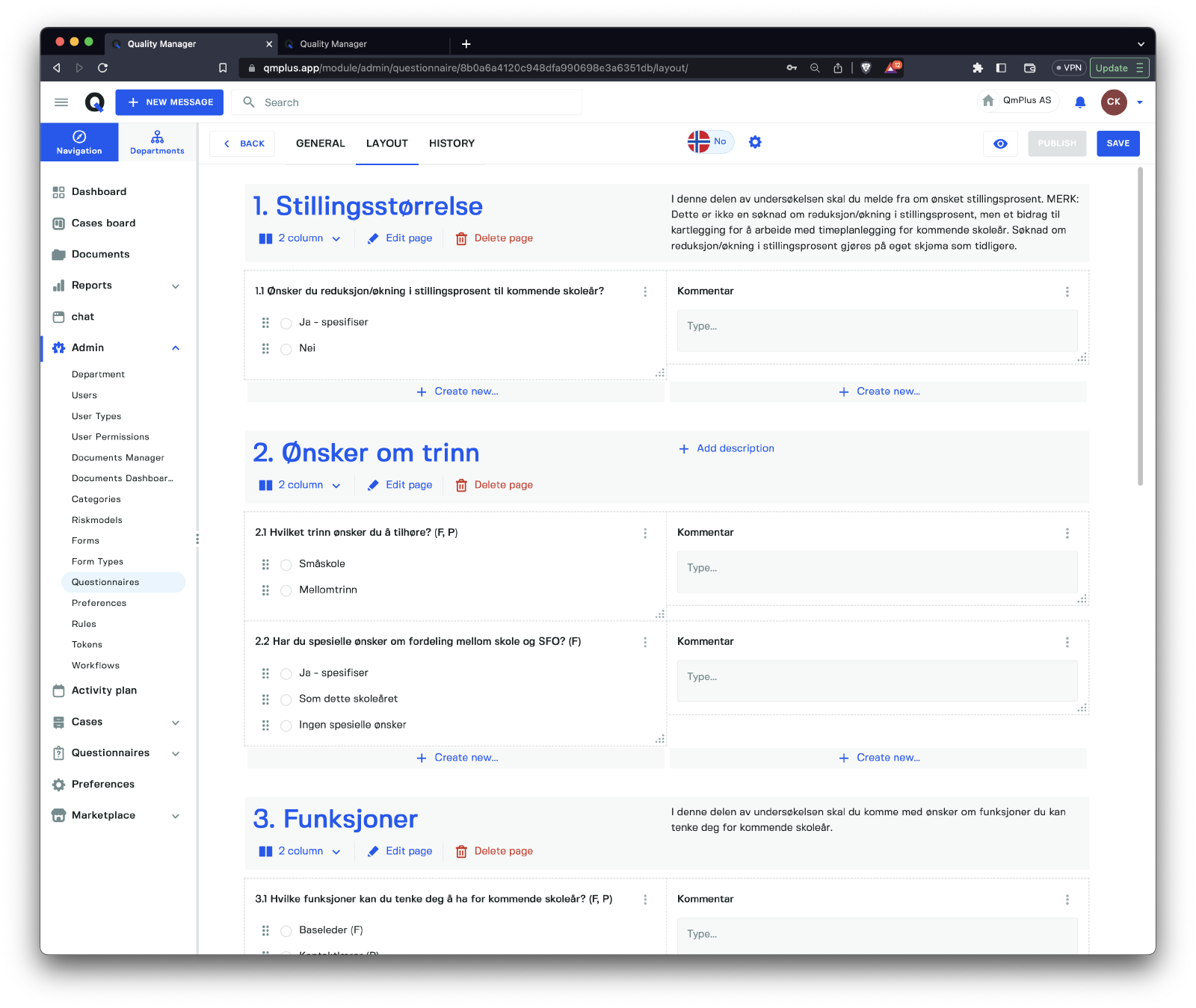
The available components are as follows.
| Component | Description |
|---|---|
Text | A text description field to enter text information on the questionnaire. |
Image | Allows adding an image to the questionnaire, can be used to show information. |
Single choice | Create a question with answers, allowing the end user to choose one. |
Multi choice | Create a question with answers, allowing the end user to choose multiple ones. |
Ranking | Create a question with answers, allowing the end user to drag and drop them in the order of ranking. |
Integer | A field that lets you specify a whole number. |
Decimal | A field that lets you specify a decimal number. |
Currency | A field that lets you specify a currency number. |
Number in range | A field that lets you specify a start and end value and the step size for the slider. |
One-line text field | A single line text field. |
Multiline text field | A multiple line text field. |
Risk | A Risk category group. |
Components can be resized horizontally and moved around. Depending on the number of columns you define, you can organize the components side by side.
Page Settings
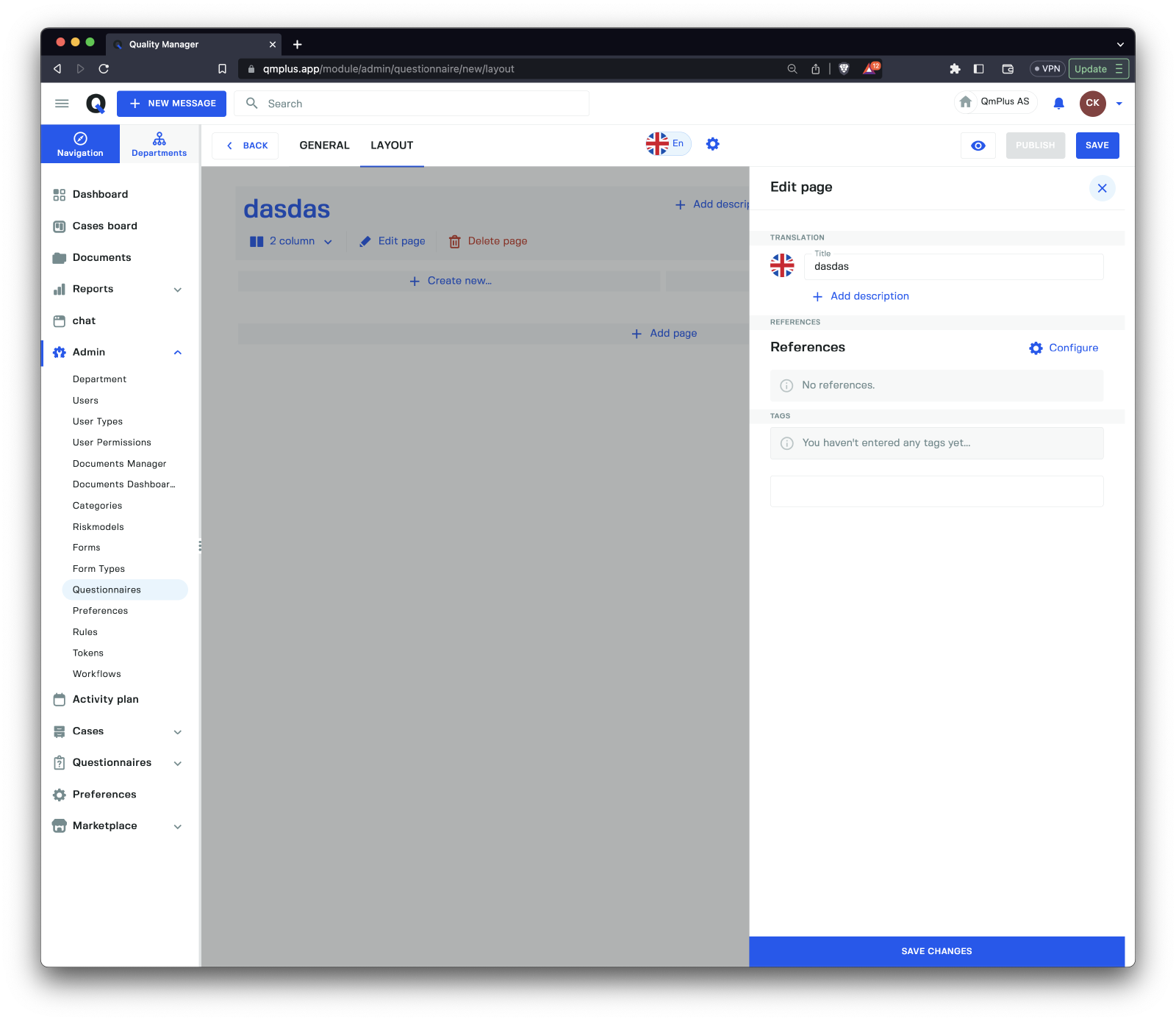
The page settings allow you to change the page title as well as the description. You can also add references to documents from Q and tags.
Text
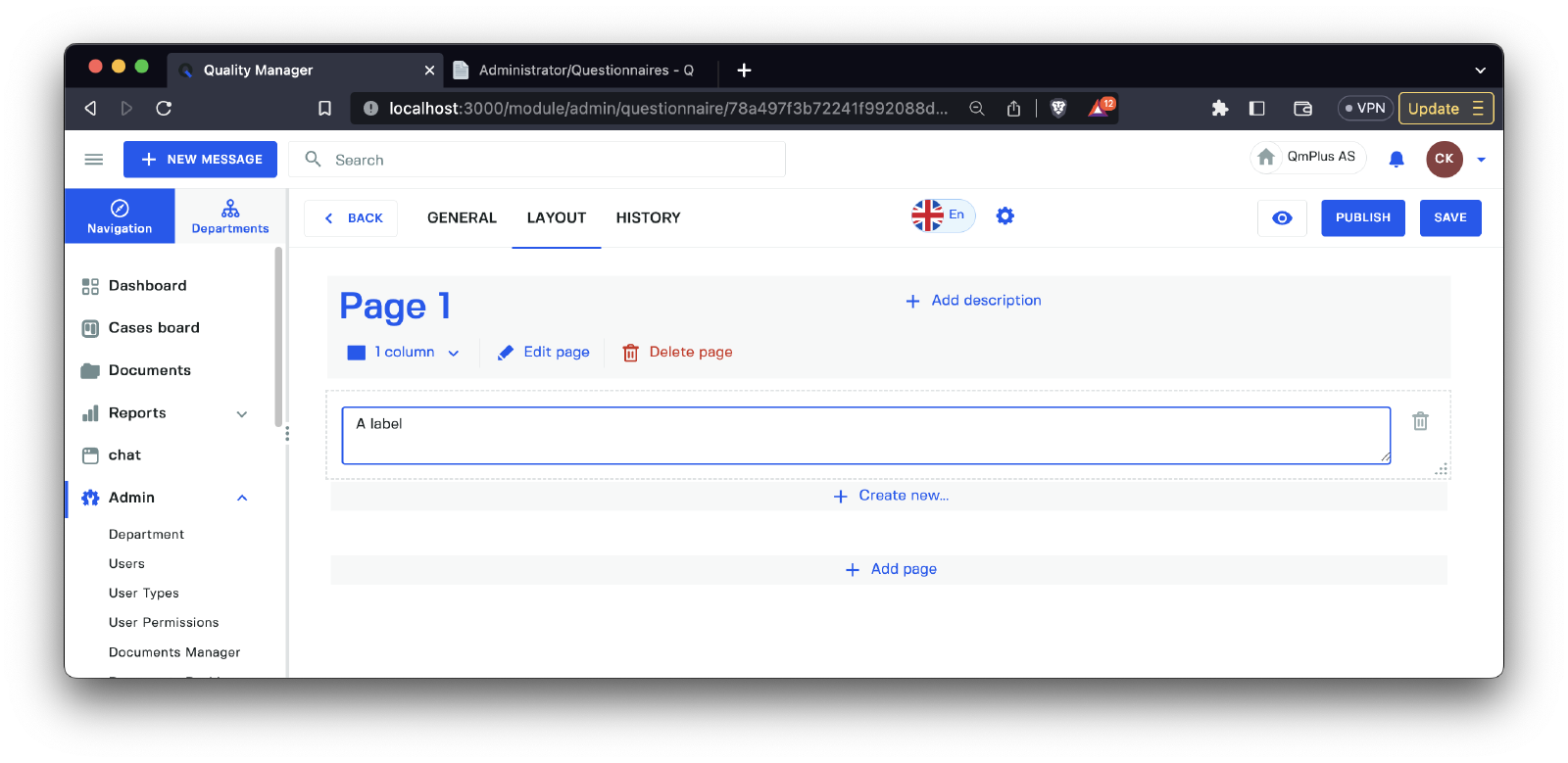
A text field that lets you specify some read-only text for the questionnaire. Can be used for instructions related to a field or additional information.
Image
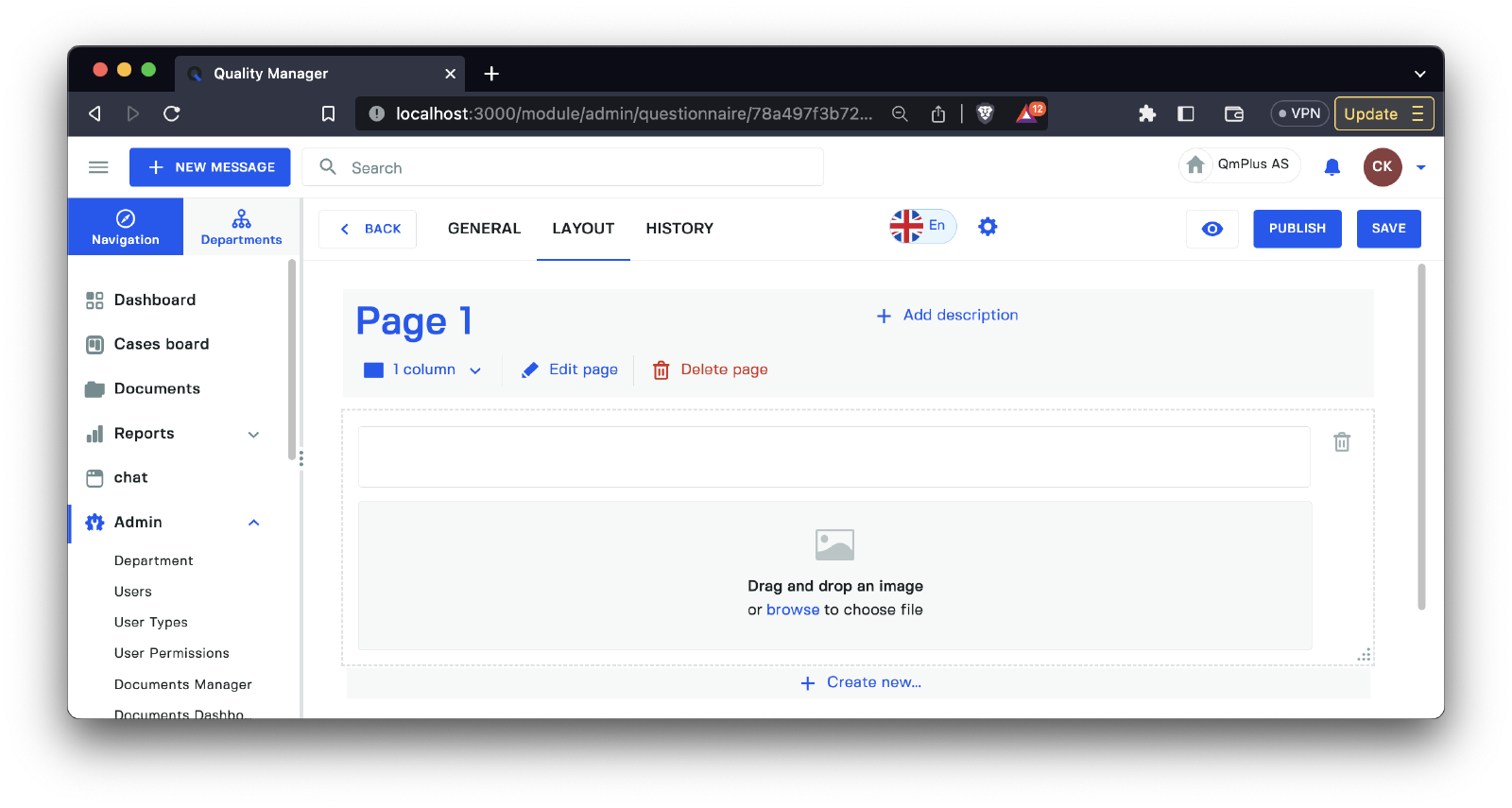
Add a read-only image to the questionnaire to show instructions or additional information related to a question.
Single choice
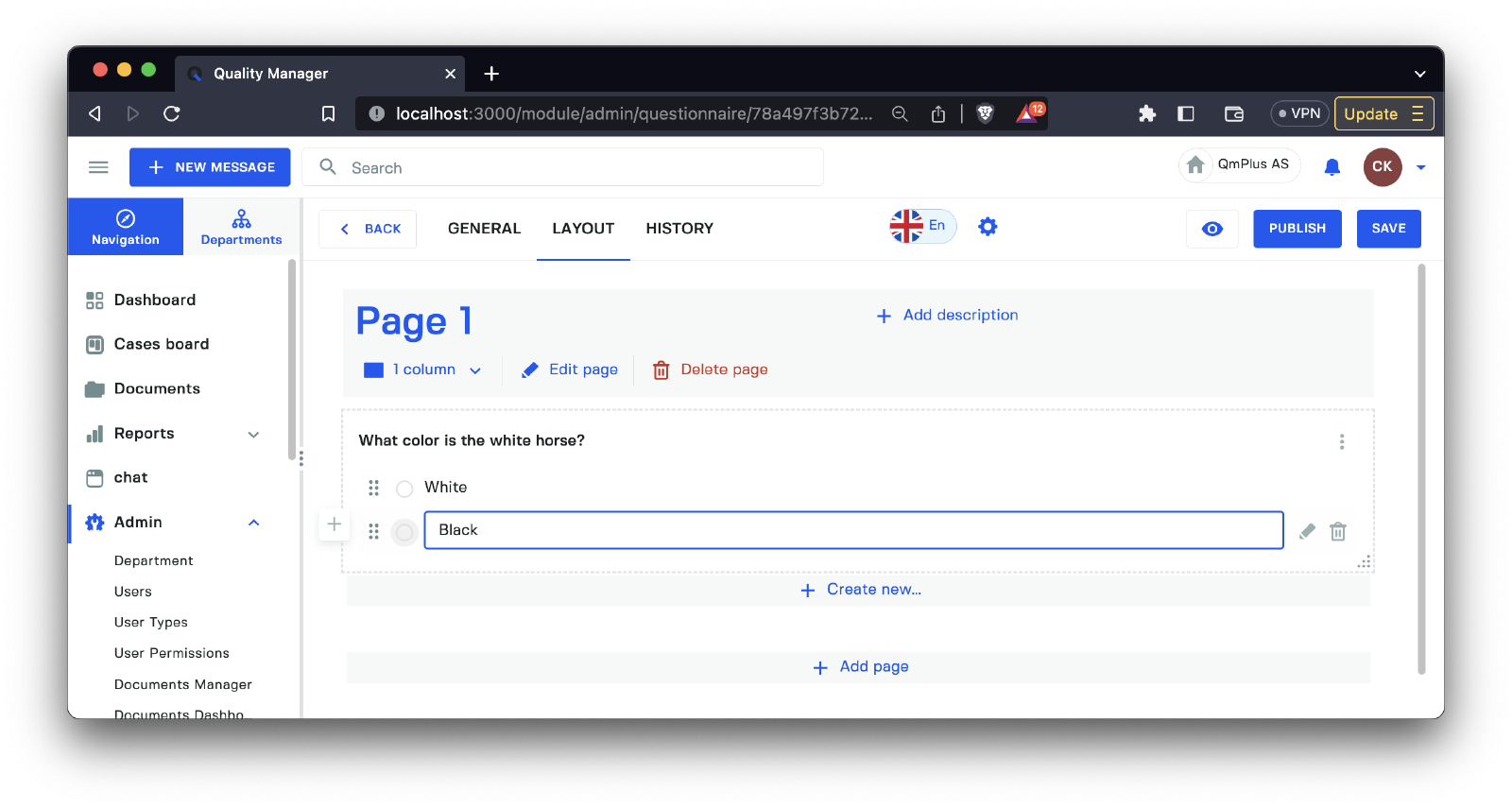
Create a question/answer combination that lets the person entering a questionnaire select one single option.
Multi choice
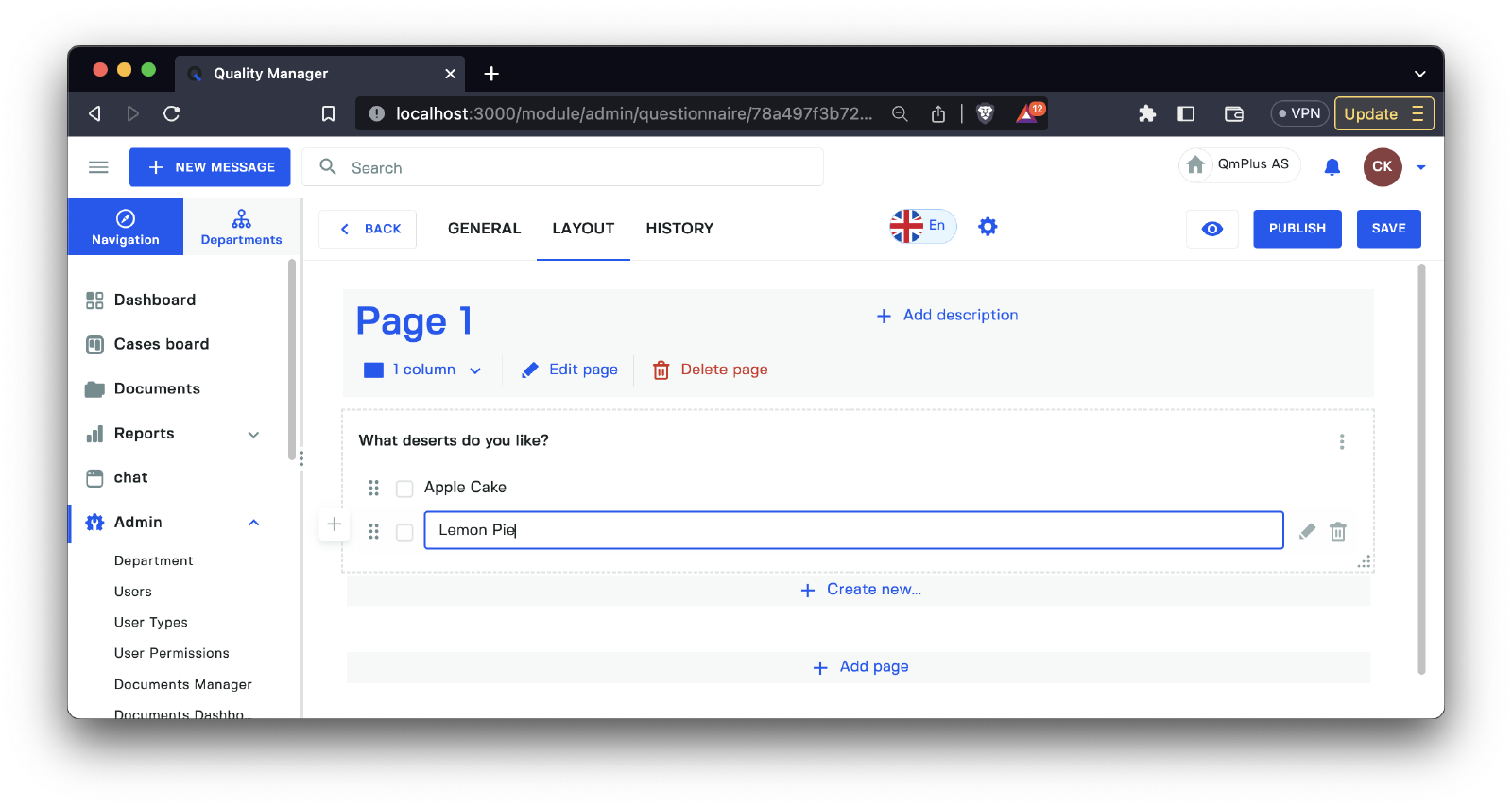
Create a question/answer combination that lets the person entering a questionnaire select multiple options.
Ranking
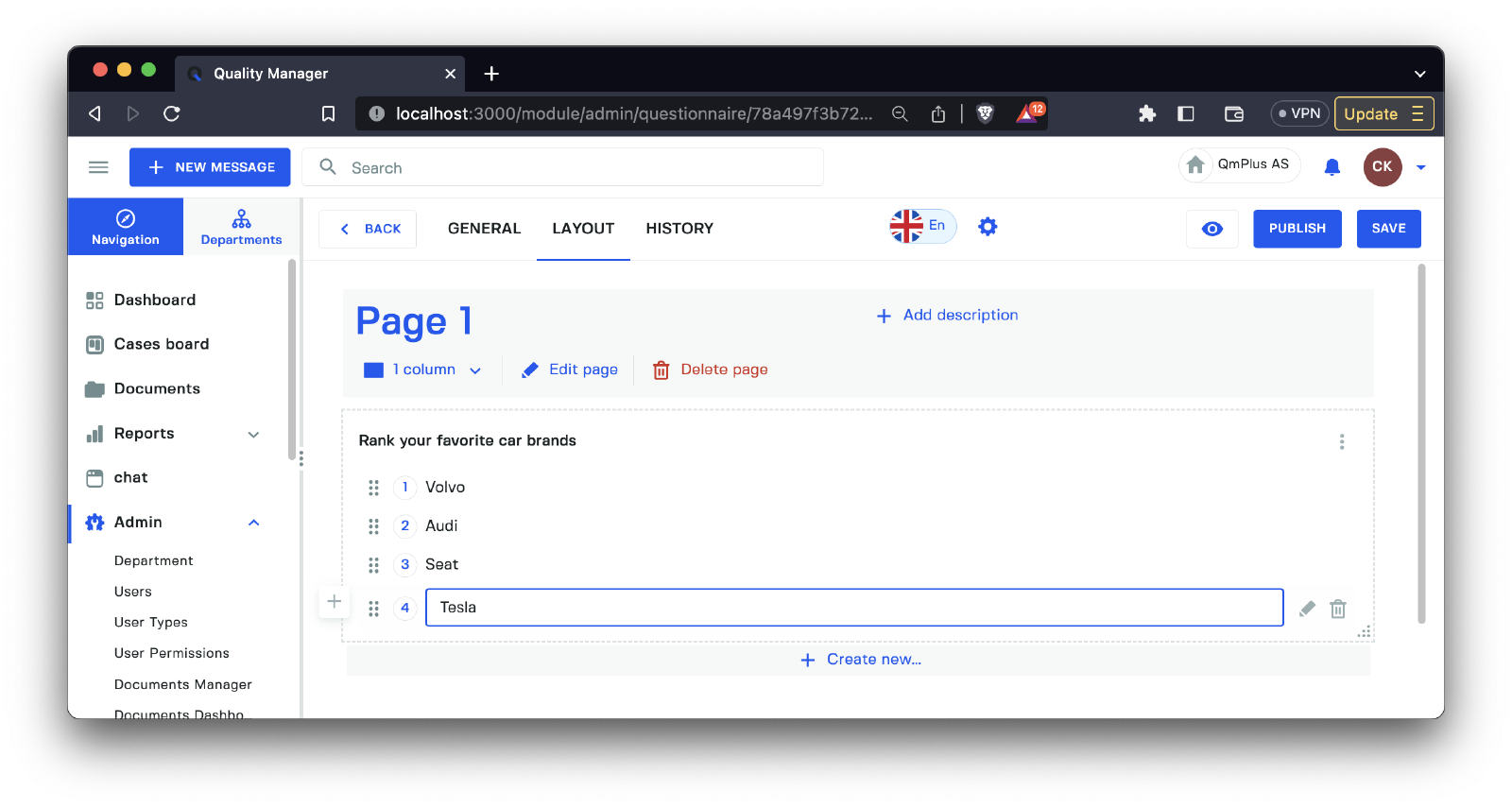
Create a question/answer combination that lets the person entering a questionnaire rank the options from top to bottom.
Integer
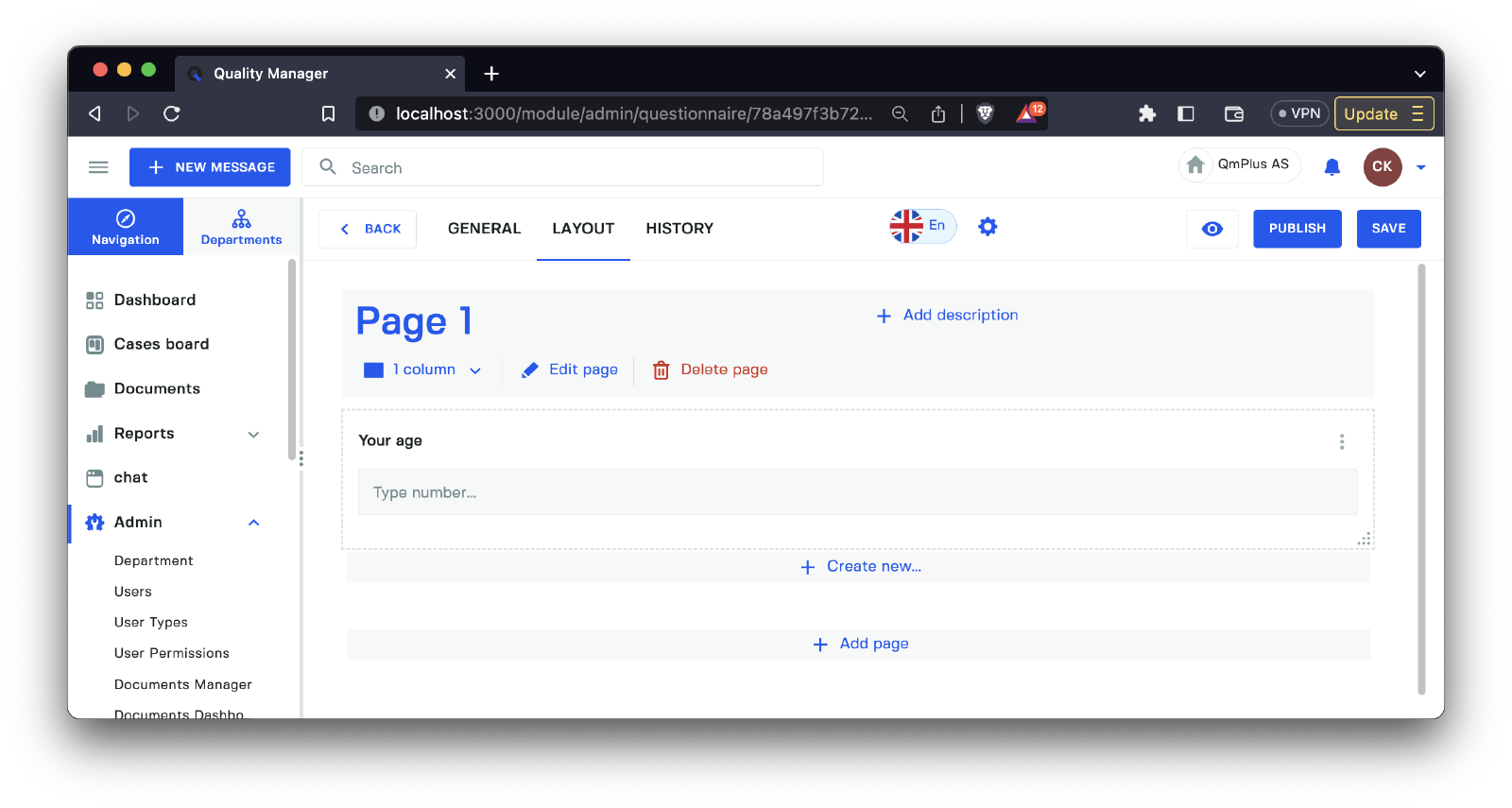
Create a whole number entry field for your questionnaire (e.g., age of a user, street number).
Decimal
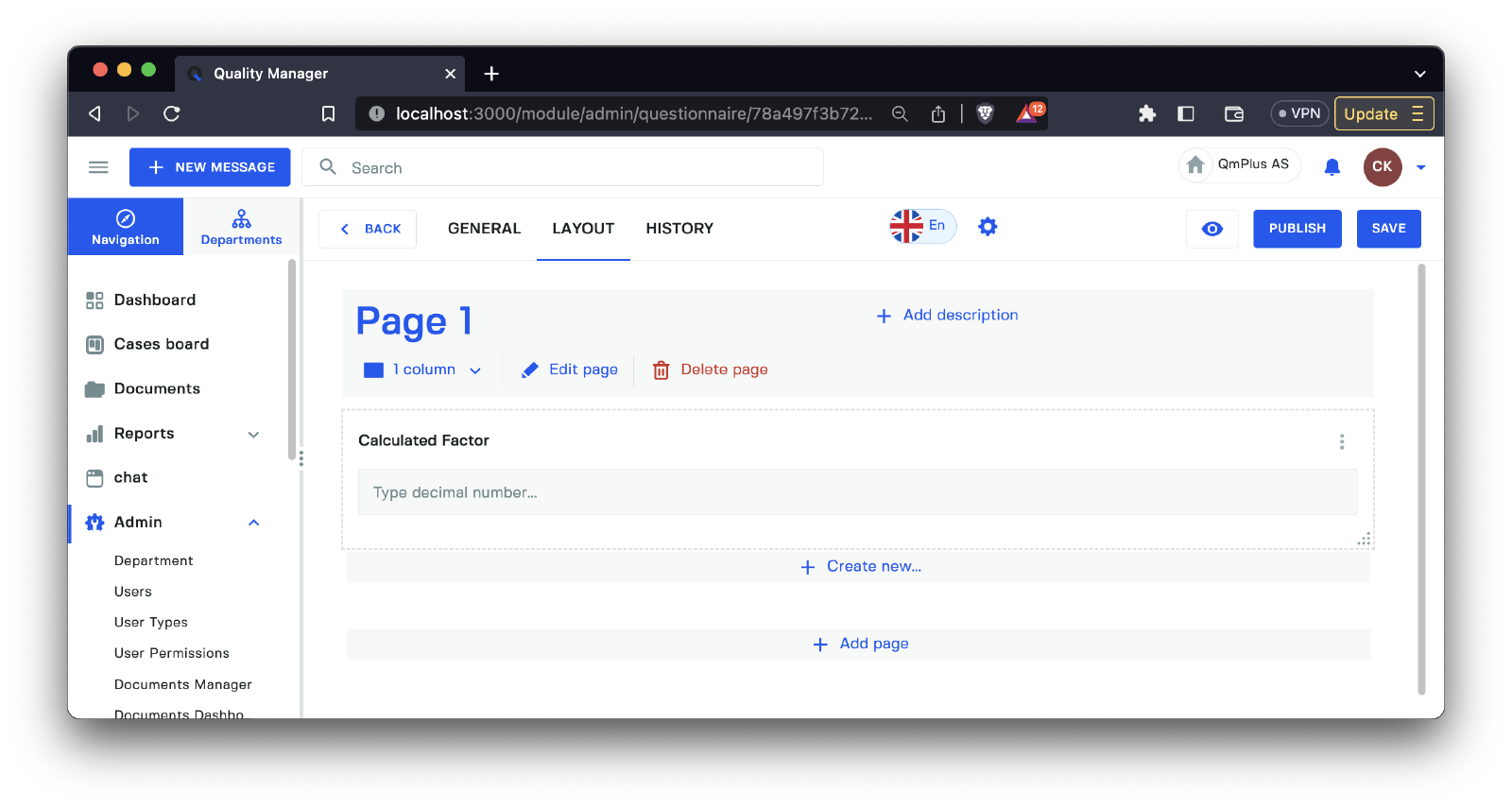
Create a decimal number entry field for your questionnaire (for example, percentage 5.5).
Currency
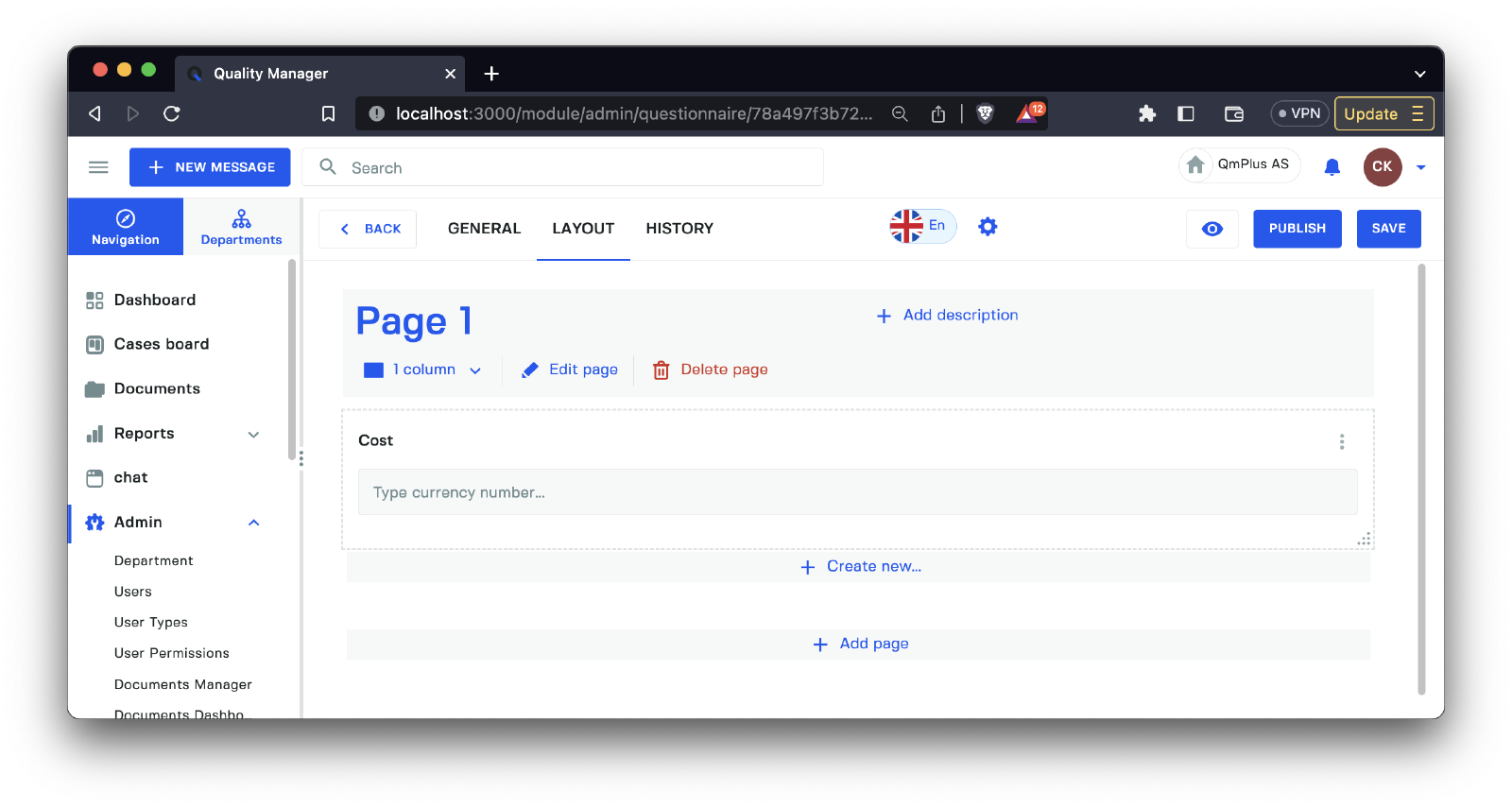
Create a currency number entry field for your questionnaire (for example, cost 2,000.20).
Number in range
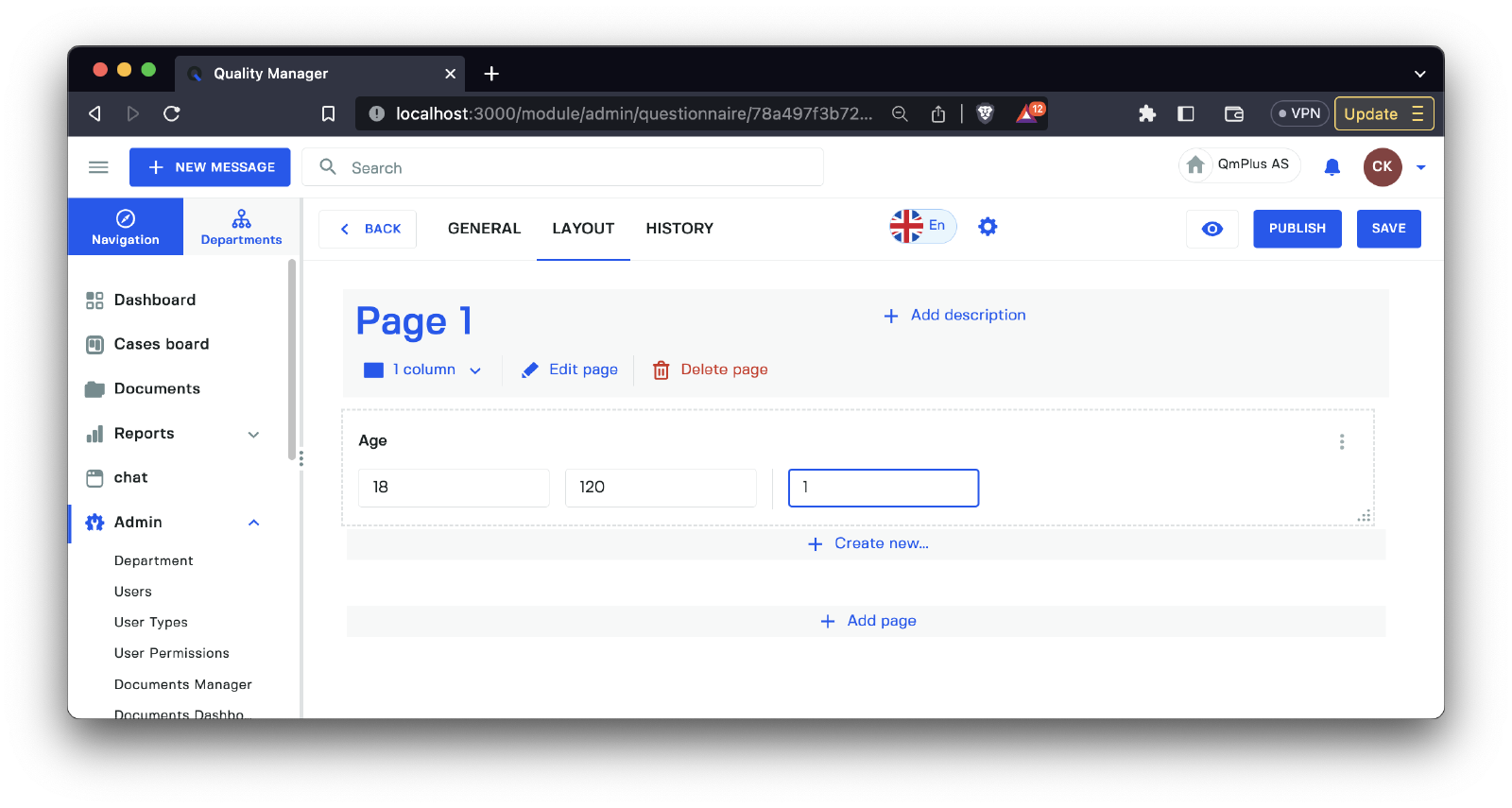
Create a numeric range with a minimum and maximum and a step size. For example, an age slider with a minimum of 1 and a maximum of 120 years where the step size is 5 will let you drag the slider in intervals of 5 years.
One-line text field
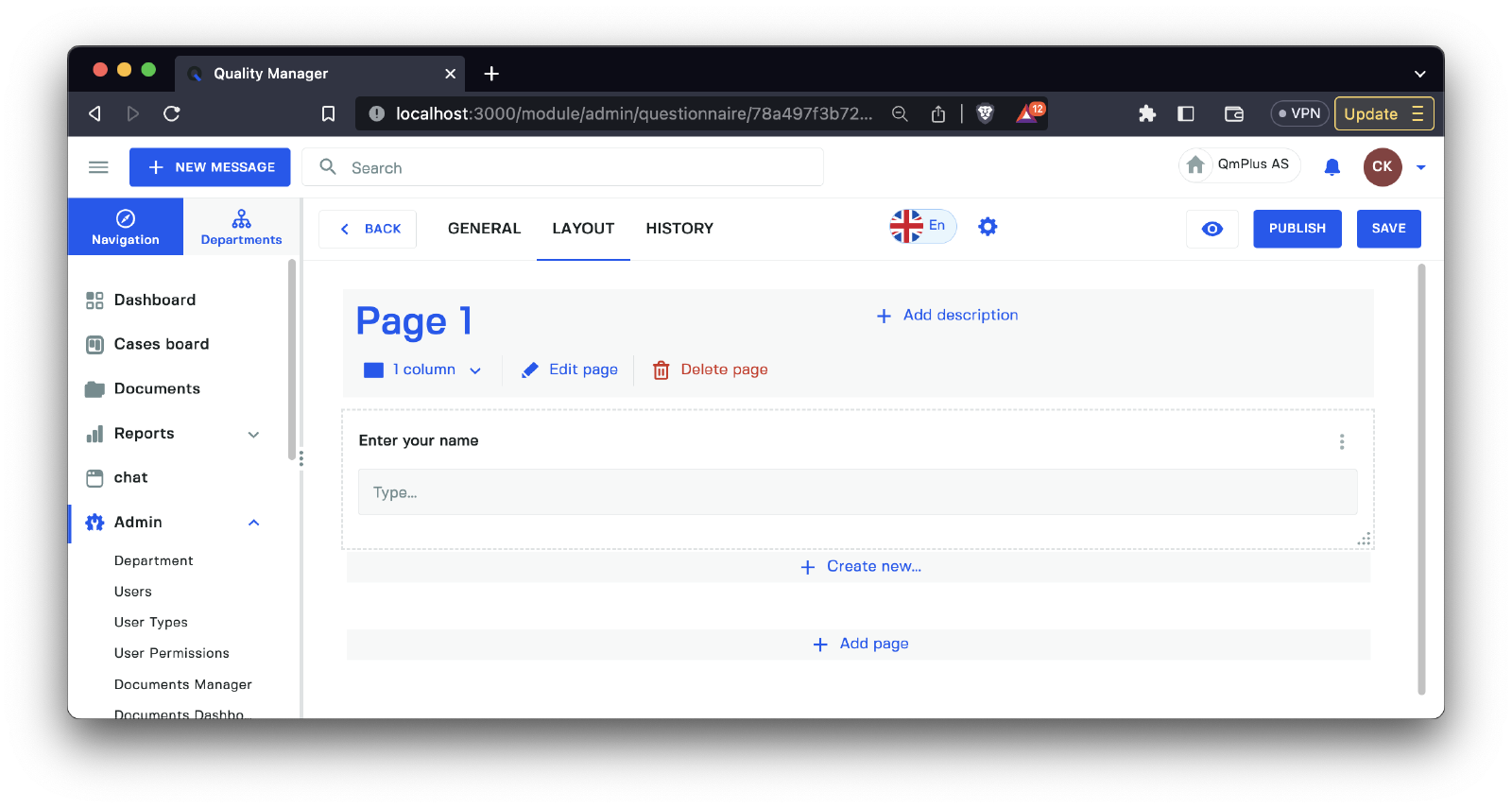
A single text input field. For example, to capture a user’s last name.
Multiline text field
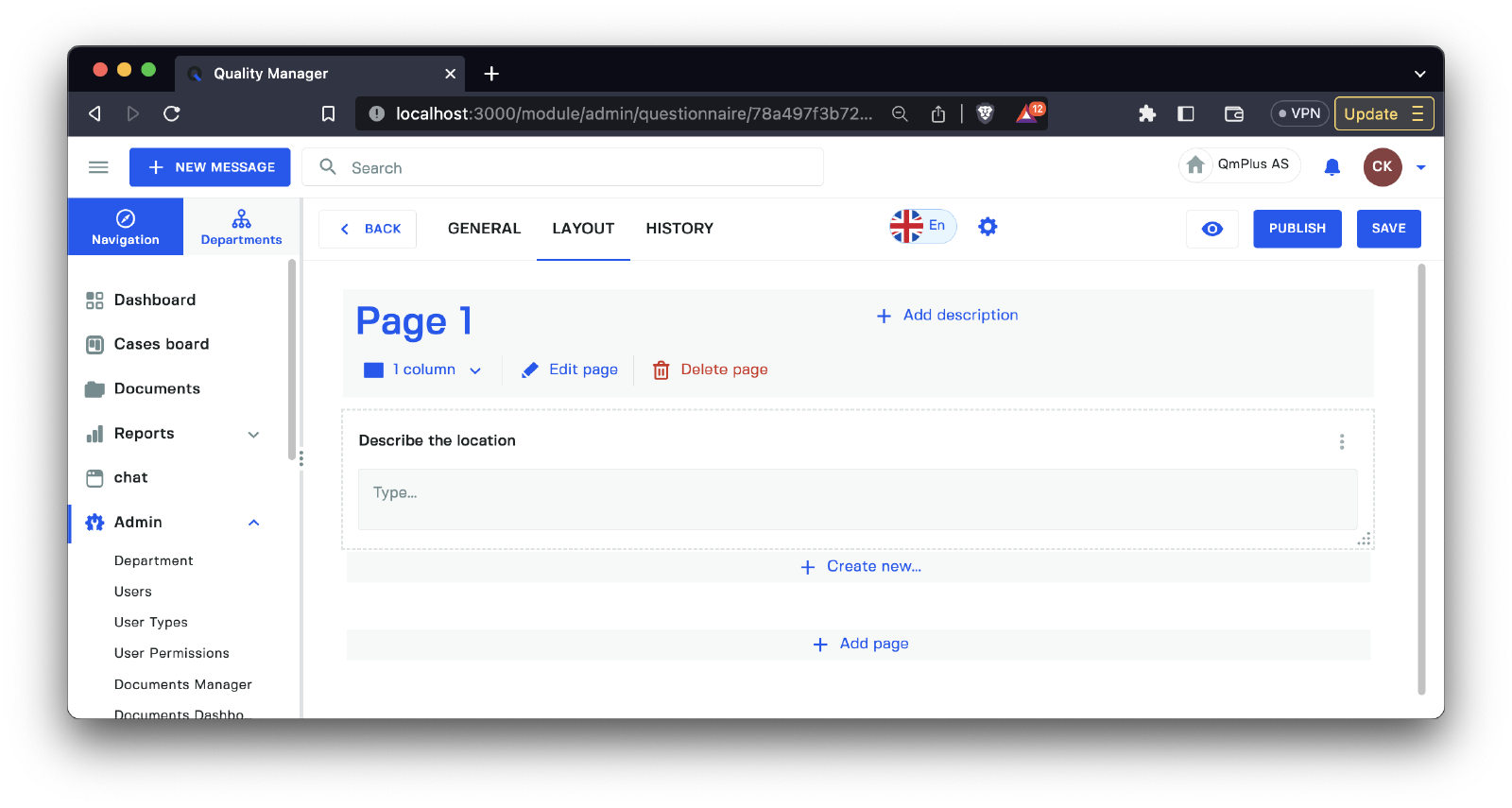
A multiple lines text input field to capture more information in text.
Risk
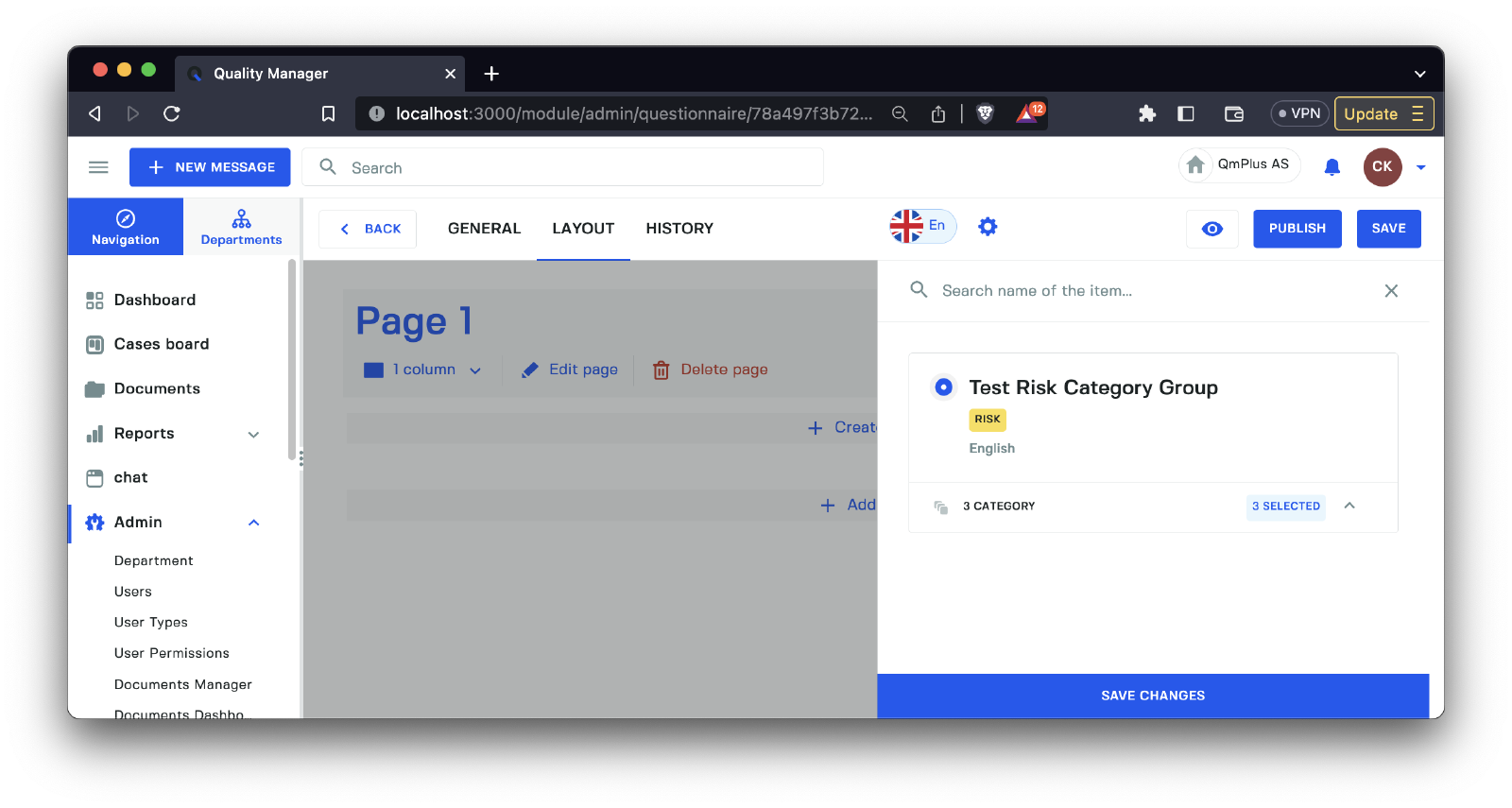
Select a risk model category group to add to the questionnaire.
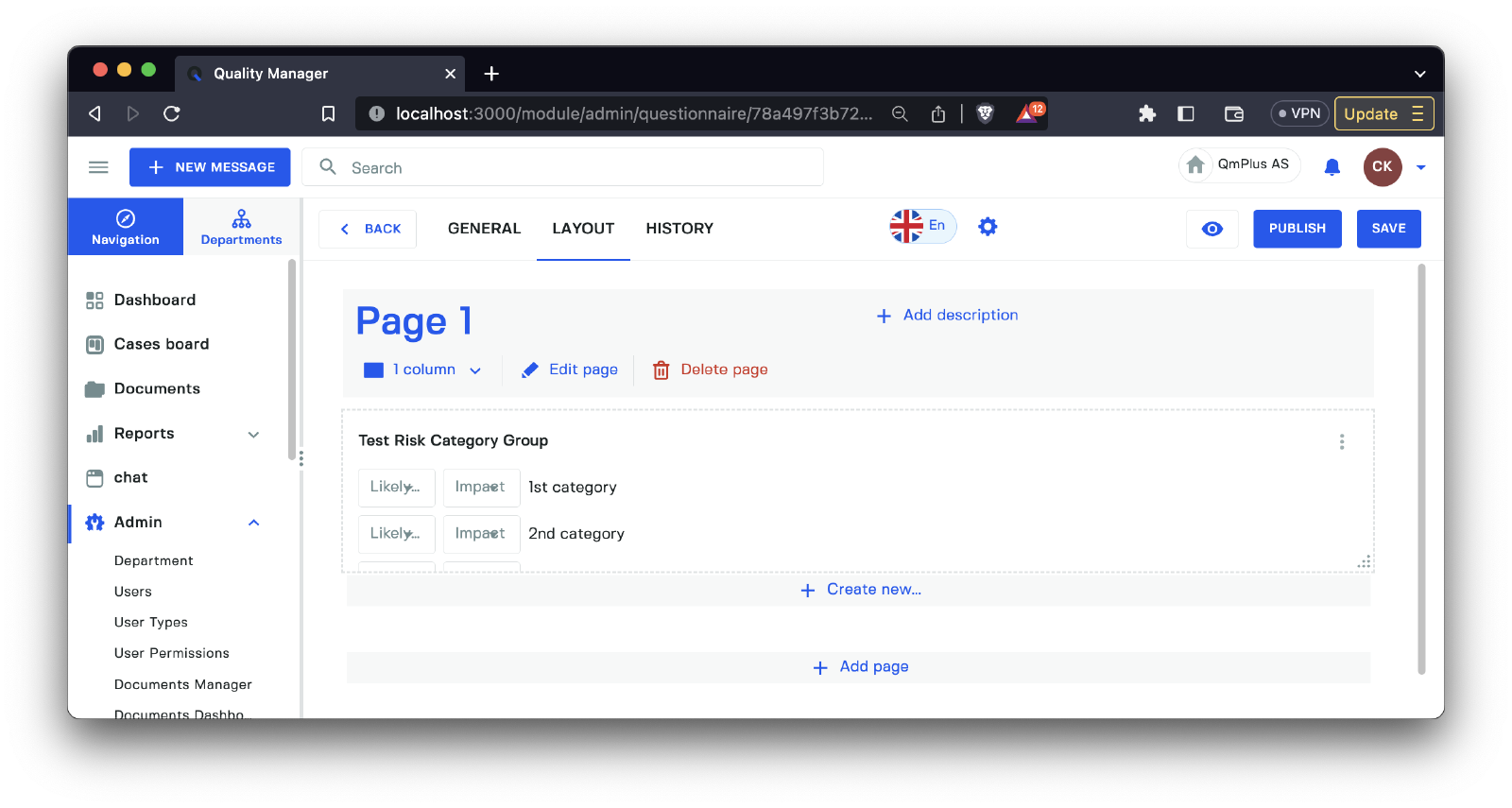
Lets you perform a risk analysis evaluation in the questionnaire.
Questionnaire Versions
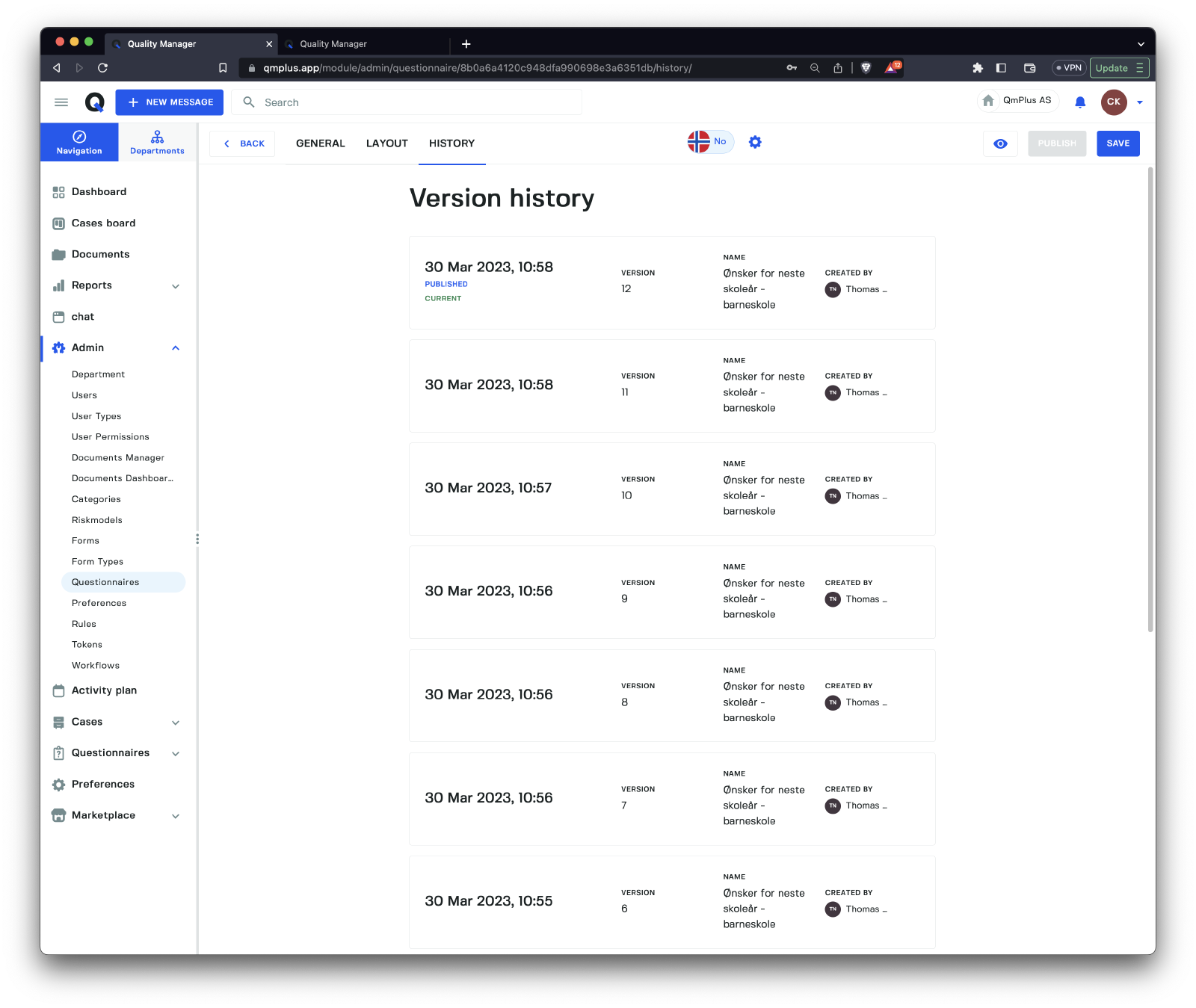
Every time you save the questionnaire, we create a new version. Once you are ready, you can click the Publish button to make the current version available to add to Activities.
Preview Questionnaire
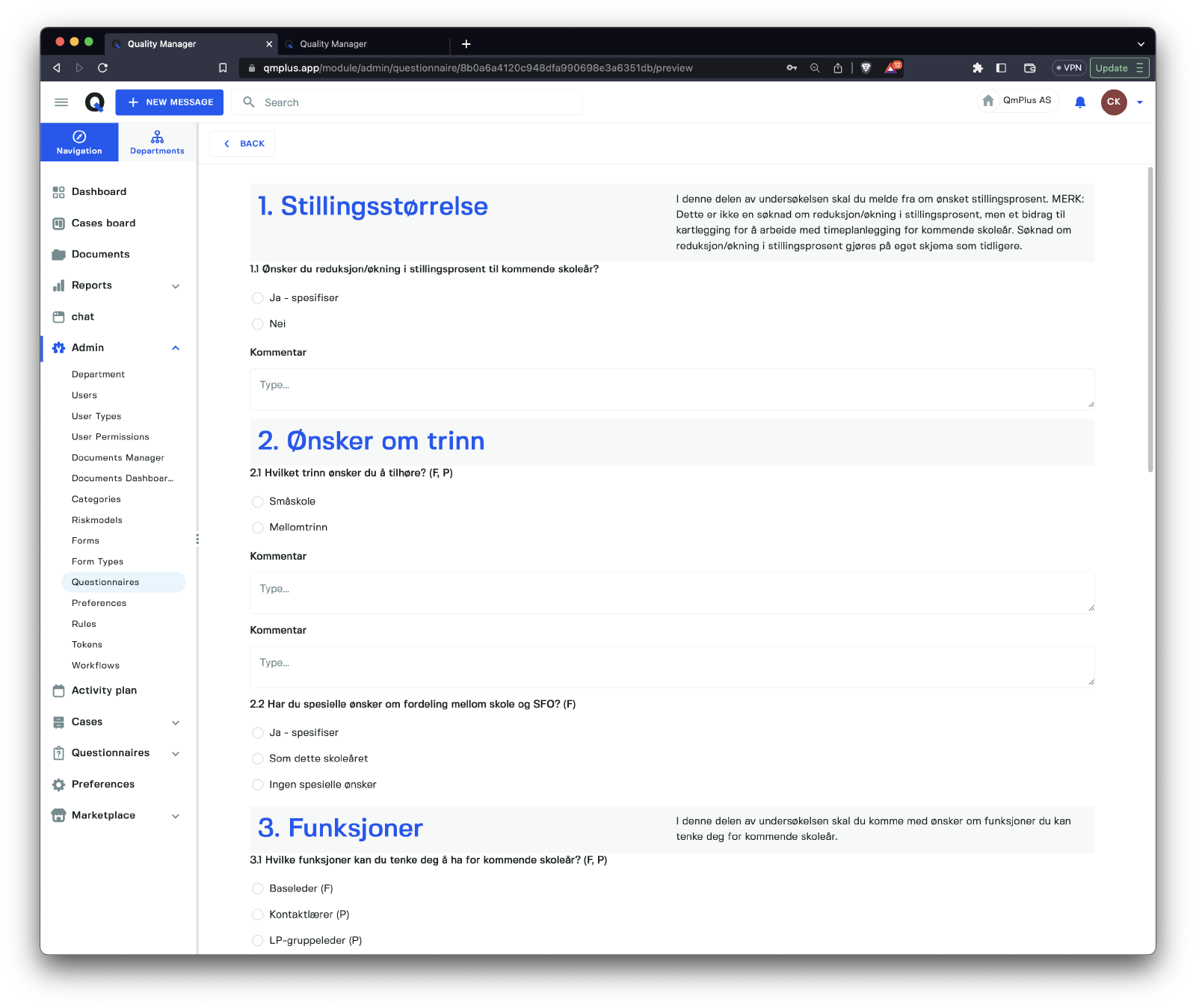
Vi can preview the Questionniare seting how it’s rendered by clicking the Preview (eye) button. You can interact with the elements but not save it.