Administrator/User Permissions
A user guide for working with user permissions. We cover how to create and modify user permissions.
This section addresses the management of user permissions within the system.
By clicking on Administrator/User Permissions, you can access the list of all available permissions.
There are two types of permissions in the system:
| Type | Description |
|---|---|
System | System permissions control access to sections or actions within the application itself and are provided by the application. For example, these permissions might allow you to administer users or view reports. Users cannot customize these permissions, and they may expand as new functionalities are added. |
Custom | Custom permissions are permissions that users can create to tag content, such as documents, or limit access to specific areas like departments. For instance, you might have a confidential document that only two people should have access to. In this case, you could create a confidential document custom permission and assign it to the document and the two users you want to grant access to. The absence of the permission will prevent users from accessing the document. |
See all available System Permissions
Permissions List
System Permissions
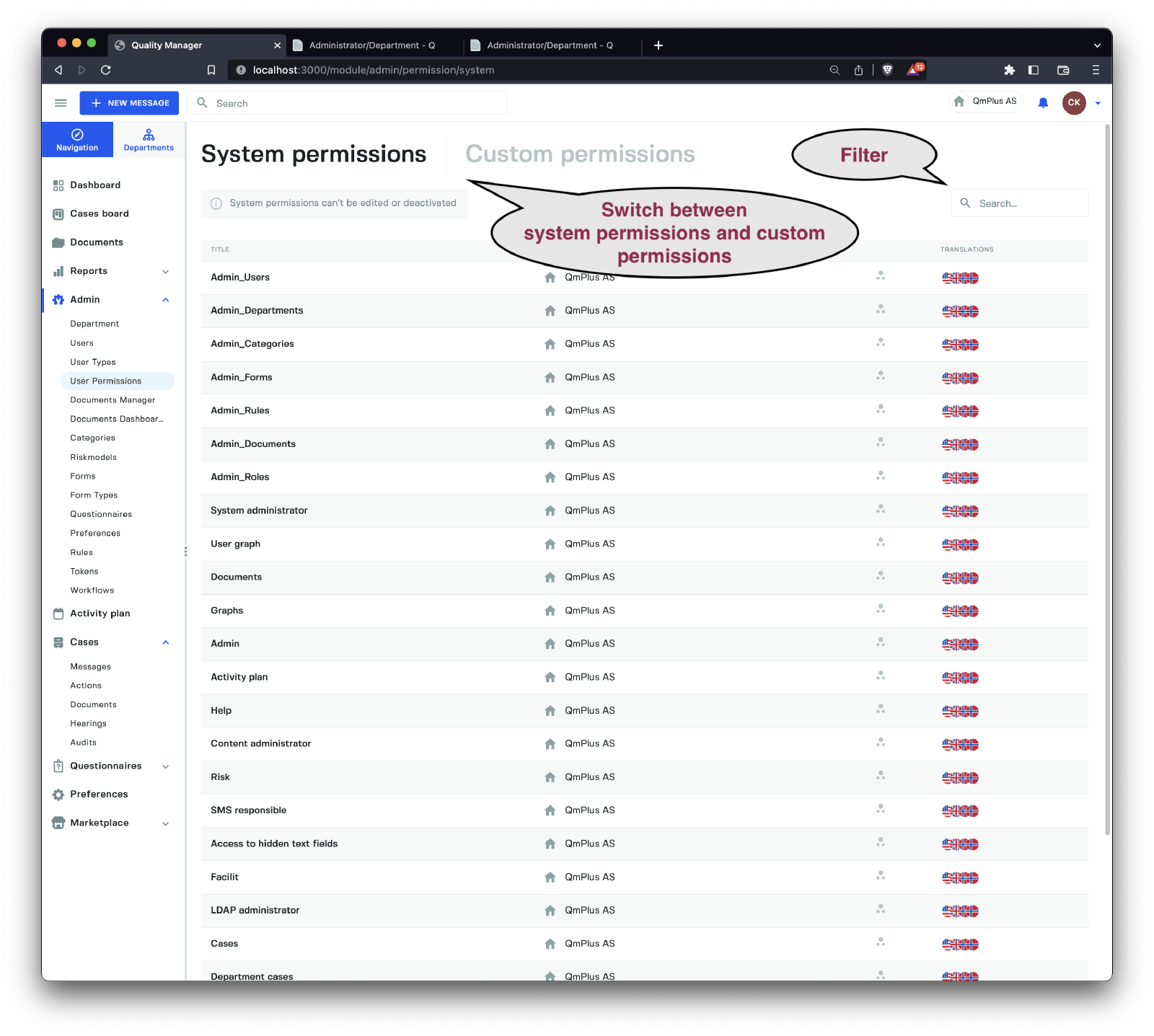
The image above displays the list of System Permissions. You can filter these permissions to search for specific ones. System Permissions cannot be modified or deleted, and they represent all the Application Level Permissions available for your account. The number of available permissions may vary depending on your contract options.
A complete list of System Permissions can be found here.
Custom Permissions

Custom permissions are permissions that users can create to tag content, such as documents, or limit access to areas like departments. For instance, you might have a confidential document that only two people should have access to. In this case, you could create a confidential document custom permission and assign it to the document and the two users you want to grant access to. The absence of the permission will prevent users from accessing the document.
Create Custom Permission

When creating a custom permission, you need to provide:
- A permission name (in multiple languages if your system supports more than one language).
- The visibility of the permission within the system.
- The
departmentin which the permission exists.
Finally, click the Create New Permission button to save the new custom permission.