Administrator/Rules
A user guide for working with rules. We cover how to create and modify rules.
This section deals with managing rules in the system.
Clicking on the Administrator/Rule gives access to the list of rules.
Workflow Rules

Workflow rules impact the workflow of entities such as messages and actions. They include the following types.
The case types are
Message,Action,Hearing,AuditandDocument.
| Rule type | Entities supported | Description |
|---|---|---|
Early case handlers | Message | A rule that will add a list of users as potential early case handlers given the selection criteria set in the rule. |
Extra case handlers | All | A rule that will add extra case handlers when selecting a case handler for a case given the selection criteria in the rule. |
Override case status when category selected | Message | If we match a rule during the registration of a new message we will change the starting Case status to the one provided by the rule. This lets us create rules that will for example close a message immediately if a specific category is selected (say we want to just log information, not process it) |
Escalation case handlers | All | If a rule matches the users set on the rule will be used to pick a user after an escalation of the message. |
Approve action | Action | A rule that will add action case handlers, when selecting a case handler that can approve a case. |
Creating a new rule
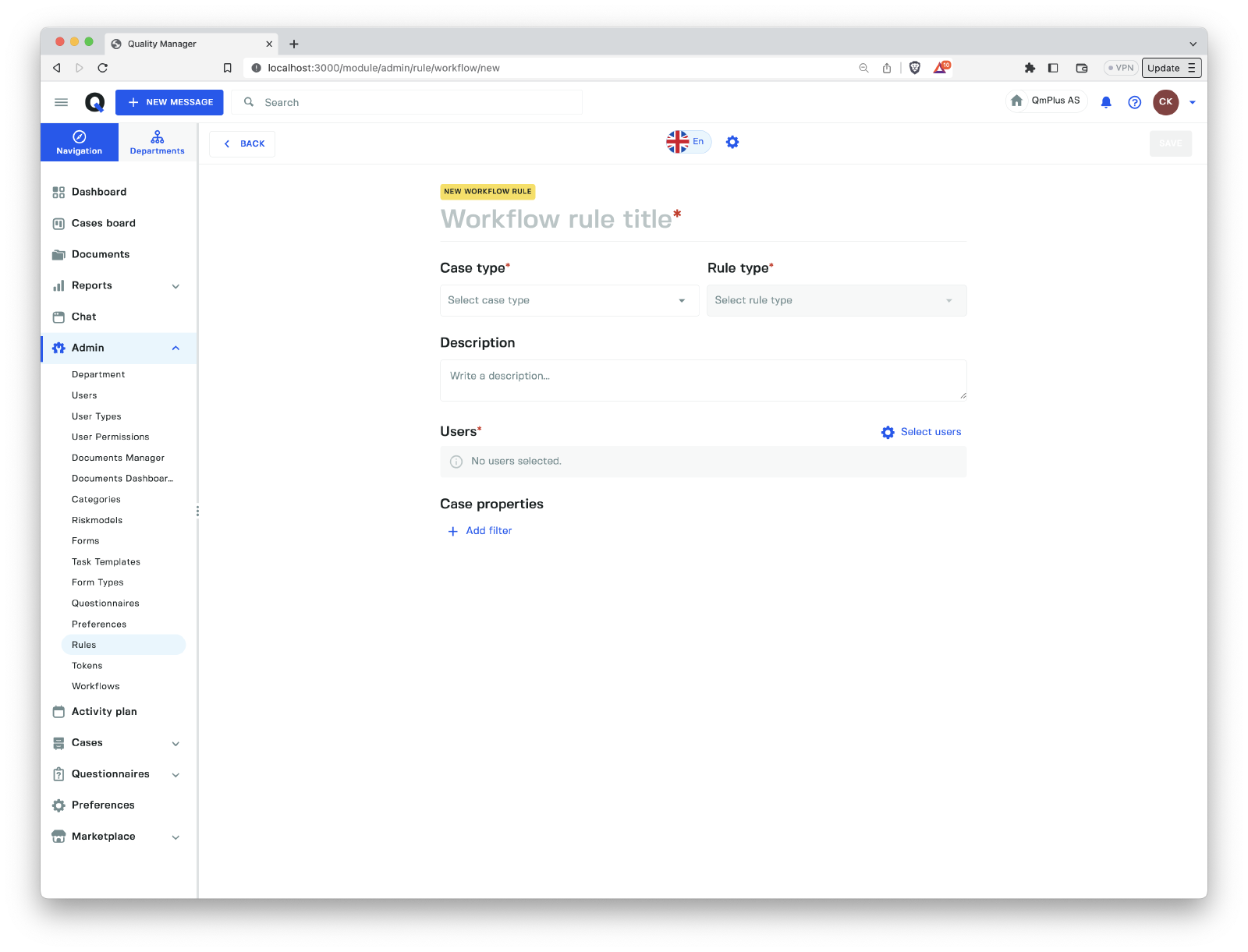
When creating a new rule that return case handlers we have the following fields**.
| Field | Description |
|---|---|
Title | The title of the rule. |
Case type | Select the case type we are building a rule for. Can be one of Message, Action, Hearing, Audit, Document. |
Rule type | Lets you select the type of rule you are building. The available rules depends on the Case type selected. See the table below for available mappings per type. |
Description | A longer description about the rule and what it’s used for. |
Users | Select the users that the rule will return if it matches. |
Case properties | Attributes that will be used when matching against the rule. |
| Case type | Available rule types |
|---|---|
Message | Early case handlers, Extra case handlers, Override case status when category selected, Escalation case handlers, Approve action |
Action | Extra case handlers, Escalation case handlers, Approve action |
Hearing | Extra case handlers, Escalation case handlers |
Audit | Extra case handlers, Escalation case handlers |
Document | Extra case handlers, Escalation case handlers |
| Case property | Description |
|---|---|
Department | Select what departments will trigger this rule. |
Forms | Set what forms will trigger this rule. |
Category groups | Set the category groups and categories that will trigger this rule. |
Priorities | Set the priorities that will trigger this rule. |
When creating a new rule that overrides a case status.
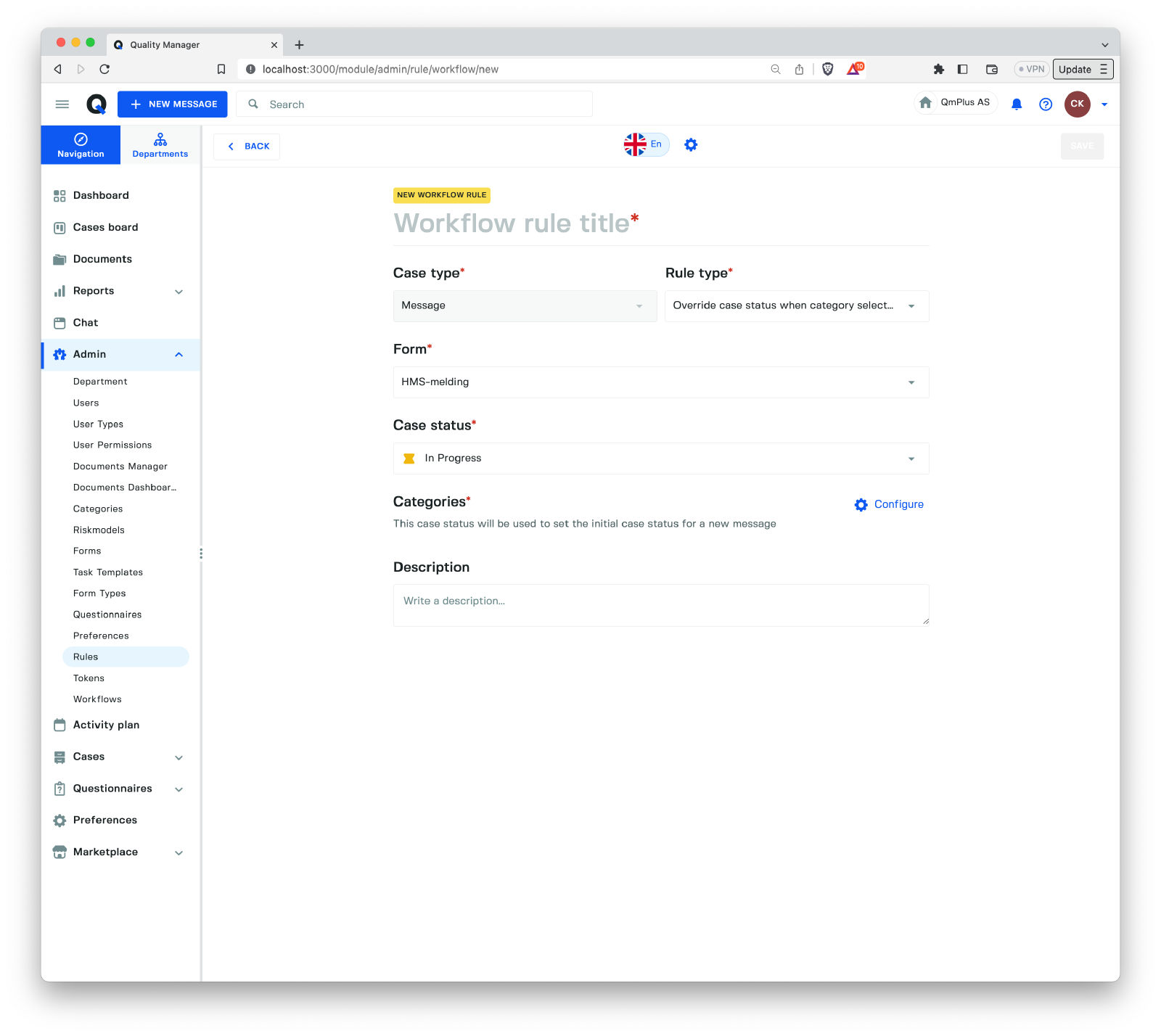
| Field | Description |
|---|---|
Title | The title of the rule. |
Case type | Select the case type we are building a rule for. Can be one of Message, Action, Hearing, Audit, Document. |
Rule type | Lets you select the type of rule you are building. The available rules depends on the Case type selected. See the table below for available mappings per type. |
Form | Select the form the rule will apply to. |
Case status | Select the case status from the workflow the selected form is tied to that will be set on a new message if this rule matches. |
Categories | Select the categories from the selected form that will trigger this rule. |
Description | A longer description about the rule and what it’s used for. |
Examples of rules
Below are some examples of rules.
Early case handler
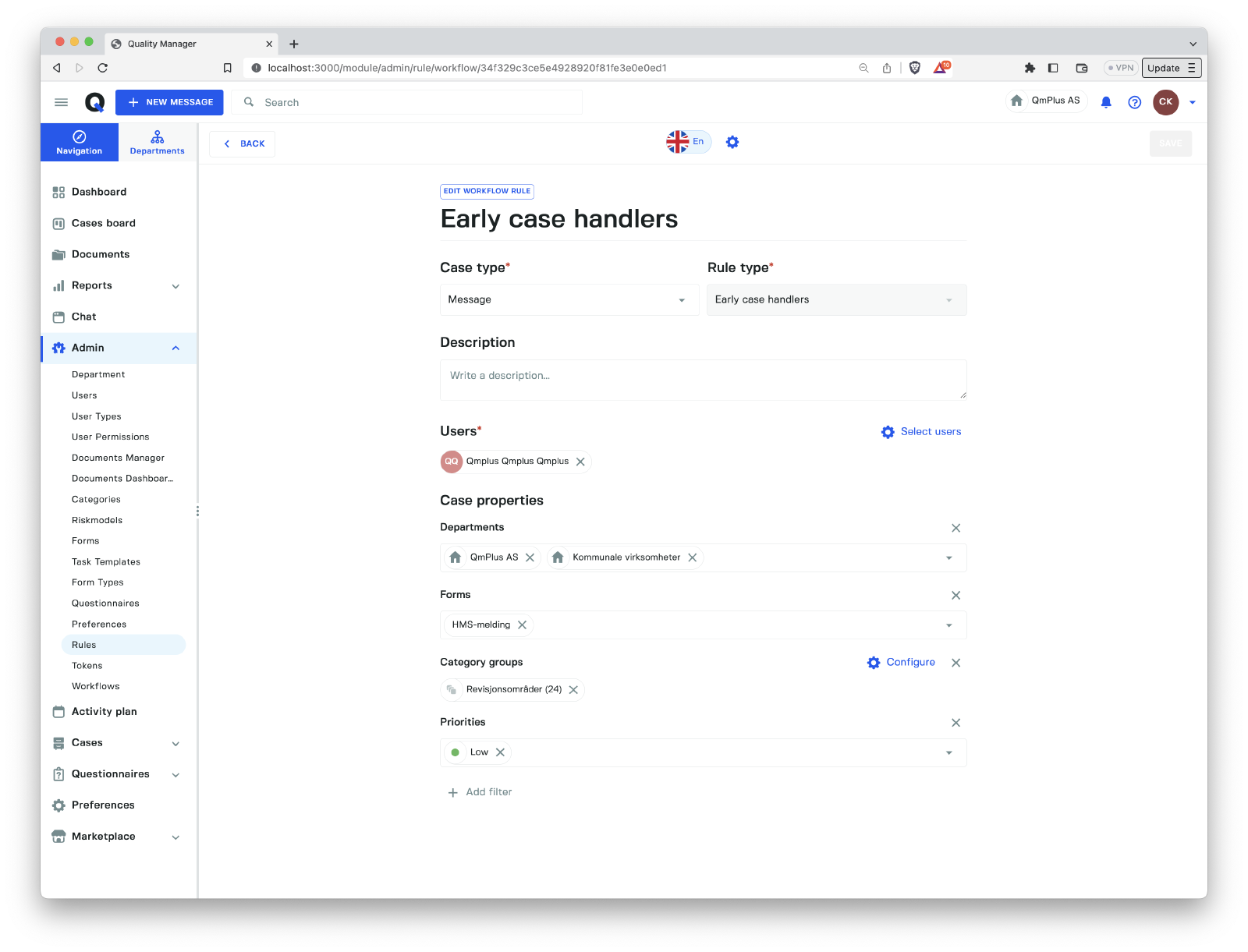
An example of an Early case handler rule that will match on the following combined criteria.
| Criteria | Match on at least one value for each Criteria |
|---|---|
Departments | QmPlus AS, Kommunale virksomheter |
Forms | HMS-melding |
Category groups | Revisjonsområde |
Priorities | Low |
If the rule matches the following users will be added.
Qmplus Qmplus Qmplus
Extra case handler

An example of an Extra case handler rule that will match on the following combined criteria.
| Criteria | Match on at least one value for each Criteria |
|---|---|
Departments | QmPlus AS, Agder Fylkeskommune |
Forms | HMS-melding, Risikoanalyse - Tjenester, HMS beredskap |
Category groups | Systemområder |
Priorities | Medium |
If the rule matches the following users will be added.
Taras Yevchyk,Vlad Fedorenko
Approve Action
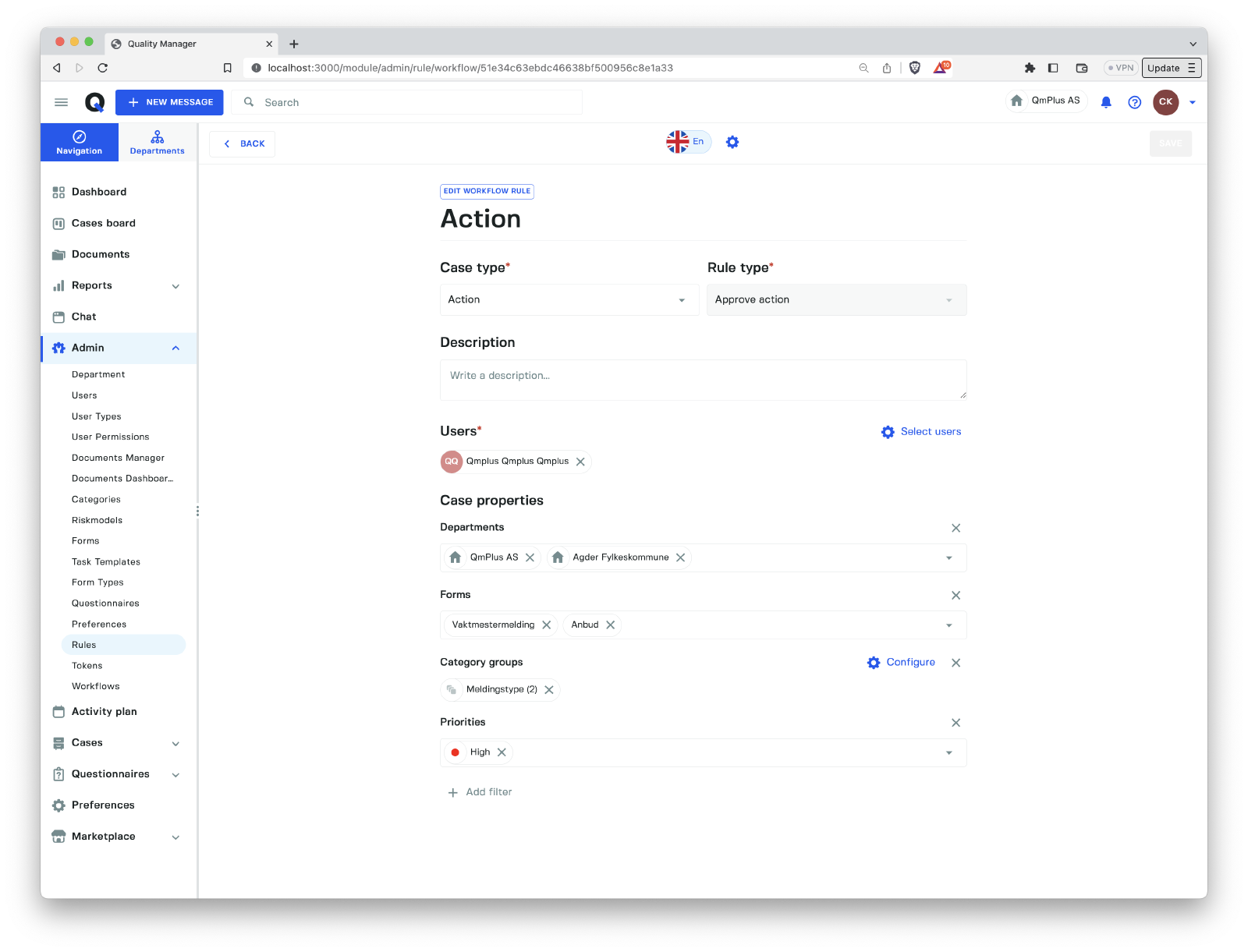
An example of an Approve Action rule that will match on the following combined criteria.
| Criteria | Match on at least one value for each Criteria |
|---|---|
Departments | QmPlus AS, Agder Fylkeskommune |
Forms | Vaktmestermelding, Anbud |
Category groups | Systemområder |
Priorities | Medium |
If the rule matches the following users will be added.
Qmplus Qmplus Qmplus
Override case status
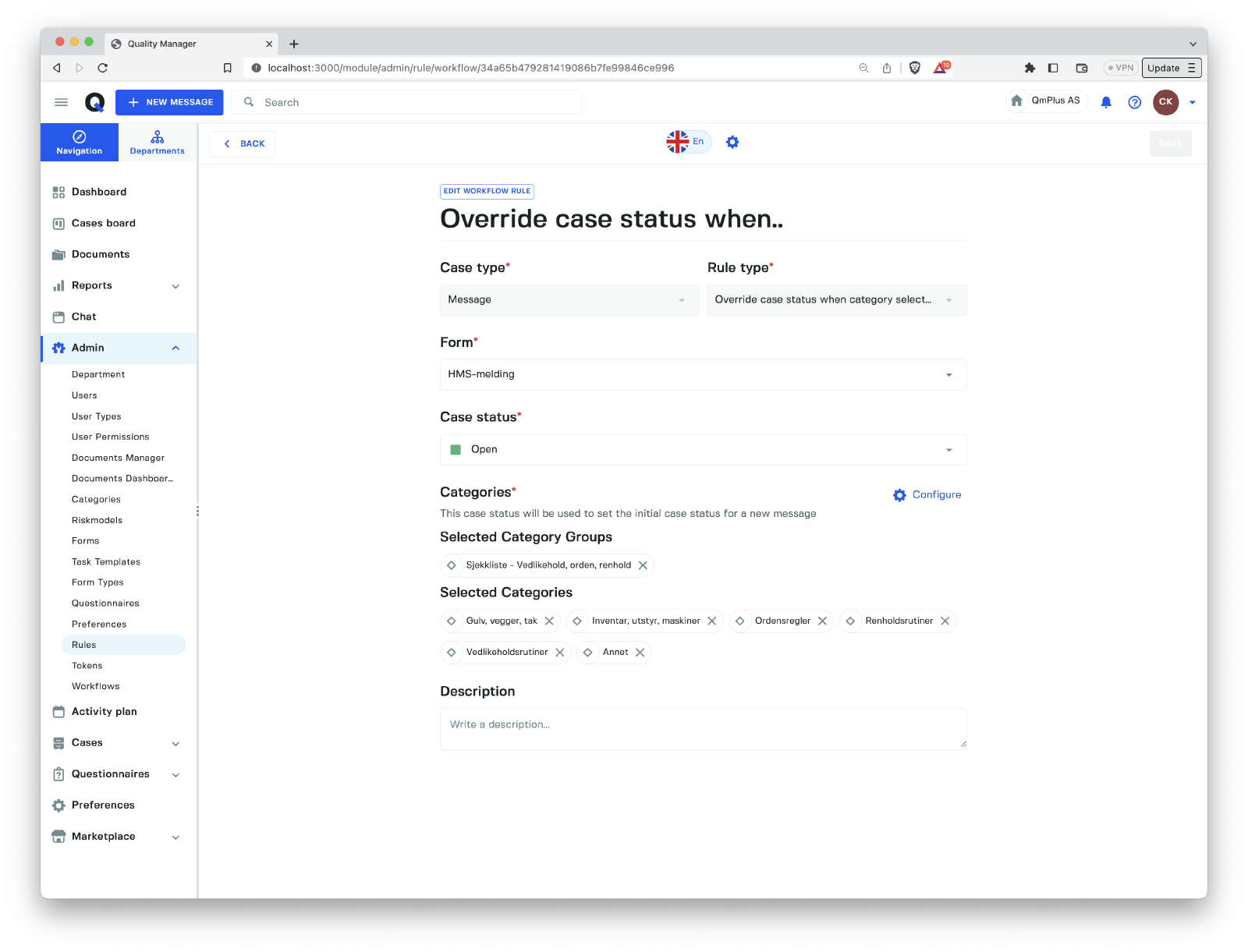
An example of an Override case status when category selected rule that will match on the following combined criteria.
| Criteria | Match on at least one value for each Criteria |
|---|---|
Form | HMS-melding |
Category groups | Sjekkliste - Vedlikehold, orden, renhold |
Categories | Gulv, vegger, tak, Inventar, utstyr, maskiner, Ordensregler, Renholdsrutiner, Vedlikeholdsrutiner, Annet |
If the rule matches the following case status is set.
Open
Message escalation
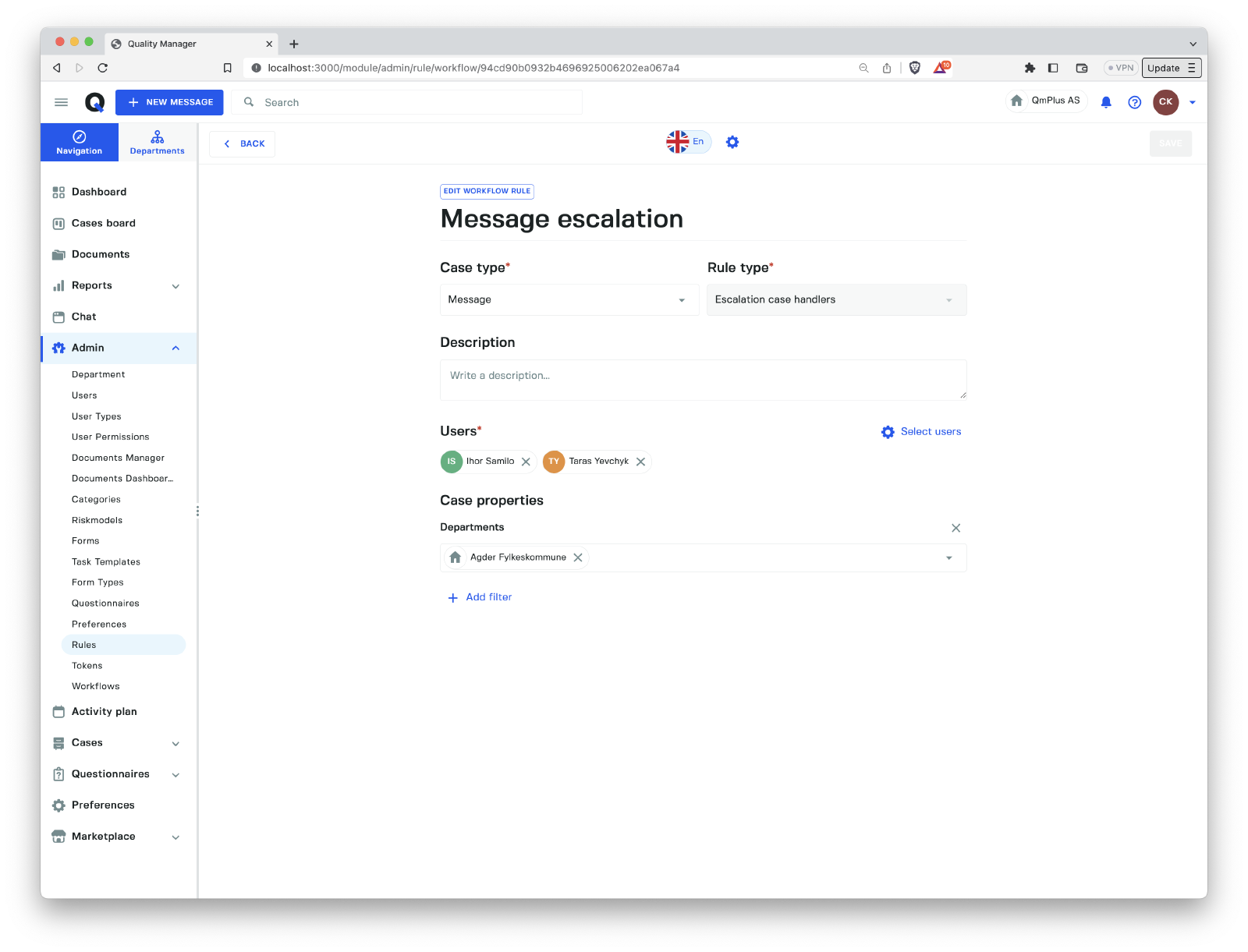
An example of an Escalation case handlers rule that will match on the following combined criteria.
| Criteria | Match on at least one value for each Criteria |
|---|---|
Form | HMS-melding |
Category groups | Sjekkliste - Vedlikehold, orden, renhold |
Categories | Gulv, vegger, tak, Inventar, utstyr, maskiner, Ordensregler, Renholdsrutiner, Vedlikeholdsrutiner, Annet |
If the rule matches the following users are used for escalation.
Ihor Samilo,Taras Yevchyk
Notification Rules
Notification rules will trigger notifications to the users specified in the rule for the following case types.
The case types are
Message,Action,Hearing,AuditandDocument.
| Rule type | Entities supported | Description |
|---|---|---|
Notify about closing case | All | Notify the users of the rule when a case enters a close state. |
Notify about new case | All | Notify the users of the rule when a new case is created. |
Creating a new rule
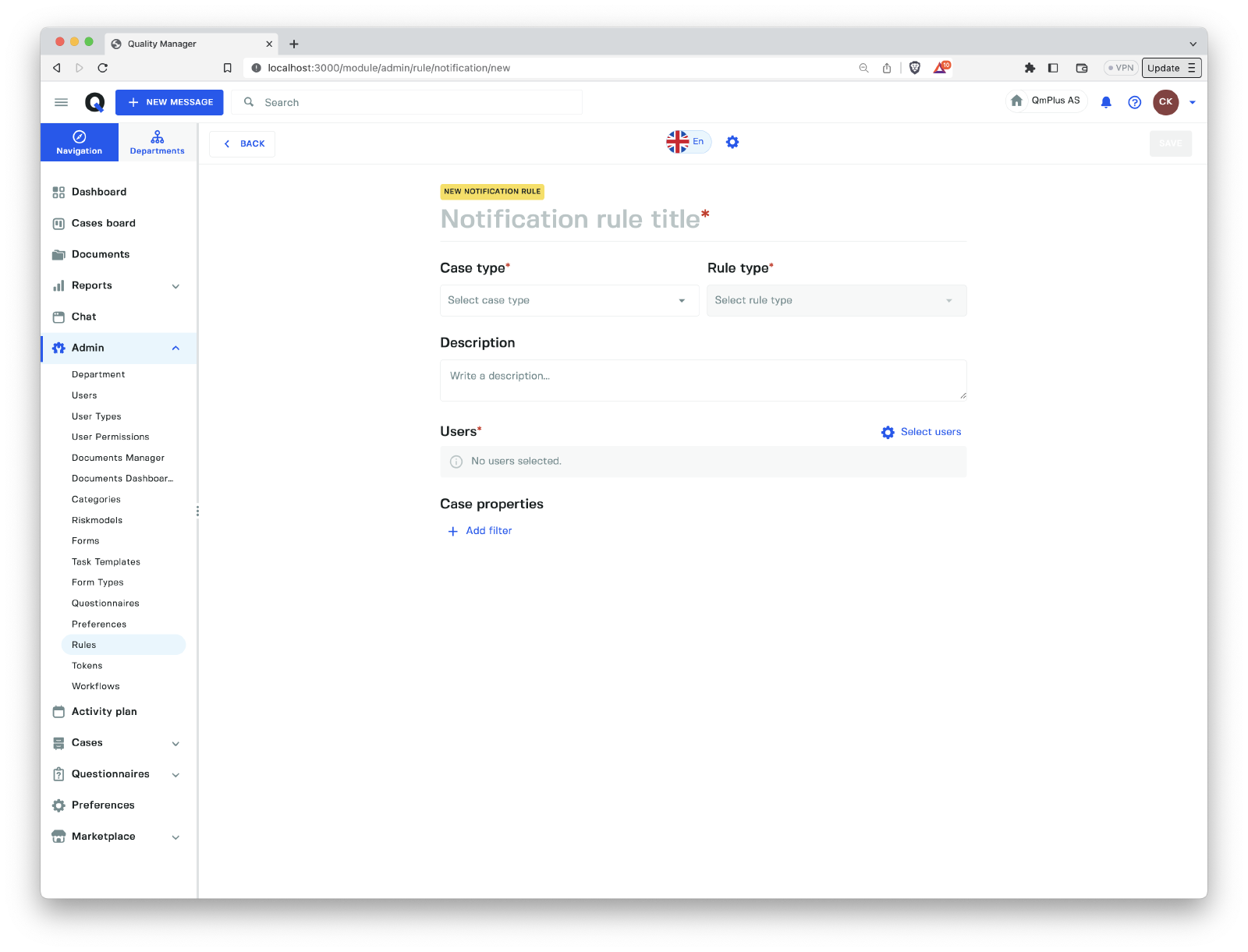
When creating a new rule we have the following fields.
| Field | Rule type | Description |
|---|---|---|
Title | All | The title of the rule. |
Case type | All | Select the case type we are building a rule for. Can be one of Message, Action, Hearing, Audit, Document. |
Rule type | All | Lets you select the type of rule you are building. The available rules depends on the Case type selected. See the table below for available mappings per type. |
Description | All | A longer description about the rule and what it’s used for. |
Users | All | Select the users that the rule will return if it matches. |
Case properties | All | Attributes that will be used when matching against the rule. |
| Case property | Description |
|---|---|
Department | Select what departments will trigger this rule. |
Forms | Set what forms will trigger this rule. |
Category groups | Set the category groups and categories that will trigger this rule. |
Priorities | Set the priorities that will trigger this rule. |
Examples of rules
Below are some examples of rules.
Notify about closing case
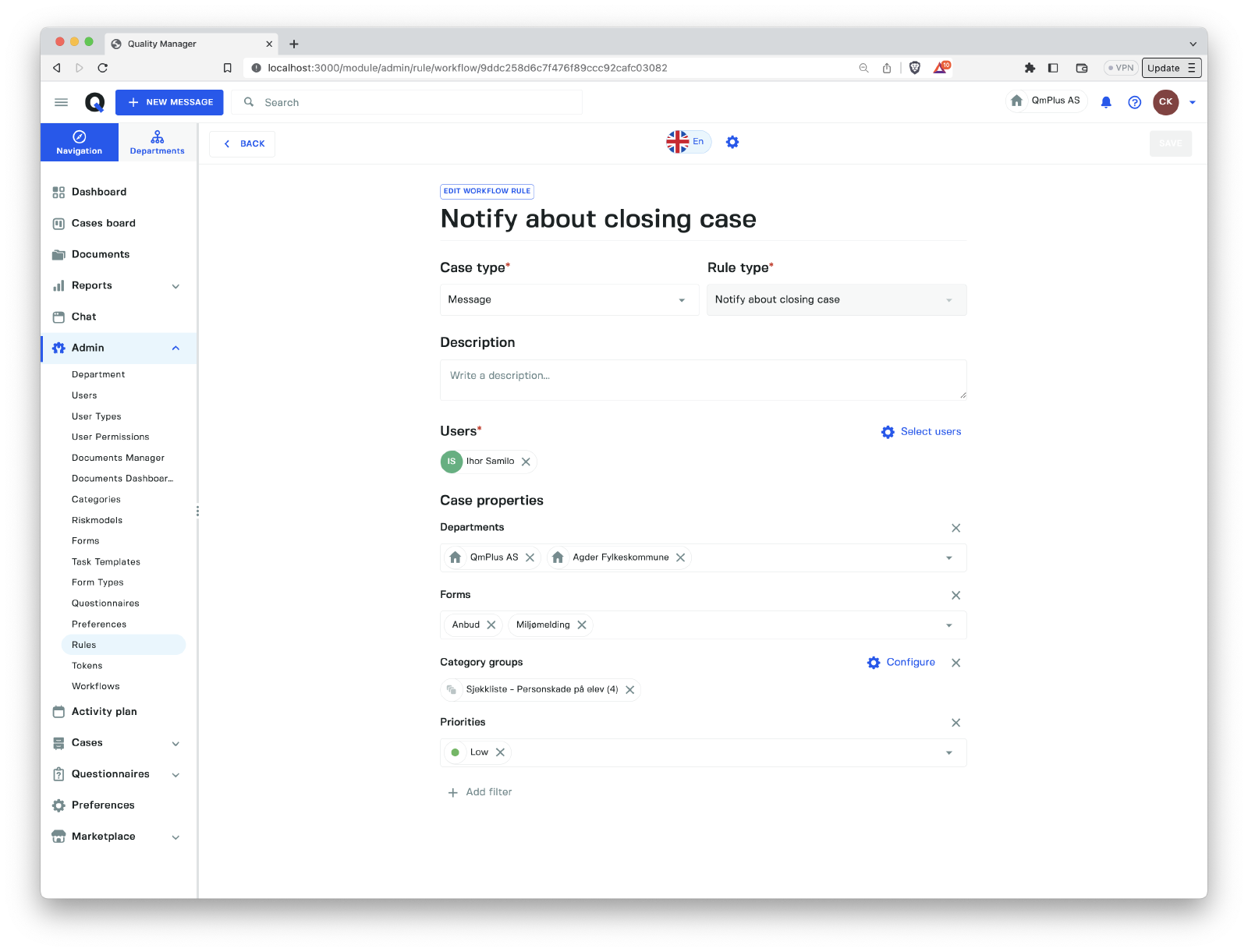
An example of an Notify about closing case rule that will match on the following combined criteria.
| Criteria | Match on at least one value for each Criteria |
|---|---|
Departments | QmPlus AS, Agder Fylkeskommune |
Form | Anbud, Miljømelding |
Category groups | Sjekkliste - Personskade på elev |
Priorities | Low |
If the rule matches the following users are notified.
Ihor Samilo
Notify about new case
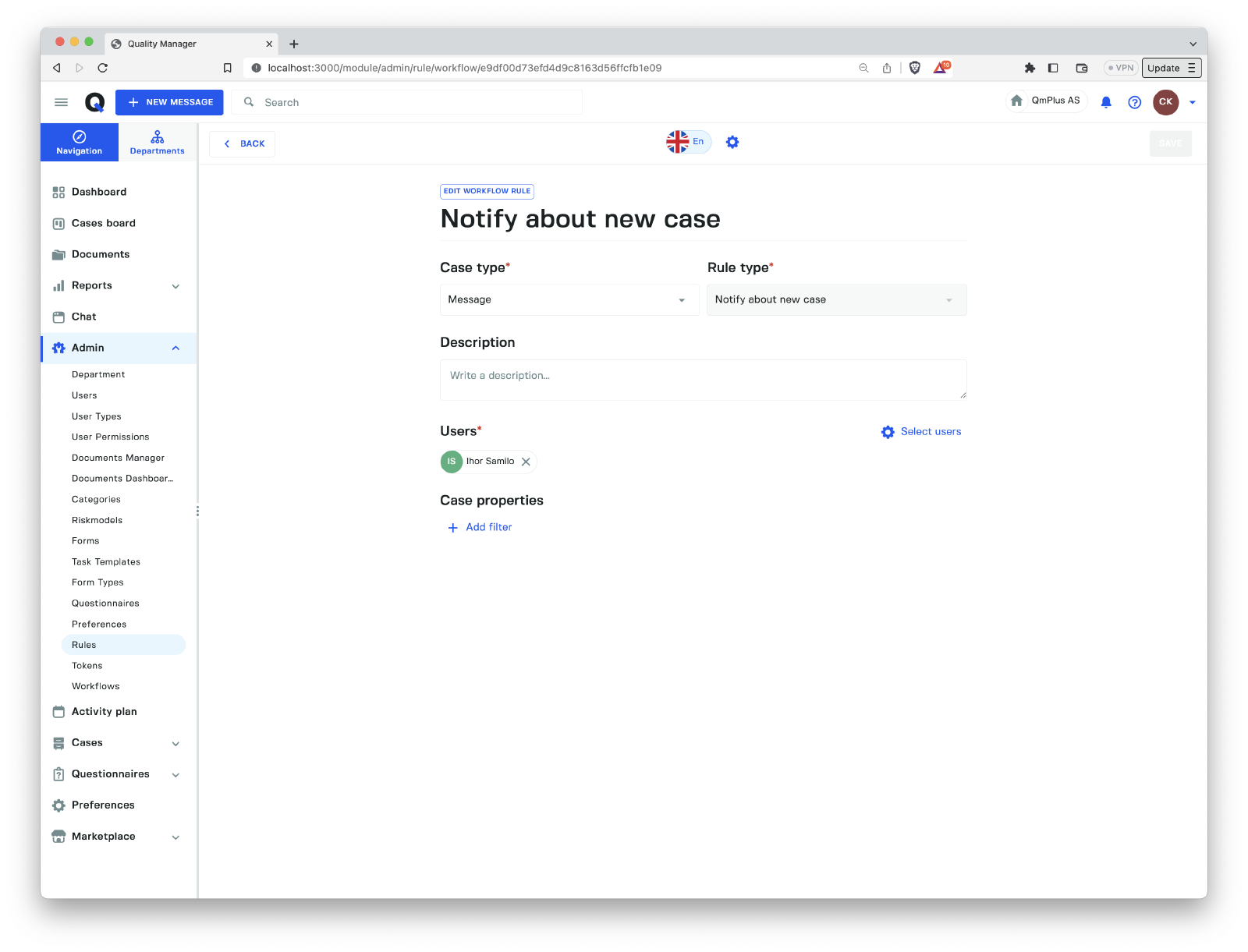
An example of an Notify about new case rule that will match on the following combined criteria.
| Criteria | Match on at least one value for each Criteria |
|---|---|
Departments | QmPlus AS, Agder Fylkeskommune |
Form | Anbud, Miljømelding |
Category groups | Sjekkliste - Personskade på elev |
Priorities | Low |
If the rule matches the following users are notified.
Ihor Samilo
Test Rules
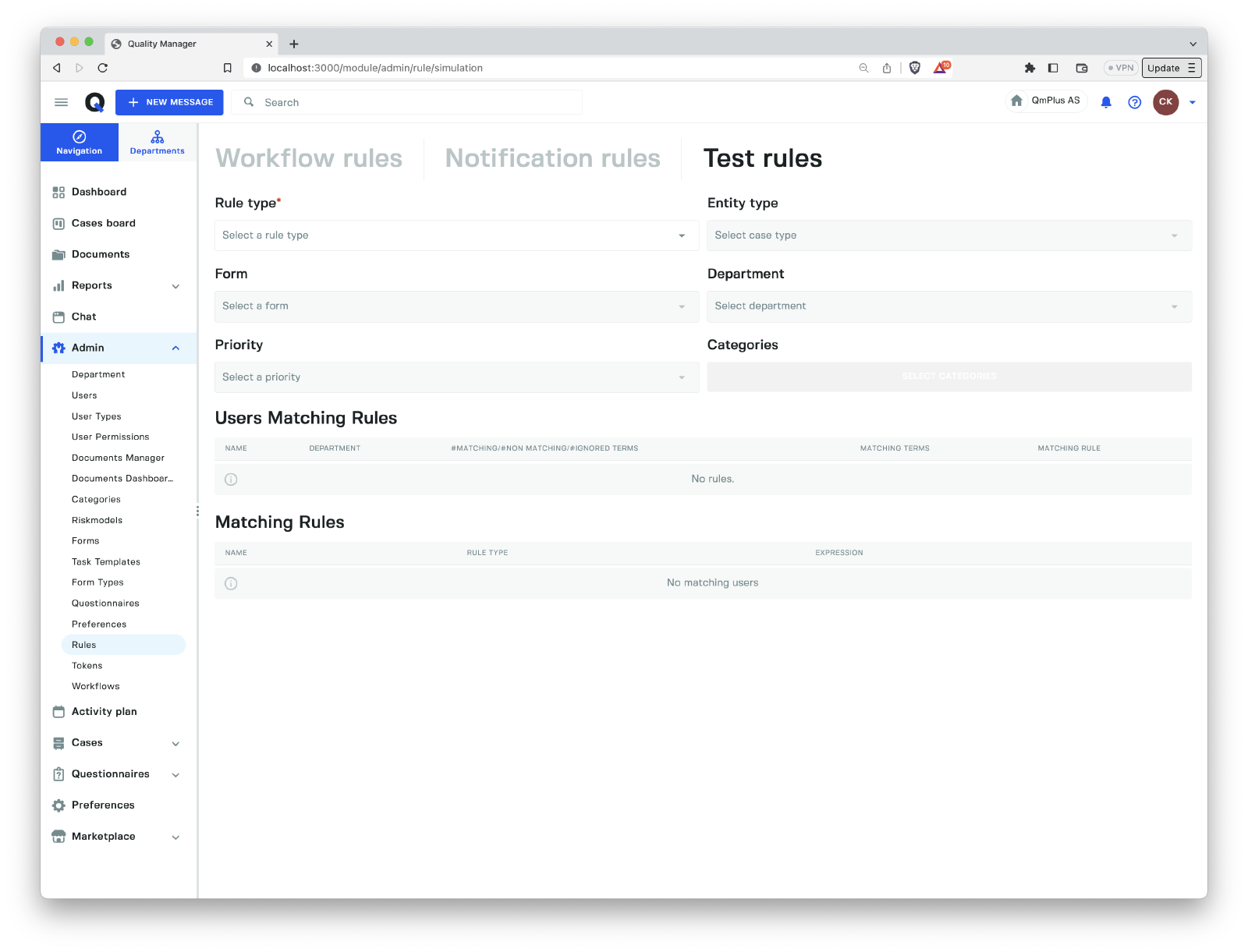
The Test Rule tab allows you to run test scenarios against the rules you have added to the system. This lets you make sure the intended actions happen when an event is triggered.
Rules matching users
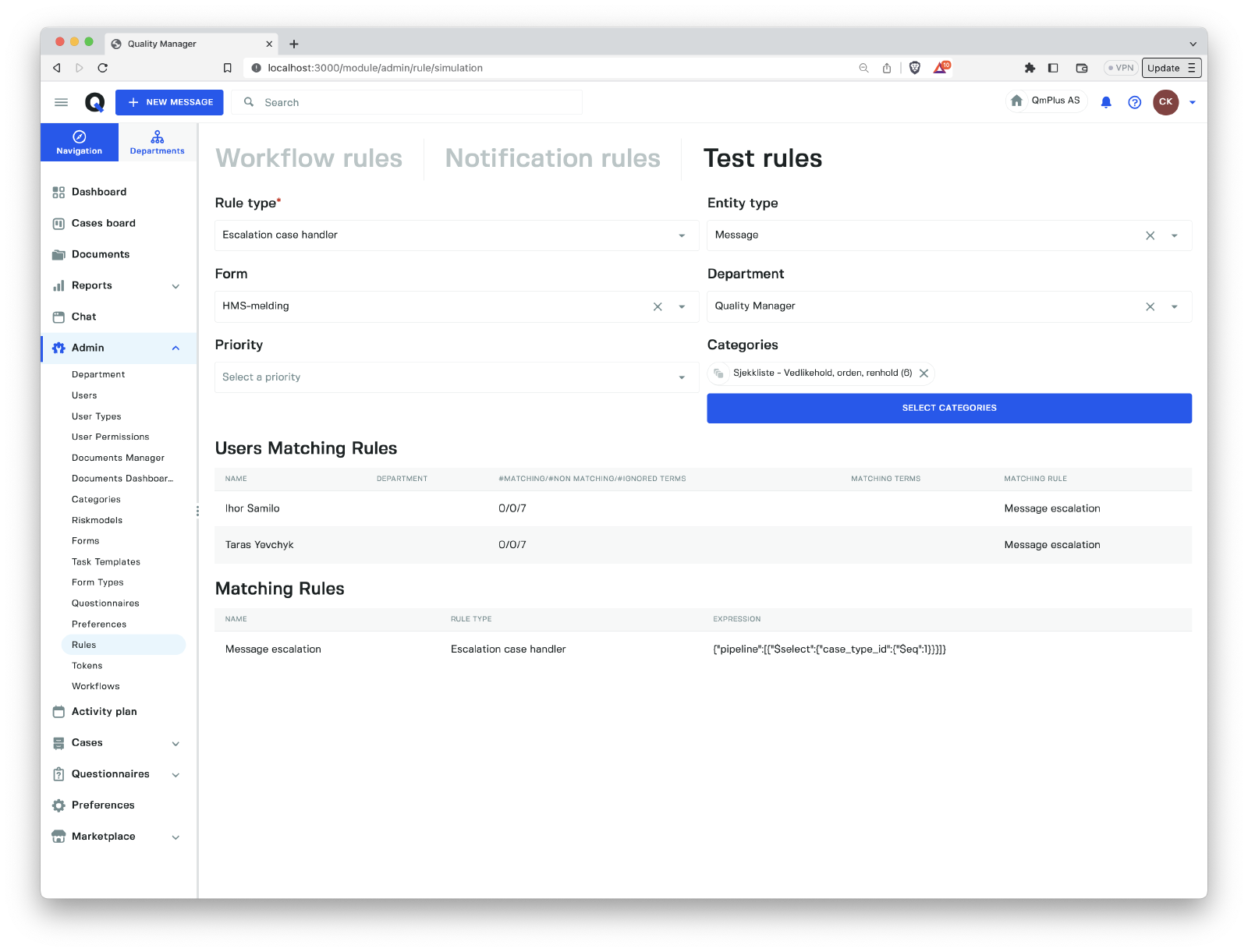
Lets look at how we can test casehandler rules to see what matches. Case handler rules are the following rule types.
| Rule type | Description |
|---|---|
Early case handlers | A rule that will add a list of users as potential early case handlers given the selection criteria set in the rule. |
Extra case handlers | A rule that will add extra case handlers when selecting a case handler for a case given the selection criteria in the rule. |
Escalation case handlers | If a rule matches the users set on the rule will be used to pick a user after an escalation of the message. |
Approve action | A rule that will add action case handlers, when selecting a case handler that can approve a case. |
Notify close case | A rule that will add action case handlers, when selecting a case handler that can approve a case. |
Notify new case | A rule that will add action case handlers, when selecting a case handler that can approve a case. |
All these rules return a set of candidate users.
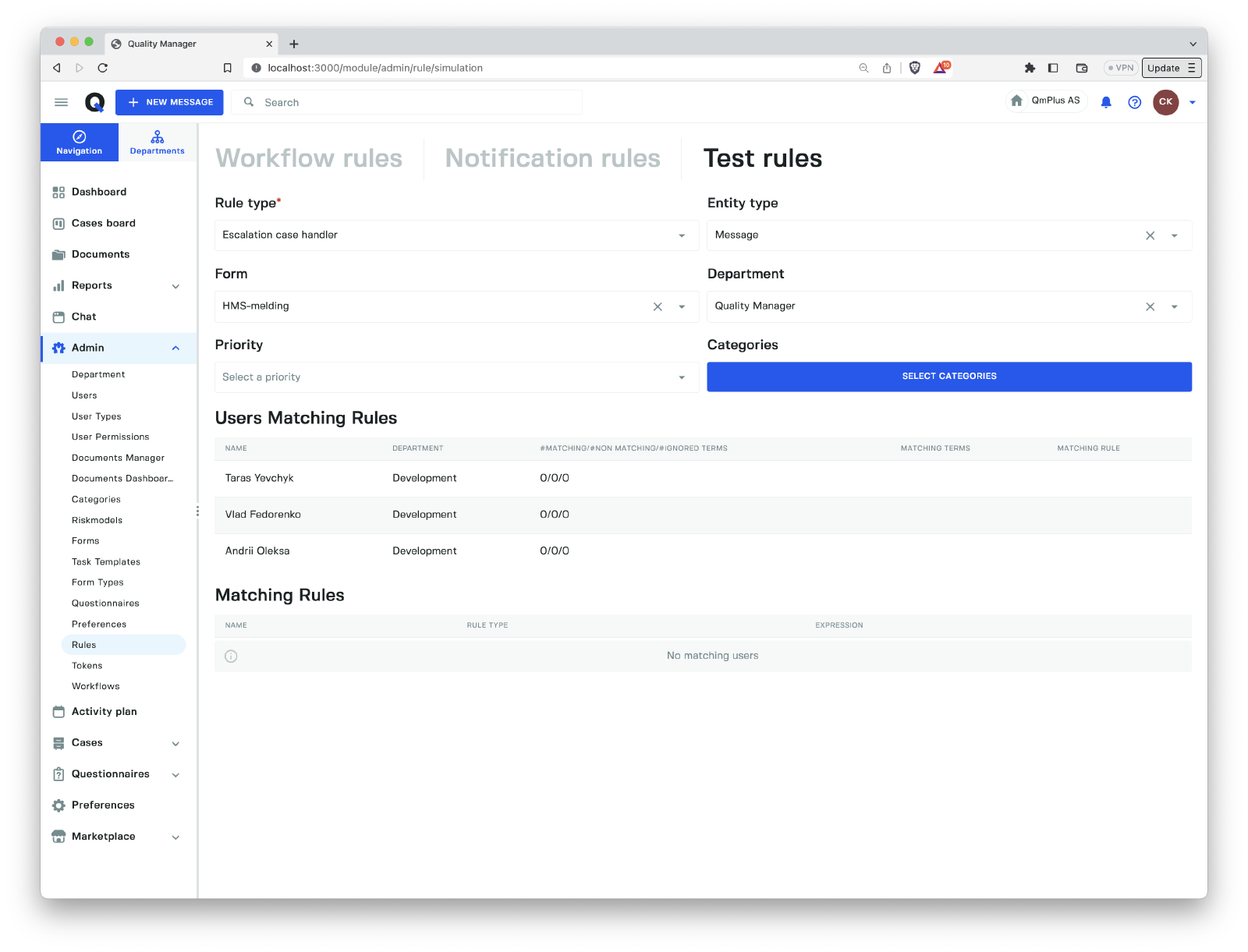
Escalation case handlersis a little bit special as if no rule matches it will look for users in the department hierarchy that have one of the following roles (BEHAVIOUR_DEFAULT_MESSAGE_RECEIVER,BEHAVIOUR_DEFAULT_POSSIBLE_MESSAGE_RECEIVER).
| Field | Case type support | Description |
|---|---|---|
Rule type | All | The type of rule we wish to test. |
Case type | All | The case type we wish test against (Message, Action, Hearing, Audit and `Document). |
Form | Message | A form type that we are entering. |
Department | All | A department that we are entering. |
Priority | Message | A priority that we are entering. |
Categories | Message | A set of category groups and categories entered. |
If one or more rules match the combination of the fields above you will se them displayed below. You can click on a rule to take you to the rule.
Any users defined on the matching rules will be shown in the matching users listing.
Testing Override Case Status
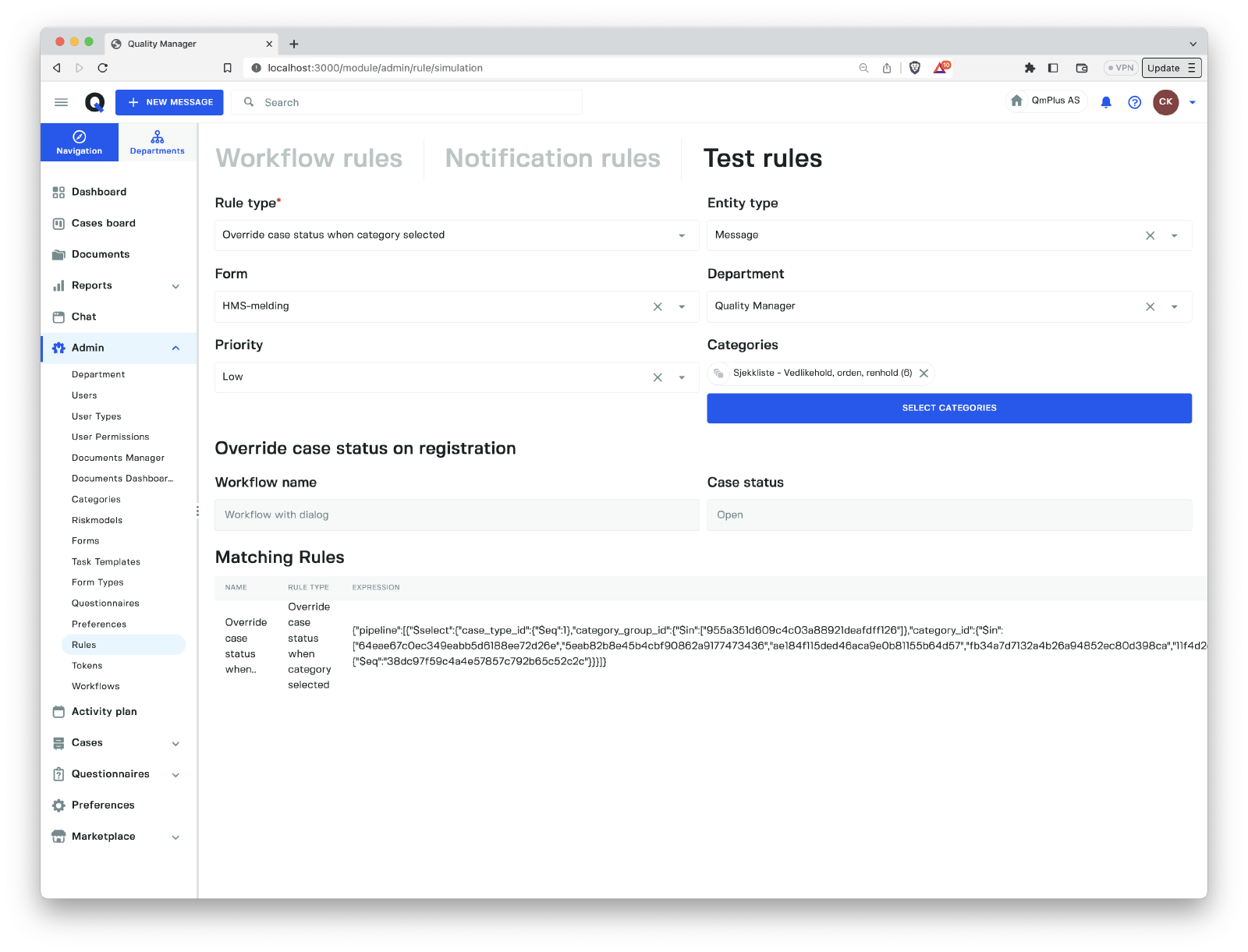
The Override Case status are rules that let you change the starting case status of a new message depending on if a specific category was selected in the form by the user. This lets you do things like putting a message directly in a closed state if they click on a category named Closed in the form.
If you match on one or more rule you’ll see the case status that will be triggered on the registration of a new message for the rule.