Administrator/Task Templates
A user guide for working with Task Templates. We cover how to create and modify Task Templates.
This section addresses the management of Task Templates within the system.
By clicking on Administrator/Task Templates, you gain access to the list of Task Templates.
Task Templates enable you to create lists of tasks that will be added to new Cases when a Message is registered. For instance, you might create a list of tasks to be performed every time an accident message is logged in the system.
You can also add additional tasks if specific categories are selected by the user while filling in the form. This allows you to create dynamic task templates that can add supplementary tasks depending on the form entry itself.
Task Templates serve as a powerful means of standardizing task checklists across the organization for given
Formentries.
Task Templates Listing
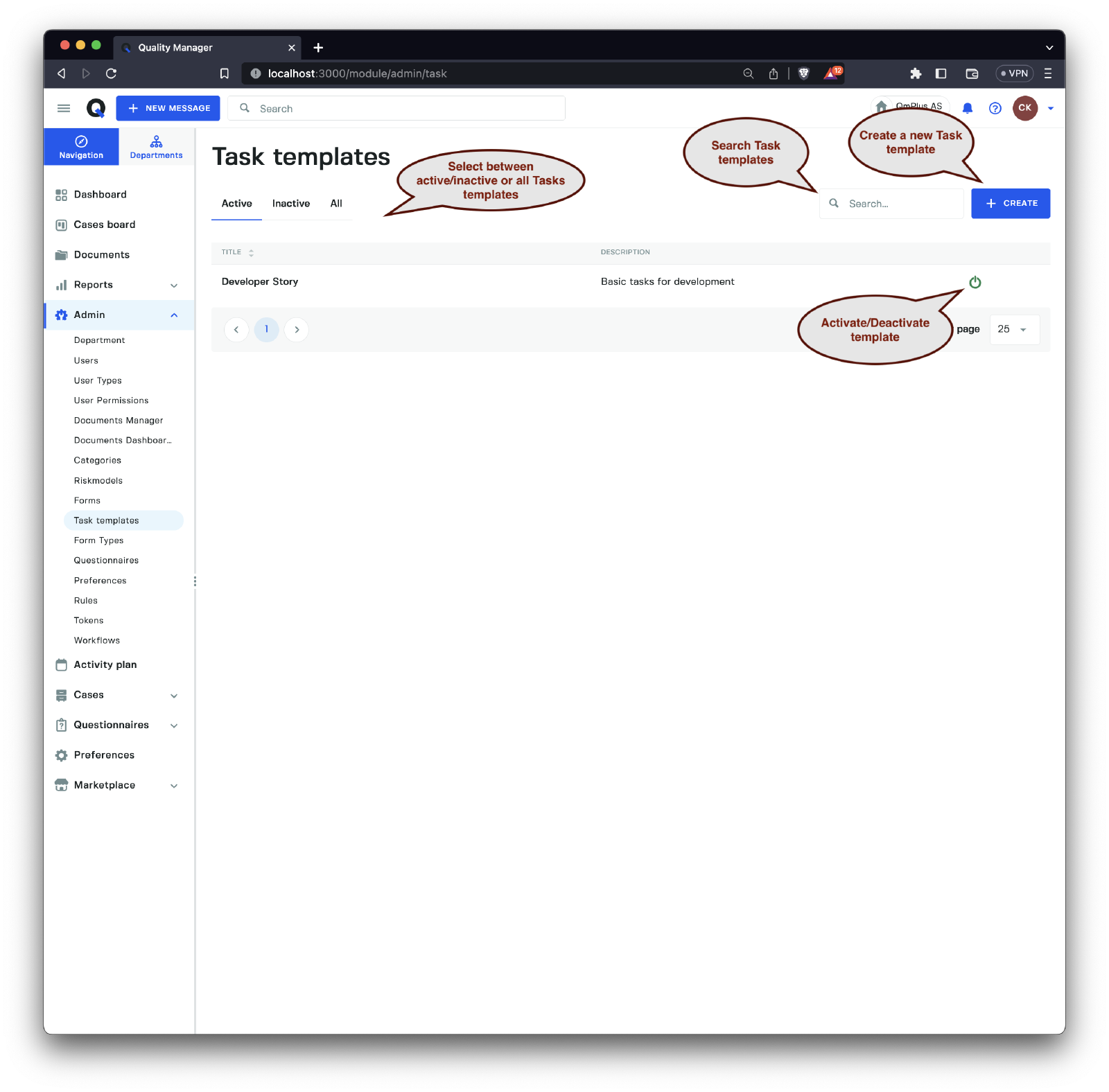
The Task Templates listing displays all the current Task Templates that are available to view.
The listing will change as you switch departments within the organization, since
Task Templatescan be registered to a specific department and assigned an organizational visibility type (visible within the department, visible within the department and its child departments, etc.).
Create a New Task Template
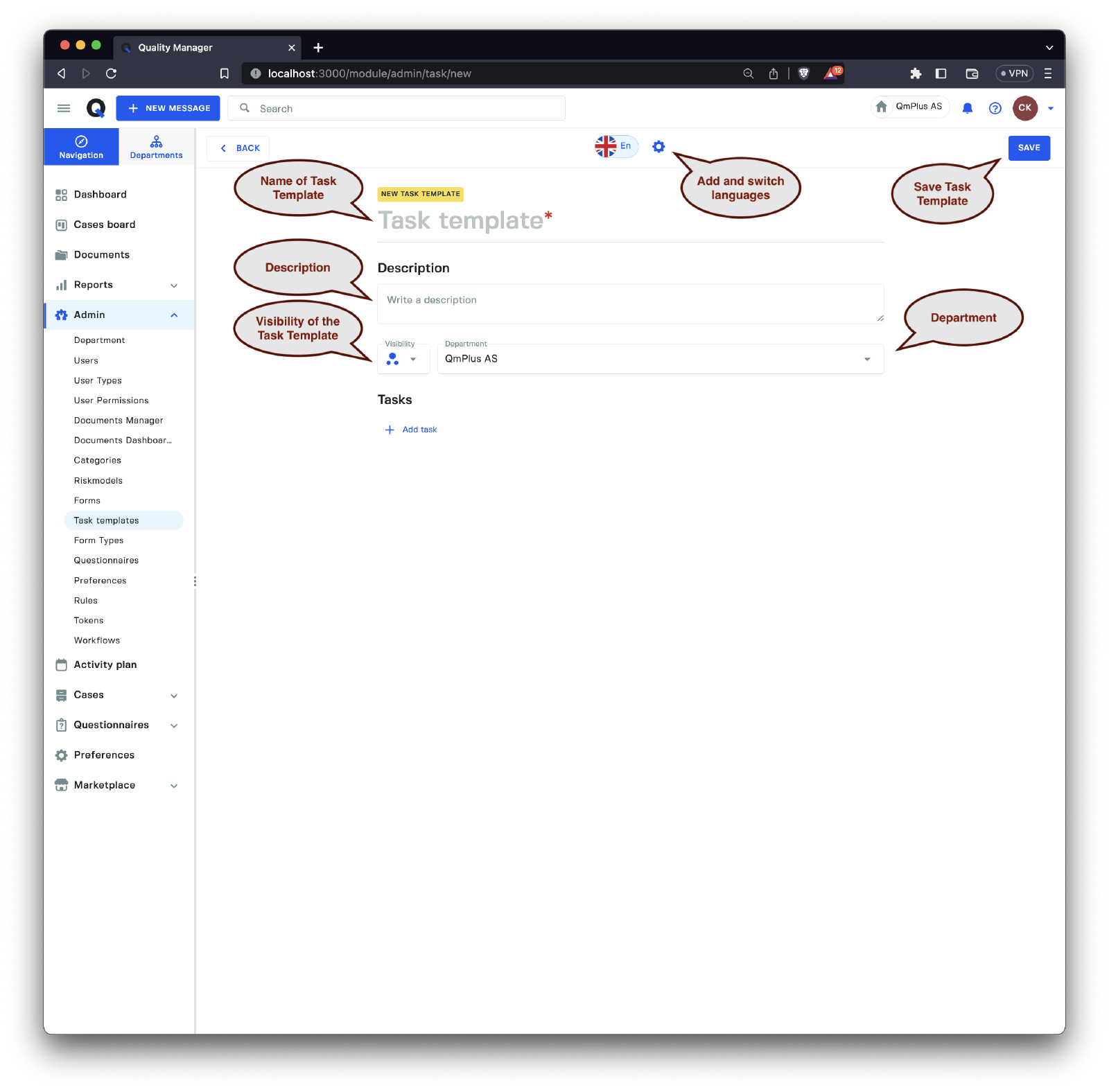
When creating a new Task Template, you have the following options:
| Option | Description |
|---|---|
Task Template name | Set the name to identify the Tasks template, supports multiple languages. |
Description | Set the description for the Tasks template. |
Visibility | Set the organizational visibility (department, department and child departments). |
Department | The department in which the Tasks template is registered. |
Add Task | Add a Template task to the Tasks template. |
Click the Save button to save the current state of the Task Template.
Adding a New Task
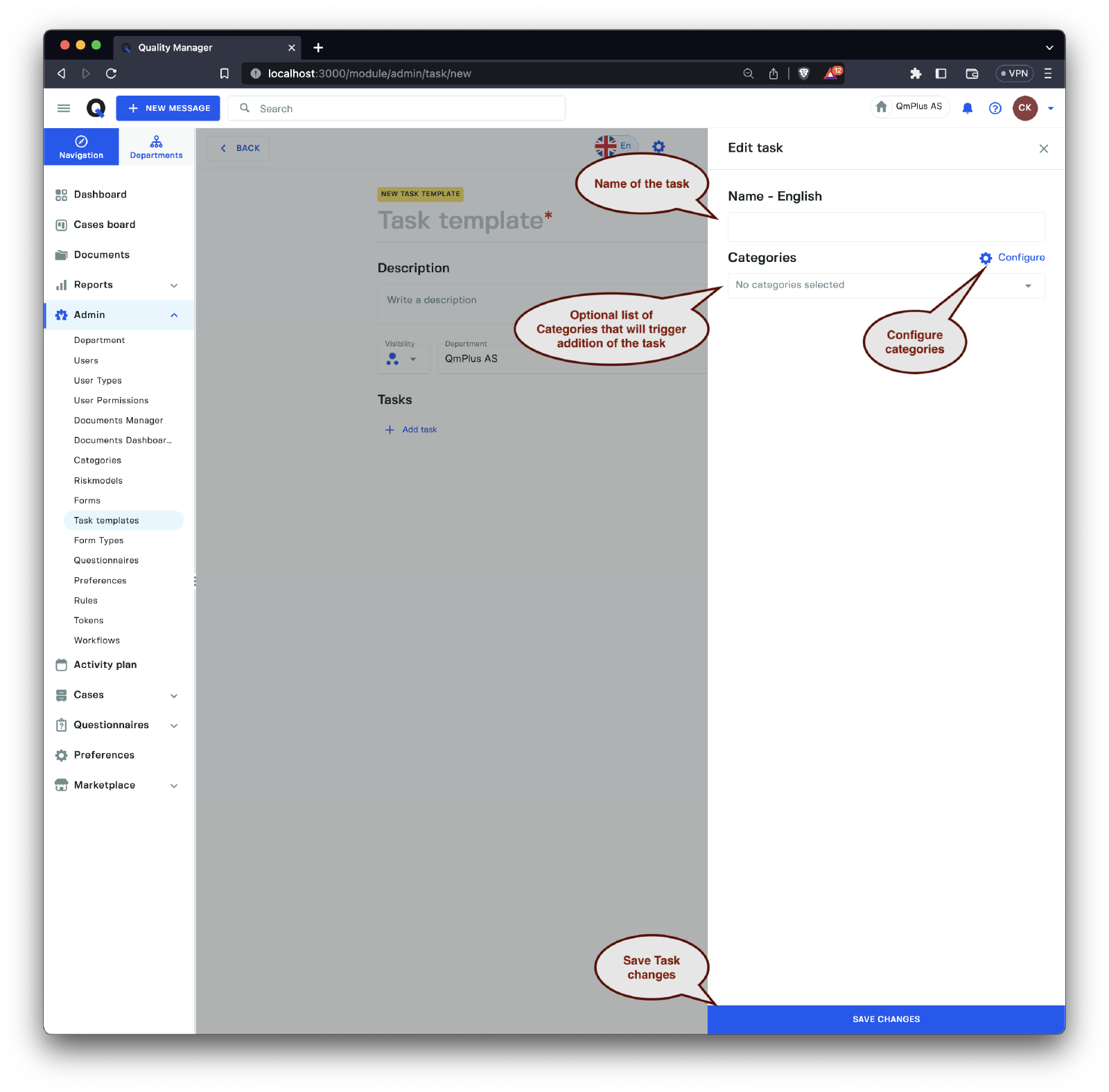
Clicking the Add Task button opens the sidebar with options for a new Task. The following options are available:
| Option | Description |
|---|---|
Name | Name of the task to be added to the Tasks templates. |
Categories | List of categories that will trigger the addition of this specific task to a new Case when a form message is registered. |
Click the Configure button to retrieve the list of available categories. Finally, click the Save Changes button to save the Task to the Task Template.
Select Categories
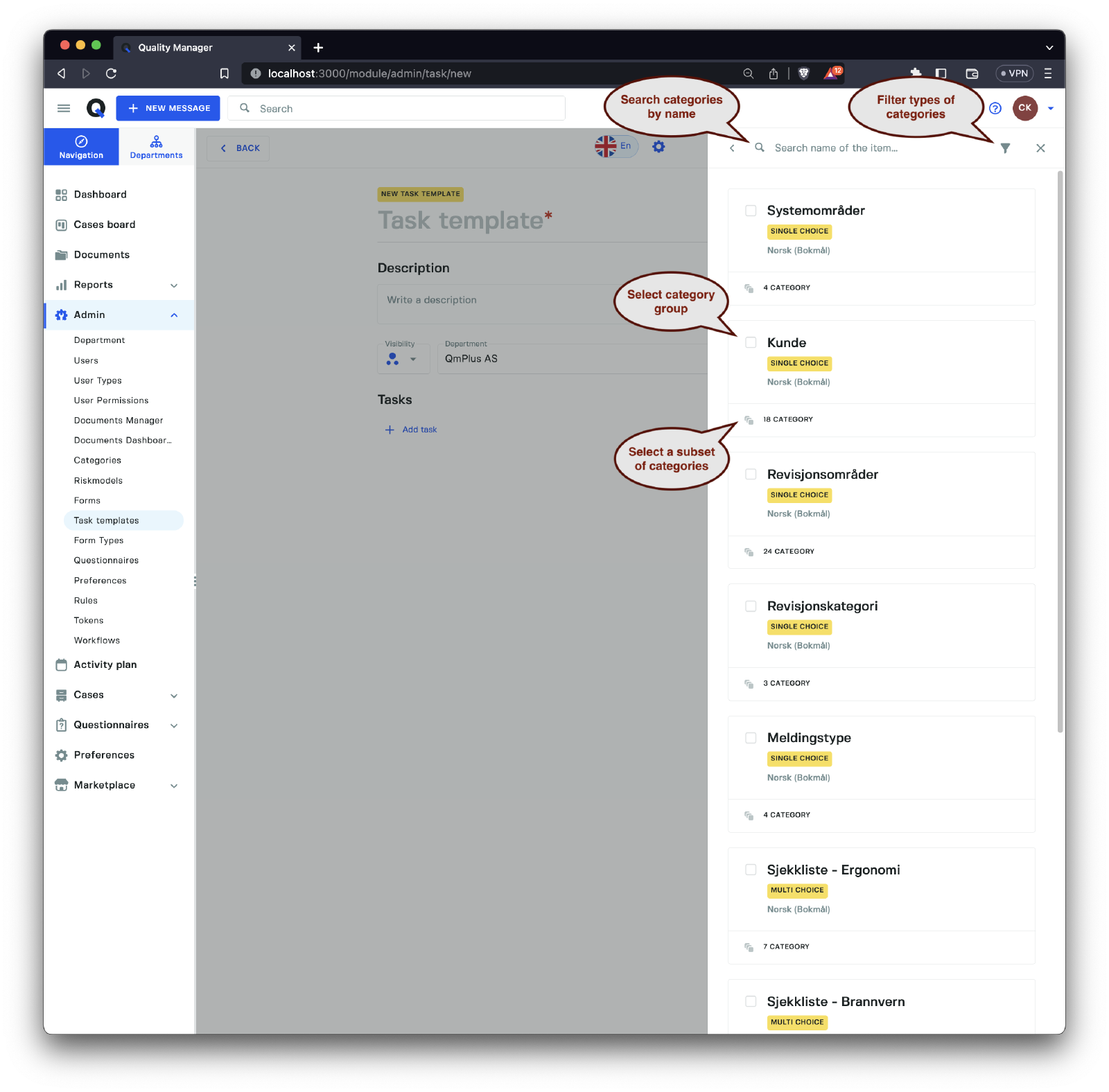
After clicking the Configure button, you can search and select the categories that will trigger the addition of the Task being created.
Editing a Task Template
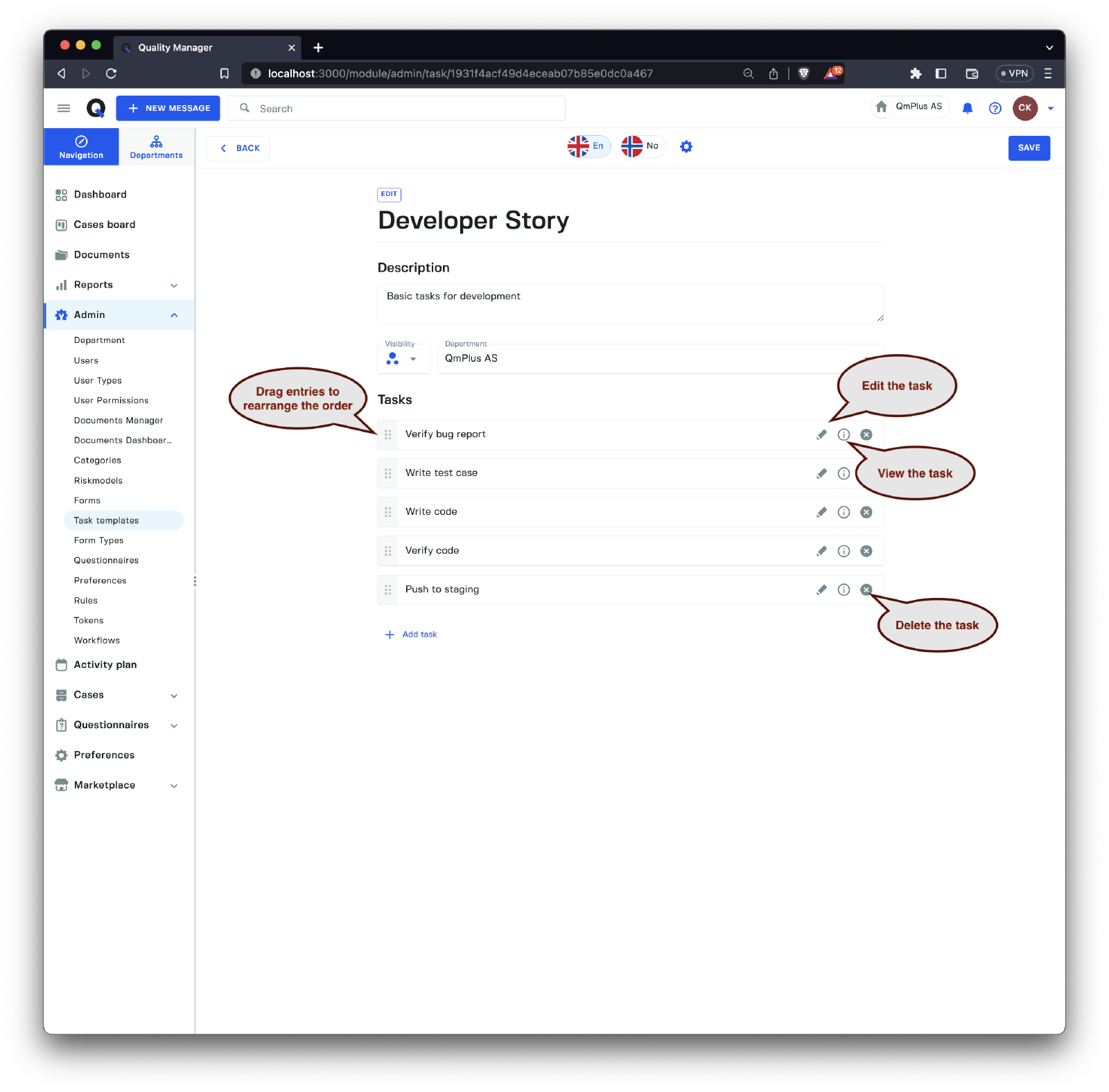
When editing a Task Template, you can drag individual tasks up and down to reorder them according to your desired sequence when added to a Case.
We recommend not starting names with a number if one uses the
categoriesfilter, as it might lead to lists lacking continuity. For example, if you add tasks 1. A, 2. B, 3. C and task 2 is dependent on a category, you might end up with aCasetask list containing only 1. A and 3. C, which may confuse users.
You can also Edit, View, and Delete individual tasks in the Tasks Template.
Mapping Task Template to Form
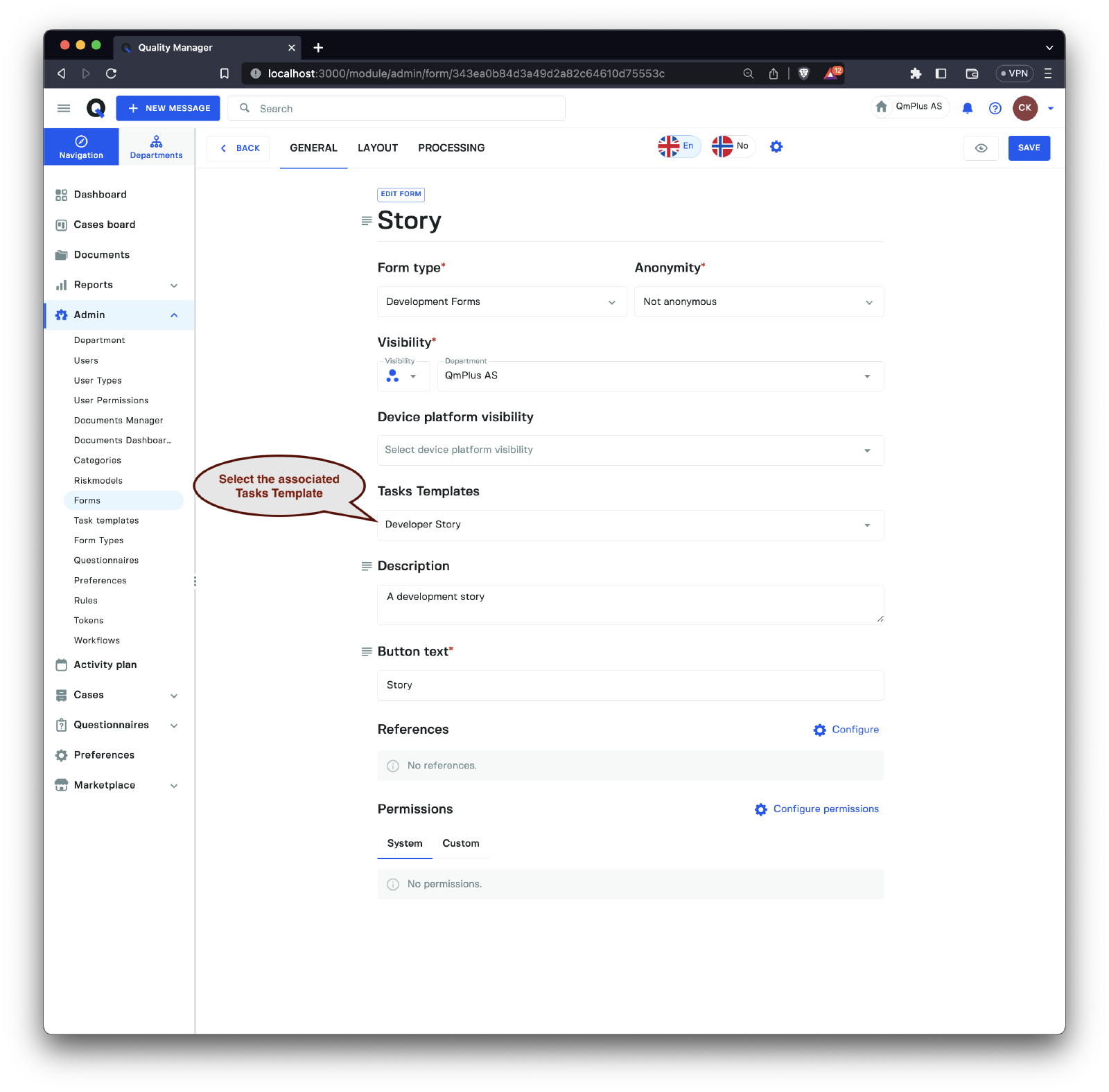
When creating or editing a Form, you have the option to associate a Tasks Template from the list of templates visible to the current user’s department.
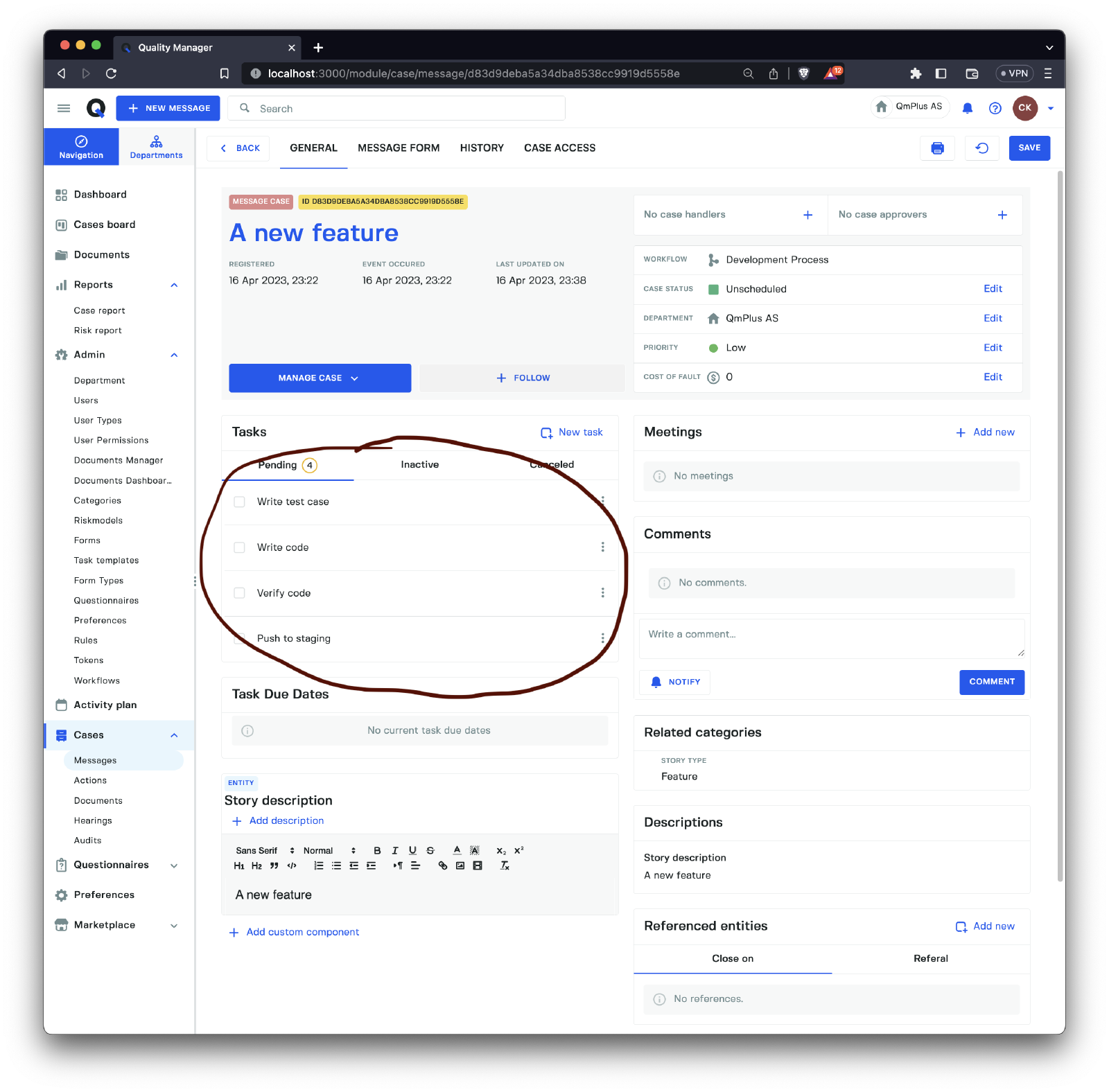
When a user registers a new message using this form, the resulting Case will include a list of Tasks based on the associated Tasks Template. This ensures that appropriate tasks are generated for each case according to the predefined templates, helping maintain consistency and adherence to organizational processes.