Preferences
A user guide for using the individual user's preferences
This section explains the personal preference settings for logged in users.
Clicking on the Preferences grants access to the specific preferences of the user.
Document Dashboards
General Settings
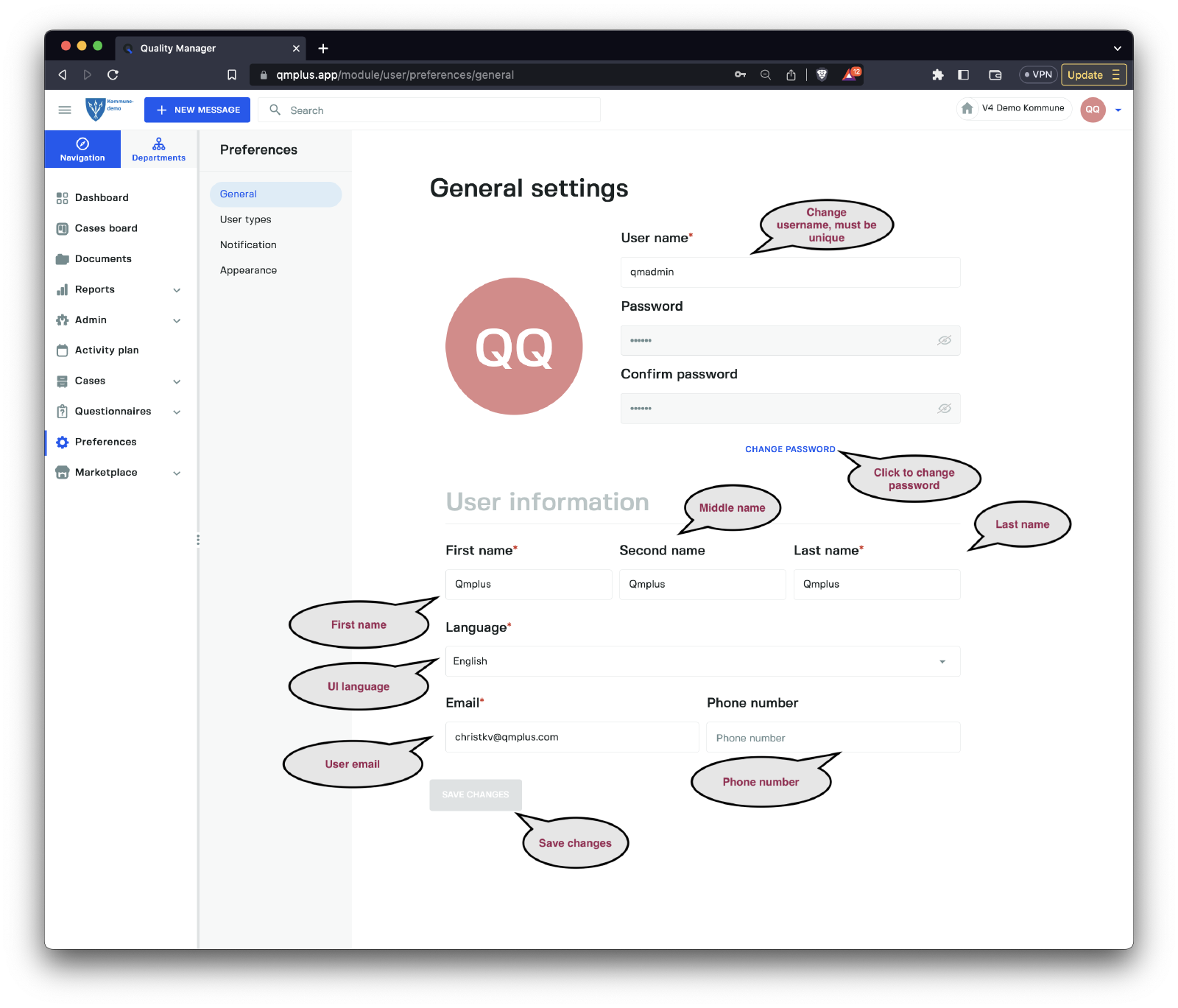
The users general settings allow the user to adjust the following options.
| Option | Description |
|---|---|
Username | The current logged-in user’s username; if changed, the new username must be unique. |
Password | If the Change password button is clicked, enter your new password here. |
Confirm password | If the Change password button is clicked, enter your new password confirmation here. Ensure it matches the password field when clicking Save, or the password update will fail. |
First name | Change the first name of the current logged-in user. |
Second name | Change the middle name of the current logged-in user. |
Last name | Change the last name of the current logged-in user. |
Language | Change the current language of the UI. Reload the browser for changes to take effect after clicking the Save button. |
Email | Change the current user’s email address. |
Phone number | Change the current user’s phone number. |
After changing anything on the user, the Save button must be clicked to save the changes.
User Types
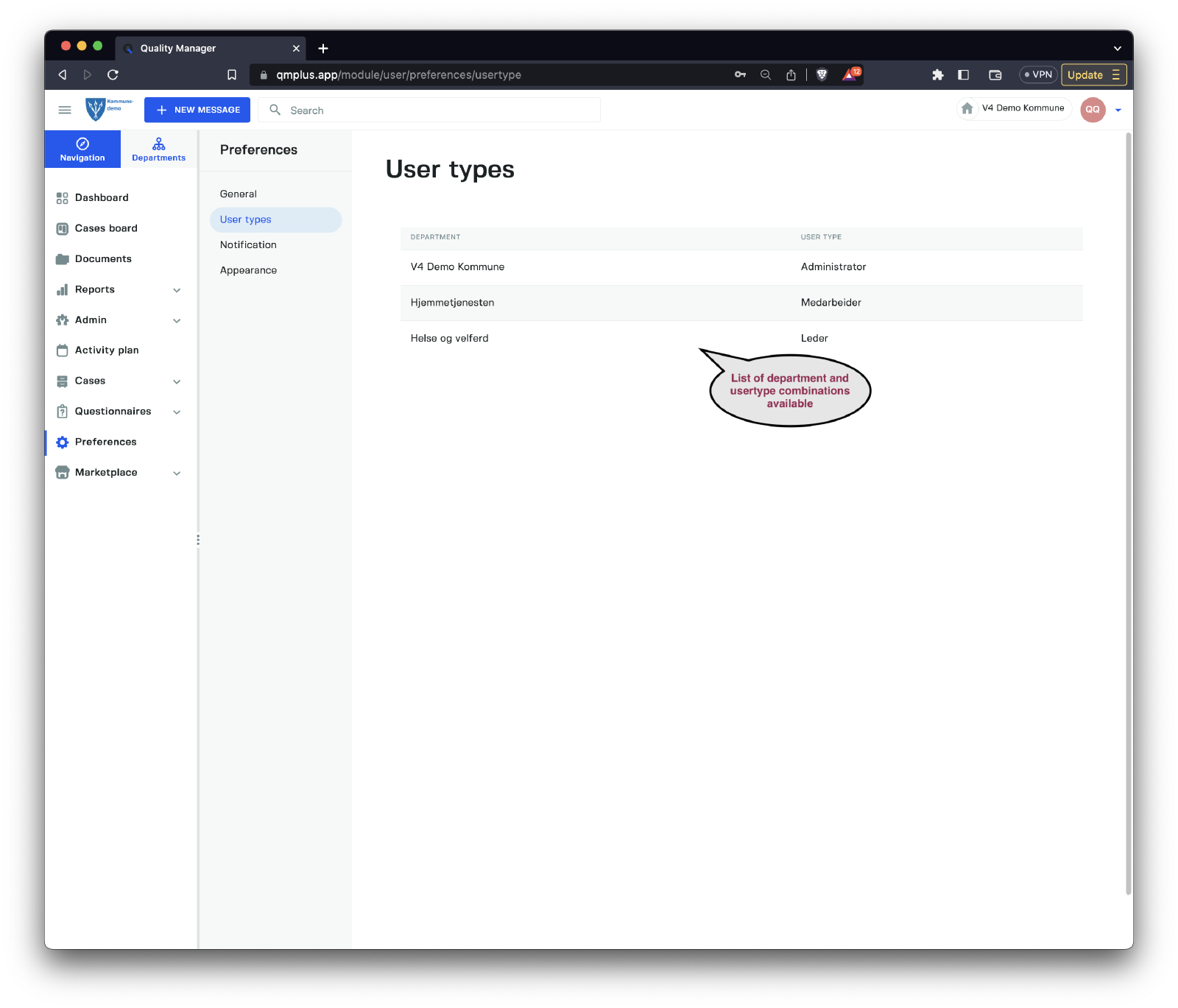
The User types option shows the current logged-in user the list of the department and user type combinations that are registered on their user.
Notification
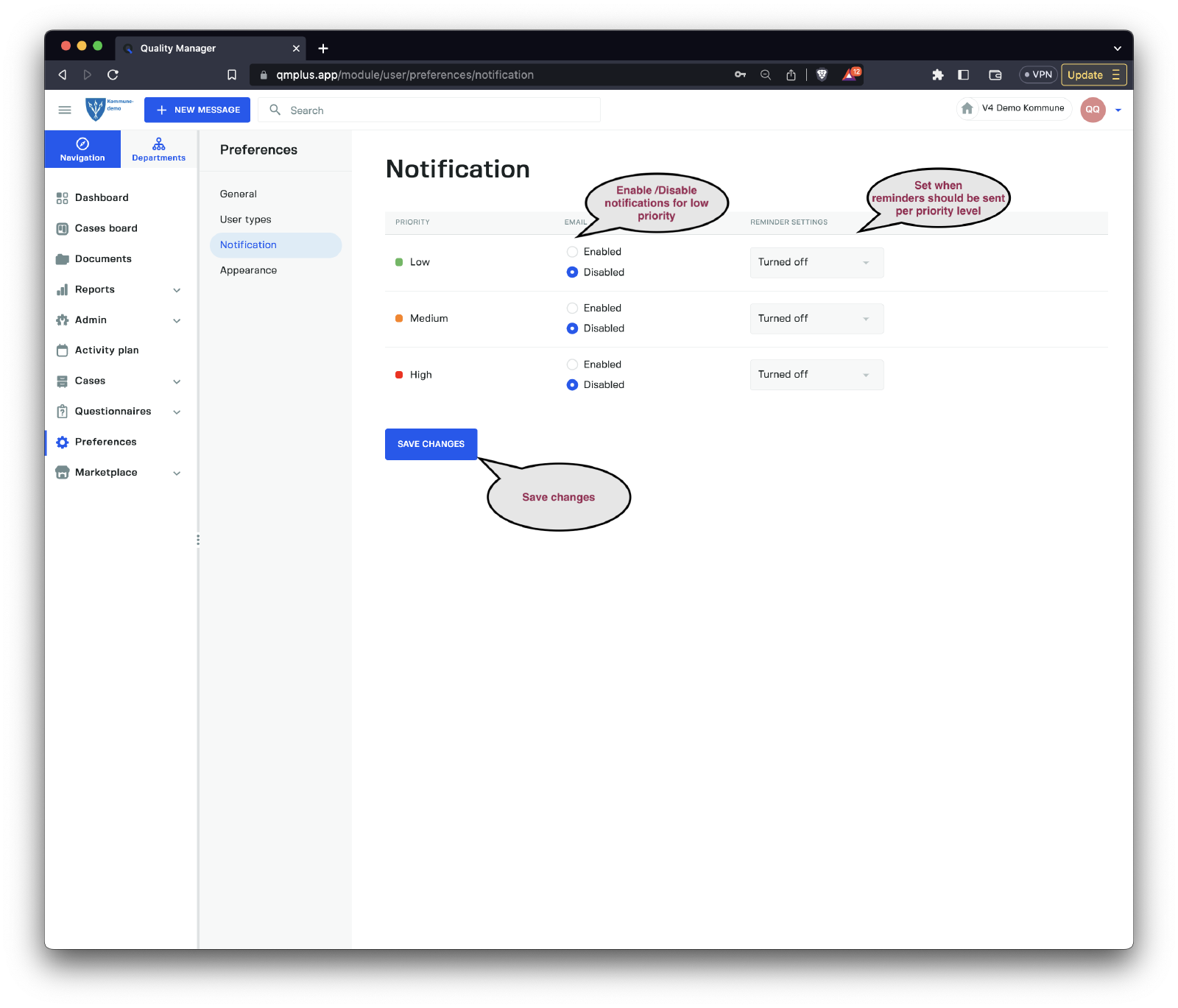
The notifications option allows the current user to modify their notification settings.
If the settings are grayed out, it means the administrator for your organization has disabled the option for users to customize their own notification settings and have enforced organizational settings.
The notification settings are ordered by priority, enabling you to enable/disable notifications for any given priority level and set the delivery time for any reminders sent by email to the logged-in user.
Click the Save Changes button to apply any changes.
Appearance
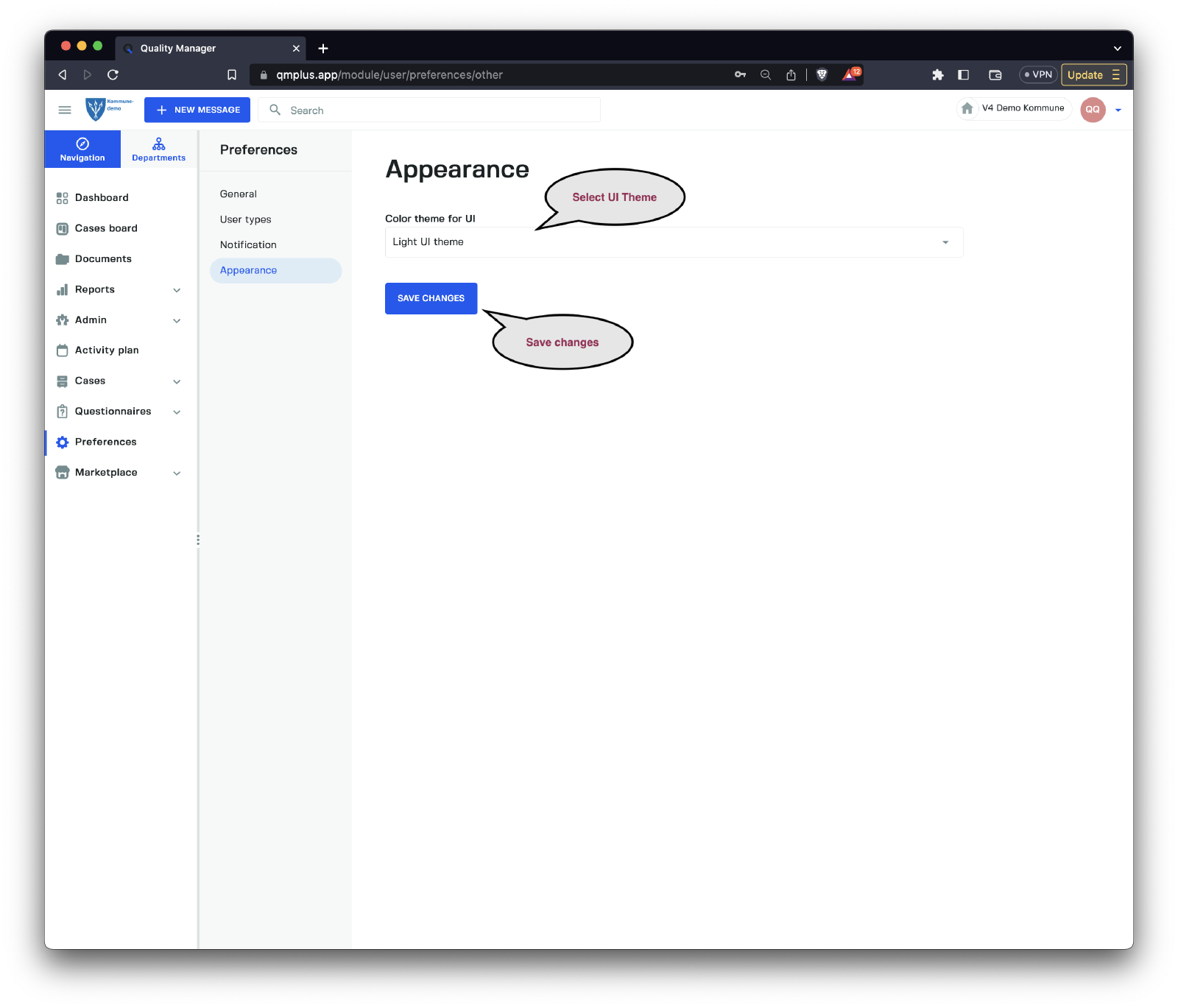
The appearance option allows you to specify the desired UI template. Currently, Q offers three options.
| Option | Description |
|---|---|
Light UI theme | A high contrast light UI theme. |
Dark UI theme | A dark mode UI theme. |
Default from browser | Use the browser default (OS option) to automatically set either light or dark UI theme. |
Click the Save Changes button to save the changes to the UI theme.