Administrator/User Types
A user guide for working with user types. We cover how to create and modify user types.
A user type is a collection of roles that represents specific groupings of permissions with an assigned name. Examples of user types can include Administrator, Employee, and Inspector, where each user type contains a set of roles that grant the user permissions to perform different actions or access specific features of the platform.
Main Administrator Screen
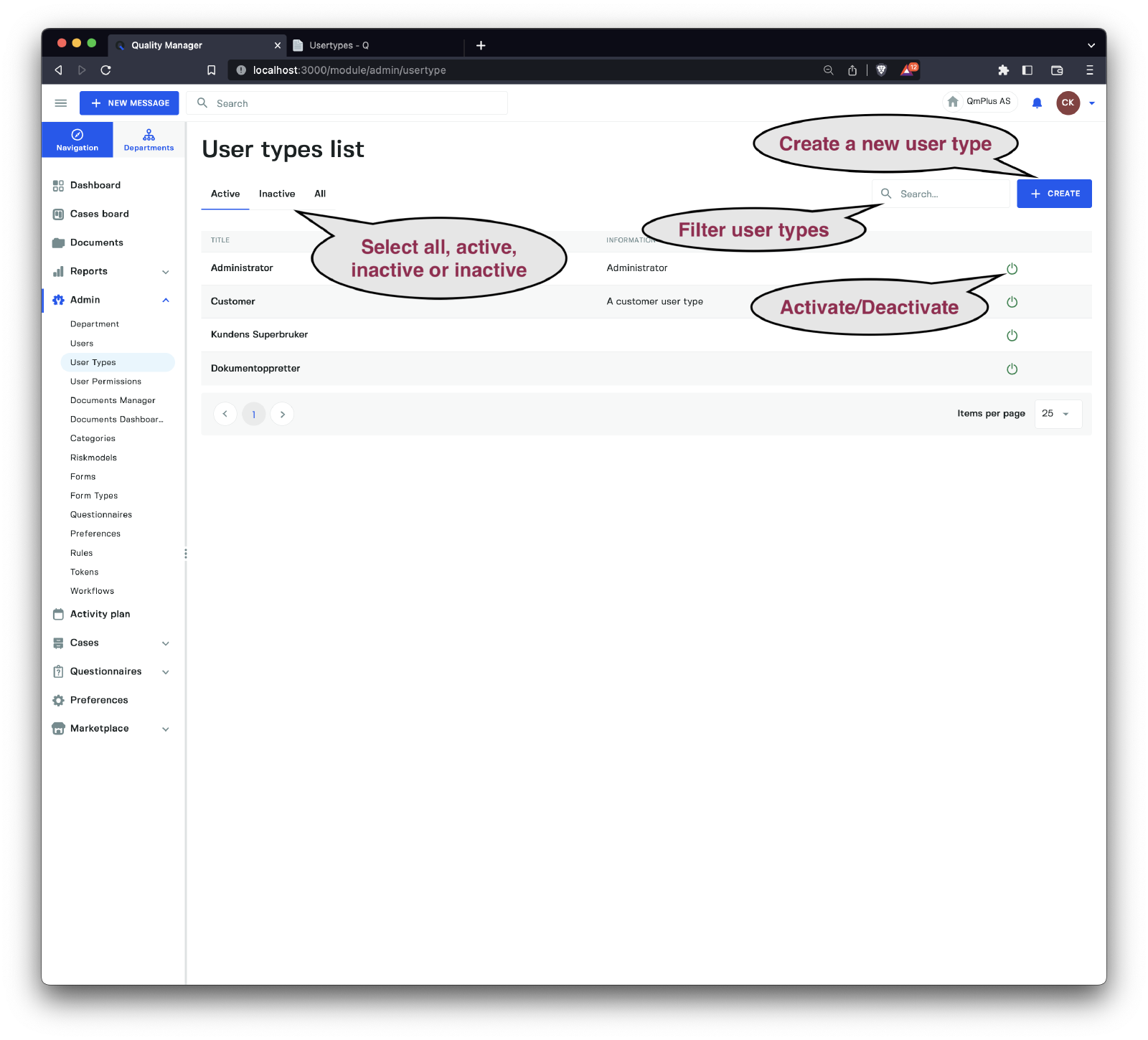
Clicking on the Administrator/User Types gives you access to the list of user types.
From this screen, you can perform the following actions:
Select User Types
Switch between viewing all user types, currently active user types, and inactive user types.
Filter User Types
Use the search box to filter user types by entering relevant text.
Activate/Deactivate
Click on the symbol to deactivate an active user type or activate an inactive user type. Deactivating a user type ensures that it cannot be assigned to other users.
Create a User Type
Click the Create button to open the “create new user type” dialog.
Create a New User Type
The “create new user type” dialog allows you to create a new collection of permissions with an assigned name.
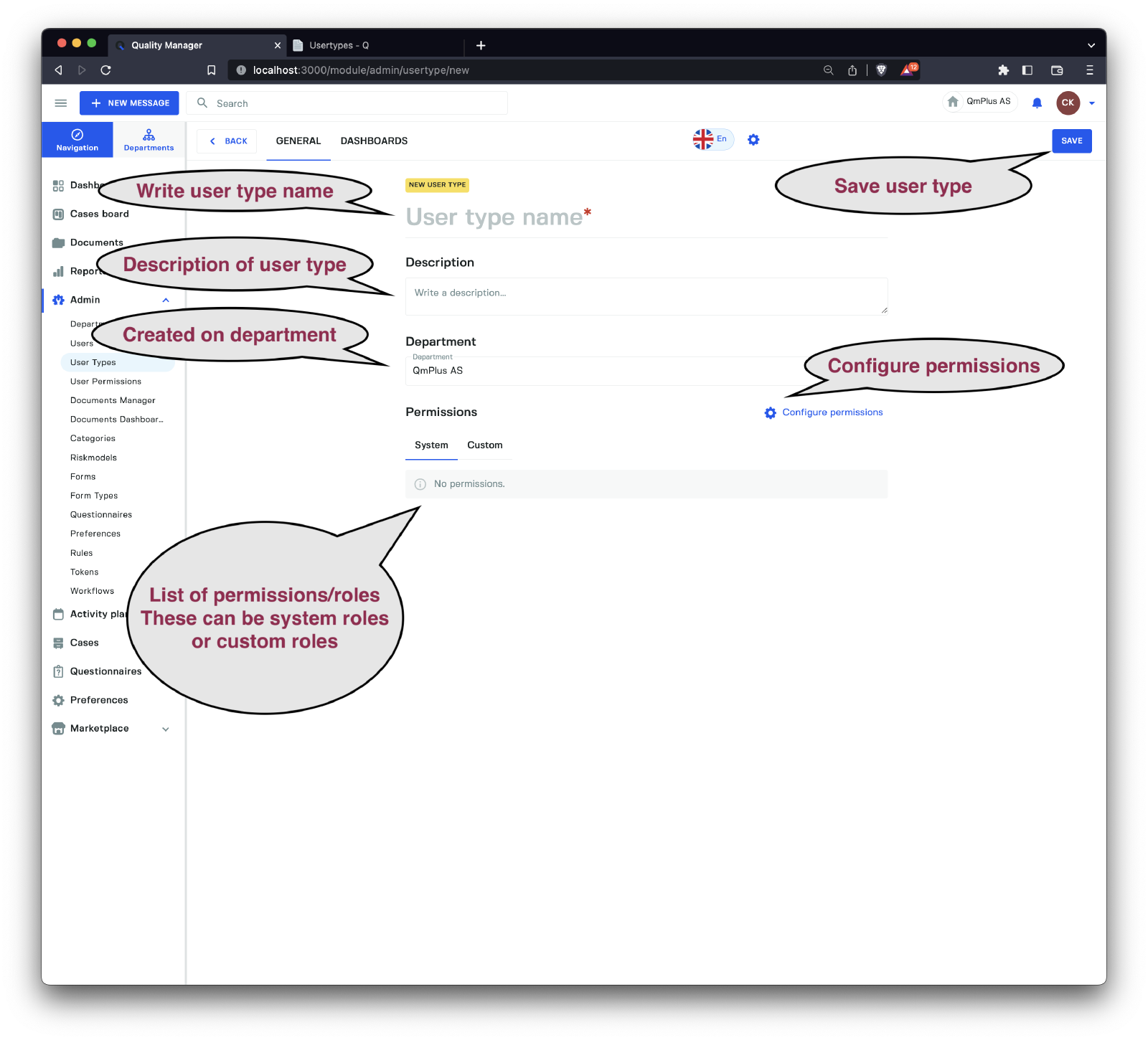
A new user type requires the following fields, as shown in the image:
| Field | Description |
|---|---|
Name | The name of the user type; if multiple languages are configured for your account, you can enter the name in multiple languages. |
Description | The description of the user type; if multiple languages are configured for your account, you can enter the description in multiple languages. |
Department | The department for which this user type is configured. Can be used to limit the availability of user types to specific departments only. |
Permissions | The list of all permissions assigned to this specific user type. |
After filling out the Name and Description fields, select the department (or leave it on the current department), and then click the Configure permissions link to open the sidebar.
A list of all
Systemlevel permissions and their meanings.
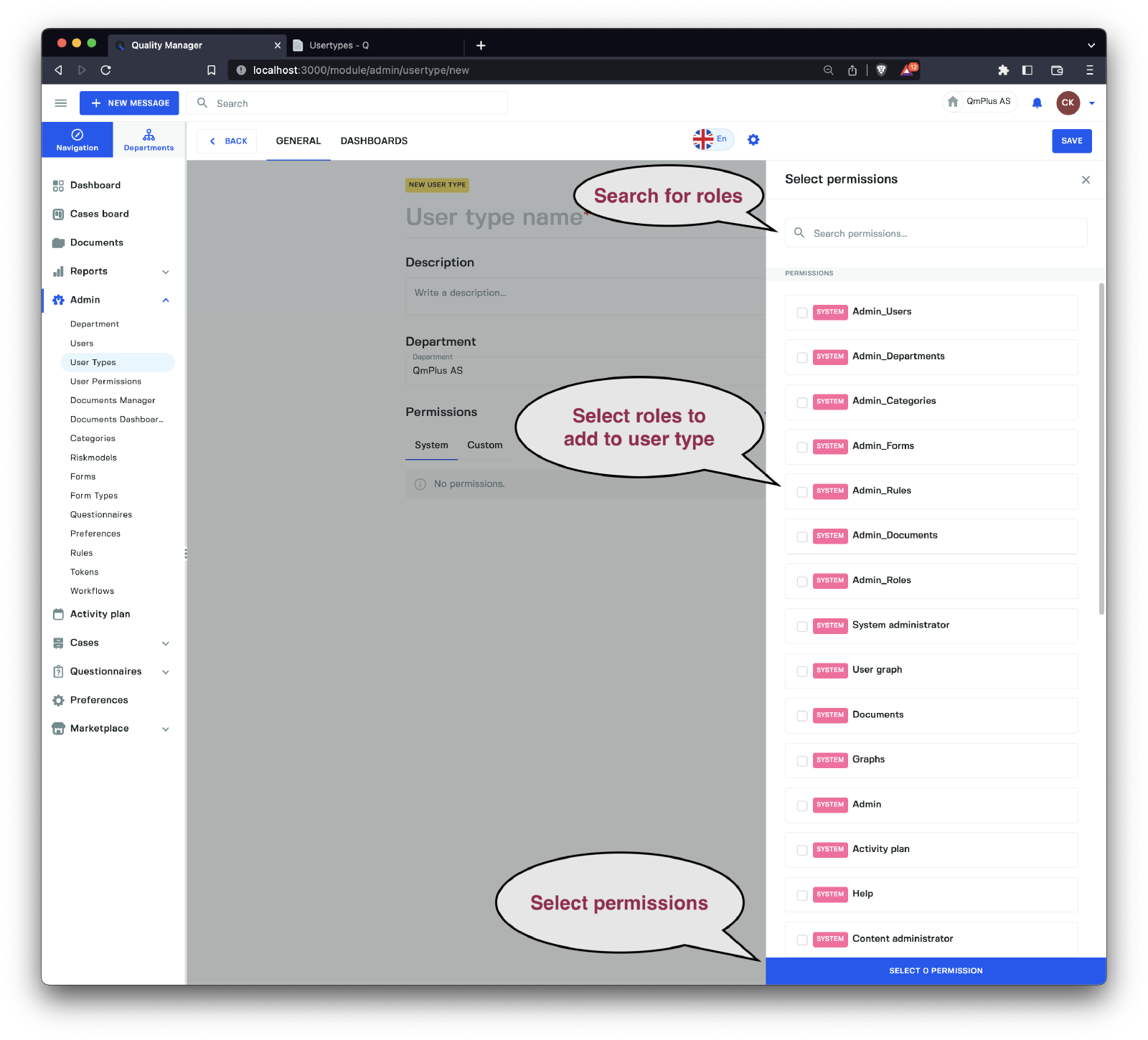
Here, you can select System and Custom roles that you want to add to the user type you are creating.
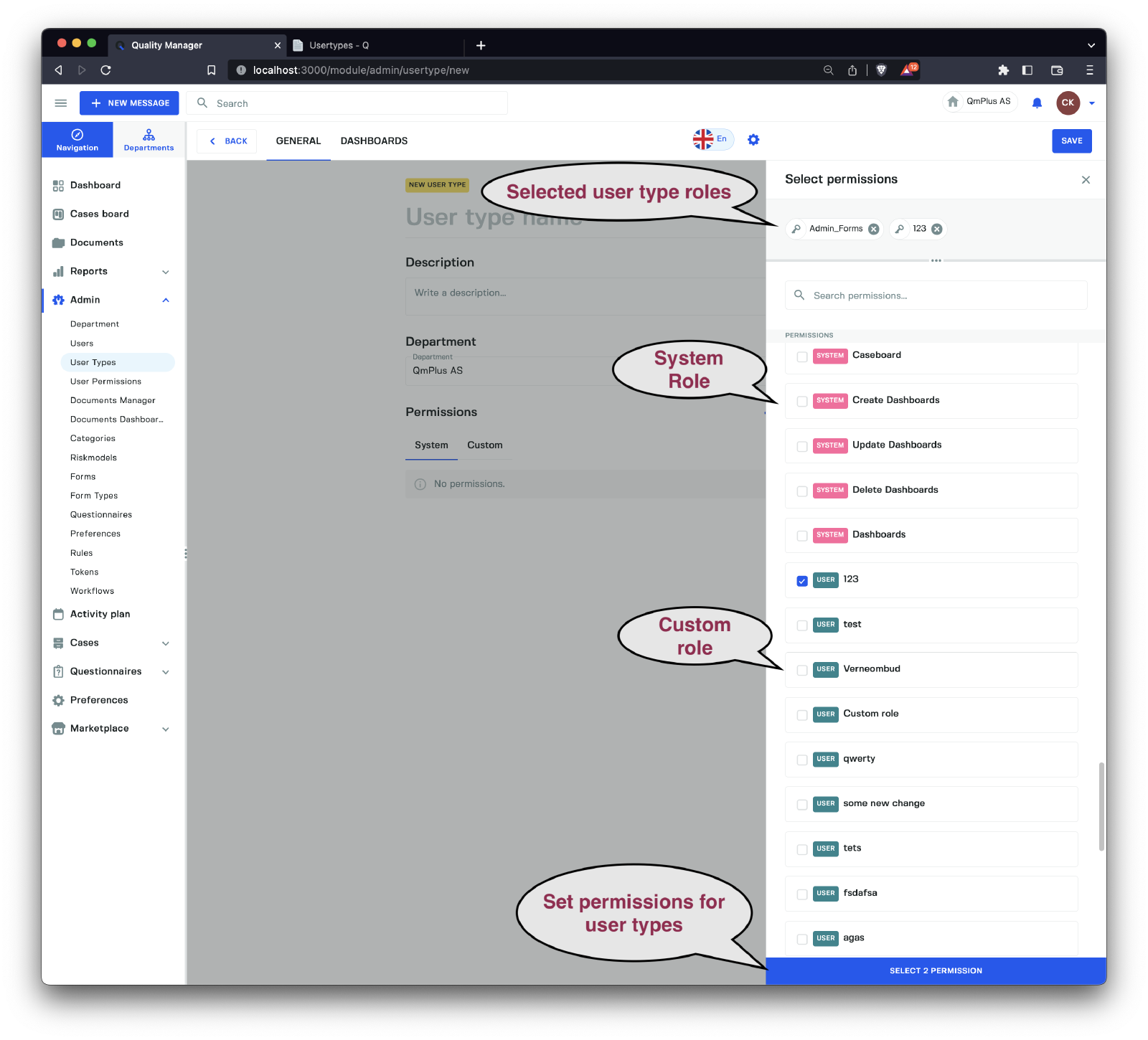
After selecting the desired roles, click the button to set the permissions on the user type.
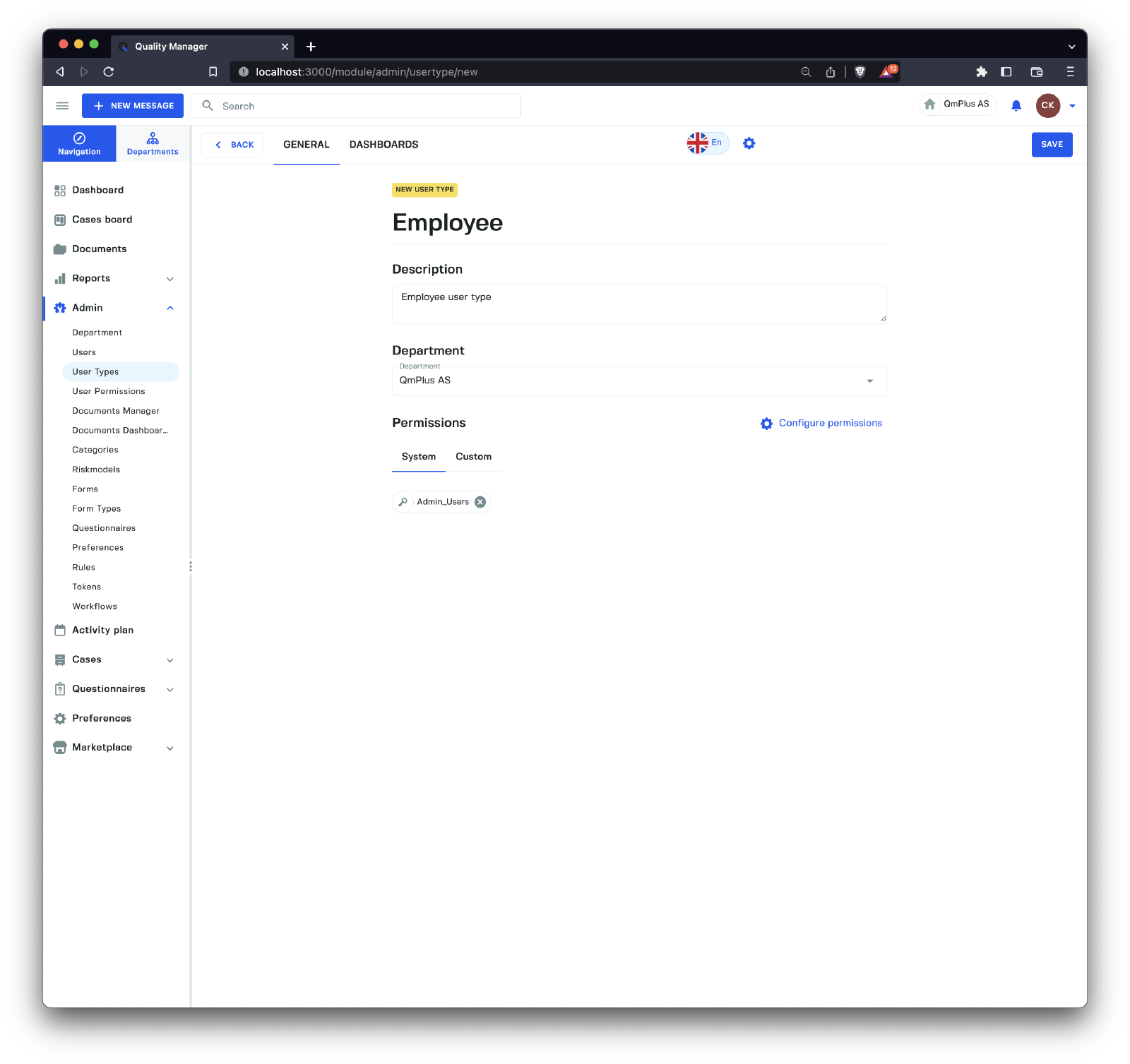
Finally, click the Save button to create the user type.