Tutorials
Hidden Fields
In this tutorial we are going to look at how we can create hidden fields in our forms only accessible by people with the permission can see hidden fields.
This lets us ensure that the content of a field is only visible to people who have the permission to see it.
The associated permission needed to see hidden fields is as follows.
| Permission | Description |
|---|---|
ACCESS_HIDDEN_FIELDS | Access hidden fields in form entries. |
Lets go through the steps to create a hidden field in a form and how to access it.
Create a Hidden Field
Lets start by creating a basic form with two text fields.
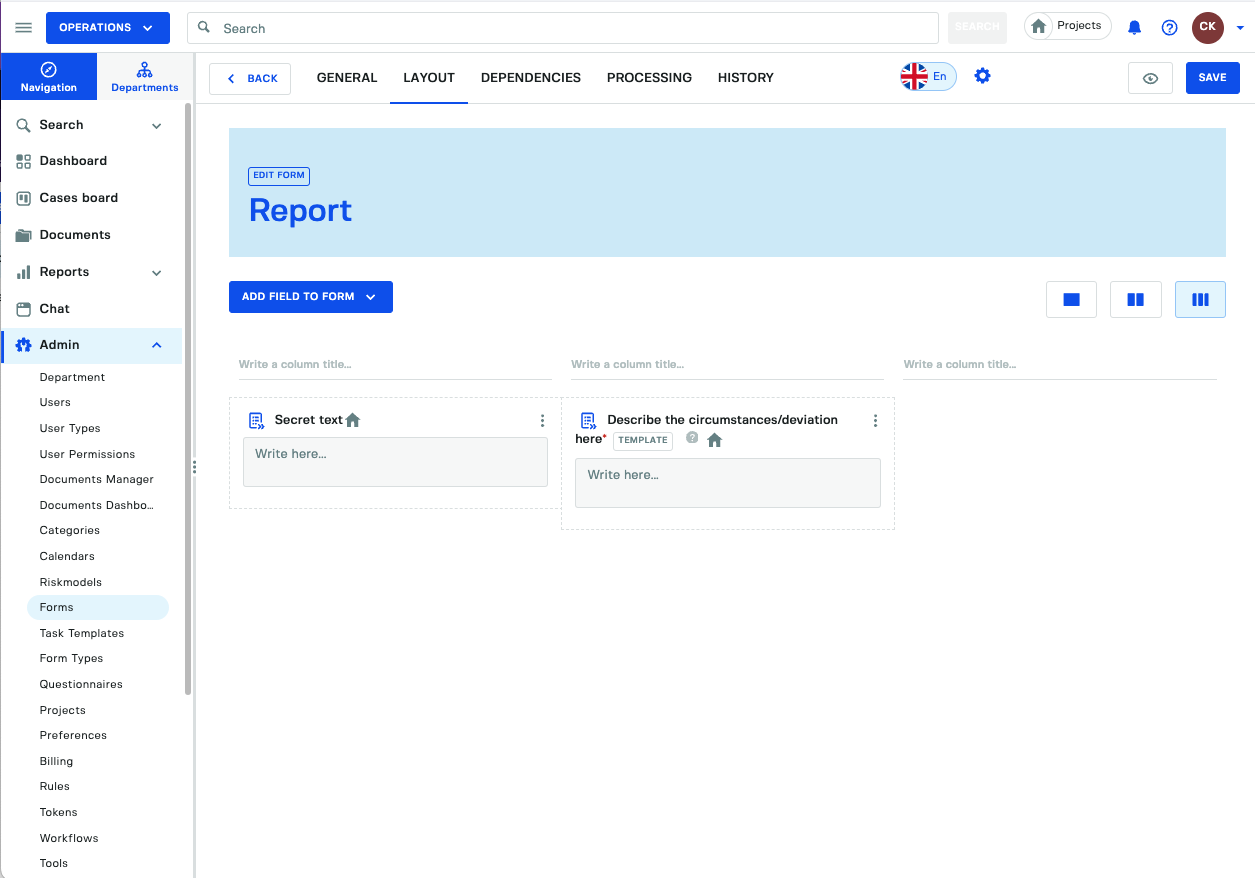
Starting with a basic form with two text fields. We are going to modify the options for the left text field to make it hidden.
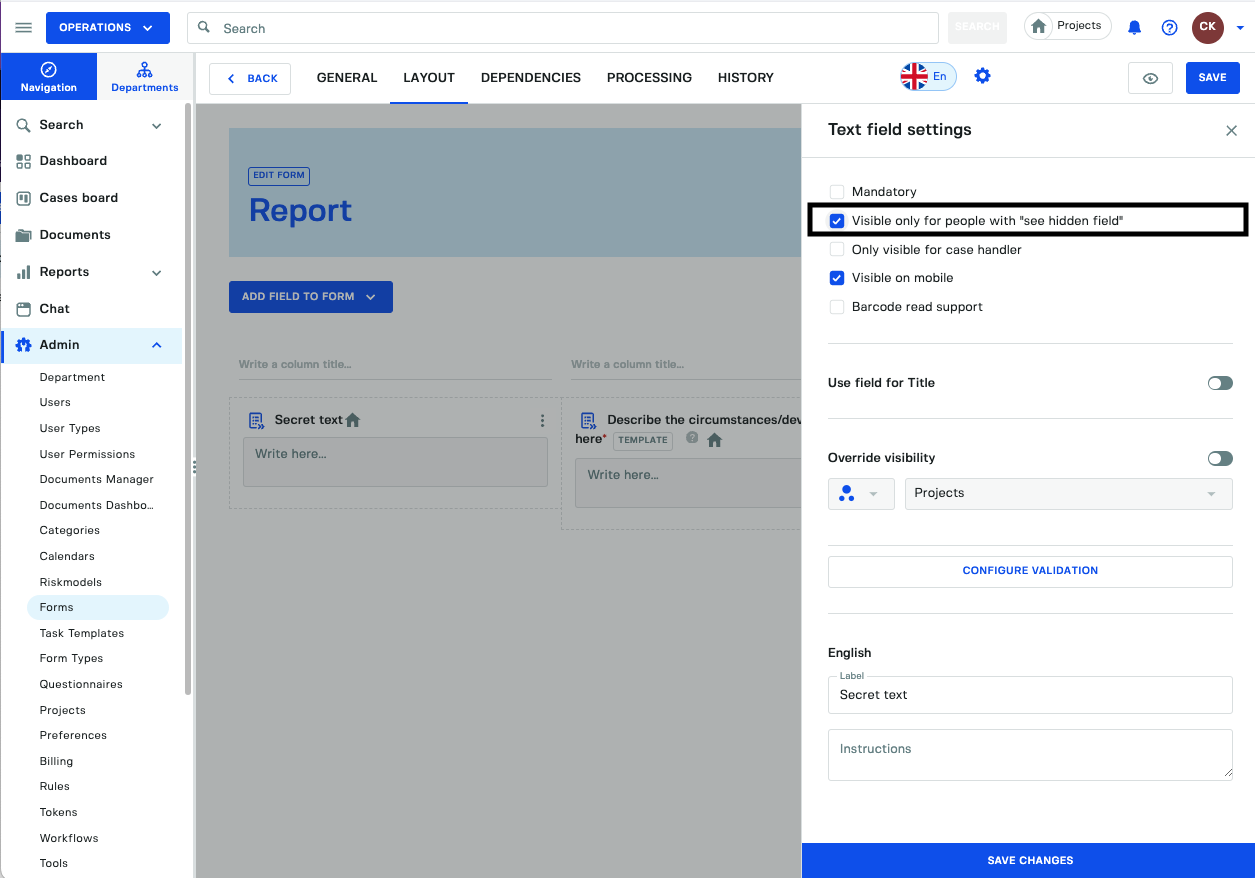
Select the option Visible only for people with see hidden field and then click on save changes to apply it to the form.
The form field content will only be visible for the person who registered the form or users with a the
ACCESS_HIDDEN_FIELDSpermission through a user type or a role directly applied to the user.
Register a Form Entry
Lets register a form entry as an employee to see how the hidden field is displayed. We added some sensitive information in the hidden field.
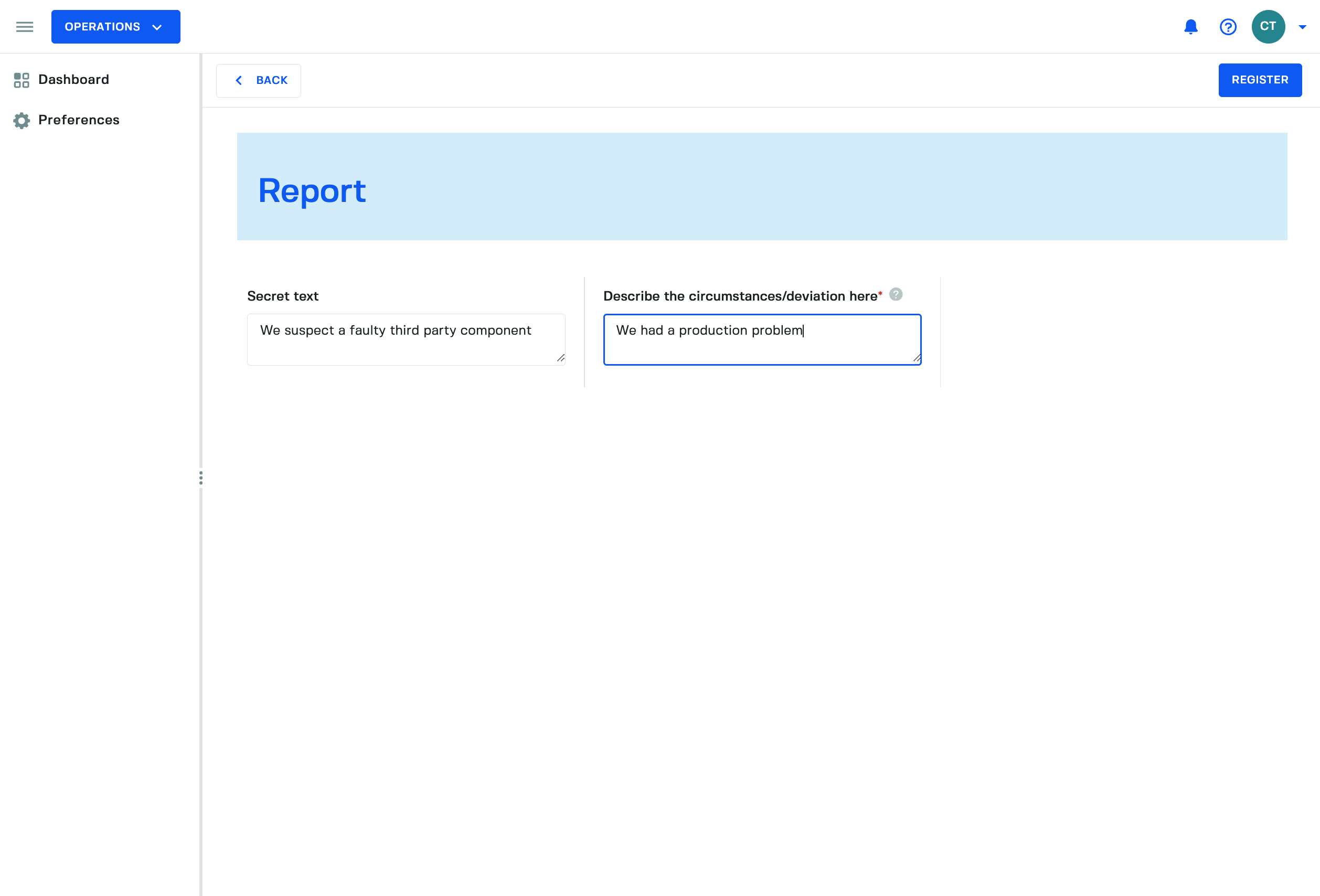
Seeing the form entry with no permission
Lets see how the message looks for a case handler accessing the form who is missing the ACCESS_HIDDEN_FIELDS permission.
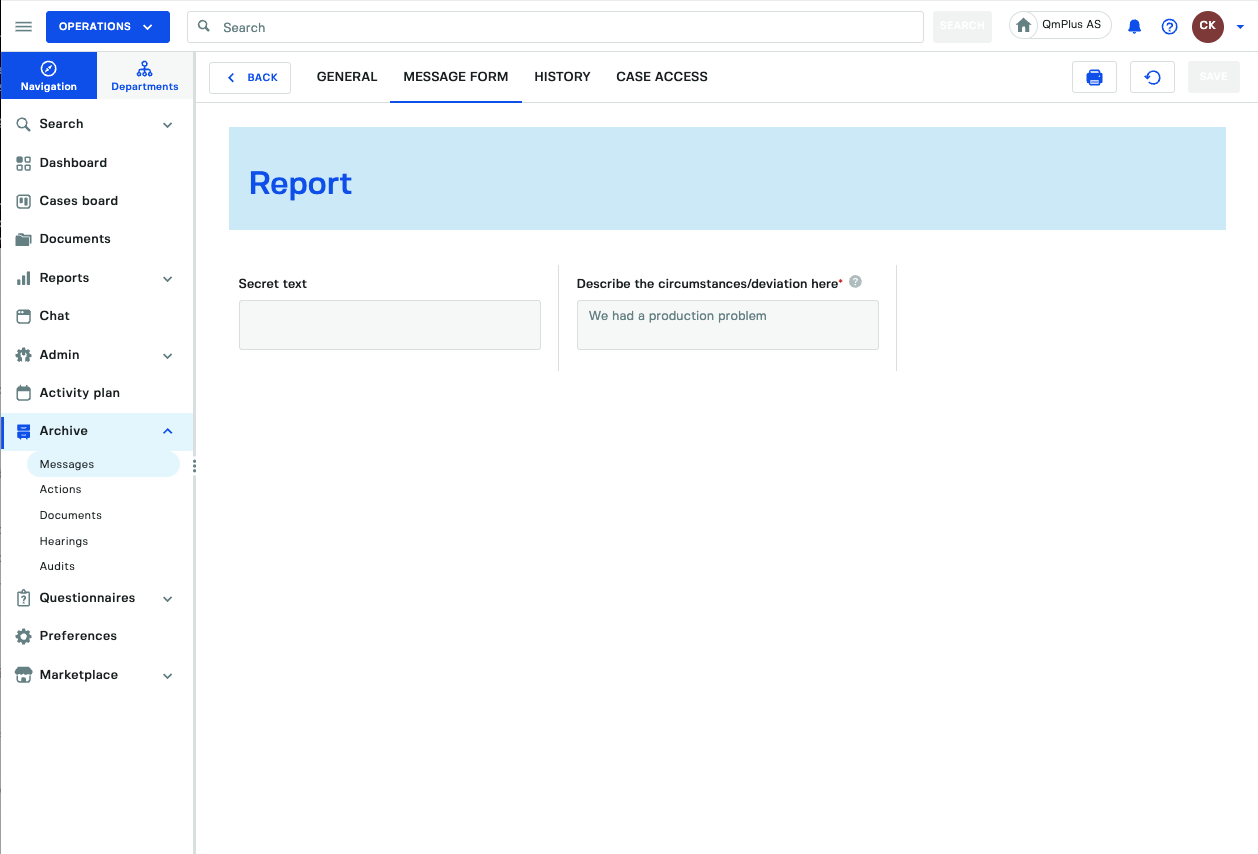
As we can see the case handler does not see any of the information stored in the
secret fieldas they do not have the permission to see it.
Adding the permission to the user
Lets add the ACCESS_HIDDEN_FIELDS permission to the user and see how the form entry looks for them.
In this case we are adding it directly on the use. It could be added to a usertype instead if we wish to give the permission to a group of users.
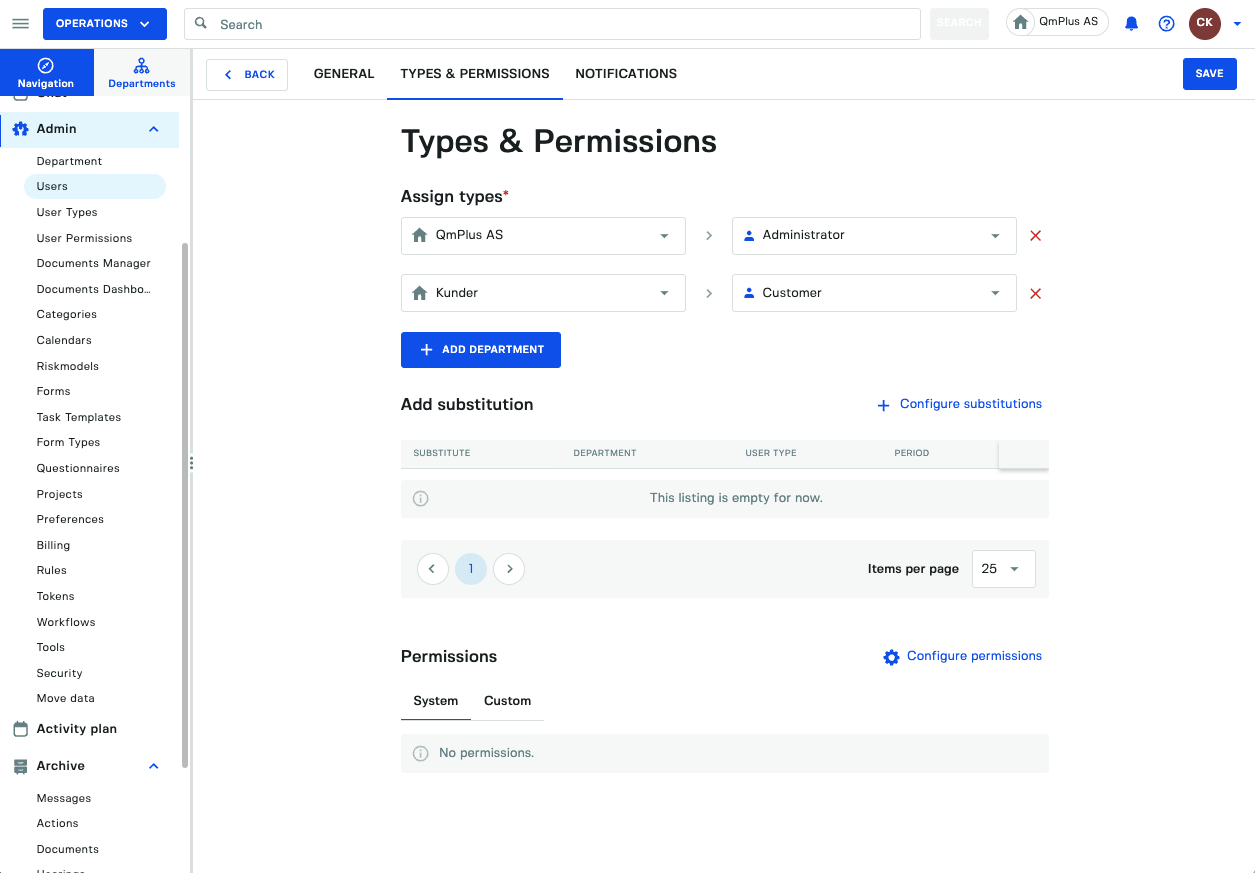
Next click Configure permissions and add the ACCESS_HIDDEN_FIELDS permission to the user.
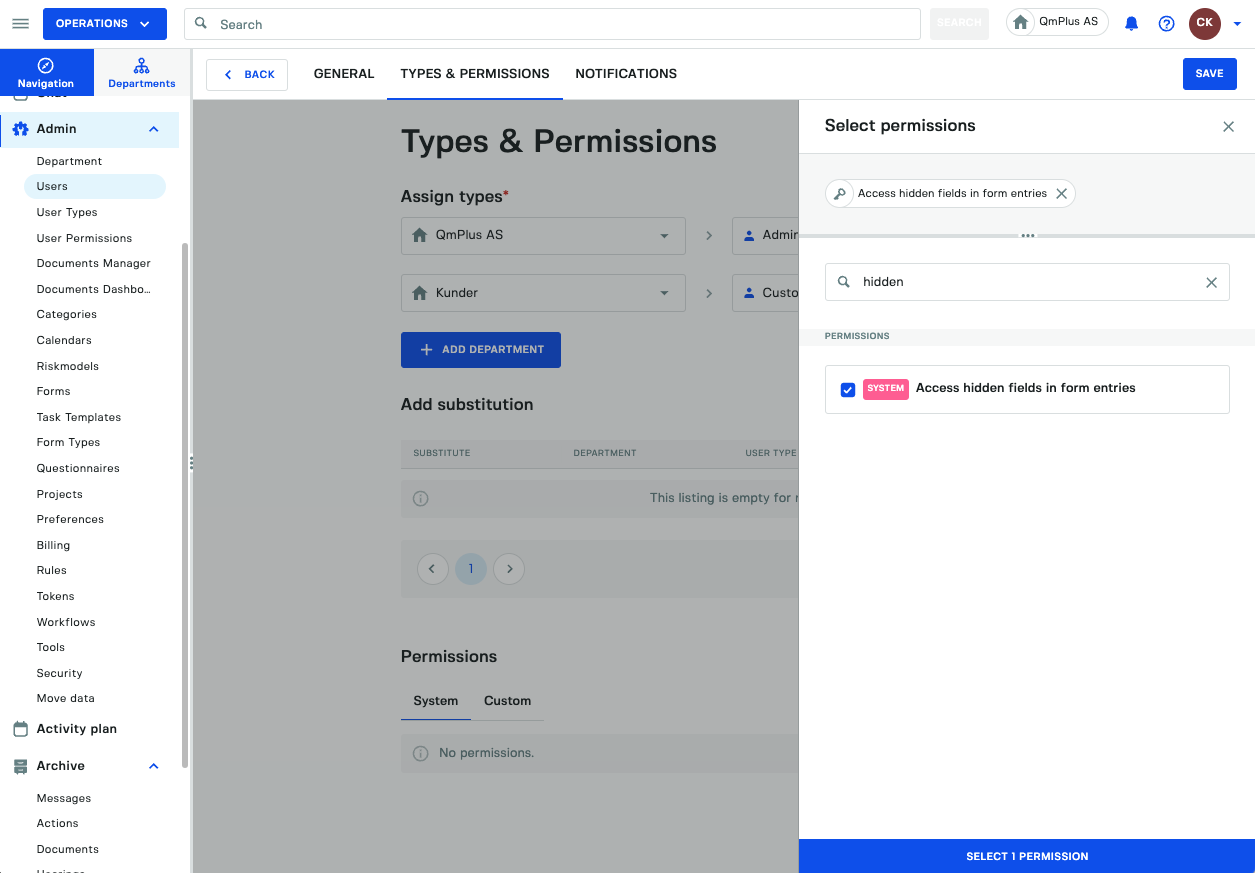
Click on the Select Permission to add the permission to the user and then the Save button to save the changes to the user.
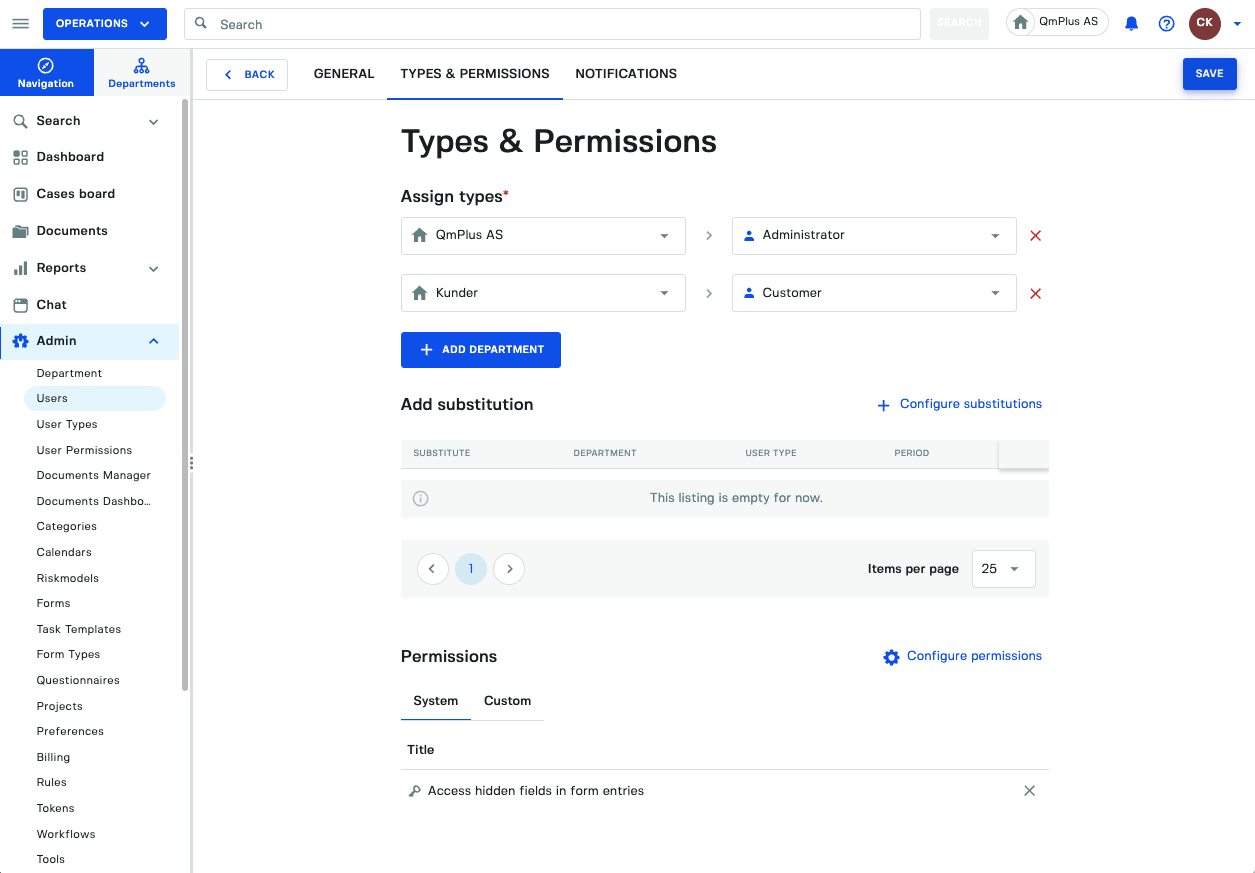
This user now has the permission to see the hidden field in the form.
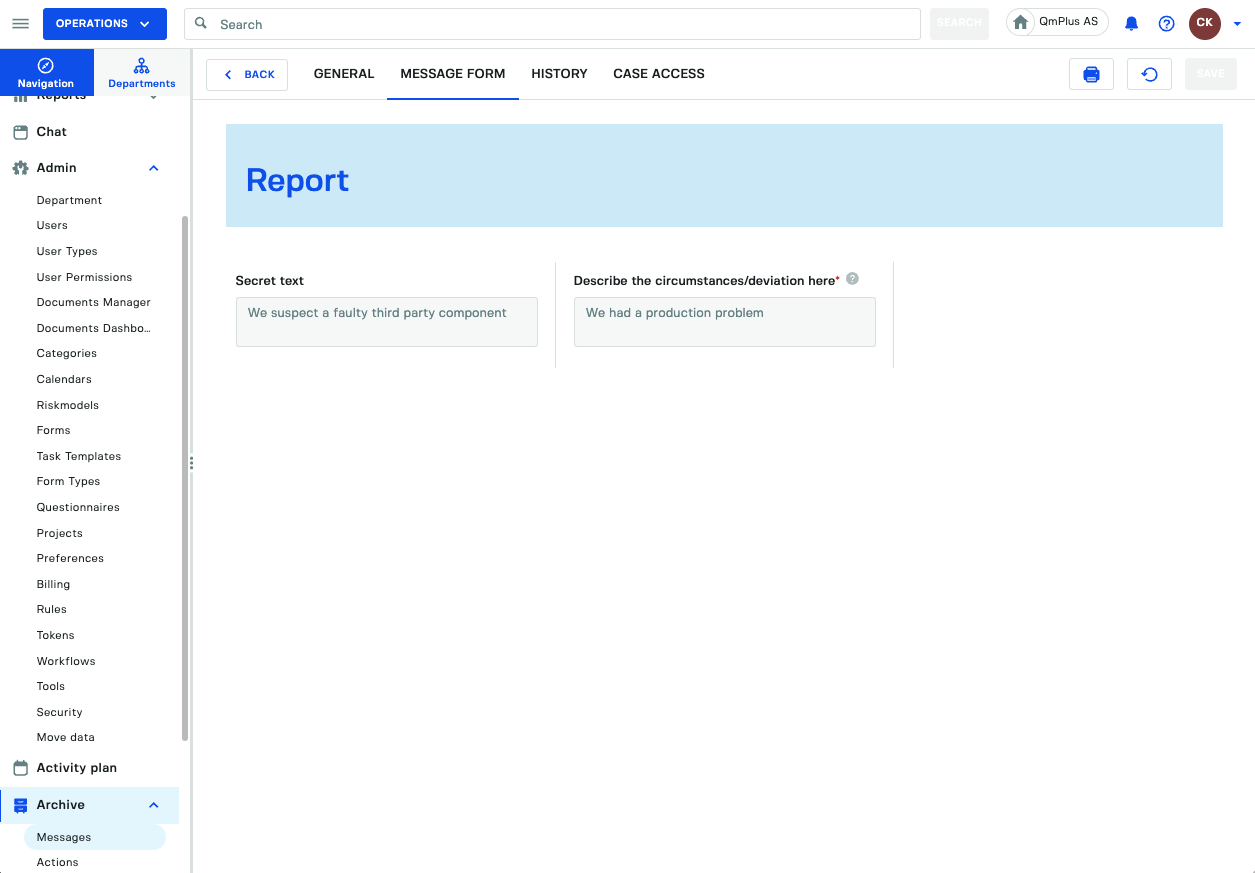
Seeing the form entry with the permission
Going back to the message we can now see the secret message in the field as we have the permission to see it.